Ithal P R

Dynamic DNS (DDNS) keeps a DNS name pointed at an IP address that changes. A small client on your network notices when your public IP changes and updates a DNS record, such as home.example.com, within minutes. It is how people reach a home server, CCTV recorder, NAS or game server on an ordinary broadband line without remembering a new IP every week. You can use a DDNS service, your DNS host’s API, or your own name server. DDNS does not help if your internet provider puts you behind carrier-grade NAT, and it is no substitute for a static IP when a service must always be reachable.
Why you need it: dynamic IP addresses
Many home and small office connections get a public IP from the provider’s pool, and it can change after a router restart, a line drop or a lease renewal. DNS records are normally static: you set home.example.com to one address and it stays there. When the IP changes, the name points at someone else’s connection, or at nothing.
Dynamic DNS closes that gap by updating the record automatically. The name stays the same; only the address behind it moves.
How dynamic DNS works
- A client checks your public IP. It runs on your router, a Raspberry Pi, a NAS or any always-on machine. It asks a “what is my IP” web service, or reads the address from the router.
- It compares the IP with the last one it sent. If nothing changed, it does nothing.
- If the IP changed, it sends an authenticated update to the DNS service: an HTTPS API call to a DDNS provider or DNS host, or a standard DNS UPDATE message to your own name server.
- The record changes, and because DDNS records use a short TTL (we used 60 seconds), resolvers pick up the new address quickly.
The DNS UPDATE message is defined in RFC 2136, which lets a client add or delete records in a zone. The RFC itself warns that without authentication, anyone who can reach the name server could change its zones. That is why real setups sign every update with a shared key, called TSIG (RFC 8945), and allow each key to change only its own names.
Three ways to set up DDNS
| Option | Name you get | Good for | Watch out for |
|---|---|---|---|
| A dynamic DNS service | Usually a subdomain of the service | Quick start, routers with a built-in DDNS menu | Read the terms for free names; you depend on the service |
| Your DNS host’s API | Any name in your own domain | People whose domain is already on a DNS host with an API | Use an API token limited to the one zone |
| Your own name server (RFC 2136) | Any name in a zone you run | Anyone with a VPS running BIND, PowerDNS or Knot | You maintain the server and its keys |
If your router has a DDNS setting and supports your provider, that is the simplest client, because the router always knows its WAN address. Otherwise use a client on a machine inside the network. A widely used open-source client is ddclient, which supports dozens of services, including the DNS UPDATE protocol and Cloudflare’s API. Debian 13 ships ddclient 3.11.2; the project’s latest release on GitHub is 4.0.0.
Example: your own dynamic DNS with BIND and ddclient
If you already run a name server for your domain, you do not need a third-party service. We tested this with BIND 9.20.29 and ddclient 3.11.2 in Debian 13 containers, for the name home.example.test.
1. Create a key on the name server
tsig-keygen -a hmac-sha256 ddns-home > /etc/bind/ddns-home.keyThe file holds a key "ddns-home" block with the algorithm and a random secret. Copy it to the machine that will run the client, and keep it private.
2. Allow that key to update one name
include "/etc/bind/ddns-home.key";

zone "example.test" {
    type primary;
    file "/var/lib/bind/example.test.zone";
    update-policy {
        grant ddns-home name home.example.test. A AAAA;
    };
};
The update-policy line is the important part: this key may change only the A and AAAA records of home.example.test. Keep the zone file in a directory BIND can write to, because BIND records the updates.
3. Test an update by hand
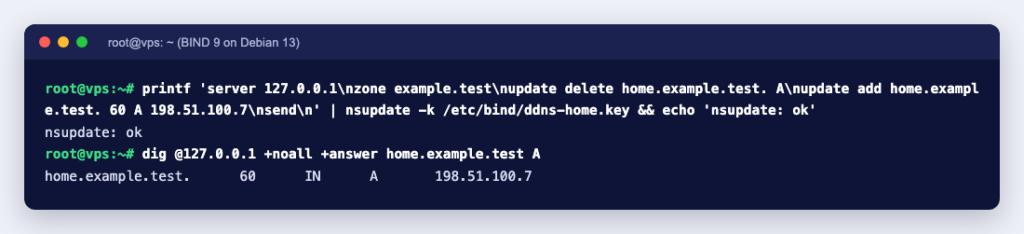
$ nsupdate -k /etc/bind/ddns-home.key <<'EOF'
server 127.0.0.1
zone example.test
update delete home.example.test. A
update add home.example.test. 60 A 198.51.100.7
send
EOF

$ dig @127.0.0.1 +noall +answer home.example.test A
home.example.test.	60	IN	A	198.51.100.7
Then we checked the limits. The same key trying to change www.example.test, and an update sent with no key at all, were both rejected with update failed: REFUSED, and the records stayed as they were.
4. Let ddclient do it automatically
On the machine at home, install ddclient and put this in /etc/ddclient.conf (with chmod 600):
daemon=300
usev4=webv4, webv4=https://ipinfo.io/ip
protocol=nsupdate
server=ns1.example.test
login=/usr/bin/nsupdate
password=/etc/bind/ddns-home.key
zone=example.test
ttl=60
home.example.test
usev4=webv4 tells ddclient to learn the public IPv4 address from a web page, daemon=300 checks every five minutes, and for the nsupdate protocol password is the path to the key file. In our test (with daemon=0, server=127.0.0.1 and a fixed test address) a forced run with ddclient -force showed exactly what it sends:
UPDATE:   nsupdate command is: /usr/bin/nsupdate -k /etc/bind/ddns-home.key
UPDATE:   nsupdate instructions are:
UPDATE:   server 127.0.0.1
UPDATE:   zone example.test.
UPDATE:   update delete home.example.test. A
UPDATE:   update add home.example.test. 60 A 198.51.100.8
UPDATE:   send
SUCCESS:  updating home.example.test: 1: IP address set to 198.51.100.8
With the webv4 line above, ddclient fetched our real public address and wrote it to the record in the same way. Older guides use use=web; in ddclient 3.11 its help marks use= as deprecated in favour of usev4 and usev6. For IPv6, add usev6 the same way and the key already allows AAAA records.
When dynamic DNS will not work
- Carrier-grade NAT (CGNAT). Some providers share one public IP between many customers. Your router’s WAN address is then private, often in the 100.64.0.0/10 range that RFC 6598 reserves as shared address space. DDNS will faithfully publish the shared public IP, but incoming connections never reach you. Compare the WAN IP on your router with the IP a “what is my IP” page shows; if they differ, you are behind NAT you do not control. Ask your provider for a public IPv4 address, or use IPv6 if they offer it.
- No port forwarding. DDNS only fixes the name. Your router still has to forward the port to the right machine, and its firewall has to allow it.
- Blocked ports. Some home internet plans do not allow incoming traffic on server ports. Check your provider’s terms before you plan around a port.
- Services that need a stable IP. Mail servers are the classic case. Google’s sender guidelines require valid forward and reverse DNS (PTR) for the sending IP, and on a home line you usually cannot set the PTR record. IP allow-lists elsewhere also break every time the address changes.
Security checklist
- Give each device its own key or API token, limited to one name or one zone.
- Keep the config file readable only by root; it contains the secret.
- Expose only what you need. A DDNS name makes your home IP easy to find, so every forwarded port is reachable by anyone who looks it up.
- Put a login in front of admin pages (NAS, camera, router) or reach them over a VPN instead of forwarding them.
Dynamic DNS or a server with a static IP?
DDNS is ideal for reaching your own devices at home. For anything other people depend on, such as a website, a mail server, a shop or a game server for your community, a server with a fixed IP is simpler and more reliable: no update client, no NAT, and reverse DNS you can set. Our guide to getting a static IPv4 address with a VPS or dedicated server explains the options. A KVM VPS can also run the name server for your own DDNS zone, as in the example above. To check your records as you go, see DNS lookup commands: dig, nslookup and host.