Vishnu
You may not need a page builder plugin at all. WordPress has shipped its own visual block editor since version 5.0, and with a block theme the Site Editor lets you design headers, footers and templates too. Page builder plugins fall into two groups: add-ons that give the block editor extra blocks (such as Kadence Blocks or GenerateBlocks), and separate drag-and-drop builders with their own editor (such as Elementor, Beaver Builder or SiteOrigin Page Builder). All of these have free versions on WordPress.org. We tested the two approaches side by side, and the difference that matters most is not features but what each one adds to every page load.
Start with what WordPress already includes
According to the WordPress block editor documentation, the block editor (also called Gutenberg) became the default editor with WordPress 5.0. Every part of a page is a block: headings, paragraphs, images, columns, buttons, galleries. Ready-made layouts, called patterns, can be inserted from the editor, and the Site Editor lets you design the whole site, including header and footer, with blocks, as long as you use a block theme.
Our test site ran WordPress 7.1.4 with its default theme, Twenty Twenty-Five, which is a block theme. For many business sites, brochure pages and blogs, that is enough. A page builder earns its place when you need design controls the core blocks do not have, such as per-device spacing, animations, advanced forms or sliders, or when your designer already works in a particular builder.
Two kinds of page builder plugin
| Plugin (free version) | Type | What the WordPress.org listing says |
|---|---|---|
| Elementor 4.4.0 | Separate visual builder | Drag-and-drop editor, now the “Atomic Editor” in version 4; Theme Builder and Popup Builder are marked Pro |
| Beaver Builder Lite 2.11.1.2 | Separate visual builder | Front-end drag-and-drop editing; extra modules and the Beaver Themer theme builder are premium |
| Page Builder by SiteOrigin 2.38.0 | Separate builder based on widgets | Column layouts built from WordPress widgets; can also be inserted into the block editor as a layout block |
| Kadence Blocks 3.9.1 | Block editor add-on | Custom blocks such as Advanced Button, Advanced Form, Accordion and Advanced Gallery inside the native editor |
| GenerateBlocks 2.5.1 | Block editor add-on | A small set of blocks (Container, Grid, Text, Button, Query, Image, Shape) that work with any theme |
Version numbers are from the WordPress.org plugin directory at the time of writing; each listing showed it was tested with WordPress 7.1.4. Block add-ons keep you in the editor WordPress ships, so your content stays ordinary blocks. Separate builders bring their own editing screen for the pages you build with them, and Elementor, which we tested, stores the layout in its own format.
We built the same page three ways
In containers we set up WordPress 7.1.4 (PHP 8.3.36, Apache 2.4.69, MariaDB 11.8.9) and made one small page three times: a heading, a line of text and an “Order now” button. Page one used core blocks only. Page two was saved through Elementor 4.4.0’s own document API, the same code its editor uses. Page three used a GenerateBlocks 2.5.1 Text block for the heading. Yoast SEO was active on all three, so its overhead was equal. Then we downloaded each page and every local stylesheet and script it loaded:
| Page | Stylesheet files | Script files | Script size (uncompressed) |
|---|---|---|---|
| Core blocks only | 0 (styles inline in the page) | 1 | 3,033 bytes |
| GenerateBlocks | 0 (styles inline in the page) | 1 | 3,033 bytes |
| Elementor | 8 (6 local, 61,454 bytes, plus 2 from fonts.googleapis.com) | 7 | 243,019 bytes |
For the same three elements, the Elementor page loaded jQuery, jQuery Migrate, jQuery UI core and Elementor’s own front-end scripts, plus its CSS files and two Google Fonts stylesheets (Roboto and Roboto Slab). The block pages loaded only the script for the theme’s navigation block. A real site will differ, and caching and compression shrink the transfer, but the pattern is typical: a separate builder brings its own front-end framework to every page it touches. Fewer requests help speed; see how to reduce the HTTP requests your WordPress site makes.
Elementor and Google Fonts
By default, the Elementor page fetched its fonts from Google’s servers, so every visitor’s browser also connects to Google. Elementor 4.4.0 has two settings for this under Elementor, Settings: Google Fonts (Enable or Disable) on the Advanced tab, and Load Google Fonts Locally on the Performance tab, which Elementor describes as serving fonts “from your own server instead of Google’s” for performance and GDPR compliance. When we turned local loading on (in our first round of tests, on Elementor 4.3.2), the two Google stylesheets were replaced by /wp-content/uploads/elementor/google-fonts/css/roboto.css and robotoslab.css, and 25 font files appeared in that folder. The first page view afterwards was slow while the server downloaded them, which matches Elementor’s note that the very first load may take longer.
What happens if you switch the plugin off
Page builder “lock-in” is the fear that your content disappears when the plugin goes. We deactivated each plugin and reloaded the pages.
Elementor off: Elementor had saved the layout as JSON in the page’s _elementor_data field, but it also wrote a plain HTML copy into the normal post content. With the plugin deactivated, the page still showed the text:
<h2>Fresh bread every morning</h2>
<p>Order before 9 pm and collect from 7 am.</p>
<p>  <a href="/order"><br />
        Order now<br />
   </a></p>
The words survived, but the layout, spacing and button styling were gone, and the button became a plain link wrapped in stray line breaks. On a page with columns, tabs or sliders you would have to rebuild the design by hand.
GenerateBlocks off: the heading kept its HTML, <h2 class="gb-text gb-text-a1b2c3d4">, because blocks save their HTML in the post content. Only the generated CSS rule (color:#b00000;font-size:40px) disappeared, so the heading fell back to the theme’s style. Nothing to rebuild, just some styling to redo.
So neither choice loses your words, but block add-ons degrade much more gently. That matters if you might change builder, theme or agency later. If you do remove a builder, use the steps in How to Deactivate or Remove a Plugin from Your WordPress Site and check each page afterwards.
How to choose
- Try the block editor first with a block theme and patterns. If it does what you need, you avoid an extra plugin to update and secure.
- Need a few more design controls? Add one block add-on rather than a full builder. Your pages stay ordinary blocks.
- Need a visual drag-and-drop editor for non-technical editors, or a designer’s templates? A separate builder is reasonable. Use it for the pages that need it, and check its asset and font settings.
- Do not stack builders. Two builders on one site means two sets of scripts, styles and updates.
- Check what is free. Several listings mark key features, such as a theme builder or extra modules, as Pro or premium. Read the plugin page before you design around a feature.
- Test on a staging copy and measure: open the browser’s developer tools, reload, and count the requests and size before and after.
Installing a page builder
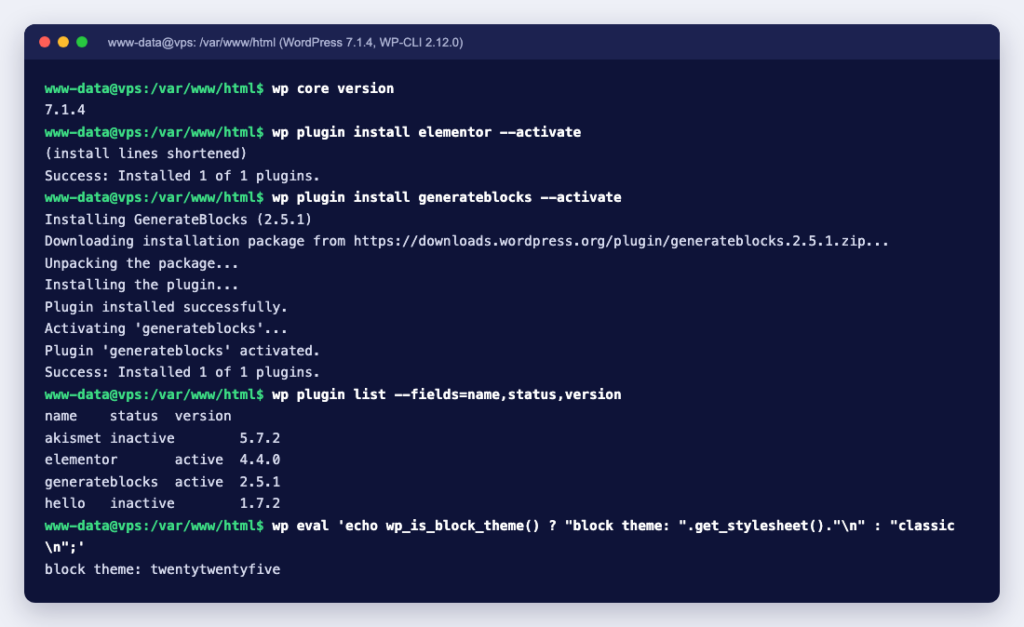
All the plugins above install like any other from Plugins, Add Plugin in the dashboard (see How to install a WordPress plugin), or with WP-CLI on a server:
$ wp plugin install generateblocks --activate
Success: Installed 1 of 1 plugins.
$ wp plugin list --fields=name,status,version
name            status    version
akismet         inactive  5.7.2
elementor       active    4.4.0
generateblocks  active    2.5.1
hello           inactive  1.7.2
wordpress-seo   active    28.8
Plugin code lives in wp-content/plugins, and Elementor also writes generated CSS and fonts to wp-content/uploads/elementor; What is in the wp-content folder explains the layout, which is useful when you back up or move the site. If a builder’s editor will not load or the admin slows down after installing one, How to Fix Common WordPress Errors covers memory limits and plugin conflicts.
A page builder is a trade: easier visual editing in exchange for extra code on every page and a layout format tied to one plugin. Start with the block editor, add as little as you need, and host the site where you can see the effect. Ucartz web hosting includes free SSL and NVMe storage, and if pages still feel slow, why website speed matters explains what slows a site down and when to upgrade your hosting.