Short answer: Yoast SEO is a free WordPress plugin that writes the technical SEO parts of every page for you: the title tag, meta description, canonical URL, robots rules, social sharing tags, schema markup and an XML sitemap. In the editor it also checks each post for a chosen keyphrase and for readability. To set it up, install it from Plugins, run the first-time configuration, check a handful of settings, then write a proper SEO title and meta description for each important page and submit the sitemap to Google Search Console. We tested everything below with Yoast SEO 28.6 on WordPress 7.1.2.
What Yoast SEO adds to your pages
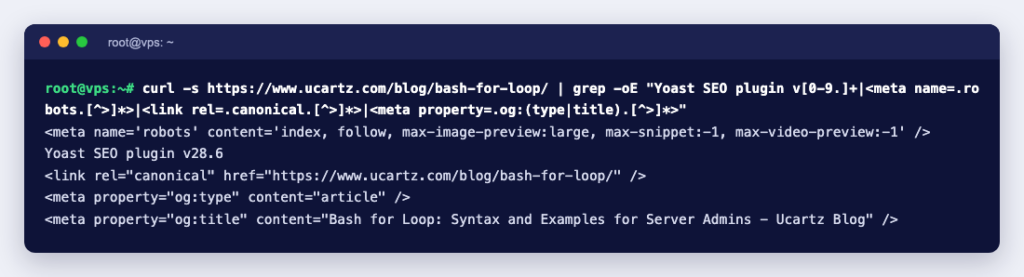
After activating the plugin on a fresh site, this is what appeared in the <head> of a blog post, trimmed a little:
<meta name='robots' content='index, follow, max-image-preview:large, max-snippet:-1, max-video-preview:-1' />
<link rel="canonical" href="https://example.com/fresh-bread-every-morning-in-kollam/" />
<meta property="og:type" content="article" />
<meta property="og:title" content="Fresh Bread Every Morning in Kollam - Asha Bakery" />
<meta property="og:description" content="We bake bread every morning." />
<meta name="twitter:card" content="summary_large_image" />
<script type="application/ld+json" class="yoast-schema-graph">...</script>
<title>Fresh Bread Every Morning in Kollam - Asha Bakery</title>
Two things are worth noticing. The title is built from a template, post title, separator, site name, until you write your own. And there is no meta description tag until you write one: Yoast used the post text for the social og:description, but only printed <meta name="description"> after we filled in the meta description field.
The plugin also replaced WordPress’s built-in sitemap. /wp-sitemap.xml now answered with a 301 redirect to /sitemap_index.xml, which listed separate sitemaps for posts, pages, categories and authors. And robots.txt gained a Yoast block with a Sitemap: line pointing to the index.
Step 1: Install and activate
- In your WordPress dashboard, go to Plugins and choose Add Plugin.
- Search for Yoast SEO, then select Install Now and Activate.
- A new Yoast SEO menu appears with General, Settings, Integrations, Tools and more.
If you manage the site from the command line, WP-CLI does the same in one line:
wp plugin install wordpress-seo --activateThe plugin’s listing on WordPress.org shows the current version and, at the time of writing (version 28.6), a minimum of PHP 7.4.
Step 2: Run the first-time configuration
Open Yoast SEO, then General, and choose the First-time configuration tab. It walks you through five steps: SEO data optimization, Site representation (whether the site is an organisation or a person, with its name and logo), Social profiles, Personal preferences and Finish configuration. Yoast uses these answers for the schema markup that tells search engines who is behind the site. You can change them later under Settings.
Step 3: Check these settings
Go to Yoast SEO, then Settings. The defaults are sensible, but these sections are worth a look:
| Section | What to check |
|---|---|
| General, Site features | SEO analysis, readability analysis and XML sitemaps are switched on |
| General, Site basics | Site name, tagline and the title separator |
| General, Site representation | Organisation or person, name and logo |
| General, Site connections | Verification codes for Google, Bing and other webmaster tools, if you verify that way |
| Content types | “Show posts in search results” and the title and meta description templates for posts and pages |
| Categories & tags | Whether category and tag archives should appear in search |
| Advanced | Author archives, date archives and media pages; a single-author blog often hides author and date archives, which only repeat the same posts |
Hiding something in search has a visible effect. We set one page to noindex: it immediately disappeared from page-sitemap.xml, and its robots tag changed to noindex, follow.
Step 4: Optimise each post in the editor
Below the editor (or in the Yoast sidebar) you will find these fields for every post and page:
- Focus keyphrase: the search phrase this page should answer. It only drives Yoast’s own checks and is not sent to Google. The free plugin analyses one keyphrase per post; Premium allows up to five, according to the plugin’s readme.
- SEO title: what appears in the
<title>tag and often as the headline in search results. Keep it specific and put the important words first. - Slug: the last part of the URL. Short and readable is best; change it on published posts only with a redirect in place.
- Meta description: a one- or two-sentence summary. Google says it sometimes uses the meta description for the snippet when it describes the page better than text taken from the page, that there is no length limit but snippets are truncated to fit the screen, and that identical descriptions on every page are not helpful.
The SEO and readability analyses use the red, orange and green system the plugin is known for. Treat them as a checklist, not a score to chase: a green light does not guarantee a ranking, and a sensible page with an orange light is fine.
Step 5: Submit your sitemap
Add your site to Google Search Console and submit https://yourdomain.com/sitemap_index.xml in the Sitemaps report. Google’s sitemap guide says the report shows when Googlebot read the sitemap and any errors, and that a sitemap is a hint, not a guarantee of crawling. The Sitemap: line Yoast adds to robots.txt helps other search engines find it too. Our KB also has a general guide on how to use a sitemap.
Mistakes we reproduced
| Mistake | What happened in our test | Fix |
|---|---|---|
| “Discourage search engines from indexing this site” left ticked after moving from staging | Every page got noindex, nofollow, even with Yoast set to show them | Untick it under Settings, Reading, Search engine visibility |
| Two SEO plugins active at once | The page had two canonical tags, two og:title tags and two different meta descriptions | Keep one SEO plugin; Yoast’s Tools page has an “Import from other SEO plugins” option to bring data across first |
| No meta description written | No <meta name="description"> tag at all | Write one for your key pages, or set a template under Content types |
What Yoast cannot do for you
Yoast SEO handles the tags, but rankings still come from useful content, links from other sites and a fast, reliable website. A few reminders:
- Google does not use the keywords meta tag at all, so there is nothing to gain from keyword lists.
- Page speed depends largely on hosting, caching and image sizes: see why website speed matters.
- If you are moving a WordPress site to a new domain, follow how to change your domain without losing SEO; in the free plugin, the Redirects menu item carries a Premium badge, so plan your redirects in the web server or another tool.
For broader tips beyond the plugin, see our WordPress SEO article. And if you want WordPress on hosting with cPanel, several PHP versions and room to grow, have a look at our premium web hosting.