Vishnu
The quickest way to find your SQL Server version is to connect and run SELECT @@VERSION;. The result starts with the product name and a build number such as 17.0.5005.3, and the first number tells you the release: 17 is SQL Server 2025, 16 is 2022, 15 is 2019, 14 is 2017 and 13 is 2016. SQL Server 2025 is the newest release, and 2016 and older are now past the end of Microsoft’s extended support. The tables below map every build number to its release, show how long each one is supported, and explain five ways to check what you are running.
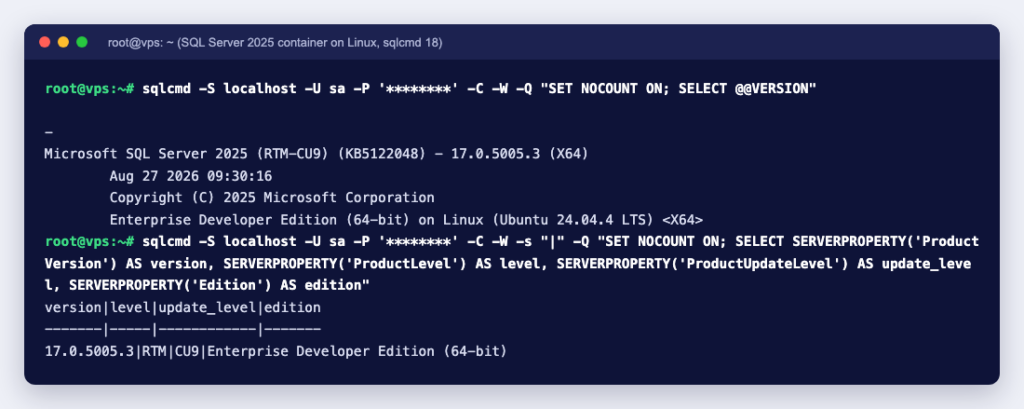
SQL Server’s container image is built for x86-64 only, so we ran it on an x86-64 test server. The example output below comes from the SQL Server 2025 container image, which reported cumulative update 9.
SQL Server versions and build numbers
Build numbers follow the pattern major.minor.build.revision. From Microsoft’s version history and lifecycle pages. The last column is the newest update in Microsoft’s list when we checked it:
| Release | Version number | First (RTM) build | Mainstream support ends | Extended support ends | Latest update |
|---|---|---|---|---|---|
| SQL Server 2025 | 17.0 | 17.0.1000.7 | January 2031 | January 2036 | CU11, 17.0.5065.9 |
| SQL Server 2022 | 16.0 | 16.0.1000.6 | January 2028 | January 2033 | CU28, 16.0.4325.4 |
| SQL Server 2019 | 15.0 | 15.0.2000.5 | Ended | January 2030 | CU32 + GDR, 15.0.4510.2 |
| SQL Server 2017 | 14.0 | 14.0.1000.169 | Ended | October 2027 | CU31 + GDR, 14.0.3570.2 |
| SQL Server 2016 | 13.0 | 13.0.1601.5 | Ended | Ended (July 2026) | SP3 Azure Connect feature pack + GDR, 13.0.7095.1 |
| SQL Server 2014 | 12.0 | 12.0.2000.8 | Ended | Ended (July 2024) | SP3 CU4 + GDR, 12.0.6449.1 |
| SQL Server 2012 | 11.0 | 11.0.2100.60 | Ended | Ended | SP4 GDR, 11.0.7512.11 |
| SQL Server 2008 R2 | 10.50 | 10.50.1600.1 | Ended | Ended | SP3 GDR, 10.50.6785.2 |
| SQL Server 2008 | 10.0 | 10.00.1600.22 | Ended | Ended | SP4 GDR, 10.0.6814.4 |
During mainstream support, Microsoft ships regular cumulative updates with fixes and improvements. During extended support, only security updates arrive. You can see this in the version history: SQL Server 2019’s last cumulative update is CU32, and after that it has only had security fixes on top of CU32. Microsoft sells Extended Security Updates for some releases past their end date, but on a server you run yourself, plan the upgrade instead.
How to find your SQL Server version
Microsoft’s find my SQL Server version article lists five methods. Pick the one that fits what you can reach.
1. SELECT @@VERSION
Run this in SQL Server Management Studio or any other SQL client:
SELECT @@VERSION;Output from our SQL Server 2025 container, without the empty column heading that sqlcmd prints first:
Microsoft SQL Server 2025 (RTM-CU9) (KB5122048) - 17.0.5005.3 (X64)
  Aug 27 2026 09:30:16
  Copyright (C) 2025 Microsoft Corporation
  Enterprise Developer Edition (64-bit) on Linux (Ubuntu 24.04.4 LTS) <X64>
Read it left to right: SQL Server 2025, cumulative update 9 on the original release, build 17.0.5005.3, Enterprise Developer edition, running on Linux (the container is based on Ubuntu 24.04). On Windows the last part names the Windows version instead. Microsoft’s list already had CU11 (17.0.5065.9) when we checked, so the container image was two cumulative updates behind; compare your own build with the table above.
2. SERVERPROPERTY, for scripts
When a script or monitoring tool needs one value at a time, query the properties separately instead of parsing @@VERSION:
SELECT
  SERVERPROPERTY('ProductVersion')     AS version,
  SERVERPROPERTY('ProductLevel')       AS level,
  SERVERPROPERTY('ProductUpdateLevel') AS update_level,
  SERVERPROPERTY('Edition')            AS edition;
For the instance above, this returned 17.0.5005.3, RTM, CU9 and Enterprise Developer Edition (64-bit). According to the SERVERPROPERTY reference, ProductUpdateLevel returns the cumulative update, such as CU9, or NULL if none is installed.
3. sqlcmd from the command line
On a server with no graphical tools, sqlcmd runs a single query and exits with -Q:
sqlcmd -S localhost -E -Q "SELECT @@VERSION"
sqlcmd -S localhost -U sa -Q "SELECT @@VERSION"
-E signs in with your Windows account; -U uses a SQL login and prompts for the password. Add \INSTANCENAME after the server name for a named instance.
4. SSMS Object Explorer
Connect in SQL Server Management Studio and look at the top node in Object Explorer: the version number appears in brackets after the server name. If you do not have SSMS yet, see How to install SSMS and connect to SQL Server.
5. The error log, when the service will not start
You do not need a working connection for this one. The first lines of the ERRORLOG file record the same string as @@VERSION each time the service starts. Microsoft gives the default location as Program Files\Microsoft SQL Server\MSSQL.n\MSSQL\LOG\ERRORLOG. That makes it the method to use when the service fails; SQL Server service is not starting covers the usual causes. Setup’s Installed SQL Server features discovery report, on the Tools page of the SQL Server Installation Center, lists every instance on the machine too.
Reading the build number
From SQL Server 2017 onwards, Microsoft no longer releases service packs, only cumulative updates (CUs) and security updates (GDRs). Each release then has two update tracks, which you can tell apart by the third part of the build number. Taking SQL Server 2025 as an example, from Microsoft’s version list:
- 17.0.1000.7 is the original release (RTM).
- 17.0.1xxx builds, such as 17.0.1155.3, are the GDR track: the original release plus security fixes only.
- 17.0.4xxx and higher, such as 17.0.4085.5 (CU8 plus a security update), 17.0.5005.3 (CU9) or 17.0.5065.9 (CU11), are the CU track, with all fixes and improvements.
According to Microsoft’s servicing model article, once you install a CU the instance moves to the CU track and keeps receiving CUs and CU-based security updates for that release. To see exactly which update a build contains, search for the number in the version history page.
Editions: what the edition in the output means
| Edition | For | Key limits (SQL Server 2025) |
|---|---|---|
| Enterprise | Large and mission-critical production systems | Operating system maximum for CPU and memory |
| Standard | Most business production workloads | Lesser of 4 sockets or 32 cores; 256 GB buffer pool memory |
| Express | Free; learning, small applications | Lesser of 1 socket or 4 cores; 1,410 MB buffer pool; 50 GB per database |
| Enterprise Developer and Standard Developer | Development and testing only, not production | Same features as Enterprise or Standard |
| Evaluation | Trying Enterprise features | Expires after 180 days |
Some limits changed in SQL Server 2025, according to Microsoft’s editions page: in SQL Server 2022, Standard stopped at 24 cores and 128 GB of buffer pool memory, and Express databases at 10 GB. The Web edition is not available from SQL Server 2025 onwards, and the Developer edition is now split into Enterprise Developer and Standard Developer.
What to do with the answer
- SQL Server 2016 or older: it no longer gets security updates without paid Extended Security Updates. Plan an upgrade, and test your application on the new version first.
- SQL Server 2017 or 2019: security fixes only. Fine for now, but put the upgrade on the roadmap.
- SQL Server 2022 or 2025: compare your build with the latest CU in Microsoft’s list and patch during a maintenance window, after a full backup.
- Developer or Evaluation edition in production: check your licensing. Developer editions are licensed for development and test only, and Evaluation stops after 180 days.
Running SQL Server on a Windows VPS or a dedicated server? If you would like help with an upgrade or a cumulative update, our engineers are available by the hour.