jijosh at
EUC stands for end user computing: everything an organisation uses to give its staff (the “end users”) working desktops, applications and data. That includes the laptops and phones themselves, virtual desktops delivered from a server or the cloud, the apps people use, and the tools that keep all of it managed and secure. When IT teams talk about an “EUC strategy”, they usually mean deciding which work runs on the user’s own device and which runs centrally, on a server or as a cloud service.
You may also meet EUC in banking, where it means something different. The Bank of England’s Prudential Regulation Authority, for example, lists “end-user computing (EUCs) applications and calculators” among the quantitative methods its model risk principles cover. That meaning is about controlling home-made business tools. This article is about the IT meaning.
What end user computing covers
| Part | What it includes | Examples |
|---|---|---|
| Devices | The hardware people work on | Laptops, desktops, thin clients, tablets, phones |
| Desktops | Where the Windows or Linux desktop actually runs | A local PC, a remote desktop session, a virtual desktop |
| Applications | The software people need | Installed apps, published remote apps, browser-based (SaaS) apps |
| Identity and access | Who can sign in to what | User accounts, multi-factor authentication, single sign-on |
| Management | Keeping devices configured and patched | Endpoint management tools, update policies |
| Data and support | Where files live and how users get help | File shares, cloud storage, backups, a help desk |
Endpoint management is a good example of how these parts fit together. Microsoft describes its Intune service as “a cloud-based endpoint management service that secures and manages your organization’s devices and apps”: enrolling devices, configuring settings, deploying apps and deciding which users and devices can reach company resources.
Ways to deliver desktops and apps
The biggest EUC decision is where people’s desktops run. There are five common models:
| Model | How it works | Good for |
|---|---|---|
| Local PCs | Everything is installed on each user’s own computer | Small offices, heavy graphics work, offline use |
| Session-based remote desktops | Many users share one Windows Server, each in an isolated session | Office apps and line-of-business software for many users at low cost |
| VDI (virtual desktop infrastructure) | Each user gets a virtual machine running a desktop operating system, pooled or personal | Users who need their own full desktop or software that does not like shared servers |
| DaaS (desktop as a service) | A cloud provider runs the virtual desktops for you | Teams with no desire to run the infrastructure |
| Browser and SaaS apps | Work happens in web applications; the device only needs a browser | Email, documents, CRM and other standard tools |
Microsoft’s own products show the range. According to its Remote Desktop Services overview, Windows Server can host multi-session desktops, pooled or personal virtual desktops, and individual applications (RemoteApp programs) that “appear and behave like locally installed apps”. Azure Virtual Desktop is “a desktop and app virtualization service that runs on Azure”, and Windows 365 is software as a service that creates Cloud PCs, Windows virtual machines for your end users.
Central desktops have a clear advantage: as Microsoft puts it, you “patch and secure resources once rather than across many endpoints”, and the data stays in the data centre instead of on a laptop that can be lost. The cost is that users need a good network connection, and the servers must be sized for everyone working at once.
Licensing: the part people forget
Windows remote desktops need the right licences, and this often surprises small businesses moving to a server:
- A Windows Server allows two Remote Desktop connections at the same time for administration, without extra licences.
- For more people to work on it at once, the server needs the Remote Desktop Session Host role, and Microsoft’s RDS licensing guide says each user or device that connects needs a Remote Desktop Services client access licence (RDS CAL).
- CALs come per user or per device. Per device suits shift work, where several people use the same computers; per user suits people who connect from several devices.
- There is a 120-day grace period during which no licence server is needed. After that, users cannot sign in without a valid CAL, so plan licensing before go-live, not after.
Remote desktops on your own server
A small team does not need a large EUC platform to centralise its desktops. Common set-ups are:
- A Windows VPS for one or two people, for example to run accounting software or a trading platform around the clock. Here is how to connect to a Windows VPS with Remote Desktop.
- A dedicated server as a session host for a whole office, with RDS CALs for every user.
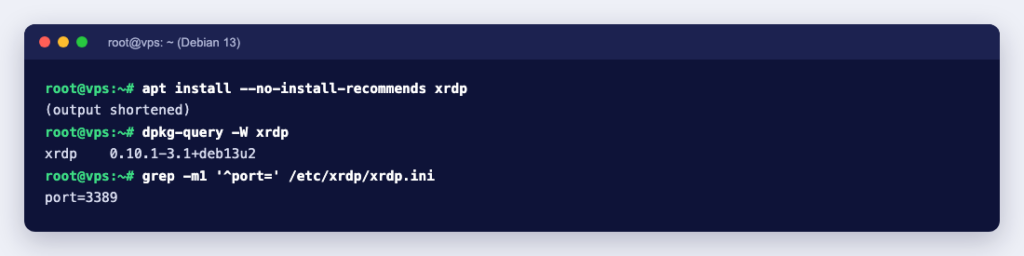
- Linux desktops over RDP with xrdp, which lets the standard Windows Remote Desktop client connect to a Linux desktop. In Debian 13 the package is xrdp 0.10.1, and its configuration file
/etc/xrdp/xrdp.inisetsport=3389, the usual RDP port. - Access through a web browser with Apache Guacamole, which describes itself as a “clientless remote desktop gateway” supporting VNC, RDP and SSH, so users need nothing installed.
Whichever you choose, do not leave remote desktop ports open to the whole internet. Microsoft’s RDS documentation describes RD Gateway, which carries RDP inside HTTPS on TCP port 443 “without opening internal RDP ports” and supports multi-factor authentication. A VPN, or a firewall rule that only allows your office IP address, are simpler alternatives for a small team.
Planning EUC for a small business: a checklist
- List the applications. Which run in a browser already, which need Windows, and which need a powerful local machine?
- Count concurrent users. This decides between a VPS, a dedicated session host and a cloud desktop service, and how many licences you need.
- Decide where data lives. Central desktops keep files on the server; make sure that server is backed up.
- Secure sign-in. Use strong passwords and multi-factor authentication, and restrict who can reach the remote desktop service.
- Plan updates. Decide who patches the devices and the servers, and when.
- Test from a slow connection. Try the remote desktop from a home connection and a mobile hotspot before rolling it out.
Our Windows VPS hosting runs Windows Server on the VPS Pro and Elite plans: our engineers install Microsoft’s evaluation edition and turn on Remote Desktop for you once the VPS is running. For production use, you can buy a full licence, which we add to your bill. If you would rather not run the servers yourself, our server management services cover administration, hardening and monitoring.