Binila Treesa Babu

Choosing a server is harder than it should be. A hosting page lists cores, memory, and storage, but it rarely tells you how many of those you need for your own site, app, or database. Most people guess, buy a plan, and find out later whether the guess was right.
The Ucartz server calculator takes a different approach. You describe what you run, the tool estimates the cores, memory, and storage that workload needs, and it shows the hosting, VPS, dedicated, or GPU plans that fit. The plan prices come from the live Ucartz store.
This article explains how the calculator works, what each input means, how it estimates resources for websites, apps, databases, containers, and AI models, and how to read the plan recommendations. It also includes a worked example so you can check the logic yourself.
What the Server Calculator Does
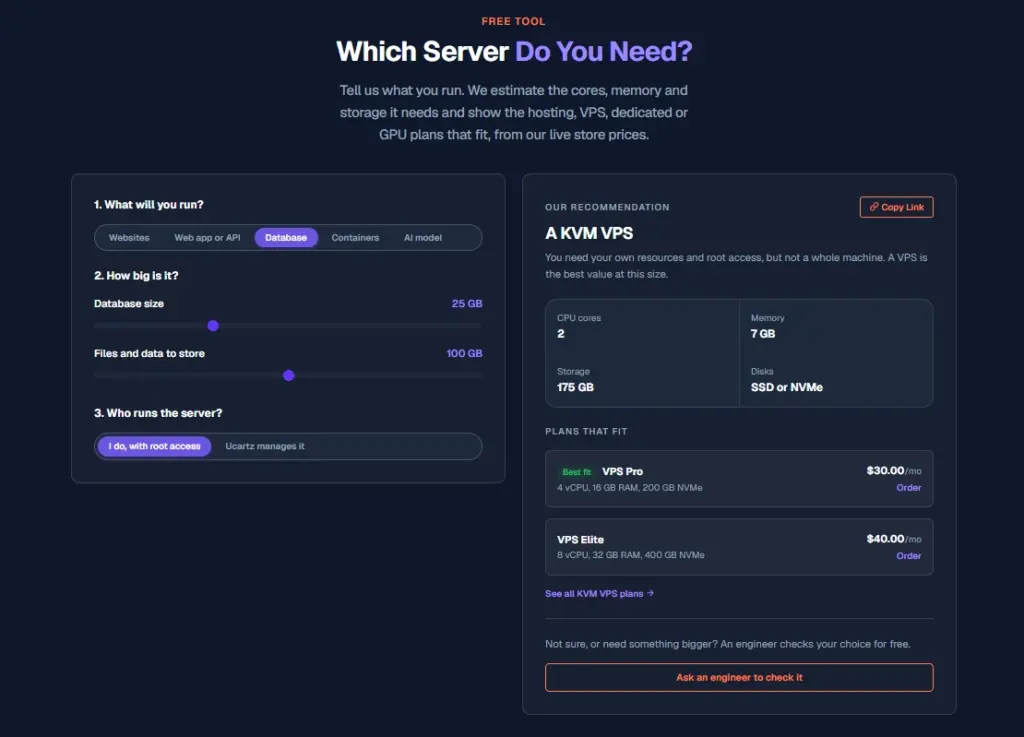
The calculator answers one practical question: what server do I need for my workload? It works in three steps. You say what you will run, you describe its size, and you tell it who will run the server. It then estimates the resources and matches them to a plan.
The output includes a recommended server type, the estimated CPU cores, memory, storage, and disk type, and a list of plans that fit. The plans are labeled with a best fit, so you can see the closest match first.
The Three Inputs
The first input asks what you will run. The categories covered by the calculator are websites, web apps and APIs, databases, containers, and AI models. Your choice determines which estimation rule the tool applies.
The second input asks how big the workload is. For a website, this includes monthly visitors, number of websites, and the amount of files and data you store. The calculator uses these values directly in its estimate.
The third input asks who runs the server. The answer affects the recommendation, because it changes how much of the management work you take on yourself.
The Output
After you enter your values, the calculator shows a recommended server type with a short explanation. It then lists the estimated CPU cores, memory, storage, and disk type. Finally, it shows the plans that match those figures, with each plan’s specifications and monthly price.
The page also offers a link to browse all KVM VPS plans and a way to have an engineer review your choice at no charge if you are unsure or need something larger.
How the Calculator Estimates Resources
The calculator uses plain rules of thumb. The page presents them openly so you can see why a plan was chosen. The rules are approximations, and real needs depend on your software and peak hours. Knowing the rule for your workload helps you judge whether the estimate fits your situation.
Websites
For websites, the calculator starts with about 1 GB of memory. It adds 0.25 GB for each site and 1 GB for every 100,000 visitors a month. Small sites with modest traffic fit shared cPanel hosting, according to the page.
This rule is simple enough to check by hand. The worked example later in this article uses it.
Web Apps and APIs
For web apps and APIs, the starting point is 2 GB of memory. The calculator adds 1 GB for every 50,000 visitors a month. It also allocates one CPU core for every 200,000 visitors.
Apps and APIs usually need more memory than static sites because they run code and handle requests dynamically. The rule reflects that difference.
Databases
For databases, the memory estimate is about a quarter of the database size, so the frequently used part of the data can stay in RAM. Disk space is estimated at three times the database size, which leaves room for growth and backups. The page recommends fast SSD or NVMe disks for databases.
A database that is 40 GB, for example, would be estimated at about 10 GB of memory and about 120 GB of disk under this rule.
Containers
For containers, the calculator allocates about half a CPU core and 1 GB of memory for each container or service. This makes it easy to size a stack of services. If you run six containers, the rule suggests roughly 3 cores and 6 GB of memory before you consider headroom.
AI Models
For AI models, the calculator estimates GPU memory based on the model compressed to 4 bits. The page gives two reference points: an 8 billion parameter model needs about 6 GB, and a 70 billion parameter model needs about 42 GB. On top of that, the calculator adds room for the people using the model at the same time.
Training needs about twice as much memory as running a model. If you plan to train, the estimate roughly doubles.
These figures assume 4-bit compression. Models stored at higher precision need more memory. The calculator’s estimates are based on the compressed case, which is common for running models on a private server.
Choosing Between a VPS, Dedicated Server, and GPU Server
The calculator’s type recommendation follows a simple rule set. Understanding it helps you decide whether a recommendation fits your plans.
When a VPS Fits
A VPS is the recommendation for workloads up to 8 CPU cores and 32 GB of memory. The page describes a KVM VPS as the right choice when you need your own resources and root access, but not a whole physical machine. For most small and mid-sized sites and apps, a VPS offers the best value at that scale.
When a Dedicated Server Fits
A dedicated server is the recommendation when the workload exceeds 8 cores or 32 GB of memory, or when it needs very large or very fast disks. At that point, the resources of one whole physical machine are a better match than a slice of a shared host.
When a GPU Server Fits
A GPU server is the recommendation when you plan to run a model on your own hardware. Model memory is measured in GPU memory, so the calculator switches to a GPU recommendation for AI workloads.
The three types are not interchangeable. A GPU server does not replace a VPS for a website, and a VPS cannot substitute for the GPU memory a large model requires.
Worked Example: 25,000 Visitors and Three Websites
The calculator’s default example shows how the rules combine. It uses three websites, 25,000 visitors a month, and 10 GB of files and data. The output recommends a KVM VPS with 2 CPU cores, 2 GB of memory, 25 GB of storage, and any disk type.
Calculating the Memory by Hand
Use the website rule to check the memory figure. Start with 1 GB for the base. Add 0.25 GB for each of the three sites, which is 0.75 GB. Add 1 GB for every 100,000 visitors. At 25,000 visitors, that is 0.25 GB. The total is 1 GB plus 0.75 GB plus 0.25 GB, which equals 2 GB.
The result matches the calculator’s memory estimate exactly, which shows how the rule produces the number on the page.
Reading the Plan Cards
The estimate says the workload needs 2 GB of memory, but the best fit plan is VPS Standard with 8 GB of memory, 2 vCPU, and 100 GB of NVMe storage at $20 per month. Plans come in fixed sizes, so the calculator selects the smallest plan that covers the estimate.
The next plans up are VPS Pro at $30 per month with 4 vCPU, 16 GB of memory, and 200 GB of NVMe storage, and VPS Elite at $40 per month with 8 vCPU, 32 GB of memory, and 400 GB of NVMe storage.
This pattern is useful to notice. The estimate is the minimum your workload needs, and the plan you buy is the smallest fixed size that meets it. That leaves headroom for growth and traffic spikes.
Each plan card has an order link to the Ucartz store, so you can move from estimate to purchase without retyping specifications.
Plan Tiers Shown in the Calculator
The calculator’s example lists three KVM VPS tiers, each with its price shown as monthly from the live store.
VPS Standard: 2 vCPU, 8 GB RAM, 100 GB NVMe, $20.00 per month.
VPS Pro: 4 vCPU, 16 GB RAM, 200 GB NVMe, $30.00 per month.
VPS Elite: 8 vCPU, 32 GB RAM, 400 GB NVMe, $40.00 per month.
The page also links to all KVM VPS plans for a full list. Prices shown on the calculator page are the ones the tool displays at the time you view it, so confirm them on the store before you order.
Common Mistakes When Sizing a Server
Several mistakes are easy to avoid once you know how the calculator works.
Sizing for Today Instead of Next Year
Traffic grows. Enter a realistic visitor number for the next 12 months, then compare the estimate and plan with the current figure. A plan that fits today may be tight within a year.
Ignoring Database Growth
The database rule recommends three times the database size in disk space. If you size storage only for the current data, backups and growth will fill the disk sooner than expected.
Counting Websites Without Their Traffic
The website rule adds memory for each site and for each 100,000 visitors. Three small sites with heavy combined traffic need more memory than three quiet ones. Enter total visitors across all sites.
Forgetting Services and Containers
Each container or service adds about half a core and 1 GB of memory under the calculator’s rule. Stacks with many services can outgrow a plan quickly if you do not count them.
Assuming a Model Fits Without Checking Compression
The AI estimate assumes 4-bit compression. If you run a model at a higher precision, the memory requirement rises. Check the precision you plan to use before choosing a GPU server.
Treating the Estimate as a Guarantee
The page states that real needs vary with your software and peak hours. Use the estimate as a starting point, then monitor your server after launch and adjust.
Conclusion
The Ucartz server calculator turns a difficult sizing question into a short set of inputs. It applies clear rules to websites, apps, databases, containers, and AI models, then matches the result to a VPS, dedicated, or GPU plan at live store prices.
Use it before you buy. Enter a realistic visitor count, add the services you run, and check the estimate by hand using the rule for your workload. Compare the plan cards, note the headroom each one gives you, and consider whether a free engineer review would help if your needs are unusual.
A short estimate now can prevent an overloaded server later. Start with the Ucartz server calculator, verify the numbers, and choose the smallest plan that covers your workload with room to grow.
FAQ
How does the calculator choose a server?
It estimates the cores, memory, and storage your workload needs using the rule for the category you chose. It then picks a server type based on size and needs, and shows the plans that meet the estimate.
Is the estimate exact?
No. The calculator uses rules of thumb. Real needs depend on your software and how traffic arrives. Treat the output as a planning figure, then check it against your actual usage.
When should I choose a VPS instead of a dedicated server?
Choose a VPS for workloads up to 8 CPU cores and 32 GB of memory when you need your own resources and root access. Choose a dedicated server when the workload is larger or needs very large or fast disks.
When do I need a GPU server?
Choose a GPU server when you plan to run an AI model on your own hardware. The calculator estimates GPU memory for the model and room for simultaneous users.
Can I change plans later?
The calculator page includes an FAQ on this topic. For the current policy on changing plans, check the page or ask an engineer before you buy.
What if no plan fits?
The calculator offers an option to have an engineer check your choice at no cost. Use it if your needs are unusual or larger than the standard plans. The page also lists a 99.9% uptime SLA, free basic managed support, and 24/7 support.