Anita Sreelal
A server is built from the same main parts as a desktop computer: processor (CPU), memory (RAM), storage, motherboard, network card and power supply. What makes it server hardware is that each part is chosen to run all day, every day, and to be managed from far away: error-correcting (ECC) memory, drives in hot-swap bays with RAID, redundant power supplies, faster network ports and a separate management controller (the BMC) that lets you reach the machine over IPMI even when the operating system is down. Most servers sit in racks, and their height is measured in rack units (U).
The parts of a server at a glance
| Part | What it does | What is different in a server |
|---|---|---|
| CPU | Runs your software | Server families such as Intel Xeon and AMD EPYC offer more cores, more memory channels and, on some boards, two sockets |
| RAM | Holds the data programs are working on | ECC memory that detects and corrects errors; far larger capacities |
| Storage | Keeps the operating system, sites and databases | NVMe, SSD or HDD drives, often in hot-swap bays, usually in a RAID array |
| RAID controller | Combines drives for redundancy or speed | A hardware card, or software RAID in the operating system |
| Network card (NIC) | Connects the server to the data centre network | 1 Gbps or faster ports, sometimes two or more for redundancy |
| Power supply (PSU) | Turns mains power into what the parts need | Often two redundant, hot-swappable units on separate power feeds |
| BMC | A small computer on the motherboard for remote management | IPMI or KVM console access, power control and sensor readings |
| Chassis and cooling | Holds and cools everything | Rack-mounted, measured in U, with fans designed for constant load |
CPU: cores, threads and sockets
The processor decides how much work the server can do at once. The main numbers are cores (independent processing units), threads (often two per core, with simultaneous multithreading) and sockets (how many physical CPUs the motherboard holds). Our guide to CPU cores and threads explains the difference. More cores help when many things run in parallel, such as many websites, virtual machines or build jobs; a higher clock speed helps software that does most of its work on one thread. If you plan to run your own virtual machines, the CPU also needs hardware virtualization (Intel VT-x or AMD-V) switched on in the BIOS.
Memory: why servers use ECC RAM
Memory errors happen, and on a machine that runs for months without a reboot they add up. ECC (error-correcting code) memory stores extra check bits with the data. The Linux kernel’s RAS documentation explains that the memory controller calculates this code on every write and checks it on every read. If it finds and fixes an error, that is a corrected error (CE). If it cannot fix it, that is an uncorrected error (UE), and when it hits something critical, the system may hang or reboot rather than carry on with corrupted data.
The same documentation gives the practical advice: corrected errors are early signs that a memory module is starting to fail, so the counters should be watched for non-zero values. On a Linux server with ECC and an EDAC driver loaded, they live in /sys/devices/system/edac/mc/, for example mc0/ce_count. Not every dedicated server has ECC memory, particularly budget machines built on desktop processors, so check the plan’s memory line before you order.
Storage and RAID
Servers use three kinds of drive. NVMe drives connect over PCIe and are the fastest; SATA SSDs are slower but still far quicker than hard disks; HDDs give the most space for the money and suit backups and large files. Our NVMe vs SSD comparison goes deeper into the trade-offs.
With two or more drives, a server normally uses RAID, so a failed drive does not take the data with it. RAID can come from a hardware controller card or from the operating system (software RAID, such as Linux mdadm). RAID levels explained covers RAID 0, 1, 5, 6 and 10. Remember that RAID protects against a drive failing, not against deleting a file or ransomware: you still need backups on another machine.
The management controller: BMC and IPMI
This is the part most people have never seen on a PC. A server motherboard carries a Baseboard Management Controller (BMC), a small independent computer with its own network connection. The Linux kernel’s IPMI documentation describes IPMI (Intelligent Platform Management Interface) as a standard for controlling intelligent devices that monitor a system: it discovers and watches sensors, keeps a database of field-replaceable units and provides a watchdog timer.
For you as a server owner, the BMC means you can power the machine on, off or reset it, read temperatures and fan speeds, and open a remote console (KVM over IP) that shows the screen from the moment it boots. That is how you fix a server that no longer answers on SSH, change BIOS settings or install an operating system from an ISO; see how to install an OS using IPMI. Keep the BMC off the public internet where you can, and change its default password.
Rack units: 1U, 2U and 4U servers
Servers in a data centre are mounted in 19-inch racks. Oracle’s hardware glossary defines the rack unit: one rack unit (1U) is 44.45 mm (1.75 in) high. A 1U server is thin and dense, with room for a few drives and limited cooling. 2U and larger chassis fit more drive bays, larger fans and full-height expansion cards such as GPUs, which is why storage and GPU servers are often 2U or taller.
Dedicated hardware or a virtual server?
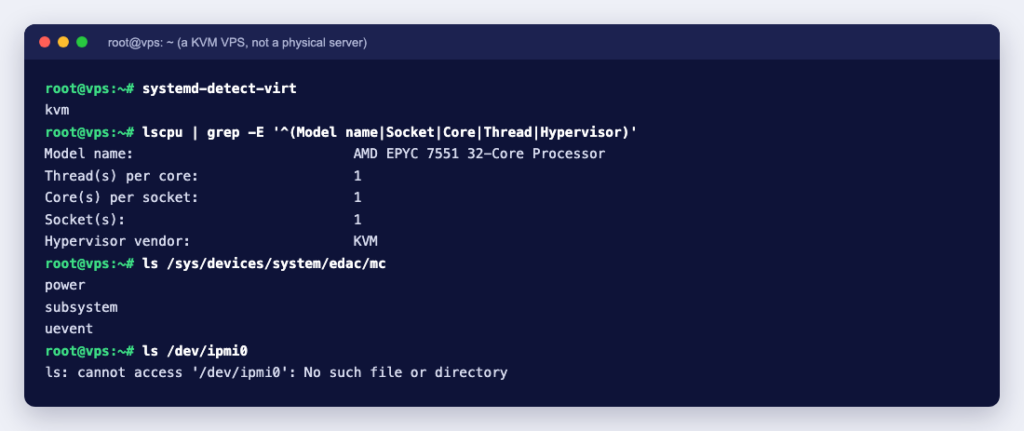
“Dedicated hardware” means one physical server is yours alone. A VPS is a virtual machine: the physical server’s CPU, RAM and disks are shared between several customers by a hypervisor, and your operating system sees virtual devices. You can tell which you have from the command line. We ran these tools as root in a Debian 13 container on a virtual machine (Docker Desktop on a Mac), and the results show what “virtual” looks like:
# lspci | head -3
00:00.0 Host bridge: Apple Inc. Device 1a05
00:01.0 Ethernet controller: Red Hat, Inc. Virtio 1.0 network device (rev 01)
00:05.0 Communication controller: Red Hat, Inc. Virtio 1.0 console (rev 01)

# dmidecode -t memory
# dmidecode 3.6
# No SMBIOS nor DMI entry point found, sorry.

# ipmitool sdr
Could not open device at /dev/ipmi0 or /dev/ipmi/0 or /dev/ipmidev/0: No such file or directory
Virtio devices, no hardware tables and no IPMI device are the signs of a virtual machine. On a physical server, lspci lists the real network and storage controllers by make and model, dmidecode shows each memory module, and ipmitool can read the BMC’s sensors once the IPMI kernel modules are loaded. The quickest check is systemd-detect-virt: according to its manual page, it prints an identifier such as kvm when it detects virtualization and exits with a non-zero status when it detects none.
How to check your server’s hardware
When a new dedicated server is delivered, check that you got what you ordered. These commands are all standard on Debian and Ubuntu (install dmidecode, ipmitool and smartmontools if they are missing):
- CPU:
lscpu, and look at Model name, Socket(s), Core(s) per socket and Thread(s) per core. - Memory:
free -hfor the total, andsudo dmidecode -t memoryfor each module’s size, speed and error correction type; our dmidecode guide explains the output. - Drives:
lsblk -d -o NAME,SIZE,ROTA,TRAN,MODELlists each disk, whether it is rotational (ROTA 1 means a hard disk on physical hardware; virtual disks may also report 1, as ours did) and how it is connected. - Drive health:
sudo smartctl -a /dev/sda(or/dev/nvme0for an NVMe drive). In smartmontools 7.4,-ashows all SMART information and-Honly the health status, andnvmeis one of the supported device types. - Management controller:
sudo ipmitool sdrfor sensor readings, or use the IPMI web interface from your provider.
Our first steps after your dedicated server is delivered checklist puts these checks together with the security basics.
Choosing hardware for a dedicated server
- Start from the workload. Databases and busy websites want plenty of RAM and NVMe storage. Virtualization wants cores and RAM. Backup and media storage wants large HDDs in RAID. AI and rendering want a GPU with enough memory for your models.
- Decide how much downtime you can accept. If a memory error or a failed drive would be costly, choose ECC memory and at least two drives in RAID 1 or 10.
- Check the network port and bandwidth, not just the CPU. A fast server on a slow port is still slow for visitors.
- Make sure you get remote management. IPMI or a KVM console saves you from waiting for a data centre technician when the server will not boot.
Every server is built from the same few parts; what you pay for in server hardware is reliability and remote control. Ucartz’s unmanaged dedicated servers come with full root access and a free IPMI/KVM console on every plan, with hardware ranging from Core i3 and Ryzen machines to Xeon and EPYC servers, so compare the CPU, memory and drive lines of each plan with your workload. For AI and rendering, see the GPU dedicated servers.