Anita Sreelal
“This site can’t provide a secure connection” is the error page Google Chrome (and Chromium, the open-source browser it is built on) shows when the HTTPS (TLS) handshake with a website fails before any page is sent. The error code underneath tells you why. ERR_SSL_PROTOCOL_ERROR usually means the server answered with something that is not valid TLS, often plain HTTP on the HTTPS port. ERR_SSL_VERSION_OR_CIPHER_MISMATCH means the server only offers old TLS versions or ciphers the browser no longer accepts. In most cases the fix is on the server, so visitors can do little except check their own network. Site owners can usually fix it in a few minutes.
Read the error code first
The heading is the same for several different faults. We checked Chromium’s own source code (localized_error.cc and its error page strings) to see which errors produce it and what line appears below the heading:
| Error code | Line under the heading | Usual cause |
|---|---|---|
ERR_SSL_PROTOCOL_ERROR | “site sent an invalid response.” | The server did not answer with valid TLS, for example plain HTTP on port 443, or something in between broke the connection |
ERR_SSL_VERSION_OR_CIPHER_MISMATCH | “site uses an unsupported protocol.” plus “The client and server don’t support a common SSL protocol version or cipher suite.” | The server only allows TLS 1.0 or 1.1, or only old ciphers |
ERR_SSL_OBSOLETE_CIPHER | “site uses an unsupported protocol.” | The server’s cipher is too old |
ERR_SSL_SERVER_CERT_BAD_FORMAT | “site doesn’t adhere to security standards.” | A malformed certificate |
Certificate problems are a different error page. An expired, self-signed or wrong-name certificate gives “Your connection is not private” with a code starting NET::ERR_CERT_. If that is what you see, our guide to SSL certificates that are not trusted is the right place.
What we saw in a test
We set up small Nginx 1.31.6 test servers in Docker and opened each one in Chromium 154, then checked them with curl 8.22.0:
| Server set-up | Chromium | curl |
|---|---|---|
Plain HTTP on port 443 (listen 443; without ssl) | ERR_SSL_PROTOCOL_ERROR | (35) ... wrong version number |
| TLS 1.0 and 1.1 only | ERR_SSL_VERSION_OR_CIPHER_MISMATCH | (35) ... tlsv1 alert protocol version |
| Self-signed certificate for another name | ERR_CERT_AUTHORITY_INVALID (the “not private” page) | (60) SSL: no alternative certificate subject name matches target hostname |
The first two produce “This site can’t provide a secure connection”; the third does not. The plain-HTTP server was working fine: curl http://plain.test:443/ returned its page. It was simply speaking the wrong protocol on the HTTPS port.
If you are visiting the site
- Check the address. A typo, or an address with a port such as
https://example.com:80, sends HTTPS to a port that does not speak it. - Reload once. A server that was restarting may answer normally a moment later.
- Try another network, such as mobile data instead of office Wi-Fi. If the site works there, something on the first network, like a firewall, proxy or filter that inspects HTTPS, is interfering.
- Turn off HTTPS scanning in your antivirus or security software for a quick test, if it has such a feature. These products sit between the browser and the site and can break the handshake.
- Try another device. If the site fails everywhere for everyone, only the site owner can fix it. Let them know, and include the error code.
Do not look for a browser setting that re-enables old TLS versions. RFC 8996 formally deprecated TLS 1.0 and 1.1 because they lack current cryptographic algorithms, and the site needs to be updated instead.
If it is your website
1. Reproduce it from a terminal
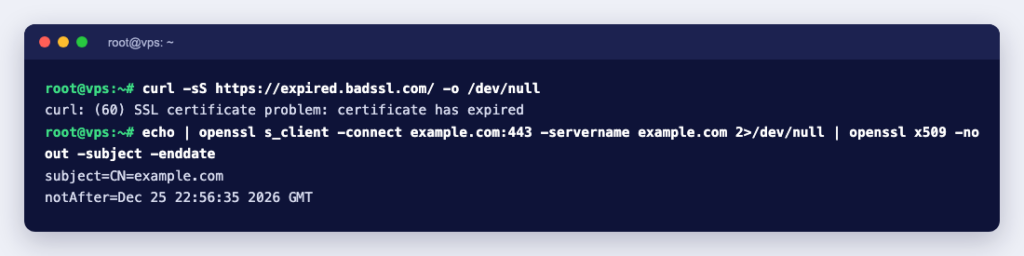
curl -sS -o /dev/null https://example.com/
openssl s_client -connect example.com:443 -servername example.com </dev/null
The messages map straight to the browser codes: wrong version number means the port is not speaking TLS, and alert protocol version means no common TLS version. Add -servername with the site name so the right virtual host answers, as it would for a browser. Our article on SSL handshake failures goes through more of these messages.
2. Make sure port 443 really speaks HTTPS
This is the classic cause of ERR_SSL_PROTOCOL_ERROR: a virtual host listens on 443 but TLS is not switched on for it.
- Nginx: the listen line must include
ssland the server block needs a certificate and key:listen 443 ssl;,ssl_certificateandssl_certificate_key. In our test, alisten 443 sslblock with no certificate stopped Nginx from starting at all, withno "ssl_certificate" is defined for the "listen ... ssl" directive, so runnginx -tbefore reloading. - Apache: the
<VirtualHost *:443>block needsSSLEngine on. The mod_ssl documentation says the SSL engine is off by default for the main server and every virtual host. - Nginx with Let’s Encrypt: see how to fix SSL_PROTOCOL_ERROR with Nginx and Let’s Encrypt.
3. Allow TLS 1.2 and TLS 1.3
For ERR_SSL_VERSION_OR_CIPHER_MISMATCH, look for an old ssl_protocols or SSLProtocol line copied from an ancient guide:
# Nginx
ssl_protocols TLSv1.2 TLSv1.3;

# Apache (mod_ssl)
SSLProtocol -all +TLSv1.2 +TLSv1.3
According to the Nginx SSL module documentation, TLSv1.2 TLSv1.3 is already the default, so often the fix is simply to delete the old line. Also remove weakening options such as @SECLEVEL=0 in a custom ssl_ciphers line; we used that option to build the TLS 1.0 test server.
4. Check every name and port
- Test both
example.comandwww.example.com; each needs a working HTTPS virtual host. - If an application runs on a non-standard port, make sure links use
http://orhttps://to match what that port actually speaks. - If the site is behind a CDN or proxy, the browser’s TLS connection ends there, so check the SSL settings of that service as well as your server.
5. Reload and test again
Reload the web server, run the curl and openssl commands again, then open the site in a private window. Once the handshake works, a clean openssl s_client run shows the protocol, for example Protocol: TLSv1.3. To confirm the certificate’s names and expiry date, see how to check SSL certificate details with OpenSSL.
Need a certificate or a hand?
If your site has no certificate yet, Ucartz sells SSL certificates (DV, OV and wildcard) with free help installing them. On our hosting plans, SSL setup is part of the complimentary, best-effort help with quick tasks of about five minutes. For a server you manage yourself, our engineers can fix web server and TLS configuration through Hire an Expert, at $8 per 15 minutes or $28 per hour.