Ashily Shaji

UEFI is the modern firmware that replaced the old PC BIOS. For a new server, install the operating system in UEFI mode on a GPT disk: it is required to boot from a disk larger than 2 TiB, it is the only mode that supports Secure Boot, and Microsoft recommends it for Windows. Use legacy BIOS mode only for an old operating system or tool that needs it. The key rule is that a system boots in the mode it was installed in, so decide before you install, not after. On Linux, [ -d /sys/firmware/efi ] tells you which mode you are in. We booted the same Debian 13 server image in BIOS mode, UEFI mode and UEFI with Secure Boot to show the difference.
What BIOS and UEFI actually do
Both are firmware: the code that runs when you power on a server, checks the hardware and hands over to a boot loader. The difference is how they find that boot loader.
- Legacy BIOS reads the first sector of the boot disk and runs the small piece of code it finds there. It goes with the old MBR partition table. On UEFI hardware, BIOS mode survives as a compatibility setting; the Ubuntu UEFI guide notes that some firmware calls it “Compatibility Support Module”, or CSM.
- UEFI reads a small FAT-formatted partition called the EFI System Partition (ESP) and starts a boot program file from it. It goes with the GPT partition table, keeps a list of boot entries in its own memory and can check signatures before running anything (Secure Boot).
On our Debian 13 test server, the ESP was mounted at /boot/efi and held the Secure Boot shim and GRUB:
$ ls /boot/efi/EFI/debian
BOOTX64.CSV  fbx64.efi  grub.cfg  grubx64.efi  mmx64.efi  shimx64.efi
UEFI vs BIOS at a glance
| Legacy BIOS | UEFI | |
|---|---|---|
| Partition table | MBR | GPT (Windows needs GPT to boot in UEFI mode) |
| Largest partition (512-byte sectors) | About 2 TiB | In theory 2^64 sectors; Windows supports raw partitions up to 18 exabytes |
| Partitions | Four primary, more only through an extended partition | Windows allows 128 per disk |
| Boot files | Boot code in the first sector | Files on the EFI System Partition |
| Secure Boot | No | Yes |
| Secured-core server (Windows Server) | No | Yes, with Secure Boot and TPM 2.0 |
The partition facts come from Microsoft’s Windows and GPT FAQ. It also states the rule that decides many server installs: Windows can boot from GPT disks only on UEFI systems, and Windows does not support UEFI booting from MBR disks.
The 2 TiB limit, tested
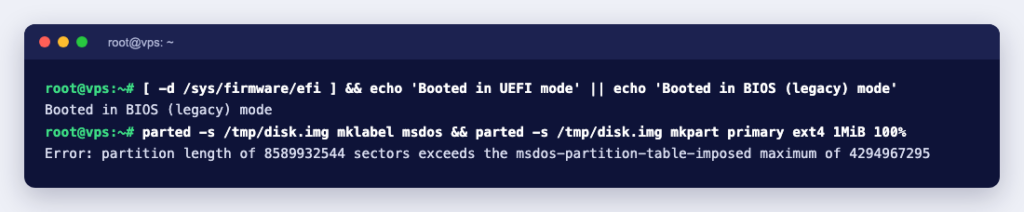
MBR stores partition sizes as 32-bit sector counts. We created a 3 TiB disk image and asked GNU parted 3.6 to make one MBR partition across the whole disk:
$ parted -s disk.img mklabel msdos
$ parted -s disk.img mkpart primary ext4 1MiB 100%
Error: partition length of 6442448896 sectors exceeds the msdos-partition-table-imposed maximum of 4294967295
4,294,967,295 sectors of 512 bytes is just under 2 TiB. With a GPT label, parted created an ESP and a single 3 TiB root partition without complaint. Dedicated servers with large drives or RAID arrays reach that size easily, which is one more reason to start with UEFI and GPT.
How to check which mode your server booted in
Linux
[ -d /sys/firmware/efi ] && echo "Booted in UEFI mode" || echo "Booted in BIOS (legacy) mode"
mokutil --sb-state
The /sys/firmware/efi check is the one the Ubuntu UEFI guide uses. Here is what the same Debian 13 image (kernel 6.12) reported in each mode, running under QEMU with SeaBIOS and with the OVMF UEFI firmware:
| Boot mode | /sys/firmware/efi check | mokutil --sb-state |
|---|---|---|
| Legacy BIOS | Booted in BIOS (legacy) mode | EFI variables are not supported on this system |
| UEFI, Secure Boot not available | Booted in UEFI mode | This system doesn’t support Secure Boot |
| UEFI with Secure Boot | Booted in UEFI mode | SecureBoot enabled |
With Secure Boot on, the kernel log also said secureboot: Secure boot enabled and Kernel is locked down from EFI Secure Boot, and /sys/kernel/security/lockdown showed [integrity]. In BIOS mode, efibootmgr (the tool that lists UEFI boot entries) only says EFI variables are not supported on this system.
That image booted in all three modes because its GPT disk has both a 3 MB “BIOS boot” partition for GRUB’s legacy code and a 124 MB EFI System Partition. lsblk showed both:
NAME     SIZE PARTTYPENAME        FSTYPE MOUNTPOINTS
vda        3G
├─vda1   2.9G Linux root (x86-64) ext4   /
├─vda14    3M BIOS boot
└─vda15  124M EFI System          vfat   /boot/efi
Cloud images are built that way on purpose, but do not count on every installation doing the same. Microsoft says Windows boots in the mode it was installed with, and the Ubuntu UEFI guide has a separate procedure just for converting a UEFI-mode Linux installation to legacy boot. It also warns that a PC can boot the installer in UEFI mode yet boot the hard disk in legacy mode, or the other way round, so always check after installing.
Windows Server
We could not test Windows here, so these come from Microsoft. Run msinfo32 and look at BIOS Mode, which shows UEFI or Legacy. In an administrator PowerShell, Confirm-SecureBootUEFI returns True or False on a UEFI machine, and Cmdlet not supported on this platform on a BIOS machine. Get-Disk shows whether each disk is GPT or MBR in the Partition Style column.
Secure Boot: what server owners need to know
Secure Boot makes the firmware check a signature on the boot loader before running it. Red Hat’s kernel documentation sums up the consequence for Linux: with Secure Boot enabled, the boot loader, the kernel and all kernel modules must be signed and verified, and an unsigned module fails to load.
- Kernels and modules from your distribution are already signed, so a standard install just works. Our Debian image booted under Secure Boot through its signed shim and GRUB.
- Drivers you build yourself or install from outside the distribution need signing with your own key. You enrol that key as a Machine Owner Key (MOK) with
mokutil --importand confirm it at the console on the next reboot, as Red Hat’s guide describes. - On Windows Server, Microsoft lists “UEFI 2.3.1c-based system and firmware that supports secure boot” as required only for certain features in its hardware requirements; Secured-core server needs Secure Boot and TPM 2.0 turned on.
Because that confirmation step happens at the console during boot, you need console access, which on a dedicated server means the IPMI or KVM console rather than SSH.
Which mode to choose
| Situation | Choose |
|---|---|
| New Linux or Windows Server install | UEFI with GPT |
| Boot disk or RAID volume over 2 TiB | UEFI with GPT |
| You want Secure Boot or Windows Server’s Secured-core features | UEFI with Secure Boot |
| Very old operating system or a tool that only boots in BIOS mode | Legacy BIOS (CSM) |
| Existing server that works in BIOS mode | Leave it, or plan a conversion or reinstall |
Switching an existing server from BIOS to UEFI
Microsoft’s boot mode guide says Windows boots automatically in the mode it was installed with. Changing only the firmware setting leaves it unbootable. For Windows, Microsoft’s MBR2GPT tool converts the system disk from MBR to GPT without deleting data, after which the firmware must be switched to UEFI mode:
mbr2gpt /validate /disk:0 /allowFullOS
mbr2gpt /convert /disk:0 /allowFullOS
Microsoft lists conditions, including at most three primary partitions and no extended partition, and the tool refuses to convert a disk that does not meet them. On Linux there is no single tool; converting means repartitioning and reinstalling the boot loader, and a fresh install in UEFI mode is often quicker. Either way, take a full backup first.
On a dedicated server
- Open the server’s IPMI KVM console and enter the firmware setup during boot.
- Set the boot mode to UEFI (and turn off CSM if you do not need legacy boot).
- Boot the installer from the UEFI entry for your ISO or virtual drive. Microsoft notes that firmware boot menus can show the same device twice, once for UEFI and once for BIOS, and the entry you pick decides the mode.
- After installing, confirm with the checks above before you put the server into service.
Our unmanaged dedicated servers come with full root access and a free IPMI KVM console, so you can change firmware settings and reinstall yourself; see how to reload the OS using IPMI. If you would rather not touch firmware on a live server, our engineers can do it by the hour.