Introduction
We all use search engines to look up images every day-whether it’s finding inspiration, shopping, or verifying information. But what if you want to know the origin or authenticity of an image? That’s where Reverse Image Search comes in. This powerful tool helps you find where an image appears online, who owns it, and whether it’s being used elsewhere.
That’s where Reverse Image Search comes into play. In this guide, we’ll explore reverse image search in detail, what it is, why it’s useful, how it works, and step-by-step methods to use it on Google, Bing, Yandex, and TinEye.
What is Reverse Image Search?
Reverse image search is a technology that allows users to search the internet using an image instead of text, typing keywords, etc. You simply need to upload a photo or paste its URL, and the search engine looks for matching or similar visuals online. It has several practical applications for casual users, creators, and businesses alike.
What Can You Do with Reverse Image Search?
You can use reverse image search for a variety of purposes:
- Discover Information: Find interesting facts, the context, or the origin of an image you find online.
- Check Copyright Status: Before using an image, you can discover its copyright status to avoid legal issues.
- Monitor Your Own Images: Check if your personal photos or creative work are being used elsewhere online without your permission.
- Identify Copyright Violations: Verify that the images you are currently using are not infringing on someone else’s copyright.
Reasons for Using Reverse Image Search
People use reverse image search for many purposes, including:
- Finding image sources – Identify the origin of an image.
- Checking authenticity – Detect fake news, edited images, or catfished profiles.
- Tracking copyright violations – Ensure your original images are not being misused.
- Shopping assistance – Locate similar products online.
- Discovering high-resolution images – Find better-quality versions.
How Does Reverse Image Search Work?
Reverse image search tools don’t just look for exact copies. They employ sophisticated algorithms to analyse various visual characteristics of the image you provide, such as:
- Shapes, patterns, and colours
- Metadata (like size, file type, EXIF data)
- Pixel structures and context clues
Some advanced tools even incorporate facial recognition, which is helpful when you perform a Reverse Image Search to find pictures of specific people. The process is straightforward:
- Upload an image directly from your device.
- Paste the URL of an image from the web.
The search engine then scans its vast database and the internet to find visually similar images, the original source, and other relevant information. Most platforms offer their Reverse Image Search functionality on both desktop and mobile, making it a convenient tool to use anywhere.
It then compares the details against billions of indexed images to give you matches and related results.
Why Reverse Image Search Sometimes Doesn’t Work
While reverse image search is powerful, it doesn’t always give perfect results. Common reasons include:
- The image isn’t indexed by the search engine.
- The image is heavily edited or cropped.
- The platform has a limited image database.
- Privacy restrictions prevent access to certain images.
Ways to Do Reverse Image Search on Major Search Engines
Google Reverse Image Search
Google Reverse Image Search using Desktop
Google is the most widely used reverse image search engine. Reverse image search can be easily done using Google. To do a reverse image search from your desktop, follow the steps below:

Visit Google Images.
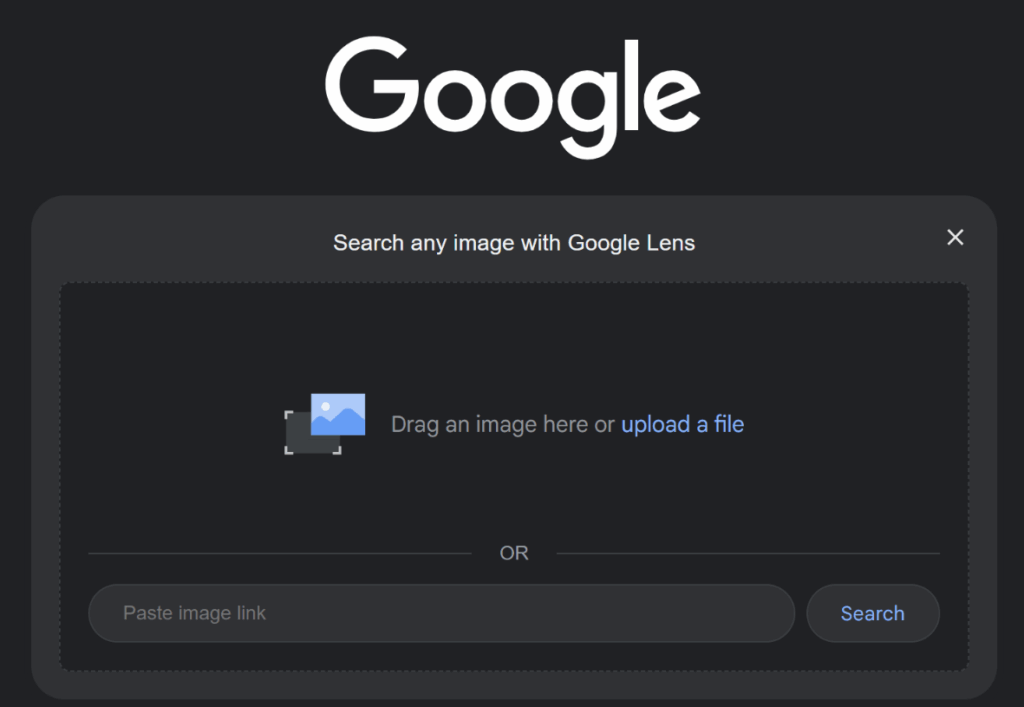
Click on the camera icon in the search bar. Now start your search either by uploading an image or by pasting its URL from your desktop
Google will display similar images, related websites, and visually matching results.
Google Reverse Image Search using Chrome App (Android Mobile Device)
To do a quick Google reverse image search using your mobile device, please follow the steps below:
1. Open the Chrome app on your Android device.
It is a user-friendly app used for doing reverse image searches on your phone if you are searching picture on Google. Now open your Chrome app and press on Images.
2. Search for the image
Once you have Chrome app, in the search bar type the required image name you are looking for and then press “Enter”. You can see a list of images displayed. Click on your preferred image.
Tap and hold the image, then select “Search Google for this image.”
3. Browse through “Search Google for this image”
As the image on your phone is open, click and hold the image. Now, you will get a drop-down menu having multiple options.
Select the option “Search Google for This Image”. If you have an updated version of the Chrome app, the option will be “Search with Google Lens” instead. This option provides exact copies & similar images to the image you are searching.
4. Discover the search result
In Chrome, now you can see that a new tab pops up displaying images in different sizes.
Reverse Image Search on Google (Using a Mobile Browser)
1. Go to Google Images in Your Web Browser
You can easily perform a reverse image search on your phone using the Chrome app as mentioned earlier, but it’s also possible through your mobile browser. First, open Google Images in your preferred browser.
2. Switch to Desktop View
Once Google Images is open, you’ll need to switch to the desktop version of the site. Tap the three-dot menu in the top-right corner of your browser and select “Desktop site” from the menu.
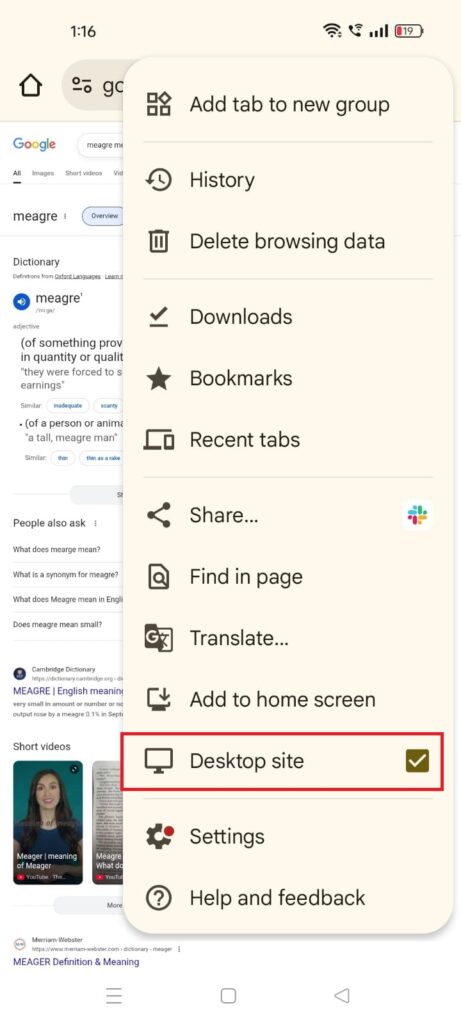
The page will now appear similar to how it looks on your computer.
3. Upload an Image
On the right side of the search bar, click on the camera icon to start your reverse image search. You will see two options: Paste image URL and Upload an image.
- If the image is saved in your gallery, choose Upload an image, tap Choose File, and select your photo.
- You can also take a new picture and upload it directly.

4. Paste the Image URL
If the image is not saved on your device, select Paste image URL. To copy the URL of an image, open it in your browser, tap and hold on the link below the image, and select Copy link address.
Paste this link into the search box and click Search by image.
5. Check Your Results
Google will now display search results, including other available sizes of the image, visually similar photos, and websites where the same image appears.
Reverse Image Search on Google (iPhone)
1. Open Google Images
Launch the Safari browser on your iPhone and go to images.google.com.
2. Switch to Desktop View (Safari)
Once the page loads, tap the “aA” icon in the top-left corner of the address bar to open the website view menu.
From the available options, select Request Desktop Website.
3. Switch to Desktop View (Chrome)
If you’re using the Chrome browser, tap the three-dot menu at the bottom-right of the screen. Select Desktop site to enable the reverse image search option.
4. Upload or Paste an Image URL
After switching to desktop view, click on the camera icon in the search bar. You can then:
- Upload an image from your photo library.
- Paste the image URL if the picture is online.
5. Check Your Results
Google will display visually similar images, different sizes, and the websites where the image appears.
Reverse Image Search on Bing
Microsoft’s Bing also offers a powerful visual search feature.
How it works:
1. Go to Bing Images.
Open Bing.com and click on the Images option at the top-left corner of the homepage.
2. Select the Image Search Option
In the search bar, click on the Search using an image (camera) icon.

3. Choose how to upload the Image
Bing provides multiple ways to upload an image:
- Drag and drop one or more images into the search box.
- Upload an image directly from your computer.
- Paste an image URL if the photo is online.
- Take a photo using your device’s camera.

4. View the Results
After uploading, Bing will display pages where a similar image with the related content is displayed.
Reverse Image Search on Yandex
Yandex, Russia’s largest search engine, is surprisingly effective for reverse image searches.
Go to Yandex.com and click on Images at the top-left of the page. In the search bar, click on the camera icon to start a reverse image search. You will see two options:
- Upload a photo saved on your computer or device.
- Paste the image URL if the picture is available online.
Once the image is uploaded, Yandex will show different sizes of the uploaded image with a list of websites where the image appears. Also, list visually the similar images for comparison.
Yandex is usually excellent at facial recognition and object identification.
Reverse Image Search on TinEye
TinEye is a dedicated reverse image search engine that focuses on finding exact matches and variations.
Open TinEye
Go to TinEye.com. On the search bar, you’ll see different options like Upload an image from your computer, Paste the image URL directly into the search bar OR Drag and drop an image from another browser tab into the TinEye homepage.
View the Results
TinEye will instantly display websites where the image appears, along with different sizes and versions.
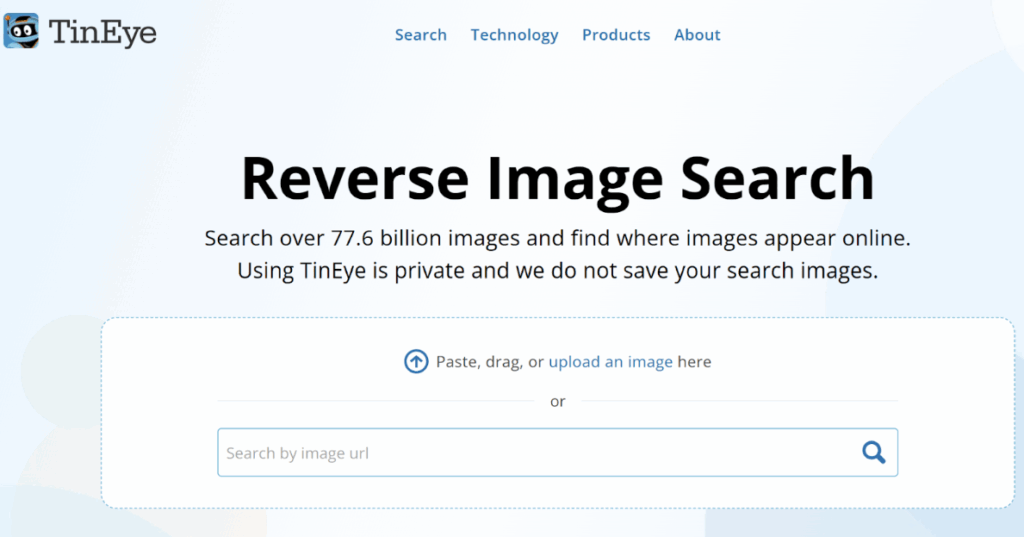
TinEye displays where that image appears online, along with versions sorted by size, resolution, and date.
Which Reverse Image Search Tool Should You Use?
- For general use & web-wide searches: Google.
- For shopping & object detection: Bing.
- For facial recognition & international content: Yandex.
- For copyright checks & image tracking: TinEye.
Reverse Image Search for Getting the Relevant Details About Images
There are countless reasons to use reverse image search, whether it’s to verify authenticity, track copyright use, or simply find better versions of an image.
Now that you know how to use Google, Bing, Yandex, and TinEye (on both desktop and mobile), you can easily perform reverse image searches for free on PC, Mac, Android, or iPhone.
Enjoy exploring the web with reverse image search!
FAQ:
Which search engines offer reverse image search capabilities?
Several search engines provide reverse image search functionality, with Google Images being the most widely used. Bing and Yandex are also popular choices, known for their visually friendly interfaces and graphics tools. These platforms allow you to upload an image or paste its URL to find similar visuals across the web. If you’re using Google Chrome, you can simply right-click an image and select “Search Google for Image” for instant results.
How can reverse image search help identify the source of an image I found online?
With reverse photo search tools like Google Images, you can easily track where an image first appeared online or see if it has been reused across multiple websites. This helps in detecting fake visuals, edited content, or misattributed media. Whether you’re fact-checking a viral meme, verifying a news photo, or tracing an old Pinterest image, reverse image search provides quick clarity with just one upload.
How can reverse image search help me find more information about a specific product I saw in a local advertisement?
If you’ve spotted a gadget in a store, a unique outfit, or even a piece of art at an exhibition, reverse image search can help. By uploading the picture, you can locate the same product on online stores, compare prices, read reviews, and discover alternatives. This not only prevents overspending but also helps you find the best deals and discounts, even when the product brand or name isn’t mentioned.
What image file formats are typically supported for reverse image search?
Most reverse image search engines support standard file formats such as JPEG, PNG, and GIF. You can easily drag and drop, paste, or upload an image depending on the platform. Mobile users also benefit from these services, on Android, you can use Chrome or third-party apps, while on iOS, Google reverse image search on iPhone can be accessed through the Chrome app or tools like TinEye for added convenience.