Ria Febin

Both tools download open-weight language models and run them on your own hardware, and both can serve them through an OpenAI-compatible API. LM Studio is a desktop app first: you browse, download and chat with models in a window, and it now also has a headless mode called llmster. Ollama is a command-line tool and background server first, open source under the MIT licence, with an official Docker image and a Linux installer that sets up a systemd service. On a laptop, pick whichever interface you like. On a server that other apps or people will use, Ollama is usually the simpler choice, and LM Studio’s licence terms need a read first.
LM Studio vs Ollama side by side
| LM Studio | Ollama | |
|---|---|---|
| Main interface | Desktop app, plus the lms command line | Command line and API, plus a chat app on macOS and Windows |
| Licence | Free for personal and internal business use under LM Studio’s app terms; lms CLI is MIT | MIT (open source) |
| Runs on | Apple silicon Macs, Windows x64 and ARM, Linux x64 and ARM64 | macOS, Windows, Linux, Docker |
| Headless on a server | Yes, with llmster | Yes, it is the normal way to run it |
| Default API address | 127.0.0.1:1234 | 127.0.0.1:11434 |
| APIs | OpenAI-compatible, plus LM Studio’s own REST API | Ollama’s own API, plus an OpenAI-compatible one |
| Where models come from | Search and download inside the app or with lms get, including Hugging Face URLs | ollama pull from the Ollama library, or import your own GGUF or Safetensors files |
| Model formats | GGUF (llama.cpp); MLX on Apple silicon | GGUF and Safetensors imports; MLX in preview on Apple silicon |
| Official Docker image | No | Yes, ollama/ollama |
Sources: LM Studio’s documentation and lms repository, and the Ollama repository with its FAQ. The default addresses are what we saw in our own tests below.
What we tested
We ran both on Linux in containers with no GPU: LM Studio’s headless llmster on ARM64 in Docker, and Ollama on an x86-64 test server with Podman. In each we loaded a tiny 135-million-parameter model (SmolLM2 135M) so the test finished in seconds. A model this small is only good for checking that everything works; real use needs a much bigger model and much more memory.
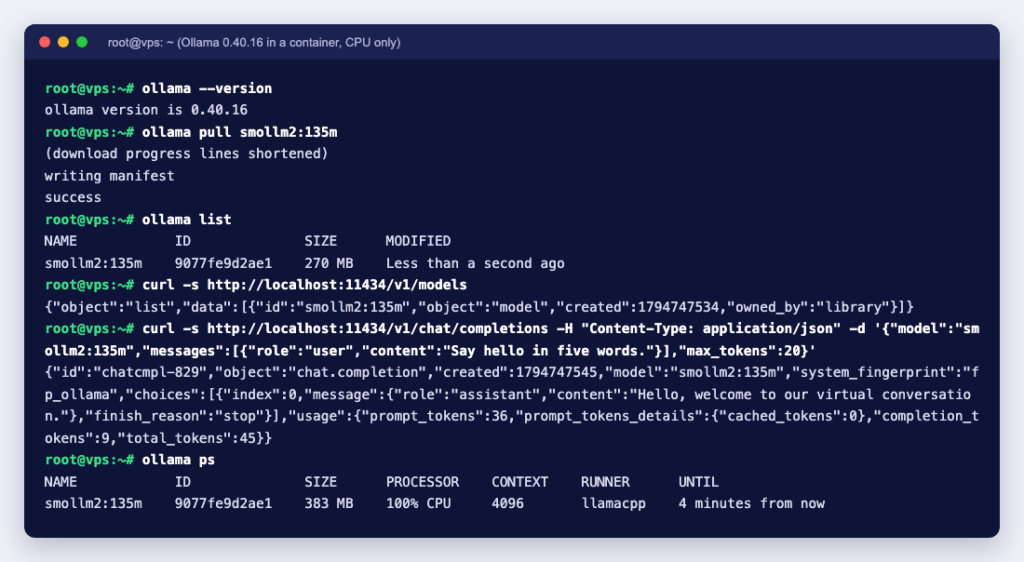
Ollama 0.40.16
$ ollama pull smollm2:135m
$ ollama list
NAME            ID              SIZE      MODIFIED
smollm2:135m    9077fe9d2ae1    270 MB    Less than a second ago

$ curl -s http://localhost:11434/v1/chat/completions \
    -H "Content-Type: application/json" \
    -d '{"model":"smollm2:135m","messages":[{"role":"user","content":"Say hello in five words."}],"max_tokens":20}'
{"id":"chatcmpl-829","object":"chat.completion",...,"model":"smollm2:135m",...,"content":"Hello, welcome to our virtual conversation."},...}

$ ollama ps
NAME            ID              SIZE      PROCESSOR    CONTEXT    RUNNER      UNTIL
smollm2:135m    9077fe9d2ae1    383 MB    100% CPU     4096       llamacpp    4 minutes from now
The model stays loaded for 5 minutes after the last request by default (OLLAMA_KEEP_ALIVE), and Ollama handles one request per model at a time unless you raise OLLAMA_NUM_PARALLEL.
LM Studio headless (llmster 0.0.25)
We installed llmster on Ubuntu 24.04 with LM Studio’s install script, curl -fsSL https://lmstudio.ai/install.sh | bash. On a minimal system it first stopped with Missing required dependency: "libatomic" is not installed, and the first model load then failed with exitCode=127 because libgomp.so.1 was missing. Installing libatomic1 and libgomp1 with apt fixed both. The install took about 2.9 GB of disk before any model was downloaded.
$ lms daemon up
llmster started (PID: 2700).
$ lms server start
Success! Server is now running on port 1234
$ lms get https://huggingface.co/bartowski/SmolLM2-135M-Instruct-GGUF --gguf -y
$ curl -s http://127.0.0.1:1234/v1/chat/completions \
    -H "Content-Type: application/json" \
    -d '{"model":"smollm2-135m-instruct","messages":[{"role":"user","content":"Say hi."}]}'
{"id":"chatcmpl-...","object":"chat.completion","model":"smollm2-135m-instruct",...}

$ lms ps
IDENTIFIER               STATUS    SIZE         CONTEXT    PARALLEL    TTL
smollm2-135m-instruct    IDLE      144.81 MB    8192       4           60m / 1h
The model was loaded “just in time” by the first API request and set to unload after an hour idle. Both servers listened on 127.0.0.1 only, which is the safe default. LM Studio’s install script now installs llmster 0.0.27, and the desktop app is at version 0.4.28; we have not repeated this part of the test on those versions.
Where each one is better
Choose LM Studio if
- You want a graphical app to find models, compare quantisations and chat, without touching a terminal.
- You work on an Apple silicon Mac and want MLX models alongside GGUF ones.
- You like to download models straight from Hugging Face by name or URL.
- The model is for you or your own team’s internal use.
Choose Ollama if
- You are setting up a server, not a desktop. The Linux installer creates an
ollamauser and a systemd service, and logs go tojournalctl -u ollama. - You deploy with Docker or Docker Compose; there is an official image.
- You want an open-source licence you can build a product or public service on.
- Other tools will call it: many chat front ends and automation tools already know how to talk to Ollama.
Read the licence before you build a service
This is the difference that matters most on a server. LM Studio made the app free for use at work, but its app terms license it “solely for Your personal and / or internal business purposes” and rule out using it for “service bureau use, as an application service provider, or a software-as-a-service”. An internal assistant for your staff fits; a paid chatbot you sell to customers may not. Ollama is MIT licensed, which allows commercial use as long as you keep the licence notice.
Either way, the model itself has its own licence too. Check it on the model’s page before using its output commercially.
Switching between them is easy
Because both offer /v1/chat/completions and /v1/models, an app written for the OpenAI API can usually move between them by changing the base URL and model name:
# LM Studio
base_url = "http://127.0.0.1:1234/v1"
model    = "smollm2-135m-instruct"

# Ollama
base_url = "http://127.0.0.1:11434/v1"
model    = "smollm2:135m"
Model names differ between the two, and the files are stored separately, so you download each model once per tool.
Hardware: what actually decides speed
Neither tool makes a model fit in less memory than it needs. The model file, plus room for its context, has to fit in GPU memory for fast answers; if it spills into system RAM and the CPU, it still works but slows down a lot. Some rules of thumb from the vendors:
- LM Studio recommends at least 16 GB of RAM, and on Windows at least 4 GB of dedicated VRAM.
- Ollama’s MLX preview on Apple silicon needs a Mac with more than 32 GB of unified memory.
- Longer context settings need more memory in both tools.
For small 7B to 8B models on a CPU, a VPS with plenty of RAM is enough for testing. For bigger models or several users at once, a server with an NVIDIA GPU is the practical option.
Server checklist for either tool
- Keep the API on
127.0.0.1. Both LM Studio (lms server start --bind 0.0.0.0) and Ollama (OLLAMA_HOST) can listen on all interfaces, but LM Studio’s own docs warn that this carries security risks. Reach the API through an SSH tunnel or a reverse proxy with authentication instead. - Make it start on boot: the Ollama installer does this with systemd; for llmster, LM Studio documents a separate startup setup for Linux.
- Put models on a disk with room to grow. Ollama stores them under
/usr/share/ollama/.ollama/modelson Linux unless you setOLLAMA_MODELS. - Watch memory with
ollama psorlms psand set how long idle models stay loaded.
Going with Ollama? Start with How to install Ollama on Ubuntu, then make it reachable from other machines safely and add Open WebUI for a browser chat. For the hardware, see our GPU dedicated servers, or let our engineers do the whole setup with private LLM installation.