Vishnu
A blue-green deployment runs two copies of your application side by side. “Blue” is the version live now, “green” is the new version. You install and test green while blue keeps serving users, then switch all traffic to green in one step. If something goes wrong, you switch back. A canary deployment is more gradual: you send a small share of traffic, say 10 percent, to the new version, watch it, and only then move everyone over. Blue-green gives the fastest rollback; canary limits how many users meet a bad release.
How blue-green deployment works
The AWS whitepaper on the method describes the idea as shifting traffic between two identical environments that run different versions of your application. In practice there are four steps:
- Blue is live. A load balancer or reverse proxy sends every request to the blue environment.
- Deploy green. Install the new release on the second environment: another set of containers, another server or another port on the same server. Users do not see it yet.
- Test green. Run smoke tests against it directly, with the same configuration and data as production.
- Switch. Point the proxy at green. Blue stays running, untouched, as your rollback. Once you are confident, blue becomes the place for the next release.
The AWS blue/green whitepaper (AWS now marks it as historical reference) sums up the benefit: releases with near zero downtime, and a rollback that is simply routing traffic back to blue. Compare that with an in-place upgrade, where rolling back means reinstalling the old version while the site is broken.
How canary deployment works
A canary release also runs old and new side by side, but moves traffic in stages. You start with a small percentage on the new version, check error rates, response times and logs, then increase it. AWS CodeDeploy’s deployment configurations show the idea well. CodeDeployDefault.ECSCanary10Percent5Minutes shifts 10 percent of traffic first and the remaining 90 percent five minutes later, while the linear options shift 10 percent at a time at fixed intervals until all traffic has moved.
The two methods are not rivals. The same AWS whitepaper calls sending a very small fraction of production traffic to green “canary analysis” or “canary testing”. Many teams do both: build a complete green environment, send it a canary share, then complete the switch.
Blue-green vs canary vs rolling update
| Blue-green | Canary | Rolling update (in place) | |
|---|---|---|---|
| Traffic move | All at once | In steps (for example 10%, then 100%) | Server by server |
| Users hit by a bad release | Everyone, until you switch back | Only the canary share | Those on the upgraded servers |
| Rollback | Switch the proxy back | Set the canary share to 0% | Redeploy the old version |
| Extra capacity needed | A full second environment during the release | Enough for the canary share | Little or none |
| Old and new versions live together | Briefly | For the whole rollout | For the whole rollout |
| Good fit | Single server or small setup that wants instant rollback | Busy sites where real traffic is the best test | Large pools of identical servers |
Blue-green on one server with nginx: a tested example
You do not need a cloud platform for this. A reverse proxy in front of two copies of your app is enough, and nginx can switch between them without dropping requests. According to the nginx control documentation, on a reload the master process checks the new configuration and keeps the old one if it fails; if it succeeds, it starts new worker processes, and the old ones stop accepting connections, finish serving their clients and then exit.
We tested it with nginx 1.31.6 in Docker: a proxy plus two backends, blue answering “blue v1” and green answering “green v2”. The proxy’s site configuration includes a small file that names the live backend:
# /etc/nginx/conf.d/default.conf
include /etc/nginx/live/upstream.conf;

server {
    listen 80;
    location / {
        proxy_pass http://app;
    }
}

# /etc/nginx/live/upstream.conf
upstream app { server blue:80; }
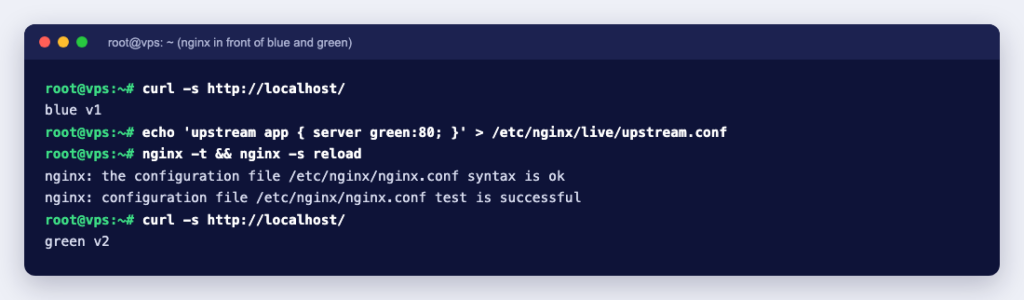
To switch, rewrite that one line, test the configuration and reload:
echo 'upstream app { server green:80; }' > /etc/nginx/live/upstream.conf
nginx -t && nginx -s reload
While a client sent 6,000 requests one after another, we switched to green after about four seconds and back to blue (a rollback) four seconds later. Every request got a 200, with no errors or timeouts in between:
requests: 6000 in 12 s
   1952 blue v1 200
   2023 green v2 200
   2025 blue v1 200
On a real server, blue and green are usually two ports on the same machine (for example 127.0.0.1:8001 and 127.0.0.1:8002), two sets of containers, or two servers. Keep the nginx -t in front of the reload: if the test fails, nothing changes. If nothing is listening on the new backend’s port, nginx -t still passes but visitors get a 502 (we saw connect() failed (111: Connection refused) in the error log); see 502 Bad Gateway: causes and fixes, and always check green directly before switching.
A canary with nginx split_clients
For a canary, nginx’s split_clients module hashes a string with MurmurHash2 and maps percentages of the hash range to values. We used it to pick the backend:
upstream blue_app  { server blue:80; }
upstream green_app { server green:80; }

split_clients "${request_id}" $pool {
    10%   green_app;
    *     blue_app;
}

server {
    listen 80;
    location / {
        proxy_pass http://$pool;
    }
}
Over 2,000 requests, 206 went to green, close to the 10 percent we asked for:
   1794 blue v1
    206 green v2
Hashing $request_id picks a pool for each request, so one visitor can bounce between versions. For a web application with logins or sessions that is usually wrong. Hash something stable instead, such as ${remote_addr} or a cookie: when we switched to ${remote_addr}, all 2,000 requests from our single test client went to the same pool. Raise the percentage as your checks pass, and set green to 100 percent (or switch the upstream as in the blue-green example) to finish.
The hard part: databases and state
Switching web traffic is easy. Switching data is not, because blue and green normally share one database, and blue must still work if you roll back. The AWS whitepaper’s section on schema changes recommends decoupling schema changes from code changes, in two phases:
- Before the switch, only add. New columns, tables and relationships, made in a backward compatible way so the old version still works with the data.
- After the switch has proved itself, remove. Drop the columns and tables the old version needed. Once that is done, blue can no longer run, so this is the point of no return.
The whitepaper also advises writing code that ignores database fields it does not recognise, so an added column cannot break the old version. The same thinking applies to other state: keep user sessions in a shared store (a database or Redis) rather than in each app’s memory, keep uploads in shared storage, and make sure scheduled jobs run in only one environment at a time.
Which one should you use?
- Use blue-green when you want predictable, fast rollback and your app can run twice on the available resources. It works well on a single VPS with two ports and nginx in front.
- Add a canary step when you have enough traffic that 10 percent tells you something within minutes, and you have monitoring that shows errors per version.
- Stay with simple in-place updates for small sites where a minute of maintenance is acceptable and a backup is your rollback.
Whichever you choose, write the switch and the rollback down as a script, and practise the rollback before you need it. A KVM VPS with full root access has room for two copies of most applications and an nginx proxy in front. If you would rather not build the setup yourself, Ucartz engineers can do it as on-demand work through Hire an Expert.