jijosh at

On Windows the hosts file is C:\Windows\System32\drivers\etc\hosts (a file called hosts with no extension). On macOS and Linux it is /etc/hosts; on a Mac, /etc is a symbolic link to /private/etc, so the real file is /private/etc/hosts. In all three you need administrator or root rights to change it, and the file is checked before DNS, so a line in it overrides what the rest of the internet sees for that name, on your computer only.
| System | Hosts file location | Edit with |
|---|---|---|
| Windows (desktop and Server) | C:\Windows\System32\drivers\etc\hosts (%WinDir%\System32\Drivers\Etc) | Notepad, run as administrator |
| macOS | /etc/hosts (really /private/etc/hosts) | sudo nano /etc/hosts in Terminal |
| Linux (Ubuntu, Debian, AlmaLinux and others) | /etc/hosts | sudo nano /etc/hosts |
| Docker containers | /etc/hosts, created by Docker | docker run --add-host name=IP |
What the hosts file does
The hosts file is a plain text list of IP addresses and the names that should point to them. Windows, macOS and Linux all still use it. When a program asks the system for the address of a name, the operating system looks in the hosts file before asking a DNS server:
- Windows: Microsoft’s DNS client troubleshooting guide gives the order as: check the cache, check the hosts file, then send the query to the DNS server. With a hosts entry in place, no DNS query leaves the machine at all.
- Linux: the order is set by the
hosts:line in/etc/nsswitch.conf. Both the Debian 13 and Ubuntu 26.04 images we tested havehosts: files dns, meaning the file first, then DNS. - macOS: the
hosts(5)manual page on macOS says the file is read bymDNSResponderand its results are returned together with those from multicast and unicast DNS.
That makes it handy for three jobs: previewing a website on a new server before you change DNS, pointing a development name at your own machine, and blocking a site by sending its name to an address that goes nowhere.
The hosts file format
Each line has an IP address, then the main host name, then any aliases, separated by spaces or tabs. A # starts a comment. The Linux hosts(5) manual describes it as “one line per IP address”, and the default Windows file explains the same rules in its comments. A typical block for testing a site on a new server:
# preview the site on the new server
192.0.2.10   example.com   www.example.com
2001:db8::10 example.com   www.example.com
Put both the bare domain and www on the line, or only one of them will go to the new server. If the new server has IPv6, add an IPv6 line as well; the manual allows separate IPv4 and IPv6 entries for the same host.
What does not work: we tested it
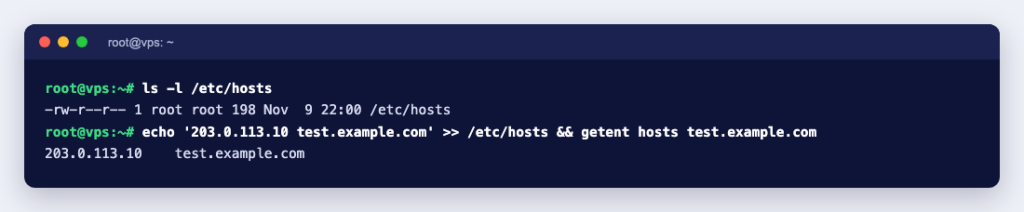
We added these lines to /etc/hosts in Debian 13 and Ubuntu 26.04 containers and looked each name up with getent hosts, which uses the same resolver as other programs. Both systems gave identical results:
192.0.2.10   shop.example.test shop   # new server
192.0.2.30   shop.example.test
192.0.2.40   *.wild.example.test
192.0.2.50   api.example.test:8080

shop.example.test      192.0.2.10   shop.example.test shop
                       192.0.2.30   shop.example.test shop
shop                   192.0.2.10   shop.example.test shop
SHOP.EXAMPLE.TEST      192.0.2.10   shop.example.test shop
x.wild.example.test    (not found)
api.example.test (not found)- No wildcards.
*.wild.example.testdid not matchx.wild.example.test. Every subdomain needs its own entry. - No ports. The hosts file maps names to addresses only.
api.example.test:8080was simply not found; put the port in the URL instead. - Names are not case-sensitive, and aliases work:
shopandSHOP.EXAMPLE.TESTboth returned 192.0.2.10. - Duplicates cause confusion. With two lines for the same name, both addresses came back, because Debian and Ubuntu ship
/etc/host.confwithmulti on. The host.conf manual says the default without that setting is to return only the first. Either way, keep one line per name so you know which server you are testing.
How to edit the hosts file
Windows
Windows refuses changes from a normal Notepad window, even for an administrator account, with “Access to C:\Windows\System32\drivers\etc\hosts was denied” or “Cannot create the C:\Windows\System32\drivers\etc\hosts file”. Microsoft’s fix, in Can’t modify the Hosts or Lmhosts file, applies to all versions of Windows and Windows Server:
- Find Notepad in the Start menu, right-click it and select Run as administrator. Confirm the prompt.
- Choose File, Open and type
C:\Windows\System32\drivers\etc\hostsas the file name. - Add your lines at the end and choose File, Save.
Keep the name exactly hosts. Microsoft’s How to reset the Hosts file back to the default points out that a hosts file cannot have a file extension, so make sure it has not been saved as hosts.txt. That article also gives the default Windows file if yours is damaged.
Microsoft also documents that Windows Defender can flag a changed hosts file as SettingsModifier:Win32/PossibleHostsFileHijack, because malware often edits it to redirect people to fake sites. If you did not make a change you see in the file, treat it as a warning sign.
macOS
Open Terminal and run sudo nano /etc/hosts (on our Mac, nano is a link to the pico editor). Add your lines at the end, save, and exit the editor. Leave Apple’s default block at the top alone:
##
# Host Database
#
# localhost is used to configure the loopback interface
# when the system is booting.  Do not change this entry.
##
127.0.0.1	localhost
255.255.255.255	broadcasthost
::1             localhost
Linux and VPS servers
Run sudo nano /etc/hosts, add the line and save. In our tests the new entry was used by the very next lookup. Leave the existing lines, such as localhost and the server’s own name, where they are. Inside a Docker container, /etc/hosts is created by Docker and mounted into the container (our test container listed it as a separate mount), so add entries when you start the container instead. The docker run reference documents --add-host, which we tested:
$ docker run --rm --add-host shop.example.test=192.0.2.10 alpine:3 tail -2 /etc/hosts
192.0.2.10	shop.example.test
172.17.0.2	5c5b98c62f5e
How to check the hosts file is being used
Use a tool that asks the operating system, not a DNS tool. In our Debian test, with 192.0.2.10 shop.example.test in the file:
$ getent hosts shop.example.test
192.0.2.10      shop.example.test
$ dig shop.example.test | grep status
;; ->>HEADER<<- opcode: QUERY, status: NXDOMAIN, id: 24514
$ nslookup shop.example.test
** server can't find shop.example.test: NXDOMAIN
dig and nslookup send their question straight to a DNS server, so they never see the hosts file. That is useful when you want to know what the rest of the world gets, and misleading when you are checking your own override. Programs that ask the operating system, such as curl, do follow it: curl reported IPv4: 192.0.2.10 for the same name.
- Linux:
getent hosts example.com - macOS:
dscacheutil -q host -a name example.com(on our Mac it answeredlocalhostfrom the hosts file with both 127.0.0.1 and ::1) - Windows:
Resolve-DnsName example.comin PowerShell, which Microsoft’s troubleshooting guide uses to show a hosts file answer
If the change does not show up, clear the operating system’s and the browser’s DNS cache: How to Flush the DNS Cache on Linux, Windows, macOS and Browsers has the commands for each. For more on the DNS tools, see DNS Lookup Commands: dig, nslookup and host.
A quicker option for one test: curl –resolve
If you only want to check one page on a new server, you do not have to touch the hosts file. The curl manual calls --resolve “a sort of /etc/hosts alternative provided on the command line”:
$ curl -sv -o /dev/null --resolve shop.example.test:80:172.27.0.2 http://shop.example.test/
*   Trying 172.27.0.2:80...
> Host: shop.example.test
< HTTP/1.1 200 OK
The request goes to the address you give, with the right Host header, and nothing is left behind to forget. The port in --resolve must match the URL (443 for HTTPS).
Remove your test entries afterwards
The most common hosts file problem is an old line nobody remembers. Weeks after a migration, one computer still shows the old site, or email settings point to a server that no longer exists, because the hosts file still sends that name to the old IP address. When your test is finished and DNS has been switched, delete or comment out the lines you added.
Previewing a site before a move is the classic use; How to test your website before changing DNS walks through it. If you are moving your site to new hosting, such as Ucartz web hosting, test it on the new server with the hosts file first, then change your nameservers once everything works.