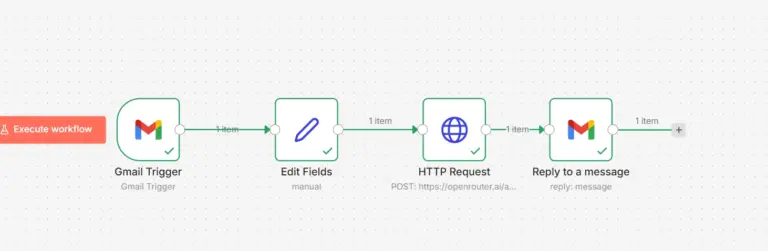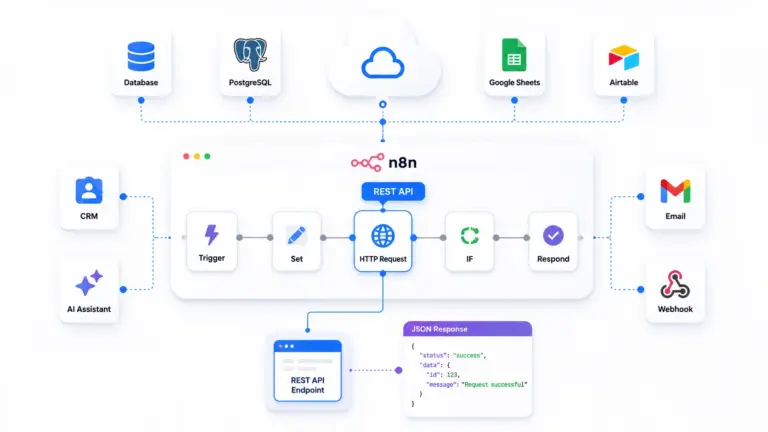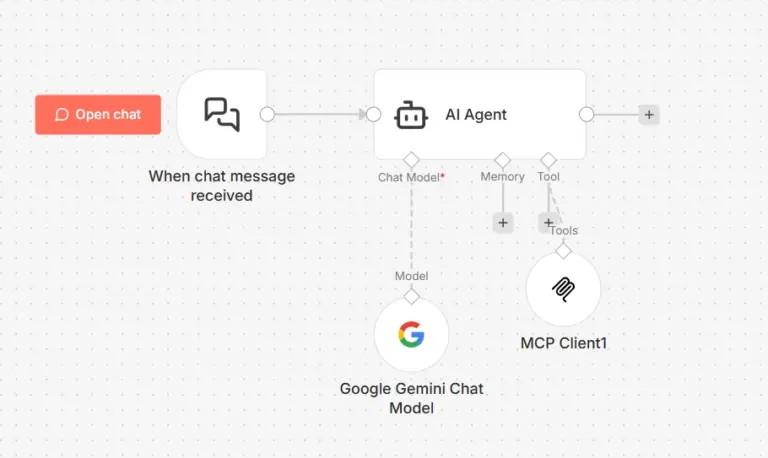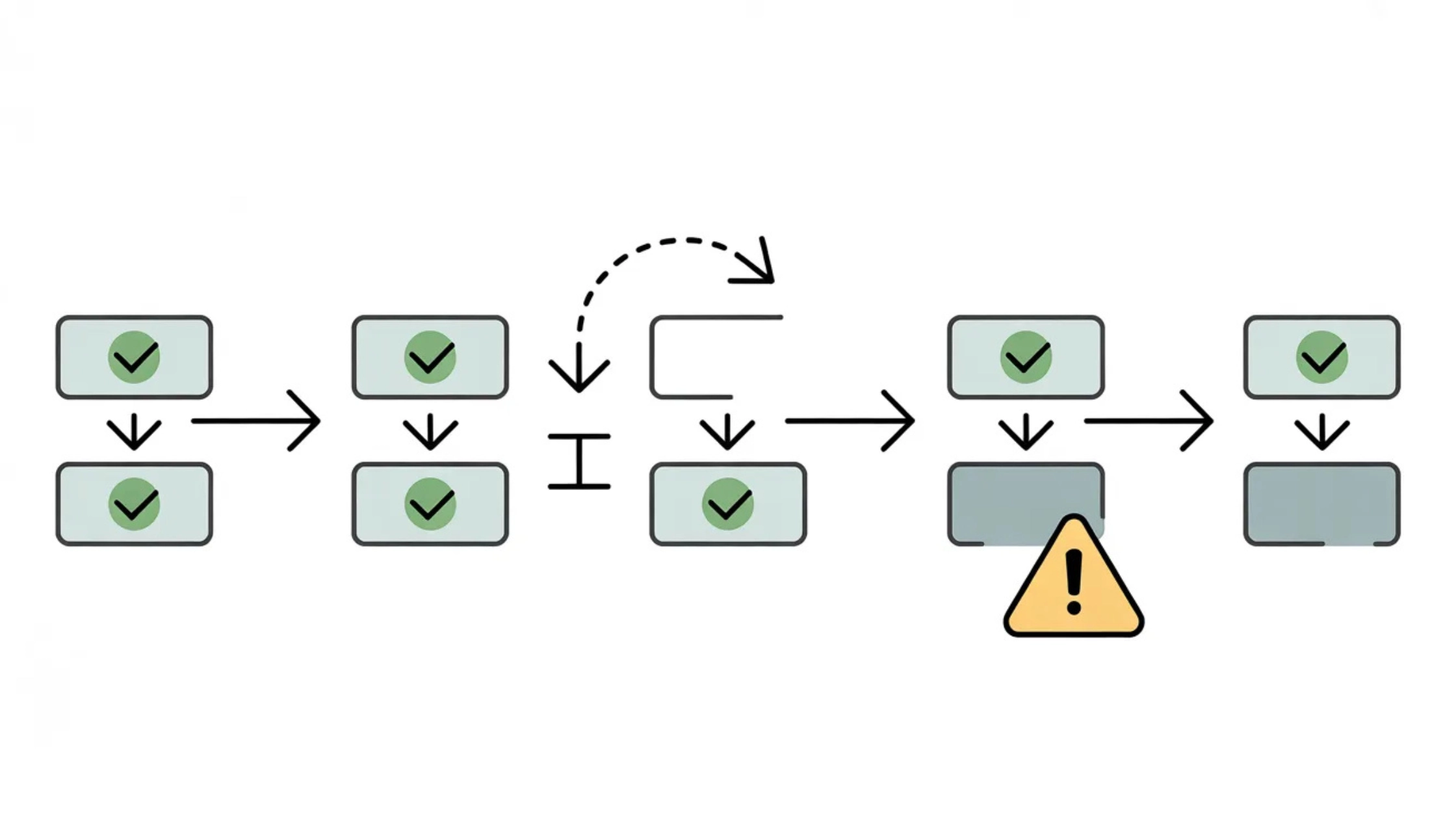

A workflow that crashes with a visible error is easy to fix. You see the red execution in n8n, read the error message, find the broken node, and fix it. That process takes minutes.
The failures that actually cost you data, customers, and hours of debugging are the ones that produce no error at all. The workflow runs green. The execution history shows success. But the data never arrived, the email never sent, the record never updated, and nobody noticed until a customer complained three days later.
Silent failures are the most dangerous category of automation bug because they hide behind normal-looking behavior. n8n workflow automation marks an execution as successful when it completes without throwing an error. It does not verify that the output of each node was correct, that the data written to your database was valid, or that the email actually reached the recipient. Success means the workflow ran not that it did what you intended.
This guide covers every major cause of silent failure in n8n, how to detect each one, and how to build monitoring that catches problems before your users do.
Why n8n Cannot Catch These Failures Automatically
n8n evaluates execution success at the technical level. A node succeeds if it runs without throwing a JavaScript exception or returning an HTTP error status. Everything above that layer whether the data was meaningful, whether the downstream system accepted it, whether the action you intended actually happened is outside what n8n checks by default.
This is not a design flaw. It reflects how workflow automation works. n8n cannot know what “correct” means for your specific business logic. It can tell you that an HTTP request returned 200. It cannot tell you that the 200 response contained empty data, that the record written to your CRM had blank fields, or that the webhook payload your workflow sent was missing the field the receiving system needed.
Bridging that gap is your responsibility as the workflow builder. The rest of this guide shows you exactly how to do it.
Cause 1 – Empty API Responses That Look Like Success
An HTTP Request node returns a 200 status code regardless of whether the response body contains useful data. A 200 with an empty array is treated identically to a 200 with 500 records. The workflow continues down the success path in both cases.
This breaks any workflow that processes items from an API response. If the response is empty, downstream nodes execute with no data. Depending on your workflow structure, this means records never get created, emails never get sent, or Sheets rows never get written — all without a single error.
The pattern that causes this is connecting the HTTP Request node directly to processing nodes without checking whether the response actually contains data.
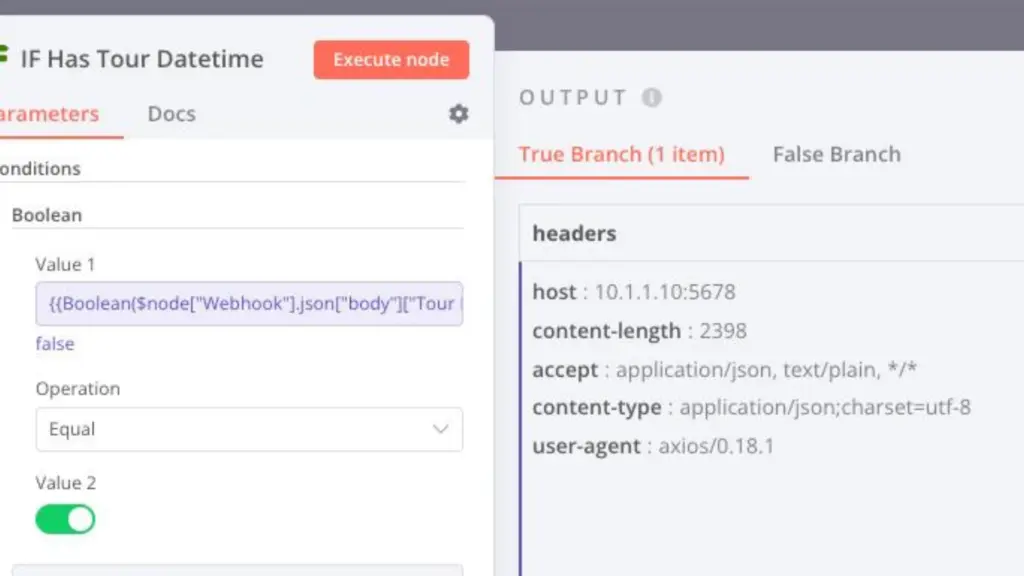
Fix it by adding an IF node immediately after every HTTP Request node that returns a list or collection:
// In an IF node condition:
// Value 1: {{$json.data.length}}
// Operation: Greater Than
// Value 2: 0
Route the FALSE branch empty response to a notification node that alerts you. Never let an empty response silently pass through to processing nodes.
For API responses where the data is nested:
const items = $json.data?.records || $json.results || $json.items || [];

if (items.length === 0) {
  return [{
    json: {
      status: "empty_response",
      alert: true,
      checked_at: new Date().toISOString()
    }
  }];
}

return items.map(item => ({ json: item }));
This Code node explicitly catches empty responses before they silently pass through.
Cause 2 – Partial Failures in Loops
When you use a SplitInBatches node or loop over items, n8n processes each item independently. If item 7 out of 50 fails, n8n logs the error for that item and continues processing items 8 through 50. The execution completes with a green status. The error appears in the execution detail, but the overall execution is not flagged as failed.
In practice, this means 49 records get processed and 1 gets silently dropped. If you are not checking execution details manually after every run, you never know.
This is one of the most common sources of data loss in production n8n workflows. Bulk email sends, batch CRM updates, and mass data imports are all vulnerable to this pattern.
Detect it by adding a counter that tracks how many items enter the loop versus how many successfully exit:
// At the start of your loop: count inputs
const inputCount = $input.all().length;

return [{ json: { input_count: inputCount, processed: 0, failed: 0 } }];
// After each item processes successfully:
const current = $('Counter').item.json;
current.processed++;
return [{ json: current }];// In error branch of each item:
const current = $('Counter').item.json;
current.failed++;
return [{ json: current }];// After the loop completes: compare counts
const stats = $json;
if (stats.failed > 0 || stats.processed !== stats.input_count) {
// Trigger alert
return [{
json: {
alert: true,
message: `Loop completed with failures: ${stats.failed} failed out of ${stats.input_count}`,
stats
}
}];
}
return [{ json: { alert: false, stats } }];Connect the alert branch to your notification channel. Any discrepancy between input count and processed count triggers an alert.
Cause 3 – Expression Errors That Return Empty Instead of Failing
When an n8n expression references a field that does not exist, it returns an empty string or undefined instead of throwing an error. The node executes successfully. The downstream nodes receive empty values. Records get created with blank fields. Emails get sent with missing content. Sheets rows get written with empty cells.
This happens constantly when API response structures change slightly. An API that previously returned data.user.email starts returning data.contact.email_address. Every expression that references the old path silently returns empty. The workflow keeps running. The data is wrong.
You catch this with a validation Code node placed after nodes where field mapping is critical:
const required = ['email', 'name', 'account_id', 'plan_type'];
const missing = [];

for (const field of required) {
  const value = $json[field];
  if (value === undefined || value === null || value === '') {
    missing.push(field);
  }
}

if (missing.length > 0) {
  return [{
    json: {
      validation_failed: true,
      missing_fields: missing,
      received_data: $json,
      timestamp: new Date().toISOString()
    }
  }];
}

return [{ json: { ...$json, validation_passed: true } }];
Add this validation node after any HTTP Request, Webhook, or database node where you depend on specific fields being present. Route validation_failed: true to an alert node. Never let empty fields pass silently into CRM writes, email sends, or database inserts.
Cause 4 – Workflows That Stop Running Without Crashing
Scheduled workflows anything using a Schedule Trigger stop executing silently when n8n restarts. The workflow stays active in the UI. The schedule shows the next run time. But if n8n crashed and restarted, the schedule resets and may skip executions depending on how the restart is handled.
A workflow scheduled to run every day at 6 AM that nobody checks manually can stop running for weeks before anyone notices the daily report stopped arriving.
The fix is an external heartbeat monitor a separate scheduled workflow that does nothing but send a ping to an external uptime service every 5 minutes:
# Schedule Trigger: every 5 minutes
# HTTP Request node:
# GET https://hc-ping.com/your-unique-uuid
Services like Healthchecks.io and Better Uptime send you an alert if they do not receive a ping within a defined window. If n8n stops running for any reason, the pings stop, and you get an alert within minutes .
For critical scheduled workflows specifically, add a “last ran” check. At the end of your scheduled workflow, write the current timestamp to a static data field:
const staticData = $getWorkflowStaticData('global');
staticData.last_successful_run = new Date().toISOString();
return [{ json: { last_run: staticData.last_successful_run } }];
Add a separate monitoring workflow that runs every hour and reads this timestamp:
const staticData = $getWorkflowStaticData('global');
const lastRun = staticData.last_successful_run;

if (!lastRun) {
  return [{ json: { alert: true, reason: "No run recorded" } }];
}

const hoursSinceLastRun = (Date.now() - new Date(lastRun).getTime()) / (1000 * 60 * 60);

if (hoursSinceLastRun > 25) {  // daily workflow missed its window
  return [{
    json: {
      alert: true,
      reason: `Workflow has not run in ${hoursSinceLastRun.toFixed(1)} hours`,
      last_run: lastRun
    }
  }];
}

return [{ json: { alert: false, last_run: lastRun } }];
Cause 5 – Third-Party Services Accepting Bad Data
Google Sheets, Airtable, Notion, and most CRM integrations accept writes without validating the content. You write a row with five blank fields and one populated field the API returns 200, the row appears in your Sheet, and n8n marks the execution successful.
You discover the problem three weeks later when you try to export your data and find hundreds of incomplete records.
Validate before every write to external storage. Add a Code node before your Google Sheets or database node:
const row = {
  timestamp: $now,
  customer_email: $json.email,
  plan: $json.plan,
  amount: $json.amount,
  transaction_id: $json.transaction_id
};

// Check for empty critical fields
const criticalFields = ['customer_email', 'transaction_id', 'amount'];
const emptyFields = criticalFields.filter(f => !row[f]);

if (emptyFields.length > 0) {
  // Write to error log sheet instead of main sheet
  return [{
    json: {
      ...row,
      write_to: 'error_log',
      reason: `Empty fields: ${emptyFields.join(', ')}`
    }
  }];
}

return [{ json: { ...row, write_to: 'main' } }];
Add an IF node after this validation that routes write_to = error_log to a separate “failed records” sheet and write_to = main to your production sheet. Every failed write is captured and reviewable instead of silently corrupted.
Cause 6 – Error Workflows Not Set Up
n8n has a global Error Workflow feature that catches uncaught errors from any workflow and routes them to a designated error handler. Most n8n deployments never configure this. When an execution fails with an actual error, the execution appears red in the history but if nobody checks the execution history regularly, the alert never reaches anyone.
Set up an Error Workflow once and it covers every workflow on your instance.
Create a new workflow called Error Handler. Add an Error Trigger node as the first node. Add a Code node to format the alert:
return [{
  json: {
    workflow_name: $json.workflow.name,
    workflow_id: $json.workflow.id,
    error_message: $json.execution.error.message,
    failed_node: $json.execution.error.node?.name || "unknown",
    execution_id: $json.execution.id,
    failed_at: new Date().toISOString(),
    execution_url: `https://yourdomain.com/execution/${$json.execution.id}`
  }
}];
Connect the Code node to your preferred notification channel. For Slack:
javascript
// Slack message text
` Workflow Failed
Workflow: ${$json.workflow_name}
Node: ${$json.failed_node}
Error: ${$json.error_message}
Time: ${$json.failed_at}
View: ${$json.execution_url}`
Activate this workflow. Then go to Settings → Workflows → Error Workflow in n8n and select it. Every workflow failure on your instance now triggers this handler and sends the alert to Slack even if you never manually check execution history.
Cause 7 – Webhook Deliveries That Silently Fail
External systems that send webhooks to n8n typically retry on failure. But they do not retry on success meaning if your n8n webhook returns 200 but the workflow processed the data incorrectly, the sending system considers delivery complete and never sends again.
Common scenario: Stripe sends a payment_succeeded webhook. n8n receives it, returns 200 immediately, but the Code node that processes the payment data fails silently due to a missing field. The payment is never recorded in your system. Stripe marks delivery as successful. The gap in your records is invisible until a customer asks why their account was not activated.
Fix this by decoupling webhook acknowledgment from data processing verification:
// Immediately after Webhook node, before processing:
// Respond to Webhook → { "status": "received" }

// After all processing nodes, add a verification check:
const required_outcome = $json.order_id && $json.customer_created && $json.invoice_sent;

if (!required_outcome) {
  // Write to a "webhook_failures" sheet for manual review
  return [{
    json: {
      source: 'stripe_payment_webhook',
      payload: $('Webhook').item.json.body,
      failure_reason: 'Post-processing verification failed',
      timestamp: new Date().toISOString()
    }
  }];
}
Every webhook that completes its delivery acknowledgment but fails post-processing verification gets written to a failure log. You review this log and reprocess manually but nothing is lost.
The Monitoring Setup That Covers All of This
Build one monitoring workflow that consolidates all checks. Run it every 15 minutes.
const checks = [];

// Check 1: n8n is responding
// HTTP Request → GET https://yourdomain.com/healthz

// Check 2: Last execution of each critical workflow
const criticalWorkflows = [
  { name: 'Daily Report', max_gap_hours: 25 },
  { name: 'Payment Processor', max_gap_hours: 1 },
  { name: 'Ticket Triage Bot', max_gap_hours: 0.5 }
];

// Check 3: Redis queue depth (if queue mode enabled)
// Execute Command → redis-cli llen bull:jobs:wait

// Check 4: Failed execution count in last hour
// n8n API → GET /executions?status=error&limit=50

const failedCount = $json.data?.filter(e =>
  new Date(e.startedAt) > new Date(Date.now() - 3600000)
).length || 0;

if (failedCount > 5) {
  checks.push({
    alert: true,
    check: 'failed_executions',
    count: failedCount,
    message: `${failedCount} workflow failures in the last hour`
  });
}

const alerts = checks.filter(c => c.alert);

return [{
  json: {
    has_alerts: alerts.length > 0,
    alert_count: alerts.length,
    alerts,
    checked_at: new Date().toISOString()
  }
}];
Connect the output to an IF node that checks has_alerts = true and routes to a Slack or email notification. This single workflow gives you visibility across your entire n8n instance every 15 minutes.
The Four Rules That Prevent Silent Failures
Validate data before writing it. Every node that writes to an external system Sheets, database, CRM, email gets a validation check before it. Empty fields trigger alerts, not silent writes.
Check response content, not just status codes. A 200 response with empty data is not success. Add content checks after every HTTP Request node that should return data.
Count inputs and outputs in every loop. If items enter a SplitInBatches node and fewer items exit the success branch than entered, something dropped silently. Track both numbers and alert on any discrepancy.
Monitor workflow run frequency, not just execution status. A workflow that stops running produces no errors and no red executions. External heartbeat monitoring catches this where n8n’s internal error handling cannot.
Silent failures are preventable. Every one of them follows a predictable pattern, and every one of them has a detection mechanism you can build directly inside n8n. The time you spend building validation and monitoring nodes pays back every time you catch a problem before your users do.
Conclusion
Silent failures in n8n are not random they come from weak validation, poor node configuration, and lack of visibility between steps. If your workflow depends on assumptions instead of verified data, it will eventually fail without warning. The fix is simple: validate every input, inspect every output, and never trust default values. Once you treat each node like a checkpoint instead of a pass-through, your workflows become predictable, stable, and production-ready. Deploy your n8n on KVM VPS hosting and start your automation journey today!
FAQ
What causes n8n workflows to fail silently?
Missing data, incorrect field mapping, and weak conditions cause silent failures in n8n.
How do I debug n8n workflows effectively?
Use “Execute Node,” inspect JSON outputs, and verify data flow between each node.
Why is my IF node always false in n8n?
The condition likely uses the wrong field path or mismatched value format.
How can I prevent silent failures in n8n?
Add validation checks, avoid defaults, and log outputs at every critical step.
Does n8n show errors for all failures?
No, many logical errors don’t throw exceptions and must be manually debugged.