Updated: 17 November 2026 · Applies to: AzuraCast 0.23 and later, BUTT, Mixxx
To go live on AzuraCast, you need three things: a DJ account in AzuraCast, a free broadcasting program on your computer (BUTT or Mixxx), and the connection details AzuraCast gives you. When you connect, your live show replaces the AutoDJ music. When you disconnect, the AutoDJ starts playing again by itself.
What does "going live" mean?
Normally, your radio station plays songs from your playlists on its own. This is called AutoDJ. Going live means you talk or play music from your own computer, and your listeners hear you in real time instead of the AutoDJ.
Step 1: Check that live DJs are switched on
- Log in to AzuraCast and open your station.
- In the left menu, look for Live Streaming, then Streamer/DJ Accounts.
- If you cannot see this menu, live DJs are switched off for your station. On our shared AzuraCast hosting, open a ticket and we will switch it on for you.
Step 2: Create a DJ account
- Go to Live Streaming, then Streamer/DJ Accounts.
- Click Add Streamer.
- Type a username and a password for the DJ. Write them down, you will need them in Step 4.
- Click Save Changes.
You can make a separate account for each DJ, so every DJ has their own login.
Step 3: Find your connection details
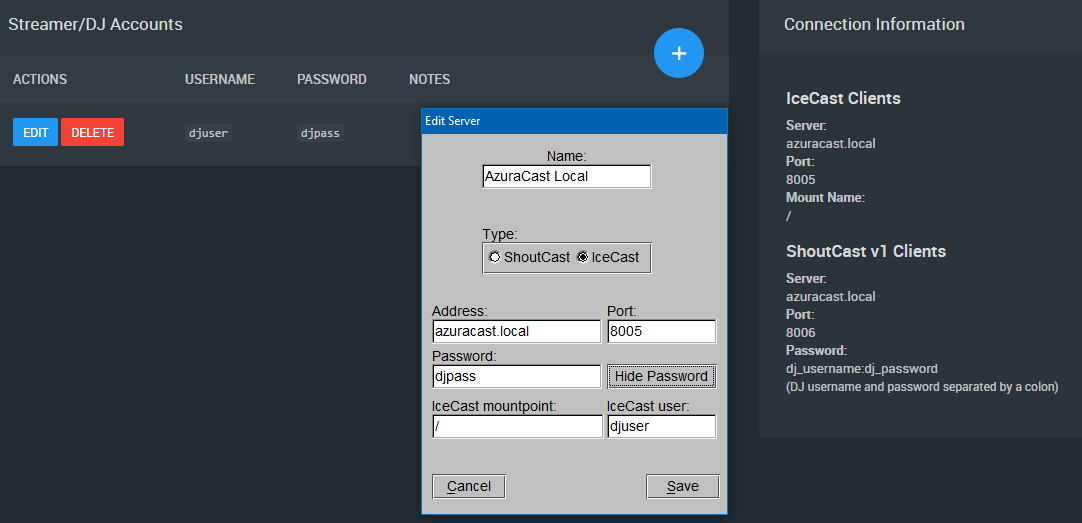
On the same Streamer/DJ Accounts page, look at the box called Connection Information. Under IceCast Clients you will see three values:
- Server: the address of your radio server.
- Port: a number, the "door" your DJ program connects through.
- Mount Name: usually just
/
Keep this page open. You will copy these values into your broadcasting program.
Step 4: Connect with BUTT (easiest option)
BUTT (short for "Broadcast Using This Tool") is a small, free program for Windows, Mac and Linux. It only does one job: it sends your microphone or computer sound to your radio. Download it from the BUTT project page.
- Open BUTT and click Settings.
- Under Main, find Server Settings and click ADD.
- Fill in the form like this:
- Name: any name you like, for example My Radio.
- Type: choose IceCast.
- Address: the Server value from Step 3.
- Port: the Port value from Step 3.
- Password: your DJ password.
- IceCast mountpoint: the Mount Name value from Step 3 (usually
/). - IceCast user: your DJ username.
- Click ADD (or Save) to keep the server, then close the settings.
- Click the play button in BUTT. When it says connected, you are live.
- To stop, click the stop button. The AutoDJ takes over again.
Step 4 (other option): Connect with Mixxx
Mixxx is free DJ software for Windows, Mac and Linux. It is a good choice if you want to mix songs like a real DJ, with two decks and crossfading.
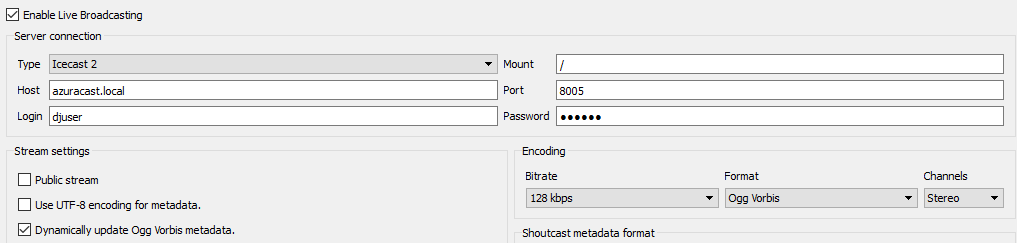
- Open Mixxx and go to Options, then Preferences, then Live Broadcasting.
- Set Type to Icecast 2.
- Enter the Server (host), Port and Mount from Step 3, and your DJ username as Login and DJ password as Password.
- Set the Format to Ogg Vorbis. AzuraCast converts it to the right format for your listeners, so you do not need anything extra.
- Click OK, then switch on Live Broadcasting (the "On Air" button) in the main Mixxx window.
What about ShoutCast mode?
Use IceCast mode whenever your program offers it. It is the simplest and works with every AzuraCast station, even if your station itself runs on SHOUTcast. If your program only supports ShoutCast, use the values under ShoutCast v1 Clients in the Connection Information box. In that mode there is no username box, so type the password as your DJ username and DJ password joined by a colon, for example djuser:djpass.
It does not connect. What should I check?
- Wrong port: the DJ port is not the same as your listening port. Copy the port from the IceCast Clients part of Connection Information.
- Wrong password or username: they must match the DJ account exactly, including capital letters.
- Wrong mount: it is usually just
/, nothing else. - Station not running: in AzuraCast, check that your station is online. After changing broadcasting settings, click Restart Broadcasting.
- Firewall: some office or school networks block unusual ports. Try from another internet connection, such as your phone's hotspot.
Still stuck? Open a ticket with a screenshot of your BUTT or Mixxx settings (hide the password) and we will help.
Need a radio station to broadcast on? See our AzuraCast hosting plans.
