 Binila Treesa Babu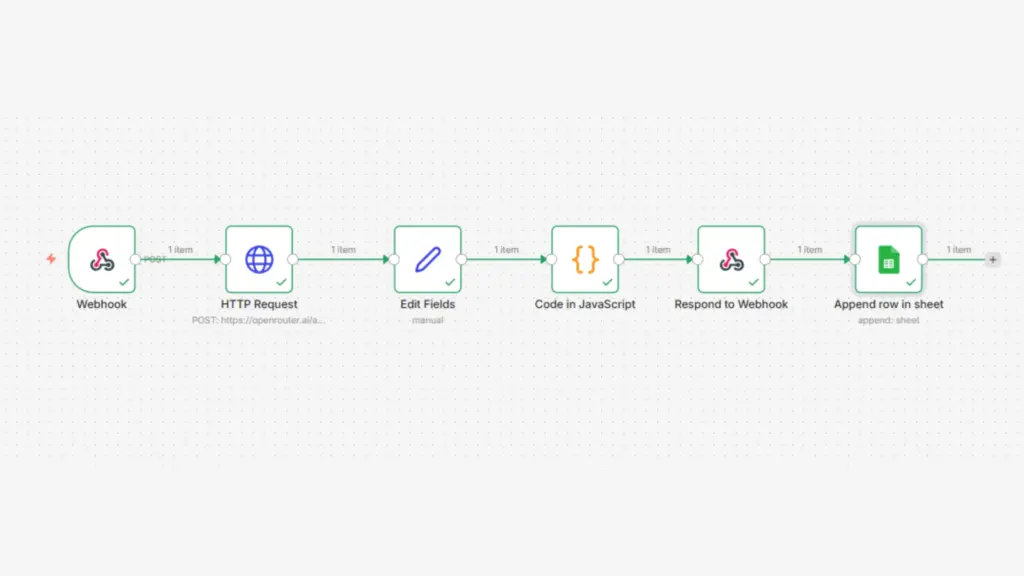
This workflow takes a user’s website details type, traffic, budget, and region runs them through an AI model via OpenRouter, applies deterministic business logic to select the right Ucartz VPS plan, and logs every recommendation to Google Sheets. The result is a fully automated lead qualification and recommendation tool that runs 24/7 without manual intervention.
The workflow has six nodes in sequence: Webhook → HTTP Request (AI) → Edit Fields → Function (Logic) → Respond to Webhook → Google Sheets.
Why This Workflow Architecture Works
Most n8n AI workflows stop at the AI response. They send user input to the model, get back a recommendation, and return it raw. That breaks in production because AI output is inconsistent sometimes it returns JSON, sometimes it wraps it in markdown, sometimes the field names change between calls.
This workflow solves that by separating concerns. The AI handles reasoning and explanation. A JavaScript Function node applies deterministic logic to pick the actual plan. The Edit Fields node extracts and normalizes the AI output before the function processes it. Google Sheets logs everything for follow-up.
Step 1 – Webhook Node (Entry Point)
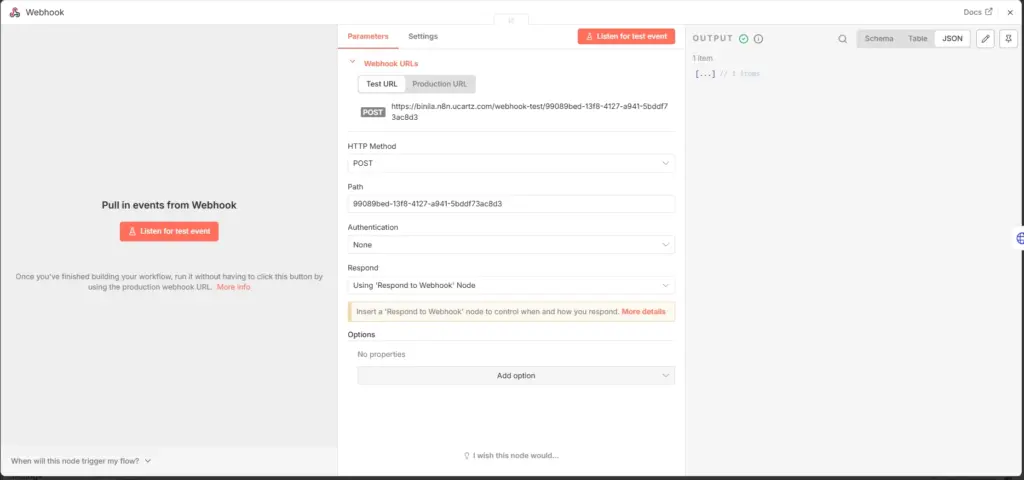
Add a Webhook node. Set the method to POST. This is the URL your website form, chatbot, or frontend posts to. The webhook accepts this input schema:
{
  "website_type": "",
  "monthly_traffic": "",
  "budget": "",
}
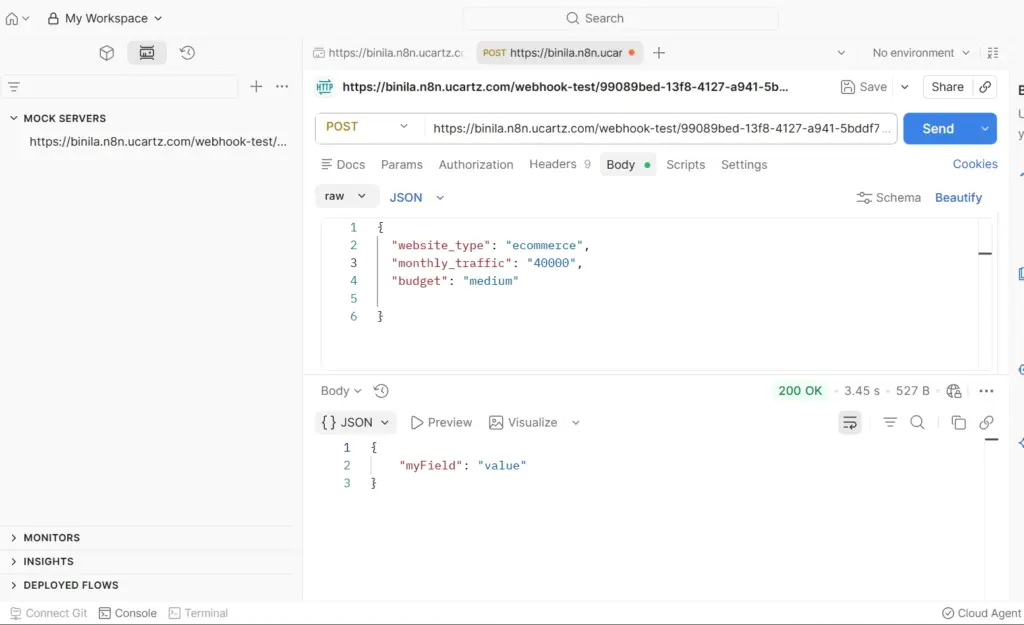
Use this test payload while building the workflow:
{
  "website_type": "WordPress",
  "monthly_traffic": "50000",
  "budget": "medium",
}
Set Response Mode to “Using Respond to Webhook Node” this keeps the connection open until the last node fires the response, so the user gets the recommendation back in the same HTTP call. Copy the test webhook URL. You use this to trigger runs manually while building the remaining nodes or in POSTMAN.
Step 2 – HTTP Request Node (AI Engine via OpenRouter)
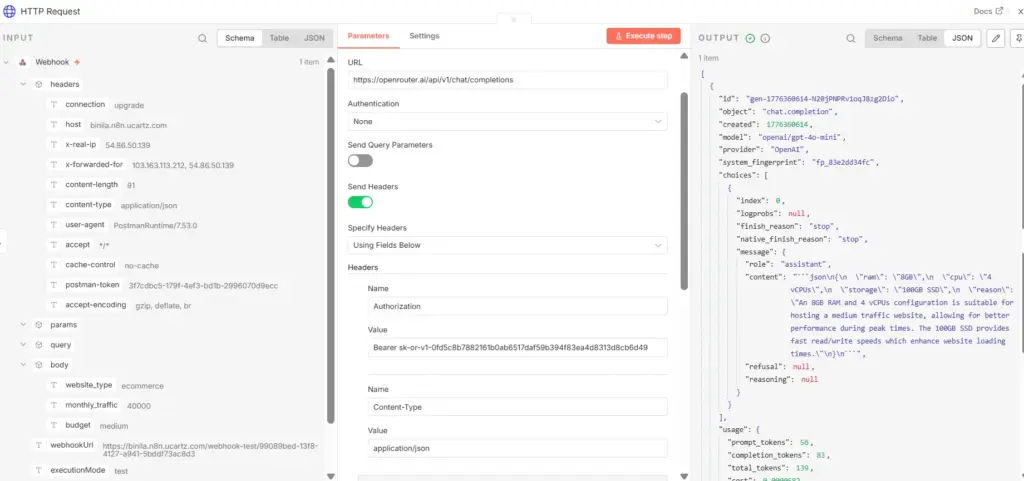
Add an HTTP Request node directly after the Webhook. Set:
- Method: POST
- URL:
https://openrouter.ai/api/v1/chat/completions
Add these headers:
{
  "Authorization": "Bearer YOUR_OPENROUTER_API_KEY",
  "Content-Type": "application/json",
}
Set the body to JSON and use this payload:
{
  "model": "openai/gpt-4o-mini",
  "messages": [
    {
      "role": "system",
      "content": "You are a VPS hosting expert. Analyze user requirements and return a JSON object only: no markdown, no explanation, no code fences. Return raw JSON."
    },
    {
      "role": "user",
      "content": "User requirement:nWebsite: {{$json.body.website_type}}nTraffic: {{$json.body.monthly_traffic}} visits/monthnBudget: {{$json.body.budget}}nRegion: {{$json.body.region}}nnReturn JSON with these exact fields:n- ramn- cpun- storagen- plan_typen- reasonn- upgrade_after_months"
    }
  ],
  "temperature": 0.3
}
Set temperature to 0.3. Lower temperature means more consistent, predictable output critical when you are parsing the response in the next node. Higher temperature introduces variation you do not want in a recommendation engine.
The system prompt explicitly tells the model to return raw JSON with no markdown wrappers. This prevents the “json` fences that break JSON parsing downstream.
Step 3 – Edit Fields Node (Extract and Normalize)
Add an Edit Fields node after the HTTP Request. This node pulls the AI’s response out of the nested OpenRouter Unified Interface response structure and makes it available as a clean field for the Function node.In Set node: Add field:
recommendation → {{$json.choices[0].message.content}}
Flow now:
Webhook → HTTP → Set → Function
Step 5: Function node
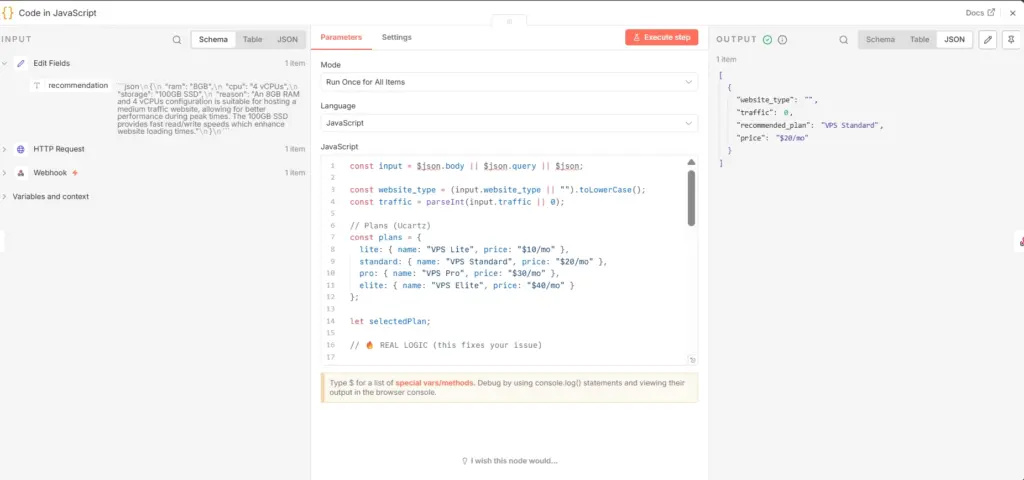
This node does two things. It extracts the AI message content from the deeply nested choices[0].message.content path. It also pulls the original user inputs back from the Webhook node so the Function node has everything in one flat object no chaining through multiple previous nodes.This is where the actual plan selection happens. The AI provides reasoning and context. This function applies deterministic rules to select the exact Ucartz plan.
const input = $json.body || $json.query || $json;
const website_type = (input.website_type || "").toLowerCase();
const traffic = parseInt(input.traffic || 0);
// Plans (Ucartz)
const plans = {
lite: { name: "VPS Lite", price: "$10/mo" },
standard: { name: "VPS Standard", price: "$20/mo" },
pro: { name: "VPS Pro", price: "$30/mo" },
elite: { name: "VPS Elite", price: "$40/mo" }
};

let selectedPlan;

// REAL LOGIC

if (website_type.includes("blog")) {
if (traffic < 10000) selectedPlan = plans.lite;
else if (traffic < 50000) selectedPlan = plans.standard;
else selectedPlan = plans.pro;
}

else if (website_type.includes("wordpress")) {
if (traffic < 20000) selectedPlan = plans.standard;
else if (traffic < 80000) selectedPlan = plans.pro;
else selectedPlan = plans.elite;
}

else if (website_type.includes("ecommerce")) {
if (traffic < 30000) selectedPlan = plans.pro;
else selectedPlan = plans.elite;
}

else if (website_type.includes("saas")) {
selectedPlan = plans.elite;
}

else {
// fallback
if (traffic < 20000) selectedPlan = plans.standard;
else selectedPlan = plans.pro;
}

// return output
return [
{
json: {
website_type,
traffic,
recommended_plan: selectedPlan.name,
price: selectedPlan.price
}
}
];
The function handles three failure modes. If the AI returns malformed JSON with markdown fences, the catch block strips them and retries. If the AI output is completely unparseable, the function falls back to defaults and continues. The plan selection logic never depends on the AI being correct it uses the user’s original input directly.
The budget override layer adjusts the plan recommendation up or down based on the budget field. This means a high-traffic WordPress site with a low budget gets a realistic downgrade warning, and a low-traffic site from a user with a high budget gets offered the next tier up.
Step 5 – Respond to Webhook Node
Add a Respond to Webhook node. Set Response Code to 200. Set the Response Body to JSON.This fires immediately after the Function node and closes the HTTP connection. The user’s frontend, chatbot, or form tool receives a clean, structured response with the full recommendation.
{
"success": true,
"timestamp": "{{$json.timestamp}}"
}
Step 6 – Google Sheets Node (Lead Logging)
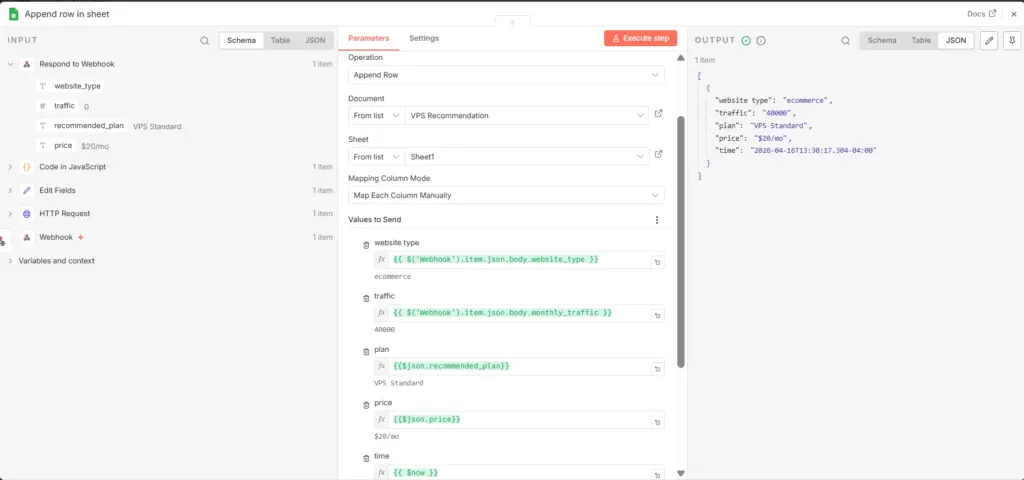
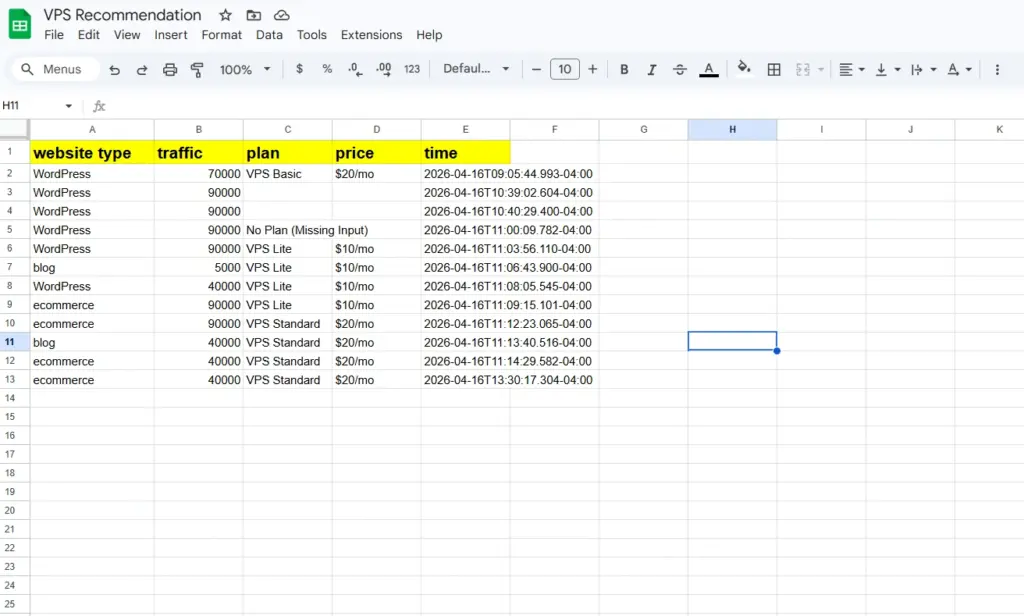
Add a Google Sheets node after the Respond to Webhook node. Connect your Google account in Credentials. Set the operation to Append Row. Create a Google Sheet with these columns .
| website type | traffic | plan | price | time |
Map each column in the node:
Website Type           →  {{$json.website_type}}
Monthly Traffic        →  {{$json.monthly_traffic}}
Budget                 →  {{$json.budget}}
Recommended Plan       →  {{$json.recommended_plan}}
Price                  →  {{$json.price}}
Timestamp              →  {{$json.timestamp}}
The Google Sheets node runs after the webhook response fires, so the logging step does not delay the user’s response. Every recommendation that comes through gets recorded automatically you build a lead database without any manual data entry.
What This Workflow Replaces
Without this workflow, a visitor lands on your pricing page, reads through plan specs, guesses which one fits their site, and either picks wrong or leaves. With this workflow, they enter three fields, get a specific recommendation with a reason in under two seconds, and land on the correct plan page with confidence.
The Google Sheets log gives your sales team a list of every recommendation made website type, traffic volume, budget, region, and what plan was suggested. That is qualified lead data you can act on directly.
Conclusion
This n8n workflow automation isn’t just another automation it’s a practical bridge between AI flexibility and real-world business reliability. By combining n8n with OpenRouter, you avoid the biggest pitfall of AI systems: inconsistency.
Instead of trusting raw AI output, you let AI handle reasoning while your Function node enforces strict, predictable business rules. That separation makes the system stable, scalable, and production-ready.
The result is a 24/7 automated recommendation engine that:
- Qualifies leads instantly
- Suggests the right VPS plan with logic, not guesswork
- Logs every interaction for future sales follow-up
For hosting businesses, agencies, or SaaS platforms, this setup turns a simple form into a conversion-focused decision engine.
FAQ
1. Why not rely fully on AI for plan selection?
AI responses can be inconsistent in structure and formatting. Using deterministic logic in the Function node ensures every recommendation follows fixed business rules.
2. What happens if the AI returns invalid JSON?
Your workflow can still function. The Function node uses the original user input for decision-making, so even if AI fails, the recommendation logic continues safely.
3. Can I remove the AI step completely?
Yes, but you’ll lose intelligent reasoning and explanations. AI adds context, while the Function node ensures accuracy.
4. Is n8n free to use?
Yes, n8n has a free self-hosted version. You only pay for hosting and any external APIs like OpenRouter.
5. Why use OpenRouter instead of direct AI APIs?
OpenRouter lets you switch between models easily and manage costs without changing your workflow architecture.