 Binila Treesa Babu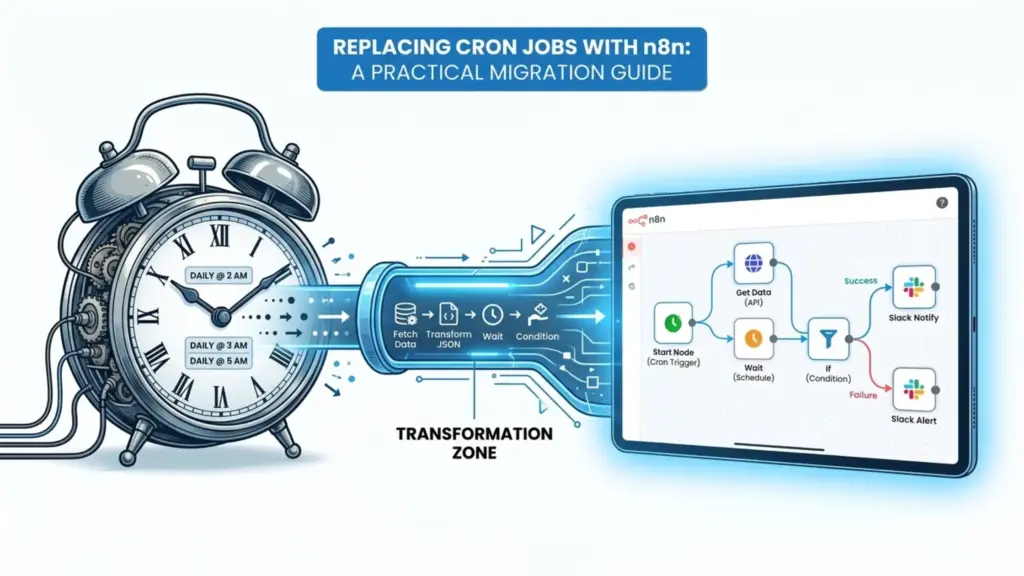
Cron jobs have been the default way to schedule automation for decades. They are simple, reliable, and built into every Linux system. But as workflows become more complex integrating APIs, handling errors, and scaling across toolsncron jobs start to break down.
If you’ve ever dealt with silent failures, hard-to-debug scripts, or scattered automation logic, you already know the limitations.Cron jobs get the work done until they silently fail at 2 AM and nobody notices until Monday morning. You get no alerts, no logs you can read without SSH access, no retry logic, and no visibility into what ran or what broke.
n8n workflow automation replaces cron jobs with scheduled workflows that run on the same timing logic but add error handling, execution history, notifications, and a visual interface you can update without touching a server config file.
This guide shows you how to migrate real cron jobs to n8n with exact workflow configurations and code where needed.
What n8n Gives You That Cron Does Not
Cron runs a command at a scheduled time. That is all it does. n8n does the same thing and adds:
Execution logs – every run is recorded with start time, end time, status, and full input/output data. You can see exactly what happened and when.
Error alerts – when a workflow fails, n8n sends you an email or Slack message immediately. Cron just moves on silently.
Retry logic – you can configure n8n to retry failed steps automatically before marking the run as failed.
No SSH required – you change schedules and logic from a browser. No editing crontab files on the server.
Conditional logic – you can run different actions based on what the scheduled task returns. Cron cannot do this without chaining shell scripts.
External triggers – you can combine a schedule with a webhook, so the same workflow runs on a timer and on demand.
Understanding the Schedule Trigger Node
In n8n, the Schedule Trigger node replaces the cron timing expression. It supports three modes:
Interval – runs every X minutes, hours, or days. Use this for simple recurring tasks.
Cron expression – accepts standard cron syntax for precise timing control. Use this when you are migrating existing cron jobs directly.
Specific time – runs once at a set date and time. Use this for one-off scheduled actions.
The cron expression format in n8n is identical to standard Unix cron:
* * * * *
│ │ │ │ │
│ │ │ │ └── Day of week (0–7, 0 and 7 = Sunday)
│ │ │ └──── Month (1–12)
│ │ └────── Day of month (1–31)
│ └──────── Hour (0–23)
└────────── Minute (0–59)
Common cron expressions and their n8n equivalents:
Every 5 minutes:        */5 * * * *
Every day at midnight:  0 0 * * *
Every Monday at 9 AM:   0 9 * * 1
Every hour:             0 * * * *
First day of month:     0 0 1 * *
Every weekday at 8 AM:  0 8 * * 1-5
Paste any of these directly into the Cron Expression field of the Schedule Trigger node.
Migration 1 – Daily Database Backup
Old cron job:
0 2 * * * /usr/bin/mysqldump -u root -pPASSWORD mydb > /backups/mydb_$(date +%Y%m%d).sqlThis runs a MySQL dump every night at 2 AM and saves it to a local file. No confirmation, no alert if it fails, no way to know if the backup file is actually valid.
n8n equivalent:
Build a workflow with four nodes:
Schedule Trigger → Execute Command → IF → Send Email
Configure the Schedule Trigger with cron expression 0 2 * * *.
Add an Execute Command node with this command:
mysqldump -u root -pPASSWORD mydb > /backups/mydb_$(date +%Y%m%d).sql && echo "success" || echo "failed"Add an IF node that checks whether the output contains “success”. Connect the true branch to a Send Email node that confirms the backup. Connect the false branch to a different Send Email node that alerts you to the failure.
You now have a daily backup with success confirmation and failure alerting something the original cron job never had.
Migration 2 – Hourly API Data Pull
Old cron job:
0 * * * * /usr/bin/python3 /scripts/fetch_data.py >> /logs/fetch.log 2>&1This runs a Python script every hour, appends output to a log file, and redirects errors to the same file. Reading that log later requires SSH and grep.
n8n equivalent:
Build a workflow with these nodes:
Schedule Trigger → HTTP Request → Code → Google Sheets (or database)
Configure the Schedule Trigger with 0 * * * *.
Replace the Python script with an HTTP Request node pointed at your API endpoint. Set the method, add authentication headers, and configure the response format. n8n handles the request without any script file.
If you need to transform the response data before storing it, add a Code node:
const items = $input.all();
return items.map(item => ({
  json: {
    id: item.json.id,
    name: item.json.name,
    timestamp: new Date().toISOString(),
    value: item.json.metrics?.total || 0
  }
}));
Connect the output to a Google Sheets node, a database node, or an HTTP Request node that posts to your storage API. The execution history in n8n stores every run with the full API response no log files, no SSH.
Migration 3 – Weekly Report Email
Old cron job:
0 8 * * 1 /usr/bin/python3 /scripts/weekly_report.pyThis runs every Monday at 8 AM, generates a report, and emails it. If the script fails, the email never sends and nobody knows.
n8n equivalent:
Build this workflow:
Schedule Trigger → HTTP Request (or database query) → Code → Send Email
Configure the Schedule Trigger with 0 8 * * 1.
Pull your report data with an HTTP Request node or a Postgres/MySQL node using a query like:
SELECT category, COUNT(*) as total, SUM(amount) as revenue
FROM orders
WHERE created_at >= NOW() - INTERVAL '7 days'
GROUP BY category
ORDER BY revenue DESC;
Add a Code node to format the data into an HTML email body:
const rows = $input.all();
let table = '<table border="1" cellpadding="6"><tr><th>Category</th><th>Orders</th><th>Revenue</th></tr>';

rows.forEach(row => {
  table += `<tr>
    <td>${row.json.category}</td>
    <td>${row.json.total}</td>
    <td>$${parseFloat(row.json.revenue).toFixed(2)}</td>
  </tr>`;
});

table += '</table>';

return [{
  json: {
    subject: `Weekly Report: ${new Date().toDateString()}`,
    html: `<h2>Weekly Sales Summary</h2>${table}`
  }
}];
Connect to a Send Email node. Configure the subject and HTML body from the Code node output using expressions: {{ $json.subject }} and {{ $json.html }}.
Every Monday at 8 AM, the report runs, formats, and sends automatically. If anything fails, n8n logs the error and you can add an error workflow to alert you.
Migration 4 – File Cleanup Task
Old cron job:
0 3 * * * find /tmp/uploads -mtime +7 -deleteThis deletes files older than 7 days from a temp folder every night at 3 AM.
n8n equivalent:
Schedule Trigger → Execute Command → IF → Send Email
Set cron expression to 0 3 * * *.
Configure the Execute Command node:
find /tmp/uploads -mtime +7 -delete && echo "Cleanup done: $(date)" || echo "Cleanup failed: $(date)"Use an IF node to check the output and send an alert if it fails. You can also extend this to log the number of deleted files:
count=$(find /tmp/uploads -mtime +7 | wc -l) && find /tmp/uploads -mtime +7 -delete && echo "Deleted $count files"This gives you a count of deleted files in each execution log useful for spotting unusual spikes.
Migration 5 – Health Check Ping
Old cron job:
*/5 * * * * curl -s https://yourapp.com/health | grep -q "ok" || echo "DOWN" | mail -s "App Down" admin@yourdomain.comThis checks your app every 5 minutes and emails if it’s down. It works, but the email formatting is basic and there is no escalation logic.
n8n equivalent:
Schedule Trigger → HTTP Request → IF → Send Email
Set cron expression to */5 * * * *.
Configure the HTTP Request node to GET your health endpoint. Set the response to include the status code.
In the IF node, check the HTTP status code:
Value 1: {{ $json.statusCode }}
Operation: not equal
Value 2: 200
Connect the true branch (not 200) to a Send Email or Slack node. Add the response body and timestamp to the message so you get context immediately:
Subject: App Health Check Failed
Body: Status: {{ $json.statusCode }}
      Time: {{ $now }}
      Response: {{ $json.body }}
You can extend this by adding a second IF that checks how long the app has been down and sends a Slack escalation after 3 consecutive failures something impossible to do cleanly with a cron job.
Example: Cron Script → n8n Workflow (Step-by-Step Migration)
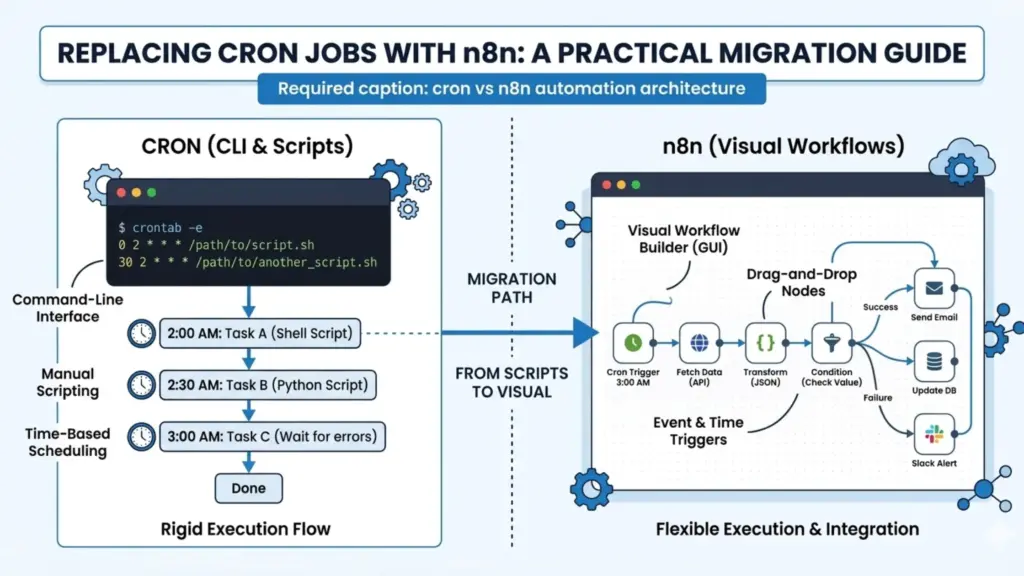
Let’s take a real-world cron job and convert it into an n8n workflow so you understand exactly how migration works.
Use Case
Send a daily report email at 9 AM.
Cron Job
0 9 * * * /usr/bin/python3 /home/user/send_report.py
Python Script (Simplified)
import requests
import smtplib# Fetch data
data = requests.get("https://api.example.com/report").json()# Prepare email
message = f"Daily Report:n{data}"# Send email
server = smtplib.SMTP("smtp.gmail.com", 587)
server.starttls()
server.login("you@gmail.com", "password")
server.sendmail("you@gmail.com", "team@example.com", message)
server.quit()
Problems with This Setup
- No visibility (did it run or fail?)
- No retry mechanism
- Hardcoded credentials (security risk)
- Debugging requires server access
- Not team-friendly
Step 1: Replace Cron with n8n Schedule Trigger
Add Node: Schedule Trigger
Configure:
- Mode: Every Day
- Time: 09:00
This replaces:
0 9 * * *
Step 2: Replace API Call (Python → HTTP Node)
Add Node: HTTP Request
Configure:
- Method: GET
- URL:
https://api.example.com/report
This replaces:
requests.get(...)
Step 3: Process Data (Optional)
If needed: Add Set Node or Function Node
Example:
return [{
  report: JSON.stringify($json)
}]
Step 4: Replace SMTP Script (Email Node)
Add Node: Gmail Node OR SMTP Node
Configure:
- To: team@example.com
- Subject: Daily Report
- Body:
Daily Report:
{{$json}}
This replaces entire SMTP block in Python
Final n8n Workflow Structure
Schedule Trigger → HTTP Request → (Optional Processing) → Email Node
Before (Cron)
- Black box execution
- Logs buried in server
- No retry
After (n8n)
- Visual workflow
- Execution history
- Error tracking
- Easy edits
- No code required
Advanced Upgrade (What Pros Do)
Don’t stop at basic migration. Improve it: Add:
- IF Node → Send email only if data changes
- Error Workflow → Notify Slack on failure
- Google Sheets Node → Log reports
- Merge Node → Combine multiple APIs
Production-Ready Version
Schedule → API → Filter → Email → Slack Alert → Log to Sheet
Cron runs a command. n8n builds a system.
Common Migration Mistakes
Avoid these:
- Recreating scripts blindly without simplifying
- Ignoring error handling
- Using Gmail in production instead of API-based email
- Not testing each node individually
How to Handle Errors Across All Scheduled Workflows
Set up a single error workflow that catches failures from every scheduled workflow in n8n.
Create a new workflow called Error Handler. Add a Error Trigger node this fires automatically when any workflow fails if you set it as the error workflow.
Add a Send Email or Slack node that formats the error details:
Workflow: {{ $workflow.name }}
Node: {{ $execution.error.node.name }}
Error: {{ $execution.error.message }}
Time: {{ $now }}
Execution ID: {{ $execution.id }}
Go to Settings → Workflows → Error Workflow and select this workflow. Now every scheduled workflow that fails triggers this error handler automatically. One error workflow covers all your scheduled tasks.
Running n8n Workflows from the Command Line
If you have existing shell scripts that other systems trigger, you can call n8n workflows via webhook instead of replacing the shell scripts entirely. Add a Webhook node as an alternative trigger alongside the Schedule Trigger:
curl -X POST https://your-n8n-domain.com/webhook/your-workflow-id
  -H "Content-Type: application/json"
  -d '{"triggered_by": "shell_script", "source": "legacy_system"}'
This lets you run n8n workflows from cron, other scripts, CI/CD pipelines, or any system that can make an HTTP request giving you a gradual migration path.
Keeping n8n Running for Scheduled Workflows
Scheduled workflows only run when n8n is running and the workflow is set to Active. Two things to check on your VPS:
Set Docker to restart n8n automatically:
services:
  n8n:
    image: n8nio/n8n
    restart: always
Always activate your workflows after creating them. The Active toggle in the top-right of the workflow editor must be ON. Inactive workflows do not run on schedule even if n8n is running.
Check your workflow is active and n8n is up:
docker ps | grep n8nCron vs n8n: Direct Comparison
| Feature | Cron | n8n |
|---|---|---|
| Schedule syntax | Cron expression | Cron expression + UI |
| Execution logs | System logs only | Full visual history |
| Error alerts | Manual setup | Built-in + configurable |
| Retry on failure | Not built in | Configurable |
| Change without SSH | No | Yes |
| Conditional logic | Shell scripting | Visual nodes + code |
| Multi-step workflows | Shell piping | Native multi-node |
| External API calls | curl in scripts | HTTP Request node |
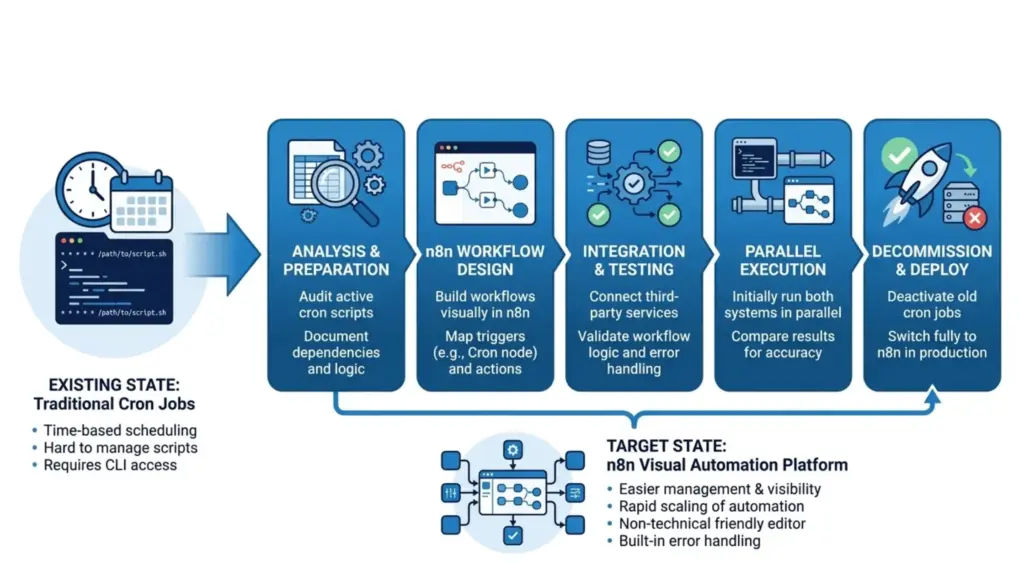
Migration Checklist
[ ] List all active cron jobs: crontab -l
[ ] Convert each cron expression to Schedule Trigger
[ ] Replace shell commands with n8n nodes where possible
[ ] Use Execute Command node for commands that must stay as shell
[ ] Set up an Error Workflow to catch all failures
[ ] Activate every migrated workflow in n8n
[ ] Set Docker restart: always in docker-compose.yml
[ ] Test each workflow manually before removing the cron job
[ ] Remove old cron jobs only after confirming n8n version works
Remove Old Cron Jobs Safely
After you confirm each n8n workflow runs correctly, remove the corresponding cron job:
crontab -eDelete the line for the migrated job. Do this one job at a time not all at once. Run the n8n workflow manually for a week before removing the cron job if the task is critical.
List all remaining cron jobs at any time:
crontab -lAlso check system-wide cron jobs that live outside crontab:
ls /etc/cron.d/
ls /etc/cron.daily/
ls /etc/cron.weekly/
Migrate those the same way one at a time, test in n8n first, remove from system after confirmation.
Conclusion
Cron jobs still work but they don’t scale with modern automation needs. As workflows become more complex, relying on scripts alone creates fragile systems that are hard to monitor and maintain. n8n solves this by turning automation into a structured, visible, and controllable system.
The smartest approach is not to delete cron completely but to replace it where complexity starts: Keep cron for simple system tasks . Use n8n for business workflows, integrations, and automation pipelines Start with one workflow. Migrate gradually. Build reliability first.If you need any assistance in setting up workflows in KVM VPS hosting , contact us.
FAQ
1. Can n8n completely replace cron jobs?
Yes, for most business automation tasks. n8n’s Schedule Trigger can handle all cron-based scheduling while adding monitoring and integrations.
2. When should I NOT replace cron with n8n?
- System-level tasks (server cleanup, backups)
- Very lightweight scripts
- Low-complexity automation
3. Is n8n more reliable than cron?
Yes,because it includes logging, retries, and error handling. Cron only executes commands without feedback.
4. Do I still need cron if I use n8n?
Sometimes. Cron is still useful for OS-level tasks ,starting services & backup scripts
5. Is migrating from cron to n8n difficult?
No. Most cron jobs can be migrated by converting scripts into nodes, replacing schedules with Schedule Trigger & Adding integrations step by step.
6. Does n8n support cron expressions?
Yes. You can use cron-style scheduling inside the Schedule Trigger node.