 Binila Treesa Babu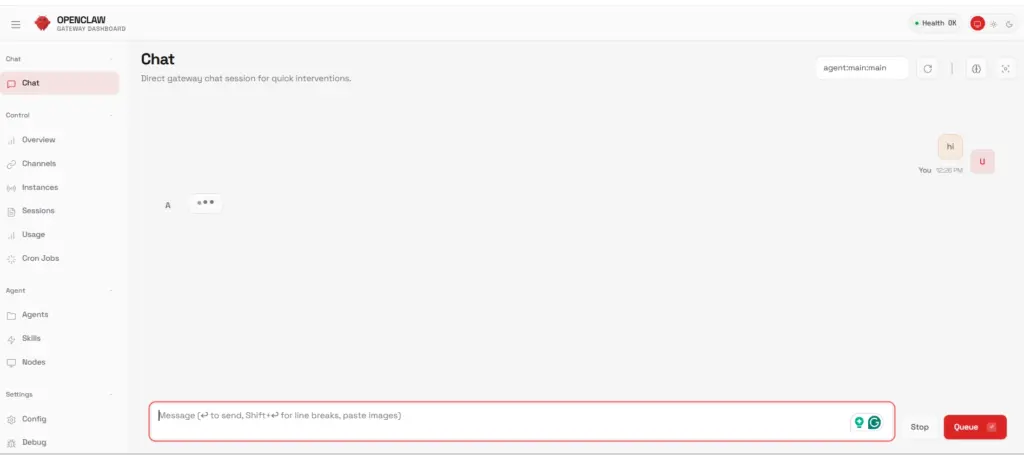
When you first install OpenClaw on VPS hosting and open the web dashboard, you expect a simple experience: type a message in the chat box and get a reply. Instead, what actually happens is frustrating silence.
The dashboard loads perfectly. The chat input box is visible. You type “Hello” and press enter.
Nothing responds.No error message. No warning. No explanation in the logs. Just a silent, unresponsive chat interface that looks like it should work but doesn’t.The most common reason the UI chat doesn’t respond is that OpenClaw has no AI model connected to process your messages.
This comprehensive troubleshooting guide will walk you through the exact steps to fix this issue and get your OpenClaw UI chat working properly.Refer how to install OpenClaw on VPS here.
Understanding the Root Problem
OpenClaw is not a standalone chatbot application. It’s an agent orchestration system that requires three critical components to function:
- Running services (daemon and gateway)
- A conversational AI model provider (the “brain”)
- An active chat session (the conversation context)
The dashboard and chat interface are just the control panel. Without connecting an actual AI model, you’re essentially talking to an empty room.
The Symptoms You’re Experiencing
Before we fix the issue, let’s confirm you’re experiencing the same problem:
- OpenClaw dashboard loads at
http://127.0.0.1:18789 - You can see the Overview page
- A chat input box is visible at the bottom
- You can type messages into the box
- No response appears after sending a message
- No error messages are displayed
If this matches your experience, you’re in the right place.
Prerequisites: What You Need
Before starting this guide, ensure you have:
- OpenClaw installed on your server (Linux/VPS)
- SSH access to your server
- A web browser to access the UI
- Internet connection to obtain an API key
Step 1: Verify OpenClaw Installation
First, let’s confirm OpenClaw is properly installed and the CLI is accessible. Open your VPS terminal via SSH and run:
openclaw --versionExpected output: The version number (e.g., openclaw 0.5.2)
If this command fails: OpenClaw is not installed correctly. You’ll need to reinstall it before proceeding.
Step 2: Check Service Status
OpenClaw relies on two background services that must be running:
- openclaw-daemon: The core agent process
- openclaw-gateway: The web interface server
Start both services:
systemctl --user start openclaw-daemon
systemctl --user start openclaw-gateway
Verify they’re running:
systemctl --user status openclaw-daemon
systemctl --user status openclaw-gateway
What to look for: Both should show active (running) in green text.If either service fails to start:
- Check the logs:
journalctl --user -u openclaw-daemon -n 50 - Common issues include port conflicts or missing dependencies
Step 3: Understand Why the Chat Is Silent
At this point, your services are running and the UI is accessible. So why doesn’t chat work?
The missing piece: An AI model provider.
OpenClaw doesn’t include its own AI model. It acts as an orchestrator that connects to external AI services like:
- OpenAI (GPT models)
- Anthropic (Claude)
- Moonshot AI (Kimi)
- Other OpenAI-compatible APIs
Without configuring a model provider, the agent has nowhere to send your messages for processing.
Why We’re Not Using Claude Opus
OpenClaw ships with Claude Opus as a default model option, and you might be tempted to use it since it’s already configured.
However, there’s a critical limitation:
The Claude Opus Credit Problem
Claude Opus is extremely expensive compared to other models. Even if you have an Anthropic API key configured:
- Claude Opus costs: ~$15 per million input tokens, ~$75 per million output tokens
- A single conversational exchange can cost $0.10-$0.50
- Default free trial credits are usually $5-$10
The UI won’t display a friendly error. Instead:
- Your messages appear to send
- Nothing responds
- No obvious error appears in the UI
- The chat seems broken (but it’s actually just out of credits)
Why this is confusing for beginners:
You configured everything correctly. Services are running. The model is set up. But chat doesn’t work because you’ve already exhausted your API credits without realizing it.
In this guide, we’ll use Kimi (Moonshot AI) because:
- It offers a free tier for testing
- It’s OpenAI-compatible (easy to configure)
- It provides reliable conversational responses
Step 4: Obtain a Kimi API Key
Navigate to the Moonshot AI platform:
Create an account and generate an API key:
- Sign up or log in
- Go to API Keys section
- Click Create New Key
- Copy the key (it looks like:
sk-xxxxxxxxxxxxxxxxxxxxxxxx)
Store this key securely. You’ll need it in the next step.
Step 5: Configure the Model Provider
Now we’ll tell OpenClaw to use Kimi as its AI brain.
Open the environment configuration file:
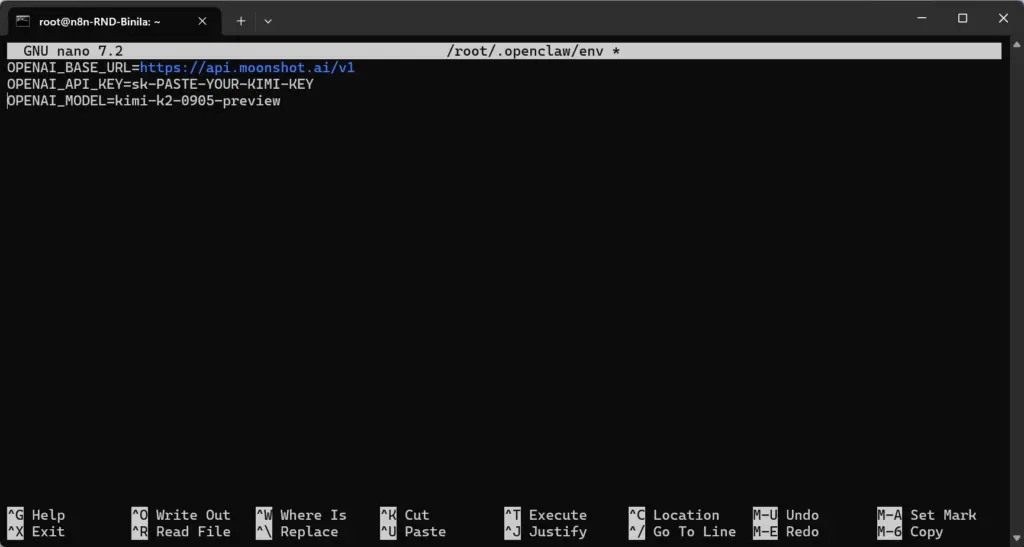
nano /root/.openclaw/openclaw.envAdd these three lines (replace sk-YOUR-KEY-HERE with your actual API key):
OPENAI_BASE_URL=https://api.moonshot.ai/v1
OPENAI_API_KEY=sk-YOUR-KEY-HERE
OPENAI_MODEL=kimi-k2-0905-preview
Save and exit. Press CTRL + O to save.Press Enter to confirm.Press CTRL + X to exit
OPENAI_BASE_URL: Points OpenClaw to Kimi’s API endpointOPENAI_API_KEY: Authenticates your requestsOPENAI_MODEL: Specifies which Kimi model to use
Step 6: Restart Services to Apply Changes
Configuration changes don’t take effect until services reload. Restart both services:
systemctl --user restart openclaw-daemon
systemctl --user restart openclaw-gateway
Wait 5 seconds for the services to fully restart. Verify the restart was successful:
openclaw gateway restart
openclaw status --deep
You should now see a model listed under the agent configuration (e.g., kimi-k2-0905-preview).
Step 7: Create a Chat Session
Even with a model configured, OpenClaw needs an active conversation session to route messages properly.Clear any old sessions that might be in a broken state:
openclaw sessions clearCreate a new interactive session:
openclaw session new mainInitializes a fresh conversation context attached to your configured model.
Step 8: Access the UI (Remote Server Users)
If you’re running OpenClaw on a VPS, the dashboard is only accessible at localhost on the server itself. Your laptop’s localhost is different from the server’s localhost.
Solution: Create an SSH tunnel.From your local computer (not the VPS terminal), run:
ssh -N -L 19999:127.0.0.1:18789 root@YOUR_SERVER_IP
Replace:
- `YOUR_SERVER_IP` with your actual VPS IP address (e.g., `5.83.144.30`)

What this does: Forwards the remote dashboard to your local machine at port 19999.

Keep this terminal window open while using the UI.

If you're running OpenClaw locally, skip this step and use `http://127.0.0.1:18789` directly.

## Step 9: Test the Chat Interface

Open your web browser and navigate to:
http://127.0.0.1:19999
(Or `http://127.0.0.1:18789` if running locally)

Go to the Overview page.

You should now see:
- The agent status as "active"
- A chat input box at the bottom
- A "Send" button or Enter key functionality

Type a test message:
Hello
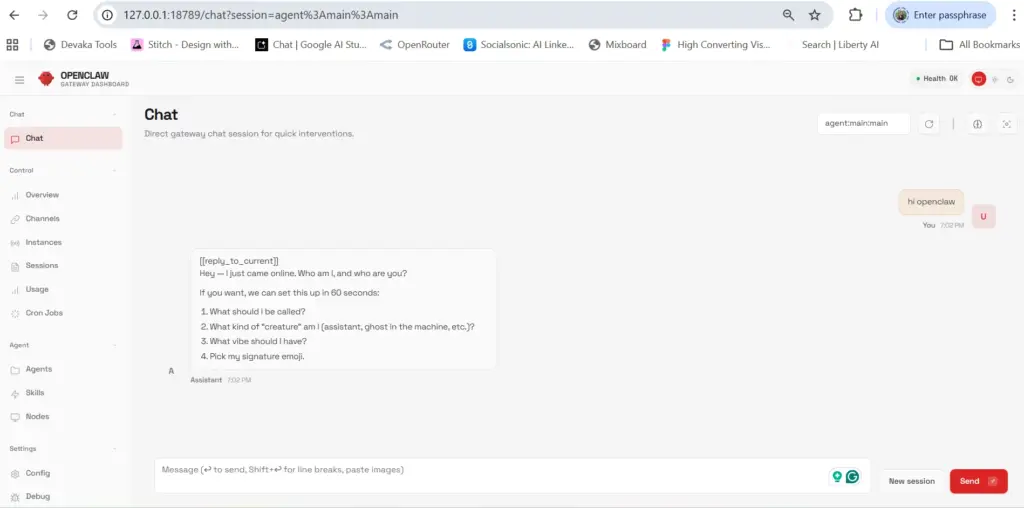
Press Enter. The Kimi model responds within 1-3 seconds with a conversational reply.If you see a response: Congratulations! Your OpenClaw UI chat is now fully functional.
Troubleshooting: If Chat Still Doesn’t Respond
Issue 2: Chat Box Accepts Input But No Reply
Cause: Model provider not properly configured or API key invalid.
Verify your API key:
cat /root/.openclaw/openclaw.envMake sure:
- The API key is correct (no extra spaces)
- The
OPENAI_BASE_URLis exactlyhttps://api.moonshot.ai/v1 - The model name is valid
Test the API key manually using curl:
curl https://api.moonshot.ai/v1/chat/completions \
  -H "Content-Type: application/json" \
  -H "Authorization: Bearer YOUR_API_KEY" \
  -d '{
    "model": "kimi-k2-0905-preview",
    "messages": [{"role": "user", "content": "Hello"}]
  }'
If this fails, your API key is invalid.
Issue 3: Services Won’t Start
Check the logs for errors:
journalctl --user -u openclaw-daemon -n 50
journalctl --user -u openclaw-gateway -n 50

Common issues:
- Port 18789 already in use
- Missing Python dependencies
- Corrupted configuration file
Issue 4: Tunnel Connection Refused

Symptoms: `ssh: connect to host X.X.X.X port 22: Connection refused`

Solutions:
- Verify SSH is running on the server: `systemctl status sshd`
- Check firewall rules allow SSH connections
- Confirm you're using the correct server IP address
What Actually Changed: Before vs After
Let’s understand what we fixed:
Before configuration:
Browser → Gateway → Agent → (No model)
Result: Message sent, but nowhere to process it.
After configuration:
Browser → Gateway → Session → Kimi Model → Response → UI Result: Full conversational loop established.
Common Misconceptions
1. The dashboard loads, so everything works
Wrong. The dashboard is just the frontend. It can load perfectly while the backend has no AI model attached.
2. No error means everything is configured
Wrong. OpenClaw fails silently when a model isn’t configured. The UI doesn’t display an error it just doesn’t respond.
3. I need Telegram or Discord to use OpenClaw
Wrong. Those are optional channels. Direct UI chat works independently once a model is configured.
4. This is a networking problem
Usually wrong. If the dashboard loads, networking is fine. The issue is almost always missing model configuration.
What You’ve Accomplished
After following this guide, you now have:
A fully functional OpenClaw web interface
Direct chat capability without external messaging apps
An AI model (Kimi) processing your conversations
Understanding of how OpenClaw’s architecture works
You can now:
- Have conversations directly in the browser
- Test AI agents and workflows
- Build custom automation without command-line complexity
Key Takeaway
OpenClaw is not a chatbot but it’s an orchestration platform. The UI is a control interface that becomes a chatbot only when:
- Services are running
- A model provider is configured
- An active session exists
Without all three layers, you get a silent, unresponsive chat box. The fix is simply connecting an AI brain to your agent. Once that connection exists, OpenClaw transforms from a dashboard into a fully interactive AI assistant.
FAQ
1. Why does OpenClaw UI open but not reply?
Because OpenClaw is only an agent framework. If no model provider is connected, the chat interface loads but the agent has no AI brain to respond.
2. Why do I see “disconnected” or empty chat?
This usually means no active session exists. The UI connects to the gateway, but the agent session is missing or failed to start.
3. Does OpenClaw include its own AI model?
No.OpenClaw requires an external model provider like Kimi, OpenAI-compatible APIs, or other LLM backends.
4. Why localhost works on server but not my computer?
The dashboard runs inside the VPS. You must create an SSH tunnel to access it from your local browser.
5. Why does OpenClaw show pairing required?
Pairing is only for external channels (Telegram, WhatsApp, etc). Direct web UI chat does NOT need pairing.
6. Do I need to configure channels to use chat?
No. Channels are for messaging platforms. The web dashboard works independently.