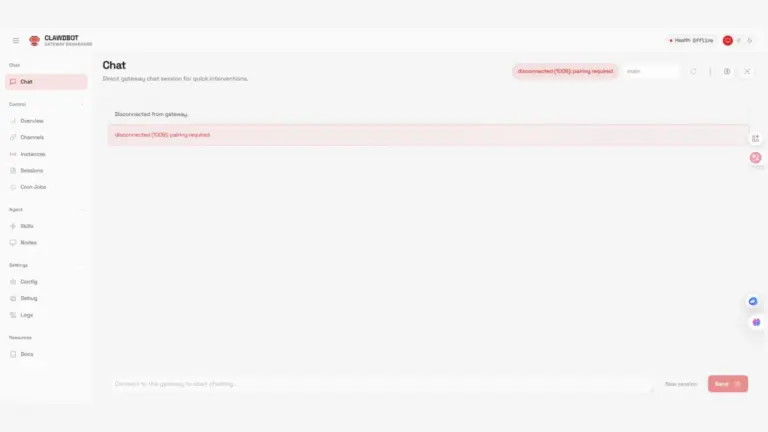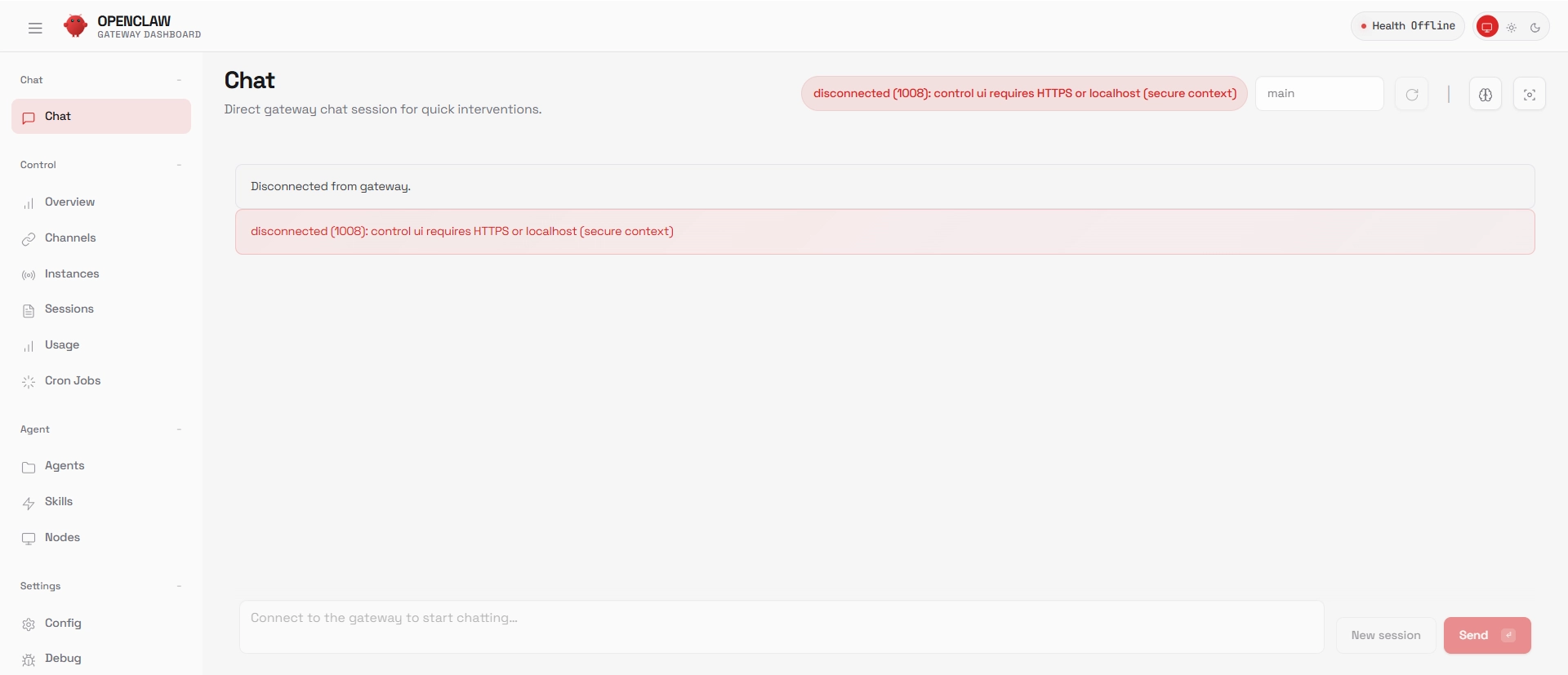

Error Message:
Disconnected from gateway. disconnected (1008): unauthorized:
gateway password missing (enter the password in Control UI settings)
Root Cause: Your OpenClaw gateway authentication is misconfigured or missing.
Quick Fix (5 minutes):
- Generate a gateway token:
openclaw doctor --generate-gateway-token - Clean broken config:
openclaw doctor --fix - Set token auth:
openclaw config set gateway.auth.mode token - Restart gateway:
openclaw gateway restart - Access with token in URL:
http://127.0.0.1:19999/?token=YOUR_TOKEN
What Is the OpenClaw 1008 Unauthorized Error?
If you’re seeing this error when trying to access your OpenClaw opensource automation dashboard:
Disconnected from gateway. disconnected (1008): unauthorized:
gateway password missing (enter the password in Control UI settings)
You’re not alone. This is one of the most common OpenClaw gateway authentication issues, and it’s especially frustrating because the error message doesn’t clearly explain what’s wrong.
What This Error Actually Means
The error indicates that:
- Your OpenClaw gateway is running
- Your browser successfully connected to it
- But the gateway rejected your connection because authentication failed
The gateway uses WebSocket protocol (status code 1008 = policy violation), which means it closed the connection because you didn’t provide valid credentials.
Why This Happens
Common causes:
- No authentication configured – Fresh installation without gateway token setup
- Broken config file – Invalid or conflicting auth settings (like
gateway.auth.typewhen it should begateway.auth.mode) - Missing token in URL – Token-based auth enabled but not provided in browser URL
- Corrupted credentials directory – The
~/.openclaw/credentialsfolder is damaged or has wrong permissions - Port mismatch – Connecting to wrong port or through broken SSH tunnel
Let’s fix each of these systematically.
Prerequisites: Verify Your Setup
Before we dive into fixes, confirm your basic setup:
Check Gateway Status
SSH into your OpenClaw server and run:
openclaw gateway statusWhat to look for:
Good output:
Gateway Status: Running
Auth Mode: token
Listening: 127.0.0.1:18789
Bad output:
Gateway Status: Stoppedor
Auth Mode: noneor
Auth Mode: (empty)Check Your SSH Tunnel (if accessing remotely)
You can refer how to install OpenClaw on VPS here.If you’re accessing OpenClaw from Windows/Mac to a remote VPS hosting, verify your SSH tunnel is active:
On Windows:
ssh -N -L 19999:127.0.0.1:18789 root@YOUR_SERVER_IPOn Mac/Linux:
ssh -N -L 19999:127.0.0.1:18789 root@YOUR_SERVER_IPKeep this terminal window open. If it closes, your tunnel breaks and you’ll get connection errors.
Check What’s Listening on Port 18789
On your OpenClaw server:
sudo netstat -tlnp | grep 18789or
sudo ss -tlnp | grep 18789You should see:
tcp 0 0 127.0.0.1:18789 0.0.0.0:* LISTEN 12345/openclaw-gatewayIf you see nothing, your gateway isn’t running. If you see 0.0.0.0:18789 instead of 127.0.0.1:18789, your gateway is exposed to the internet (security risk).
Complete Fix: Step-by-Step Solution
Step 1: Generate a Gateway Token
SSH into your OpenClaw server and run:
openclaw doctor generate-gateway-tokenYou’ll see this prompt:
Create OAuth dir at ~/.openclaw/credentials?OpenClaw is asking permission to create a folder to store authentication credentials and tokens. Type yes and press Enter.
What happens next:
- OpenClaw creates
~/.openclaw/credentialsdirectory - Generates a secure gateway token
- Prints the token in your terminal
Expected output:
✓ Created credentials directory
✓ Generated gateway token

Gateway token: ocw_............
Copy this token immediately. You’ll need it in Step 5.
If you see errors:
- Permission denied: Run
sudo openclaw doctor --generate-gateway-token - Command not found: Check OpenClaw installation with
which openclaw
Step 2: Clean Broken Configuration
Your config file may have invalid or conflicting keys. OpenClaw’s doctor command can auto-fix this:
openclaw doctor --fixWhat this does:
- Removes invalid keys like
gateway.auth.type(should begateway.auth.mode) - Fixes malformed
gateway.bindentries - Validates all config entries against current schema
- Backs up your original config to
~/.openclaw/config.yml.backup
Expected output:
✓ Removed invalid key: gateway.auth.type
✓ Fixed gateway.bind format
✓ Config validated successfully
✓ Backup saved to: ~/.openclaw/config.yml.backup
A common cause of the 1008 error is having both old and new auth config keys present, causing the gateway to get confused about which authentication method to use.
Step 3: Configure Token-Based Authentication
Now set up proper token-based authentication:
openclaw config set gateway.auth.mode token
openclaw config set gateway.auth.token "$(openssl rand -hex 32)"
First command: Sets authentication mode to token-based (not password, not none)
Second command: Generates a cryptographically secure random token and sets it as your gateway password
Verify the configuration:
openclaw config get gateway.auth.mode
openclaw config get gateway.auth.token
Expected output:
token
a9f3c8d1e4...
The token is stored in ~/.openclaw/config.yml. Protect this file with proper permissions:
chmod 600 ~/.openclaw/config.ymlStep 4: Restart the Gateway
Apply your configuration changes:
openclaw gateway restartExpected output:
Stopping gateway...
✓ Gateway stopped
Starting gateway...
✓ Gateway started on 127.0.0.1:18789
Verify it’s running with correct auth:
openclaw gateway statusYou should see:
Gateway Status: Running
Auth Mode: token
Listening: 127.0.0.1:18789
Uptime: 3 seconds
If you see “Stopped”:
openclaw gateway logsCheck the logs for errors. Common issues:
- Port 18789 already in use:
sudo lsof -i :18789 - Permission issues: Try
sudo openclaw gateway start - Config validation errors: Re-run
openclaw doctor --fix
Step 5: Set Up SSH Tunnel (For Remote Access)
If your OpenClaw gateway is on a remote server (not localhost), you need an SSH tunnel to securely access it.
On Separate Windows (PowerShell or Command Prompt):
ssh -N -L 19999:127.0.0.1:18789 root@YOUR_SERVER_IPOn Mac/Linux (Terminal):
ssh -N -L 19999:127.0.0.1:18789 root@YOUR_SERVER_IP-N: Don’t execute remote commands (tunnel only)-L 19999:127.0.0.1:18789: Forward local port 19999 to remote 127.0.0.1:18789root@YOUR_SERVER_IP: Connect as root to your server
Replace:
YOUR_SERVER_IPwith your actual server IProotwith your username if different
Leave this terminal window open. If you close it, your tunnel dies and you’ll get connection errors.
Test your tunnel:
In a new terminal on your local machine:
curl http://127.0.0.1:19999If working, you’ll see an HTML response or OpenClaw gateway message.
Step 6: Access Dashboard with Token
Now open your browser and go to:
http://127.0.0.1:19999/?token=YOUR_TOKEN_HEREReplace YOUR_TOKEN_HERE with:
- The token from Step 1 (
ocw_...), or - The token from Step 3 (the long hex string from
openclaw config get gateway.auth.token)
Example:
http://127.0.0.1:19999/?token=ocw_a1b2c3d4e5f6g..- Browser connects to your OpenClaw dashboard
- No more 1008 unauthorized errors
- Dashboard loads successfully

If you still see the error:
- Double-check the token in the URL matches what’s in your config
- Verify the SSH tunnel is still active
- Check gateway logs:
openclaw gateway logs - Try clearing browser cache and cookies for
127.0.0.1
Alternative Fix: Password-Based Authentication
If you prefer password-based auth over tokens (not recommended for production):
openclaw config set gateway.auth.mode password
openclaw config set gateway.auth.password "YourSecurePasswordHere"
openclaw gateway restart
Then access without token in URL:
http://127.0.0.1:19999You’ll be prompted for the password in the UI.
Why token auth is better:
- Tokens can be easily rotated
- No password prompt in UI (cleaner UX)
- Easier to script and automate
- More secure for API access
Troubleshooting: Still Not Working?
Error: “Connection refused”
Symptom: Browser can’t connect at all (not even seeing the 1008 error)
Possible causes:
- Gateway isn’t running:
openclaw gateway start - SSH tunnel died: Check if the SSH window is still open
- Wrong port: Verify you’re using
19999locally,18789on server - Firewall blocking connection
# On server
openclaw gateway status
sudo netstat -tlnp | grep 18789

# On local machine
# Kill any existing tunnel
pkill -f "ssh.*19999"

# Start fresh tunnel
ssh -N -L 19999:127.0.0.1:18789 root@YOUR_SERVER_IP
Error: “Invalid token”
Symptom: Still getting 1008 unauthorized even with token in URL
Possible causes:
- Token in URL doesn’t match config
- Token got corrupted when copying
- Using old token after regenerating
# Get the current valid token
openclaw config get gateway.auth.token

# Or regenerate and use new one
openclaw doctor --generate-gateway-token
Copy the exact token output and use it in your URL. Watch out for:
- Extra spaces
- Line breaks if token wrapped in terminal
- Using
ocw_...token when config has the hex token (or vice versa)
Error: Gateway keeps restarting
Symptom: openclaw gateway status shows it’s running, but it crashes shortly after
Check logs:
openclaw gateway logs --tail 50Common causes:
- Port conflict: Another process is using 18789
- Config validation errors: Invalid YAML syntax
- Permission issues: Gateway can’t write to log directory
Fix port conflict:
sudo lsof -i :18789
# Kill the conflicting process
sudo kill <PID>
openclaw gateway restart
Fix config errors:
openclaw doctor --fix
openclaw config validate
Error: “Pairing required”
Symptom: Dashboard loads but shows “Device pairing required” message
Cause: You’re using pairing-based auth (OAuth flow) instead of token or password auth
openclaw config set gateway.auth.mode token
openclaw config set gateway.auth.token "$(openssl rand -hex 32)"
openclaw gateway restart
Then access with token in URL as described in Step 6.
Conclusion
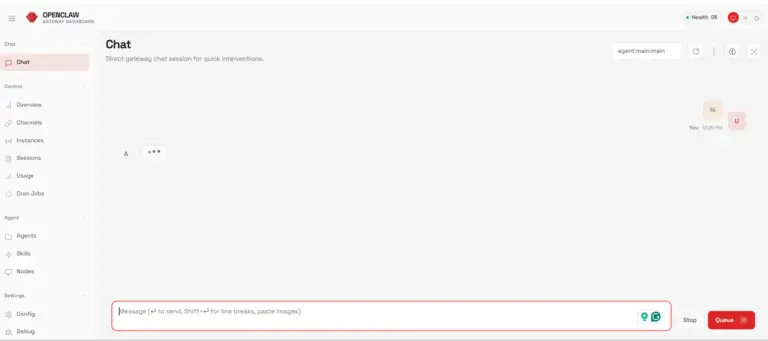
By following this setup, you’ve successfully completed the OpenClaw installation and secure gateway configuration on a VPS. Seeing health: ok and an active gateway status confirms that your OpenClaw service is running correctly. More importantly, enabling token-based authentication and accessing the dashboard through an SSH tunnel ensures your setup is not only functional, but also secure.
This approach protects your gateway from unauthorized access, avoids common configuration pitfalls, and gives you a reliable way to manage OpenClaw remotely without exposing sensitive ports to the public internet. Once the token is configured and the tunnel is active, you have a production-ready foundation to start building workflows, automations, or AI agents on top of OpenClaw.
FAQ
1. Do I need to regenerate the token every time I restart the gateway?
No. The token is stored in your config file and persists across restarts. You only need to regenerate if you want to rotate it for security or if you lost it.
2. Can I use the same token for multiple users/browsers?
Yes. Token-based auth uses a single shared token. Anyone with the token can access the gateway. For multi-user scenarios with individual credentials, consider password auth or implement OAuth pairing.
3. Can I have multiple tokens?
No. OpenClaw gateway only supports one active token at a time. If you set a new token, the old one stops working immediately.
4. Does the token expire?
No. OpenClaw tokens don’t have expiration times. They’re valid until you change them.