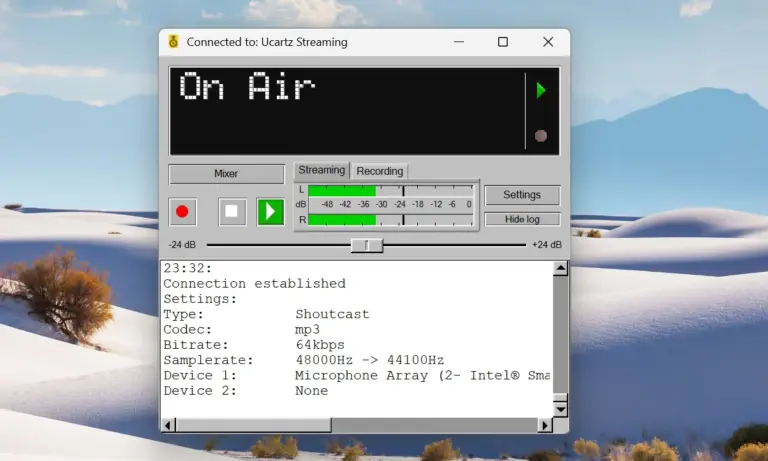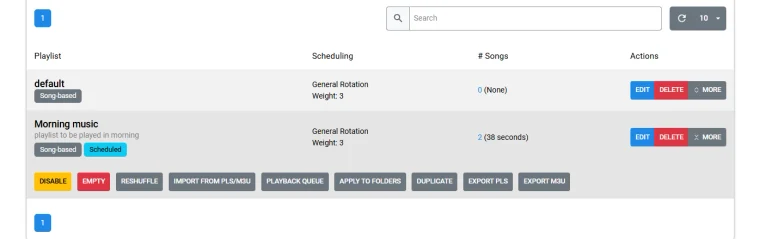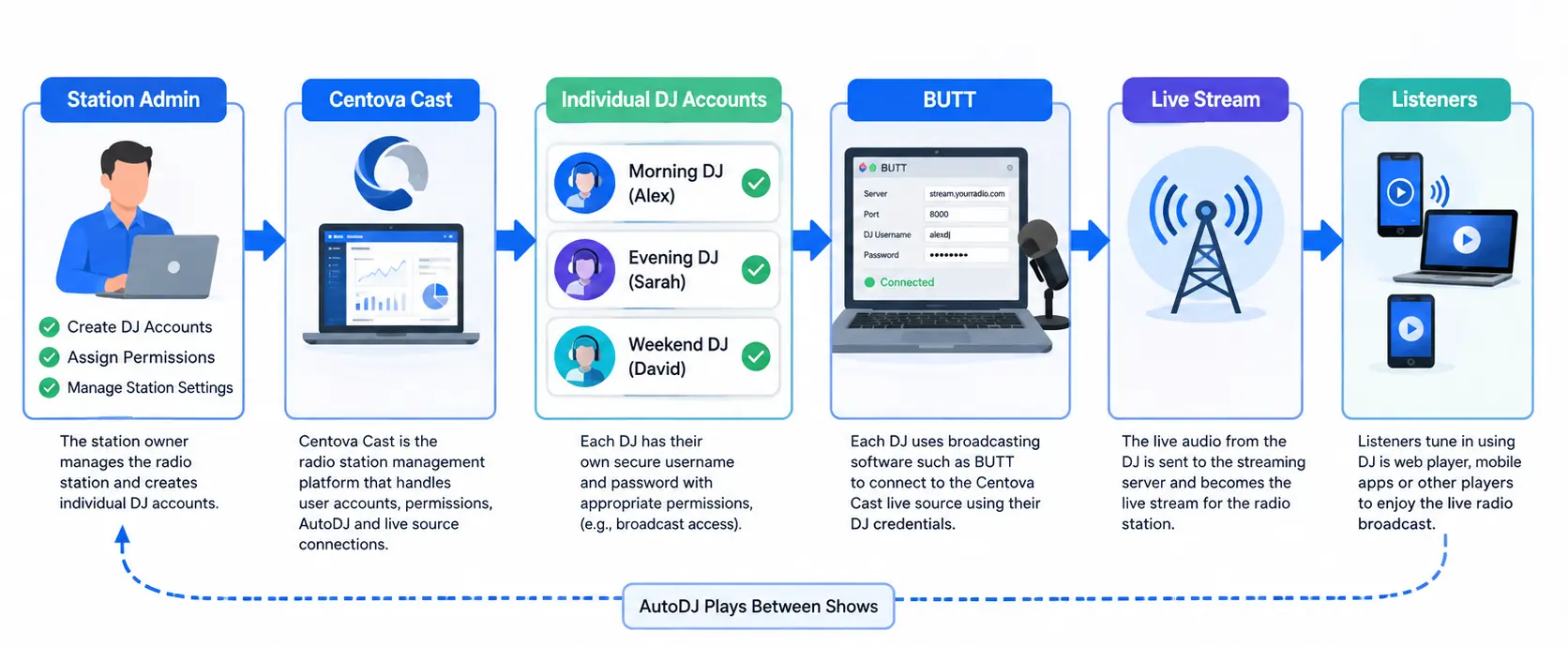

Quick Answer: Yes. Centova Cast can support multiple DJs by creating separate user accounts with delegated access. Each presenter can have individual credentials and connect compatible broadcasting software such as BUTT to the station’s live source.
Running an online radio station becomes more complicated when more than one person needs to broadcast.
A community station might have a morning DJ, an evening presenter, and a weekend DJ. You could give everyone the main Centova Cast login, but that creates unnecessary security and management problems.
A better approach is to create separate DJ accounts and give each presenter the access they actually need.
Centova Cast radio hosting supports delegated access, allowing station owners to create additional accounts and control what those users can access. This means your morning DJ can have their own credentials without receiving the same level of control as the station administrator.
In this guide, you’ll learn how to add multiple DJs to Centova Cast, create individual DJ accounts, assign appropriate permissions, and connect those credentials to broadcasting software such as BUTT.
| Component | What it does |
|---|---|
| Centova Cast | Manages the radio station |
| DJ account | Controls presenter access |
| BUTT | Sends live audio to the streaming server |
| AutoDJ | Plays scheduled/automated content |
| Streaming server | Delivers the audio to listeners |
What Are Multiple DJ Accounts in Centova Cast?
Separate user accounts that allow individual presenters to broadcast and access specific station functions without receiving full administrator privileges.
Centova Cast supports delegated access, meaning you create limited accounts for DJs instead of giving everyone your main login.
Example: Your station has:
- Alex (Morning DJ, 7 AM-10 AM weekdays)
- Sarah (Evening DJ, 7 PM-10 PM weekdays)
- David (Weekend DJ, 6 PM-10 PM Saturdays)
Instead of all three sharing one password, each gets their own secure account.
Why Shouldn’t Multiple DJs Share One Centova Cast Login?
1. Security Risk
Multiple people knowing the administrator password means loss of control. If someone leaves, you’d need to change the password for everyone.
2. No Accountability
With individual accounts, you can track which DJ made changes, started a broadcast, or modified settings. Shared logins make this impossible.
3. Difficult Staff Changes
When a DJ leaves (or joins), individual accounts make transitions seamless. Just disable or enable that account.
4. Different Permission Levels
A station manager needs more access than a guest presenter. Separate accounts let you assign granular permissions.
5. Compliance & Regulation
Many jurisdictions (EU under GDPR, India under local data protection rules) require individual account management for security and audit purposes.
How Do Multiple DJs Work With Centova Cast?
The Basic Flow:
Station Admin
     ↓
Centova Cast Control Panel
     ↓
├── DJ Account 1 (Alex) → Broadcasting Software → Live Stream
├── DJ Account 2 (Sarah) → Broadcasting Software → Live Stream
└── DJ Account 3 (David) → Broadcasting Software → Live Stream
How It Works:
- Admin creates separate accounts in Centova Cast’s user management
- Each DJ receives unique credentials
- DJ connects broadcasting software (BUTT, VirtualDJ, Mixxx, etc.) using live source settings
- DJ broadcasts independently without needing admin access
- AutoDJ continues between shows if configured
When DJ Connects:
Before Show: AutoDJ → Stream → Listeners

During Show: DJ's Mic → BUTT → Live Source → Stream → Listeners

After Show: AutoDJ → Stream → Listeners
What Permissions Should You Assign Each DJ?
Give users only what they need. Don’t default to administrator access.
| Function | Admin | Senior DJ | Part-Time DJ |
|---|---|---|---|
| Broadcast live | ✓ | ✓ | ✓ |
| View station stats | ✓ | ✓ | x |
| Manage playlists | ✓ | ✓ | x |
| Change settings | ✓ | x | x |
| Manage users | ✓ | x | x |
| Access billing | ✓ | x | x |
Start restrictive. Add permissions only if the DJ specifically needs them.
How to Create DJ Accounts in Centova Cast
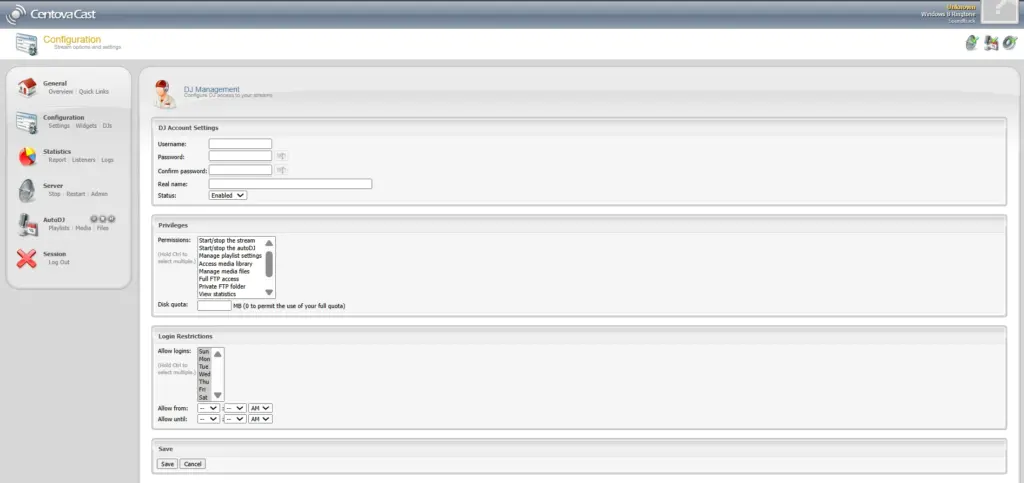
Step 1: Access User Management
Log into Centova Cast as admin → Look for “Users,” “User Accounts,” or “Delegated Access” section (exact location varies by hosting provider and version). Click “Add New User” or “Create Account”
Step 2: Enter DJ Details
- Full Name: Alex Thomas
- Username: alexdj (lowercase, no spaces)
- Email: alex@example.com
- Password: Strong, unique password (NOT shared with other services)
Step 3: Assign Permissions
✓ Broadcast live
✓ View station info
x Manage settings
x Manage users
Step 4: Save Account
Note down the username and temporary password. Send to DJ securely (not via public channels).
Step 5: Repeat for Each DJ
Create separate accounts for Sarah, David, and any other presenters.
How to Connect a DJ to Broadcasting Software (BUTT Example)
From Centova Cast, find your Live Source Details:
- Server hostname (e.g.,
radio.example.com) - Port (e.g.,
8185) - Bitrate (e.g.,
128 Kbps) - DJ username and password
Configure BUTT:
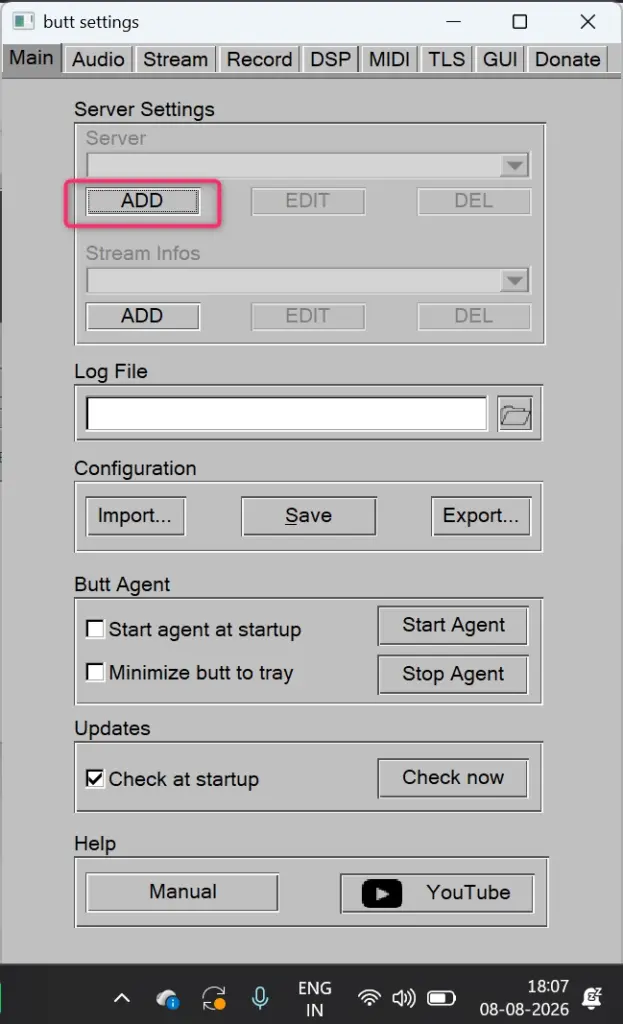
- Open BUTT on the DJ’s computer
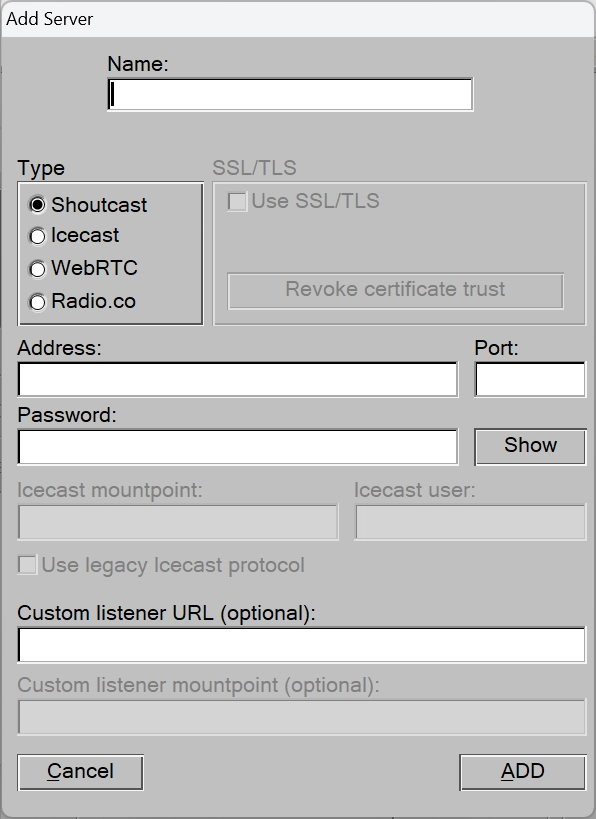
- Go to Settings → Server
- Enter:
- Server type: SHOUTcast v1
- Server: Your Centova Cast hostname
- Port: Your live source port
- Password:
djusername:djpassword(replace with actual credentials)
- Go to Settings → Audio
- Select microphone (USB or built-in)
- Test connection before the show
DJ Login vs Live Source Credentials
Common Confusion:
- Centova Cast Web Login = Admin/user interface access
- Username:
alexdj - Password:
MySecurePass123
- Username:
- Live Source Credentials = Broadcasting software connection
- Format:
alexdj:MySecurePass123 - Used in BUTT broadcasting software, VirtualDJ, Mixxx, RadioBOSS
- Format:
Both use the same username/password, but formatted differently.The live source password goes in your broadcasting software. The web login is only for accessing the Centova Cast interface.
Example: Community Radio Station (Multiple Regions)
Station: Global Community Radio Hosted: Ucartz UK server
| DJ | Location | Schedule | Account |
|---|---|---|---|
| Alex | London, UK | Mon–Fri, 7 AM | alexdj |
| Sarah | New York, USA | Mon–Fri, 7 PM UK = 2 PM EST | sarahdj |
| David | Sydney, Australia | Saturdays, 6 PM UK = 4 AM Saturday AUS | davidauz |
David broadcasts at 4 AM Sydney time. Ucartz hosting in UK ensures stable connection. David connects BUTT from home in Sydney despite early hour.
What Happens When Multiple DJs Broadcast?
DJ Connection Timeline
6:55 PM: AutoDJ running
AutoDJ → Stream → Listeners7:00 PM: Sarah connects BUTT
Sarah's Mic → BUTT → Centova Cast Live Source → Stream → Listeners
(AutoDJ automatically pauses)
10:00 PM: Sarah disconnects
AutoDJ resumes → Stream → Listeners7:00 PM Next Day: Alex connects (different DJ, same time)
Alex's Mic → BUTT → Centova Cast Live Source → Stream → ListenersLive broadcasting automatically takes priority over AutoDJ when configured correctly.
Common Problems & Solutions
1.DJ Can’t Log Into Centova Cast Web Interface
Check:
- Correct username and password
- Account is enabled (not disabled)
- Username isn’t case-sensitive, but password is
- Using correct Centova Cast URL from hosting provider
2. BUTT Says ‘Invalid Password’ During Connection
Check:
- Live source password format is
username:password(with colon) - Username matches DJ account username
- Password matches exactly (case-sensitive)
- Correct server hostname
- Correct port number
alexdj:MyPassword123During our test, BUTT initially returned “Invalid password” when connecting to the Centova Cast live source. After checking the DJ authentication details and correcting the connection settings, the software successfully established the connection. We then verified microphone input and tested the public stream from a separate phone.
3.DJ Can Connect But I Don’t Hear Audio
Check:
- Microphone is selected in BUTT settings
- Audio meter in BUTT is showing input levels (moving)
- Broadcasting software shows “Connected”
- Test from separate device (phone, tablet) to confirm stream working
- AutoDJ/Live Source is configured to switch to live when available
4. Different DJ Accounts But Same Stream Quality Issues
Likely cause: Server capacity or internet connection (not account issue).
Solutions:
- Check bitrate settings in BUTT (don’t exceed allocated bitrate)
- Test DJ’s internet upload speed (needs 512 Kbps minimum for 128 Kbps broadcast)
- If multiple DJs broadcast simultaneously, ensure Centova Cast plan supports multi-source
- Upgrade Ucartz hosting tier if nearing resource limits
How to Remove or Disable a DJ Account
When DJ Leaves Station:
Option 1: Disable (Temporary)
- Go to User Management → Select DJ account
- Click “Disable” or “Suspend”
- Account exists but can’t be used
- Can be re-enabled later if DJ returns
Option 2: Delete (Permanent)
- Go to User Management → Select DJ account
- Click “Delete” or “Remove”
- Account is permanently removed
- Save backup of any broadcast history first
Always disable/delete accounts when someone leaves. Don’t leave inactive accounts active.
Best Practices for Managing Multiple DJs
Account Management
✓ Create unique account for each DJ
✓ Use strong passwords (min. 12 characters)
✓ Change passwords if DJ account is compromised
✓ Regularly review who has access
✓ Disable unused accounts immediately
Permission Management
✓ Assign minimal permissions needed
✓ Give broadcasting access to all DJs
✓ Restrict admin/settings access
✓ Review permissions when DJ role changes
✓ Senior DJs may need more access than part-time DJs
Operational
✓ Test each DJ before their first show
✓ Maintain DJ schedule (which DJ broadcasts when)
✓ Have backup plan if DJ can’t connect (AutoDJ takes over)
✓ Keep broadcast logs for troubleshooting
Geographic/Regional
✓ Host in region closest to majority of DJs
✓ Provide local support for time zones
✓ Ensure compliance with local broadcasting regulations
✓ Consider daylight saving time differences
✓ Test connection from each DJ’s location
Multi-DJ Radio Station Checklist
Before launching with multiple DJs:
- [ ] Centova Cast account active
- [ ] AutoDJ configured (for between-show content)
- [ ] Live source settings documented
- [ ] First DJ account created and tested
- [ ] Broadcasting software (BUTT/VirtualDJ) installed on DJ’s computer
- [ ] Microphone tested and working
- [ ] Server hosted in appropriate geographic region
- [ ] Second DJ account created and tested
- [ ] Third DJ account created (if applicable)
- [ ] Each DJ has unique credentials
- [ ] Each DJ has completed test broadcast
- [ ] Public stream tested from external device
- [ ] DJ schedule shared with all presenters
- [ ] Backup contact info for each DJ
- [ ] Escalation plan if DJ can’t connect during show
FAQ
Q: Can DJs broadcast from different computers?
Yes. Each DJ installs BUTT (or their preferred software) on their own computer. They use the same Centova Cast credentials but connect independently. Their audio streams merge at the server.
Q: What if two DJs try to broadcast simultaneously?
Your Centova Cast plan should specify whether it supports multi-source or single-source. Most support one DJ at a time. If two connect simultaneously, the second connection may override the first (depending on configuration). Coordinate your schedule to prevent this.
Q: Do DJs need to download/install anything?
Yes. They need broadcasting software. BUTT is free and lightweight. Alternatives: VirtualDJ, Mixxx, RadioBOSS, SAM Broadcaster. They don’t need to install or access Centova Cast directly.
Q: Can a DJ broadcast from their phone?
Most phone broadcasting apps support Centova Cast, but BUTT and others are desktop/laptop software. Check your broadcasting software’s platform support.
Q: What’s the maximum number of DJ accounts I can create?
Depends on your Centova Cast plan and hosting provider. Some plans are unlimited, others have limits. Check with your hosting provider before planning a large station.
Q: If a DJ forgets their password, what do I do?
As admin, reset it in User Management. Send new password securely (not via email or text). Have DJ log in and change password immediately.
Q: Can I give a DJ admin access to certain settings only?
Most Centova Cast setups have preset permission groups (Admin, Senior DJ, DJ, Guest). You can’t typically granulate further, but future versions may allow more control. Check your hosting provider’s specific Centova Cast version.
Q: Can Multiple DJs Use the Same Centova Cast Radio Station?
Yes. Multiple DJs can broadcast on the same radio station without each having a separate station, provided the station configuration supports the required DJ/live-source workflow.
Conclusion
Adding multiple DJs to a Centova Cast station building a manageable broadcasting workflow. Your administrator maintains control of the station while individual presenters receive the access required for their shows. A morning DJ can broadcast independently, an evening presenter can have their own credentials, and a weekend DJ can connect when their show starts.
Instead of: One password → everyone you have: One station → multiple controlled DJ accounts
If you’re running a community station, online radio business, school radio station, podcast network or branded internet radio channel, setting up individual DJ access early can save you from a lot of account-management problems later.
With Ucartz Radio Hosting, you can run your online radio station with Centova Cast, AutoDJ and live broadcasting capabilities, while giving your presenters the access they need to participate in your station.