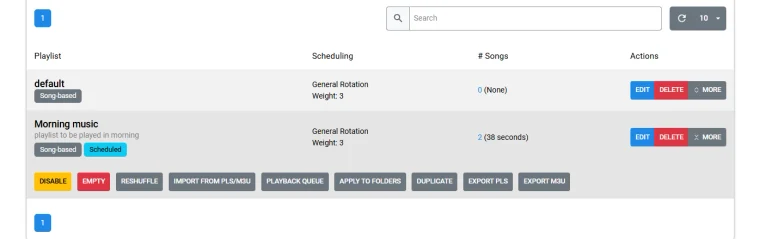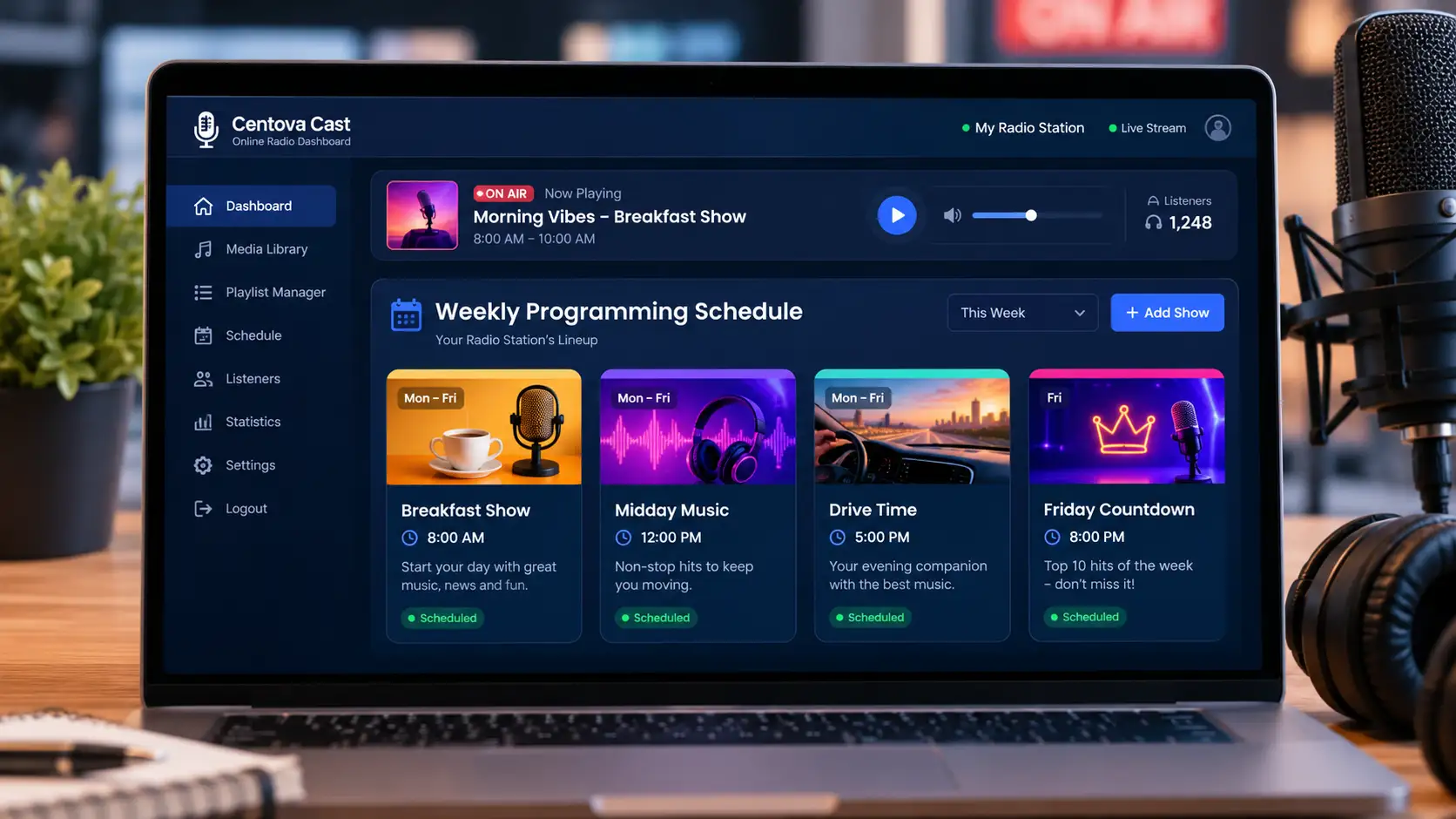

To schedule different radio shows in Centova Cast, create playlists for each show, assign them specific dates and times using the AutoDJ scheduler, and let Centova Cast play them automatically.
Running an online radio station is about more than uploading music and keeping the stream live. A professional station needs a real programming schedule one that tells the audience “if it’s 8 AM on a weekday, this is what you’ll hear,” the same way a terrestrial FM station has always worked.
Maybe you want a breakfast show every weekday morning, a Friday afternoon countdown, a weekend talk show, or a one-off special that needs to air at an exact time and never again. Individually, none of that sounds hard. But the moment you’re juggling five, ten, or twenty different recurring programs across different days and times, doing it by hand manually starting and stopping playlists, remembering what’s supposed to play when gets messy fast. Shows get missed. Content airs at the wrong time. Someone has to be awake and logged in at 6 AM just to press play.
That’s exactly the kind of problem Centova Cast streaming radio hosting was built to solve. Centova Cast is one of the most widely used control panels for Shoutcast and Icecast streaming servers, and its Scheduled Playlists feature lets you queue up different shows to play automatically on specific dates and times, with flexible options to repeat daily, weekly, monthly, or yearly. Once it’s configured, the system runs your programming grid on its own.
This guide walks through, in detail, exactly how to set that up correctly: how Centova Cast’s scheduling engine works under the hood, how to build out a full weekly programming grid, and the common mistakes that trip up broadcasters when they’re setting this up for the first time.
What Is a Scheduled Playlist?
To understand scheduling in Centova Cast, it helps to first understand how playlists work in general. Centova Cast organizes station content into different playlist types, and each type serves a different purpose. The most common one the one most stations rely on for the bulk of their airtime is the General Rotation playlist. This is your default, always-on music rotation: the tracks that play when nothing else is scheduled to interrupt them. It’s the “filler” that keeps your stream alive between dedicated programming blocks.
A Scheduled Playlist, by contrast, is built to start automatically at a set date and time, and then either play once or repeat according to a pattern you define. Where General Rotation is passive and continuous, Scheduled Playlists are active and time-bound they exist specifically for content that needs to air at a particular moment, rather than just whenever it happens to come up in rotation. This distinction matters a lot in practice, because a lot of new Centova Cast users try to force General Rotation to behave like a schedule (for example, by manually swapping the rotation folder at certain times of day), when what they actually need is a proper Scheduled Playlist.
Centova Cast supports both one-time scheduled playlists (things that play exactly once, like a special broadcast) and recurring scheduled playlists (things that repeat on a pattern, like a weekday breakfast show). Both are configured through the same interface, and the only real difference is the repeat setting you choose, which we’ll get into below.
How the Scheduling Engine Actually Works
Before diving into the step-by-step setup, it’s worth understanding the underlying logic, because it explains a lot of behavior that otherwise seems confusing.
The basic flow for building a scheduled show is: upload your show’s audio → create a playlist → set its type to Scheduled → pick a date and time → choose a repeat pattern → add your media to the playlist → save.
Once that’s configured, Centova Cast’s backend continuously checks whether any Scheduled Playlist is “due” to play. When a Scheduled Playlist becomes due, it takes priority over the General Rotation playlist , the system will switch away from whatever generic music is playing and move into your scheduled content.
Centova Cast will not interrupt a track that is already playing. If a scheduled show becomes due at, say, 8:00:00 AM exactly, but the General Rotation track that’s currently playing doesn’t end until 8:00:45, Centova Cast will let that track finish before switching over to the scheduled show. The scheduled show effectively waits in line for the current track to reach a natural stopping point. This is by design avoids jarring, mid-song cutoffs but it also means your show might start a few seconds (or in rare cases, longer) after the exact time you scheduled it, depending on what’s playing in the moment it becomes due. Keep this in mind when you’re planning tightly-timed programming blocks back to back.
Step-by-Step Setup
Step 1: Log In and Open the Playlist Manager
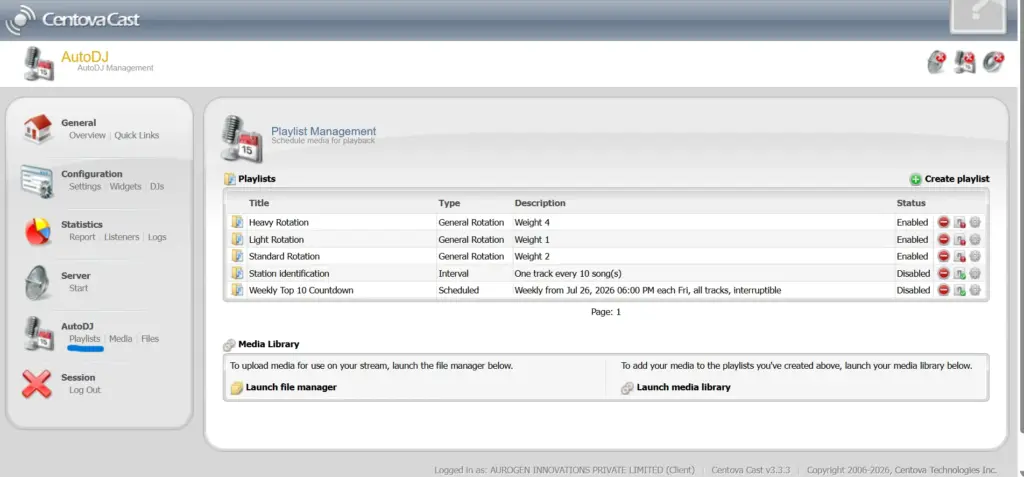
Start by logging in to your Centova Cast control panel with your station credentials. From the main dashboard, navigate to the Playlist Manager. This is your control center for creating and managing everything that plays on your station every rotation, every scheduled show, every jingle set lives here. If you’ve never opened it before, take a minute to look around; you’ll see any existing playlists listed, along with their type, status, and basic settings.
Step 2: Create a New Playlist
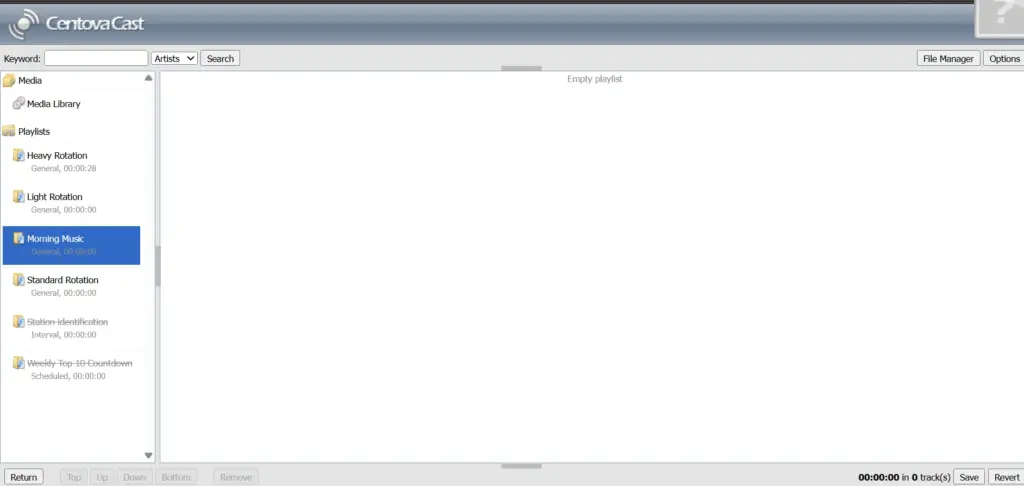
Click Create Playlist to open the playlist editor. The first thing you’ll set is the playlist name, and it’s worth taking this more seriously than it might seem. Give your playlist a clear, descriptive name based on the actual show it represents . Once you’re running five or ten shows, vague names become a real headache when you’re trying to make a quick update at 11 PM before a broadcast.
Good naming examples:
- Morning Breakfast Show
- Midday Music
- Drive Time Show
- Friday Countdown
- Weekend Special
Step 3: Change the Playlist Type to Scheduled
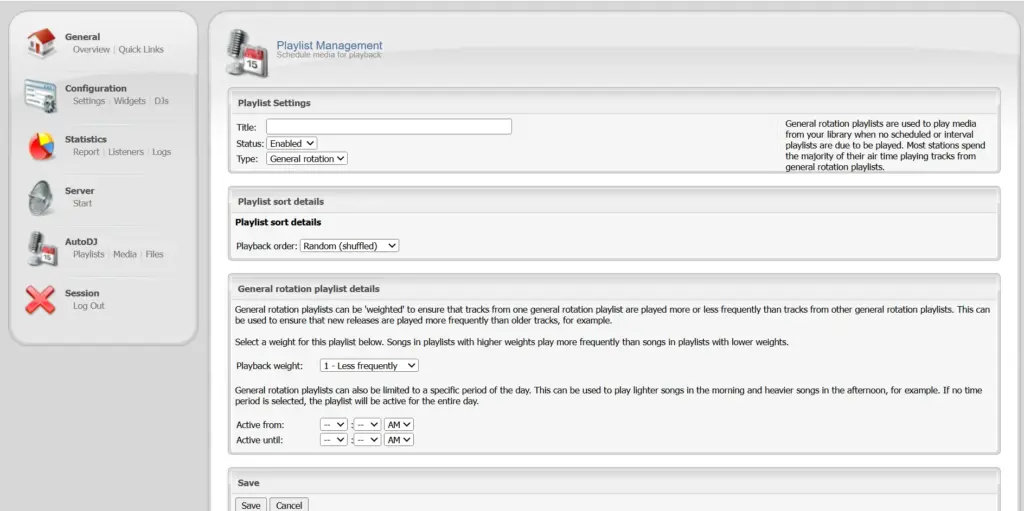
In the playlist settings, locate the Type dropdown or option. Centova Cast offers several playlist types: General Rotation, Scheduled, Interval, and Immediate and each behaves differently. General Rotation is your always-on filler music. Interval playlists are typically used for things like station IDs or ads that need to play periodically. Immediate playlists trigger right away. For anything that needs to air at a specific date and time countdowns, pre-recorded shows, specials, select Scheduled.
Step 4: Set the Scheduled Date
Choose the date on which the show should begin. For example: Scheduled Date: Monday, September 7, 2026. The playlist will sit completely inactive until this configured date and time actually arrives. This is useful for setting up a show weeks in advance and forgetting about it until it’s time to add new content.
Step 5: Set the Scheduled Time
Next, choose the time the show should start for example, Scheduled Time: 08:00 AM. If your Breakfast Show airs every weekday at 8:00 AM, this becomes the anchor point that the recurring schedule builds off of.
Check your time zone before you do anything else. Centova Cast uses whatever time zone is configured on the stream itself for all scheduled dates and times. If your time zone setting is wrong, every single scheduled show on your station will fire at the wrong moment, and it’s a surprisingly easy thing to overlook when first setting up a station, especially if your listeners, your server host, and you personally are all in different time zones. Go into your stream settings and confirm this before building your first schedule.
Step 6: Choose the Repeat Schedule
This is where you tell Centova Cast how often the show should recur. There are five options:
Never (one-time only) – Use this when a show should air exactly once. This is the right choice for special broadcasts, holiday programs, one-time interviews, live event coverage, or a single pre-recorded announcement. After it plays, the playlist effectively goes dormant.
Daily – The playlist activates every single day at the scheduled time, starting from the date you selected. Good for something like a Daily Music Show that runs at noon regardless of the day of the week.
Weekly – This is one of the most useful options for typical station programming, because it lets you specify exactly which days of the week the playlist should activate but a custom set like Monday, Wednesday, and Friday, or just Sunday. This is how you’d build something like a Friday-only Top 10 Countdown.
Monthly: The show repeats once a month, based on a specific day of the month (with options for things like always running on the first or last day). This suits monthly music charts, monthly interview segments, or recurring business/community programming.
Yearly: The show repeats once a year on the same date. This is ideal for station anniversary broadcasts, New Year’s programming, or annual holiday specials.
| Show | Day | Time |
|---|---|---|
| Breakfast Show | Mon–Fri | 8:00 AM |
| Midday Music | Mon–Fri | 12:00 PM |
| Drive Time | Mon–Fri | 5:00 PM |
| Top 10 Countdown | Friday | 8:00 PM |
| Weekend Special | Sunday | 10:00 AM |
Step 7: Choose How Tracks Within the Show Should Play
Centova Cast also gives you control over playback order within a Scheduled Playlist, which matters more than people expect.
Play All Tracks Sequentially – Tracks play in the exact order they appear in the playlist. This is almost always the right choice for a structured, pre-recorded show, where the order of segments actually matters , for example:
- Show Intro
- Presenter Segment
- Song 1
- Interview
- Song 2
- News Segment
- Song 3
- Show Outro
Rearranging these out of order would break the flow of the program, so sequential playback preserves the structure you built.
Play All Tracks Randomly – Tracks are shuffled into random order each time the playlist runs. This can work fine for music-focused programming blocks, but it’s generally the wrong choice for a scripted or narrative show, since it will scramble intros, segments, and outros unpredictably.
Play One Random Track – Instead of playing the whole playlist, Centova Cast picks a single track at random from it. This is more of a niche option, useful for specific scheduled musical elements rather than a complete program.
Step 8: Upload or Add Your Show’s Media
Once the schedule itself is configured, you still need to add the actual audio content. For a typical pre-recorded program, this usually includes:
- Intro
- Presenter voice-over
- Music tracks
- Interview segments
- News segments
- Advertisements or sponsor reads
- Outro
Centova Cast’s built-in media library lets you upload and organize your station’s audio files, then attach them to the appropriate playlist. Make absolutely sure every file is uploaded and correctly added to the playlist before the scheduled broadcast time arrives , a Scheduled Playlist with a perfectly configured time but no media attached will simply play nothing, or fall back to another playlist, when it becomes due.
Step 9: Configure the Interruptible Setting
The Interruptible setting becomes especially important once you’re running multiple scheduled shows that might butt up against each other. Centova Cast gives you two behaviors to choose from for each Scheduled Playlist:
- Play to completion – the current scheduled show keeps playing even if another scheduled playlist becomes due during its runtime; the newer one has to wait.
- Terminate if another scheduled playlist is due to begin – Centova Cast will end the currently playing scheduled playlist early to make room for the next one that’s now due.
Even when a playlist is set to interruptible, Centova Cast still won’t cut a track off in the middle , it waits until the current track reaches a natural stopping point before switching over. For most complete, self-contained pre-recorded programs, playing to completion tends to make more sense, since you don’t want a show cut off partway through. For stations with a tightly controlled, back-to-back programming grid, the interruptible option gives you more precise control over start times.
Step 10: Set a Maximum Playback Duration
Finally, Centova Cast provides a Stop after setting, which lets you cap how long a Scheduled Playlist stays active . For example: Stop after: 60 minutes for a one-hour programming slot.
One important limitation to keep in mind: Centova Cast will not forcibly interrupt a track that’s already playing just because the configured time limit has been reached. If a track runs a little long and pushes past the 60-minute mark, it will still be allowed to finish before the playlist stops. Build a small buffer into your scheduling if you’re running shows back-to-back with hard time constraints.
Scheduling Multiple Shows
If your station runs several programs throughout the week, resist the temptation to cram everything into one giant playlist with complicated internal logic. It’s much cleaner and far easier to maintain to create a separate Scheduled Playlist for each individual show. Each playlist gets its own name, its own date and time, its own repeat pattern, its own playback style, and its own interruptible setting. When it’s time to update just one show, you go straight to that one playlist without touching anything else on the station.
Here’s how that looks in practice:
- Morning Breakfast Show – Scheduled, 8:00 AM, Mon–Fri, Sequential
- Lunch Music – Scheduled, 12:00 PM, Mon–Fri, Random
- Drive Time – Scheduled, 5:00 PM, Mon–Fri, Sequential
- Friday Top 10 – Scheduled, 8:00 PM, Friday, Sequential
- Sunday Special – Scheduled, 10:00 AM, Sunday, SequentiaL
| Time | Mon–Fri | Saturday | Sunday |
|---|---|---|---|
| 8:00 AM | Breakfast Show | Weekend Breakfast | Sunday Special |
| 10:00 AM | Music Rotation | Music Rotation | Music Rotation |
| 12:00 PM | Midday Show | Weekend Music | Weekend Music |
| 3:00 PM | Music Rotation | Chart Show | Community Show |
| 5:00 PM | Drive Time | Evening Show | Evening Music |
| 8:00 PM | Evening Show | Saturday Special | Sunday Evening |
What Happens When Shows Overlap?
Say Show A runs 6:00–7:00 PM and Show B is scheduled for 6:30–7:30 PM. Centova Cast checks the Interruptible setting on the currently playing show:
- Not interruptible → Show B waits until Show A finishes
- Interruptible → Centova Cast can end Show A once Show B becomes due (still without cutting a track off mid-play)
Design your schedule so shows don’t overlap in the first place. A quick way to check for this is to lay out every show’s expected start and end time on a single grid, like the weekly example above, before you finalize the schedule in Centova Cast. Overlaps are far easier to catch on paper than after they’ve already caused a broadcast hiccup.
Why Separate Playlists Per Show?
It’s worth spelling out exactly why the “one playlist per show” approach is worth the extra setup time, especially for anyone tempted to shortcut this with a single mega-playlist:
- Easier scheduling – each show gets its own date, time, and repeat pattern, independent of every other show on the station.
- Easier updates – you can swap out or refresh the content for one show without touching, re-uploading, or re-ordering anything in the rest of your station’s schedule.
- Better organization – clear, descriptive playlist names make your entire programming calendar easy to read at a glance, which matters a lot when you’re troubleshooting or handing station management off to someone else.
- More playback control – each scheduled show can have its own sequencing (sequential vs. random) and its own interruption rules, tailored to what that specific show actually needs.
- Better automation – once your schedule is fully configured, Centova Cast manages all of the programming transitions automatically, without anyone needing to be logged in to manually start or stop a show.
Common Mistakes to Avoid
- Using General Rotation for time-specific content instead of a Scheduled Playlist
- Ignoring the time zone setting shows can start at the wrong time if this is off
- Letting shows overlap without checking durations first
- Using random playback for structured shows where order actually matters
- Forgetting to upload media the schedule alone doesn’t create the show
- Assuming a track will cut off exactly at the time limit it won’t; it finishes first
Best Practices
- Use clear, descriptive playlist names
- Keep each show in its own playlist
- Use sequential playback for structured programming
- Double-check the stream’s time zone
- Avoid unnecessary overlaps by planning around realistic show lengths
- Test each schedule before relying on it
- Keep a General Rotation playlist running as backup programming for gaps
Final Thoughts
Manually managing a growing station’s schedule doesn’t scale. Centova Cast’s Scheduled Playlists let you automate daily shows, weekly countdowns, monthly features, and one-time specials without babysitting the broadcast. Set up a clear playlist per show, get the date, time, and repeat pattern right, add your media, and manage overlaps carefully then let Centova Cast handle the rest while you focus on making good radio.
A polished schedule is only as reliable as the server it runs on. Ucartz gives you high-uptime Shoutcast and Icecast hosting with Centova Cast built in, so your scheduled shows go out on time, every time without buffering, downtime, or server-side surprises. Explore Ucartz Radio Hosting plans and get your station’s programming grid running the way it deserves to.
FAQ
What is a Scheduled Playlist in Centova Cast?
It’s a playlist type that plays automatically at a specific date and time instead of running continuously like General Rotation.
Can I schedule a radio show to play only once?
Yes , set the Repeat option to “Never” for one-time specials, holidays, or event broadcasts.
Does Centova Cast support weekly recurring shows?
Yes , the Weekly repeat option lets you pick exact days, like Monday–Friday or just Friday.
What time zone does Centova Cast use for scheduling?
It uses the time zone configured on your stream, not your local browser time.
Will Centova Cast cut off a song to start a scheduled show on time?
No , it waits for the currently playing track to finish before switching over.
What does the Interruptible setting do?
It controls whether a scheduled show can be ended early to let another due show start.