

Short answer: to build a website with HTML, create a folder with an index.html file for your content, a CSS file for the look and an images folder. Open index.html in your browser to test it, check it with an HTML validator, then upload the folder’s contents to your web host’s document root (public_html on cPanel hosting) and point your domain at the host. You do not need a framework or a paid editor. The sample files below passed the Nu HTML Checker with no errors.
Prefer to let AI write the code? Our guide How to Build a Website with Google Antigravity shows how to make the same kind of site with Google’s free AI editor, using Gemini or Claude, and how to save it with Git. Antigravity is for people aged 18 or over; the steps on this page need no AI account at all.
What you need
- A text editor. Any plain-text editor works. Visual Studio Code is a popular choice and, according to its FAQ, free for private or commercial use. Avoid word processors: they add hidden formatting.
- A web browser to preview your pages.
- Web hosting and a domain name when you are ready to publish. Not needed while you build.
Step 1: Set up the folders
MDN’s guide to dealing with files suggests this structure, and it is a good one to copy:
my-website/
  index.html        your home page
  contact.html      a second page
  styles/
    style.css       colours, fonts and layout
  images/
    bread.jpg       your pictures
Name every file and folder in lowercase with hyphens instead of spaces: about-us.html, not About Us.html. Most web servers are case-sensitive, and spaces turn into %20 in web addresses.
Step 2: Write the home page
Save this as index.html:
<!doctype html>
<html lang="en">
  <head>
    <meta charset="utf-8">
    <meta name="viewport" content="width=device-width, initial-scale=1">
    <title>Asha's Bakery | Fresh bread in Kollam</title>
    <meta name="description" content="Fresh bread and cakes, baked every morning in Kollam.">
    <link rel="stylesheet" href="styles/style.css">
  </head>
  <body>
    <header>
      <h1>Asha's Bakery</h1>
      <nav>
        <a href="index.html">Home</a>
        <a href="contact.html">Contact</a>
      </nav>
    </header>
    <main>
      <h2>Fresh bread every morning</h2>
      <p>We bake bread, cakes and biscuits every day from 6 am.</p>
      <img src="images/bread.jpg" alt="A basket of fresh bread" width="600" height="400">
    </main>
    <footer>
      <p>Open every day, 6 am to 8 pm.</p>
    </footer>
  </body>
</html>
What each part of the <head> does, following MDN’s explanation:
<!doctype html>is a required first line that makes the browser treat the page correctly.<meta charset="utf-8">lets the page show characters from almost every written language.- The
viewportline stops phones from drawing the page at desktop width and shrinking it. <title>is the text in the browser tab and in bookmarks. Google also uses it as one source for the title shown in search results and asks for descriptive, concise titles, so give every page its own.- The
<link>line loads your stylesheet.
In the <body>, <header>, <nav>, <main> and <footer> describe what each part of the page is for, which helps screen readers and search engines. Give every image an alt text that says what it shows, plus its width and height so the page does not jump while it loads.
Step 3: Add some style
Save this as styles/style.css:
body {
  font-family: system-ui, sans-serif;
  max-width: 60rem;
  margin: 0 auto;
  padding: 1rem;
  line-height: 1.6;
}
nav a {
  margin-right: 1rem;
}
img {
  max-width: 100%;
  height: auto;
}
This keeps lines to a readable width, centres the page and stops images from spilling off small screens. Because all pages share one stylesheet, changing a colour here changes it everywhere.
Step 4: Add a second page
Copy index.html to contact.html, change the title and the content inside <main>, and keep the same header and navigation. The links use relative paths (contact.html, styles/style.css), so they work on your computer and on the server alike. Never link to a path like C:\Users\... or file:///: it only exists on your own computer.
Step 5: Check your HTML
Browsers forgive a lot of mistakes, so a page can look fine and still be broken for screen readers or search engines. Run it through the W3C’s Nu HTML Checker, either online or as the open-source vnu.jar. Our sample files passed with no errors. When we removed the alt text from the image, version 26.9.27 of the checker reported:
error: An "img" element must have an "alt" attribute, except under certain conditions.Fix every error it lists, then open the page on your phone as well as on your computer.
Step 6: Put it online
- Get hosting and a domain. Any web hosting plan can serve plain HTML files.
- Find the document root. On cPanel hosting it is
public_html; the cPanel documentation calls it the web root (/home/user/public_html). See where to upload your website. - Upload the contents of your folder, not the folder itself, so that
index.htmlsits directly inpublic_html. Use cPanel’s File Manager or an FTP/SFTP client: see how to upload an index file with FileZilla. - Point your domain at the host by setting its nameservers or A record. What a nameserver is and how to change it explains both.
- Turn on HTTPS with the SSL certificate your host provides, so visitors see the padlock.
Why index.html? When someone visits https://example.com/, the server looks for a default file in that folder. Apache’s DirectoryIndex and nginx’s index directive both default to index.html. To use a different home page file, see how to set home.html as the home page.
Common mistakes after uploading
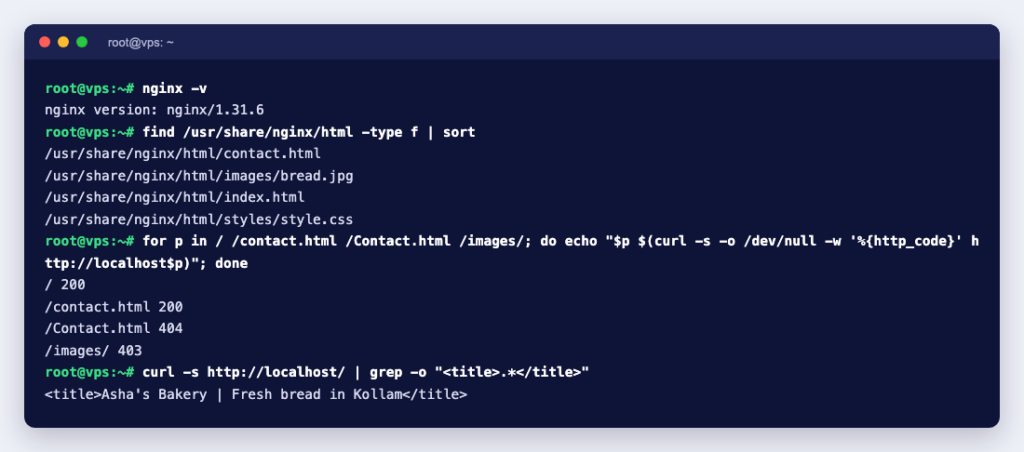
We served the sample site from Linux containers running nginx 1.31.6 and Apache 2.4.68 to check these:
| Symptom | Likely cause | Fix |
|---|---|---|
| A link gives 404, but it worked on your computer | Capital letters: both servers returned 404 for /Contact.html when the file was contact.html. Windows and macOS usually ignore case; Linux servers do not. | Use lowercase names everywhere |
| You see a list of files (Apache) or a 403 Forbidden page (nginx) instead of your site | No index.html in that folder, or it is named Index.html | Rename to index.html |
The site only works at /my-website/ | You uploaded the folder instead of its contents | Move the files up into public_html |
| The page has no styling | Wrong path to the CSS file | Check href="styles/style.css" matches the real path |
| Images are broken | Wrong path or case, or the file was not uploaded | Open the image address directly in the browser |
| Old version still showing | Browser cache | Clear your browser cache |
When plain HTML is enough, and when it is not
What you have built is a static site: MDN defines it as one that returns the same content every time a page is requested. Static sites load fast, have no server-side code to keep patched and run on the smallest hosting plan. They suit portfolios, small business pages, landing pages and documentation.
HTML alone cannot store form submissions, run a shop or let a non-technical colleague edit pages. For those you need something that runs on the server, such as PHP, or a content management system. If that is where you are heading, our guide to creating a website from scratch covers the WordPress route.
Ready to publish? Pick a name with our domain search, and upload your files to a web hosting plan, which includes a free SSL certificate and email on your domain.