
Short answer: you can move a website to a new domain name and keep most of its search traffic, if you redirect every old address to the matching new one with a permanent (301) redirect, update the site’s own links, tell Google through Search Console, and keep the old domain and its redirects for at least a year. Expect some ranking movement for a few weeks while search engines catch up.
Before you start
- Register the new domain and keep the old one renewed. If the old domain expires, every redirect and backlink to it is lost.
- Take a full backup of files and databases (in cPanel, see how to download a full website backup).
- Think about email. Addresses on the old domain keep working only while its mail records stay in place. Create the same mailboxes on the new domain and tell your contacts.
- Pick a quiet time for the switch, and make a list of your most important pages to check afterwards.
Step 1: Add the new domain to your hosting
In cPanel, open Domains › Domains and click Create A New Domain to add it. If the new name should become your account’s main domain, our support team can change the primary domain for you. Then point the new domain to your hosting: set its nameservers, or an A record with your server’s IP address (how to find your server IP address). Make sure it gets an SSL certificate; on cPanel, AutoSSL issues one once DNS points to the server.
Step 2: Update the website to use the new domain
The site must link to itself with the new name. On WordPress, the quickest safe way is a search-and-replace of the old address in the database. With WP-CLI (run in the site’s folder):
wp search-replace "https://old-example.com" "https://new-example.com" --all-tables --dry-run
wp search-replace "https://old-example.com" "https://new-example.com" --all-tables
The dry run shows what would change; the second command does it. In our test on WordPress 7.1.2, it updated the site address, the home address and every link inside posts in one go. WP-CLI also handles serialised data correctly, which a plain SQL replace does not. Without SSH, a search-and-replace plugin does the same job from the dashboard.
For other sites, update the configuration file and any hard-coded links, and check your canonical tags: every page should point to its own new address.
Step 3: Redirect every old address with a 301
A permanent redirect sends visitors and search engines from each old URL to the same page on the new domain. On Apache and LiteSpeed hosting (cPanel), add this to the .htaccess file of the old domain:
RewriteEngine On
RewriteCond %{HTTP_HOST} ^(www\.)?old-example\.com$ [NC]
RewriteRule ^(.*)$ https://new-example.com/$1 [R=301,L]
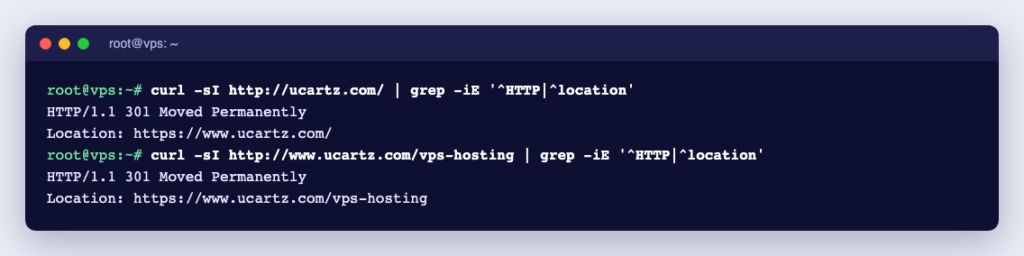
We tested these rules on Apache 2.4.68: old-example.com/blog/post-1/?utm=x went to new-example.com/blog/post-1/?utm=x with status 301, both with and without www, and the new domain itself was not affected. Redirect page to page, not everything to the new home page: Google may treat many pages redirected to one unrelated page as missing pages (soft 404s). More options: forward visitors from an old domain to a new one.
Step 4: Tell Google
- Add the new domain to Google Search Console and verify it. Keep the old domain’s property too.
- In the old domain’s property, open the Change of Address tool (under Settings) and choose the new domain. It works on domain-level properties, needs you to own both properties, and checks that the old home page redirects to the new one with a 301.
- Submit the new site’s sitemap.
Google says the Change of Address tool asks it to prioritise crawling the new site and forwards signals from the old one, and that this continues for 180 days. For small and medium sites, it can take a few weeks before the new addresses fully replace the old ones in results.
Step 5: Update everything that points to you
- Google Business Profile, social media profiles and online directories.
- Email signatures, invoices, printed material and ads.
- Payment, analytics and marketing tools that store your domain.
- Important backlinks: ask the sites that link to you most to update the link. The redirect works, but a direct link is better.
Step 6: Watch and keep the redirects
- Check your important pages, forms and checkout on the new domain.
- Watch Search Console for 404 errors and crawling problems in the weeks after the move.
- Keep the redirects for as long as possible. Google recommends at least one year; keeping the old domain and its redirects for good is safest.
Frequently asked questions
Will I lose my Google rankings?
Some movement is normal for a few weeks. With page-to-page 301 redirects, updated links and the Change of Address tool, rankings usually settle back. Big drops mostly come from missing redirects, redirects to the home page only, or letting the old domain expire.
Do I need new hosting to change my domain?
No. You can add the new domain to your existing hosting and keep the same files and database. Moving the domain and the hosting at the same time is possible but makes problems harder to trace.
How long should I keep the old domain?
At least a year, according to Google, and ideally for good: old links, bookmarks and emails keep reaching you.
Want help? Our engineers can make the switch for you, from DNS and SSL to redirects and Search Console: see hire an expert. Moving host as well? Read how to move your WordPress website without downtime.
Sources: Google: site moves with URL changes and Google Search Console Change of Address tool.