Short answer: Chrome Remote Desktop is Google’s free tool for controlling a Mac, Windows or Linux computer from a browser. You sign in with your Google account and enter a PIN, and Google says all sessions are fully encrypted. The computer you connect to only needs outgoing internet access, so you do not have to open an inbound port. It also works on a Linux VPS as a desktop in the cloud, set up from the command line. It is reasonably safe if your Google account is well protected, but on servers RDP, xrdp or VNC over SSH may suit you better.
How Chrome Remote Desktop works
You install the host software on the computer you want to reach, then connect to it from remotedesktop.google.com/access in Chrome, or from the mobile app. There are two modes, both described in Google’s help article Access another computer with Chrome Remote Desktop:
- Remote access: your own computers, linked to your Google account and protected by a PIN.
- Remote support: you generate a one-time code and give it to someone so they can help you. The code works once, and while sharing you are asked every 30 minutes to confirm you want to continue.
According to the same article, the connection needs outbound UDP traffic, inbound UDP responses, TCP port 443 and TCP and UDP port 3478 (STUN). Those are all connections the host starts itself. Google’s own guide for running it on Linux virtual machines notes that no extra firewall rules are needed and that SSH is only required for the first setup.
Is Chrome Remote Desktop safe?
The design has real strengths:
- Encrypted sessions. Google states that all remote desktop sessions are fully encrypted.
- No port to open. The host only makes outgoing connections, so there is no remote desktop port for scanners to find, unlike an RDP or VNC port left open to the internet.
- Two things needed to connect: access to your Google account and the PIN for that computer.
And some things you need to handle yourself:
- Your Google account becomes the key to the server. Turn on 2-Step Verification and use a strong, unique password. Pick a PIN that is not your birthday.
- Remote support codes give full control. Google warns that the person you share with gets full access to your apps, files, emails, documents and history. Never read out a code to someone who contacted you unexpectedly, whatever company they say they are from.
- It depends on Google’s service. If you cannot sign in to Google, you cannot connect. Keep SSH working as a way back in.
- Company rules. On a managed Google account, your administrator may control whether you can use it at all.
- Some data goes to Google. The help article says Google collects anonymised data about network delays and session length.
Chrome Remote Desktop on a Linux VPS
A VPS has no screen, so Chrome Remote Desktop creates a virtual desktop session for you. The steps below follow Google’s guide Set up Chrome Remote Desktop for Linux on Compute Engine, which works the same on any Debian or Ubuntu server with internet access. We installed the package on a Debian 13 x86-64 container to check the commands: version 154.0.8037.11 installed cleanly and pulled in its own virtual display packages (xvfb and a dummy X driver).
One limit first: Google’s package repository only offers amd64 builds, so this needs an x86-64 server, not an ARM one.
1. Install the host package
curl https://dl.google.com/linux/linux_signing_key.pub \
  | sudo gpg --dearmor -o /etc/apt/trusted.gpg.d/chrome-remote-desktop.gpg
echo "deb [arch=amd64] https://dl.google.com/linux/chrome-remote-desktop/deb stable main" \
  | sudo tee /etc/apt/sources.list.d/chrome-remote-desktop.list
sudo apt-get update
sudo DEBIAN_FRONTEND=noninteractive apt-get install --assume-yes chrome-remote-desktop
2. Install a light desktop
Google recommends Xfce for slower connections because it has few animations. Chrome Remote Desktop does not support 3D graphics acceleration, so avoid desktops that need it.
sudo DEBIAN_FRONTEND=noninteractive \
  apt install --assume-yes xfce4 desktop-base dbus-x11 xscreensaver
sudo bash -c 'echo "exec /etc/X11/Xsession /usr/bin/xfce4-session" > /etc/chrome-remote-desktop-session'
sudo systemctl disable lightdm.service
XScreenSaver is in the list because, according to Google, Xfce’s default screen locker shows a blank screen that cannot be unlocked over Chrome Remote Desktop. The display manager is disabled because the server has no monitor.
3. Link the server to your Google account
- On your own computer, open
remotedesktop.google.com/headlessin Chrome and sign in with the Google account you will connect from. - Click Begin, then Authorize. The page shows a command for Debian Linux that looks like this:
DISPLAY= /opt/google/chrome-remote-desktop/start-host \
    --code="4/xxxxxxxxxxxxxxxxxxxxxxxx" \
    --redirect-url="https://remotedesktop.google.com/_/oauthredirect" \
    --name=$(hostname)
Run it over SSH as your normal user on the server. Google notes that the code works only once and only for a few minutes. When asked, choose a 6-digit PIN. Then check that the service runs:
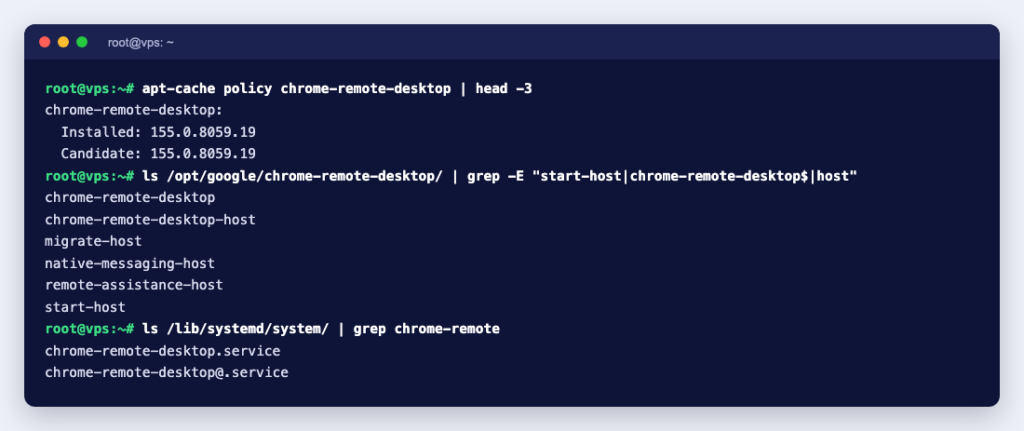
sudo systemctl status chrome-remote-desktop@$USERThe output should include Active: active (running). The server now appears under Remote Devices at remotedesktop.google.com/access. In our container test, start-host was installed in /opt/google/chrome-remote-desktop/ and the chrome-remote-desktop@.service unit was in place; the final linking step needs a real server with systemd and your Google login, so we could not run it in Docker.
A desktop uses far more memory than a server without one. Pick a VPS plan with room for the desktop and the applications you plan to open in it.
Chrome Remote Desktop vs RDP vs xrdp vs VNC
| Chrome Remote Desktop | RDP (Windows) | xrdp (Linux) | VNC over SSH | |
|---|---|---|---|---|
| Log in with | Google account and PIN | Windows user account | Linux user account | SSH login, then VNC password |
| Inbound port on the server | None | TCP 3389 by default | TCP 3389 by default | Only SSH |
| Needs a third-party account | Yes, Google | No | No | No |
| Client | Chrome or the mobile app | Remote Desktop Connection or any RDP app | Any RDP app | A VNC viewer plus an SSH tunnel |
| Best for | Occasional access without opening ports | Windows servers | Linux desktops for users who already have an RDP app | Admins who want everything inside SSH |
| Our guide | This article | Connect to a Windows VPS | Install xrdp on Ubuntu | Remote desktop with SSH and VNC |
If you use RDP, do not leave port 3389 open to the whole internet with a weak password: restrict it to your IP address or move it, as described in how to change the RDP port.
Remove access when you no longer need it
- At
remotedesktop.google.com/access, click Disable remote connections next to the computer. - On Windows, remove the “Chrome Remote Desktop” app under Control Panel, Programs. On a Mac, run the “Chrome Remote Desktop Host Uninstaller”.
- Review which computers are listed from time to time, and remove old ones.
Need a remote desktop in the cloud? A Windows VPS includes the Windows Server licence and you connect to it with RDP (our engineers install Windows after you order), and a KVM VPS gives you full root access to set up Chrome Remote Desktop, xrdp or VNC on Linux.