
Short answer: DNS, the Domain Name System, is the internet’s directory. It turns a name such as example.com into the IP address of the server that hosts it, and it also tells the world where to deliver your email and which services belong to your domain. Your device asks a resolver, the resolver works its way from the root servers to the servers responsible for your domain, and the answer is cached for a set time called the TTL.
Why DNS exists
Computers connect to IP addresses such as 104.20.23.154. People remember names. DNS links the two, and it lets you move a website to a new server by changing one record instead of telling every visitor a new address. The system was defined in RFC 1034 and RFC 1035, and the data is spread across servers run by many different organisations, so no single company holds the whole directory.
The parts of DNS
- Stub resolver: the small DNS client in your computer or phone. It cannot do the whole lookup itself, so it asks a recursive resolver.
- Recursive resolver: usually run by your internet provider, your company or a public DNS service. It does the legwork and caches the answers it gets.
- Root servers: the top of the tree. According to IANA, they are configured as 13 named authorities,
a.root-servers.nettom.root-servers.net, backed by hundreds of servers in many countries. - TLD servers: the servers for a top-level domain such as
.comor.in. They know which nameservers are responsible for each domain under them. See what a TLD is. - Authoritative nameservers: the servers that hold your domain’s records (its zone) and give the final answer. They are the ones listed in your domain’s NS records. More in what a nameserver is.
What happens when you open a website
- Your browser asks the operating system for the address of
example.com. If it has a fresh copy in its cache, it stops here. - The stub resolver sends the question to the recursive resolver.
- If the resolver has no cached answer, it asks a root server, which replies with the nameservers for
.com. - It asks a
.comserver, which replies with the nameservers forexample.com. - It asks one of those nameservers, which returns the A record with the IP address.
- The resolver caches the answer for its TTL and hands it back. Your browser then opens a connection to that IP address.
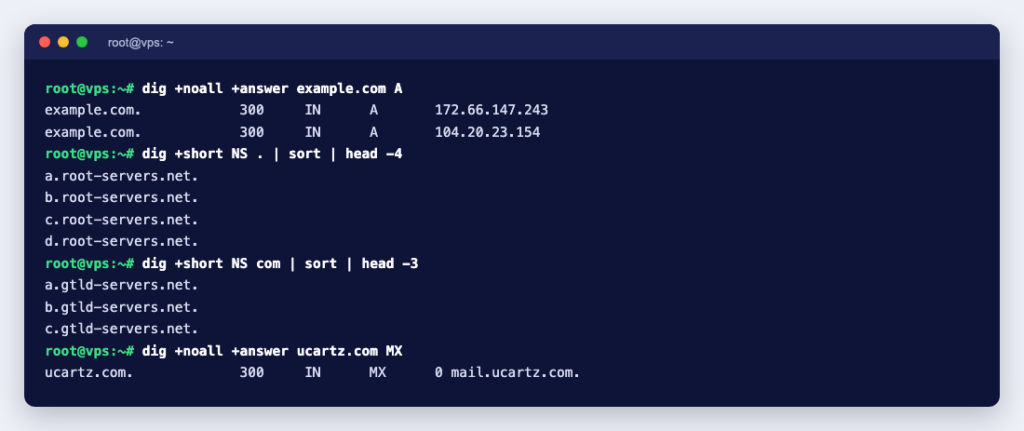
You can watch this happen with dig +trace. This is our run with BIND’s dig 9.20 on Debian 13, trimmed to one line per server type:
$ dig +trace +nodnssec example.com A
.            4502    IN  NS  a.root-servers.net.
  (12 more root servers)
com.         172800  IN  NS  a.gtld-servers.net.
  (12 more .com servers)
;; Received 836 bytes from 199.7.83.42#53(l.root-servers.net) in 36 ms
example.com. 172800  IN  NS  hera.ns.cloudflare.com.
example.com. 172800  IN  NS  elliott.ns.cloudflare.com.
;; Received 359 bytes from 192.41.162.30#53(l.gtld-servers.net) in 169 ms
example.com. 300     IN  A   172.66.147.243
example.com. 300     IN  A   104.20.23.154
;; Received 72 bytes from 108.162.192.162#53(hera.ns.cloudflare.com) in 21 ms
Read it from the top: a root server pointed to the .com servers, a .com server pointed to the domain’s two nameservers, and one of those gave the two IP addresses. For a full guide to the tool, see the dig command with examples.
Common DNS record types
A domain’s zone is a list of records. These are the ones website owners meet most, with the type names from the IANA DNS parameters registry:
| Type | What it does | Example use |
|---|---|---|
| A | Points a name to an IPv4 address | example.com to your server’s IP |
| AAAA | Points a name to an IPv6 address | Same, for IPv6 |
| CNAME | Makes one name an alias of another | www as an alias of a CDN hostname |
| MX | Names the mail servers for the domain | Deliver mail to your email host |
| TXT | Holds text | SPF, DKIM and DMARC, site ownership checks |
| NS | Names the authoritative nameservers | Set at your registrar |
| SOA | Marks the start of the zone and its timers | Created automatically |
| PTR | Maps an IP address back to a name | Reverse DNS for mail servers |
| SRV | Gives the host and port of a service | Game servers, VoIP |
| CAA | Says which certificate authorities may issue SSL certificates | Limit SSL issuance for your domain |
Step-by-step guides: add an A record in cPanel, add an MX record, add an SRV record and wildcard records.
TTL, caching and “DNS propagation”
Every record carries a TTL (time to live) in seconds. RFC 1035 describes it as the time a record may be cached before the source should be asked again. In our trace, the A records for example.com had a TTL of 300 (five minutes). When we asked the same resolver again shortly after, it answered from its cache with the timer counting down:
$ dig +noall +answer example.com A
example.com.   185   IN   A   104.20.23.154
example.com.   185   IN   A   172.66.147.243
This is what people call “propagation”. Nothing is being pushed around the internet: resolvers simply keep old answers until their TTL runs out. Two practical points follow:
- Changing a record (for example an A record when you move servers): lower the TTL a day before the move, make the change, and raise it again afterwards.
- Changing nameservers takes longer, because the delegation lives at the TLD. In our trace, the
.comservers handed out the NS records with a TTL of 172800 seconds, which is 48 hours, and you cannot shorten that yourself.
Resolvers also cache “this name does not exist” answers (negative caching), so a record you just created can stay invisible for a while if someone looked it up before it existed. To test a site on a new server before DNS changes, see how to test your website before changing DNS. To clear a stale answer on your own computer, see how to flush the DNS cache.
Check your domain’s DNS in four commands
Run these on Linux or macOS (on Debian and Ubuntu, dig is in the dnsutils package). Replace example.com with your domain.
# 1. Which nameservers are responsible?
dig +short NS example.com

# 2. What does your usual resolver return?
dig +noall +answer example.com A

# 3. What do the authoritative nameservers say? (look for "aa" in the flags)
dig @$(dig +short NS example.com | head -n1) example.com A +norecurse

# 4. Follow the whole chain from the root
dig +trace example.com A
Step 3 is the useful one after a change. If the authoritative server already shows the new value but step 2 does not, your records are right and you are only waiting for a cache to expire. In our test the authoritative answer came back with flags: qr aa, where aa means “authoritative answer”. More lookup options, including nslookup for Windows, are in DNS lookup commands.
Common DNS problems and what they mean
| What you see | What it means | What to check |
|---|---|---|
status: NXDOMAIN | The name does not exist (RFC 1035 “Name Error”) | Spelling, whether the domain has expired, whether the record was created in the right zone |
status: SERVFAIL | The server could not process the query | Nameservers down or misconfigured, broken DNSSEC |
| Old IP address after a move | A resolver still has the old record cached | Query the authoritative server directly, wait for the TTL |
| Changes in cPanel have no effect | Your domain uses different nameservers | Compare dig +short NS with where you edited the zone |
| Website works, email does not arrive | MX records point to the wrong place | dig +short MX example.com |
The “changes have no effect” row catches a lot of people. DNS records only count at the nameservers your domain actually uses. If your domain points to one provider’s nameservers and you edit the zone somewhere else, nothing happens.
Does DNS use TCP or UDP?
Both, on port 53. According to RFC 7766, most DNS transactions use UDP, TCP is always used for full zone transfers and often for larger answers, and TCP support is a required part of any full DNS implementation. DNSSEC and IPv6 have made answers bigger, so TCP is used more than it used to be. If you run your own DNS server, open port 53 for both protocols. There is more in when DNS uses TCP or UDP.
Every website starts with a domain and a working set of DNS records. You can search and register a domain with us, and if you need somewhere to manage its records, see how to get free DNS hosting at Ucartz.