
TLDR;
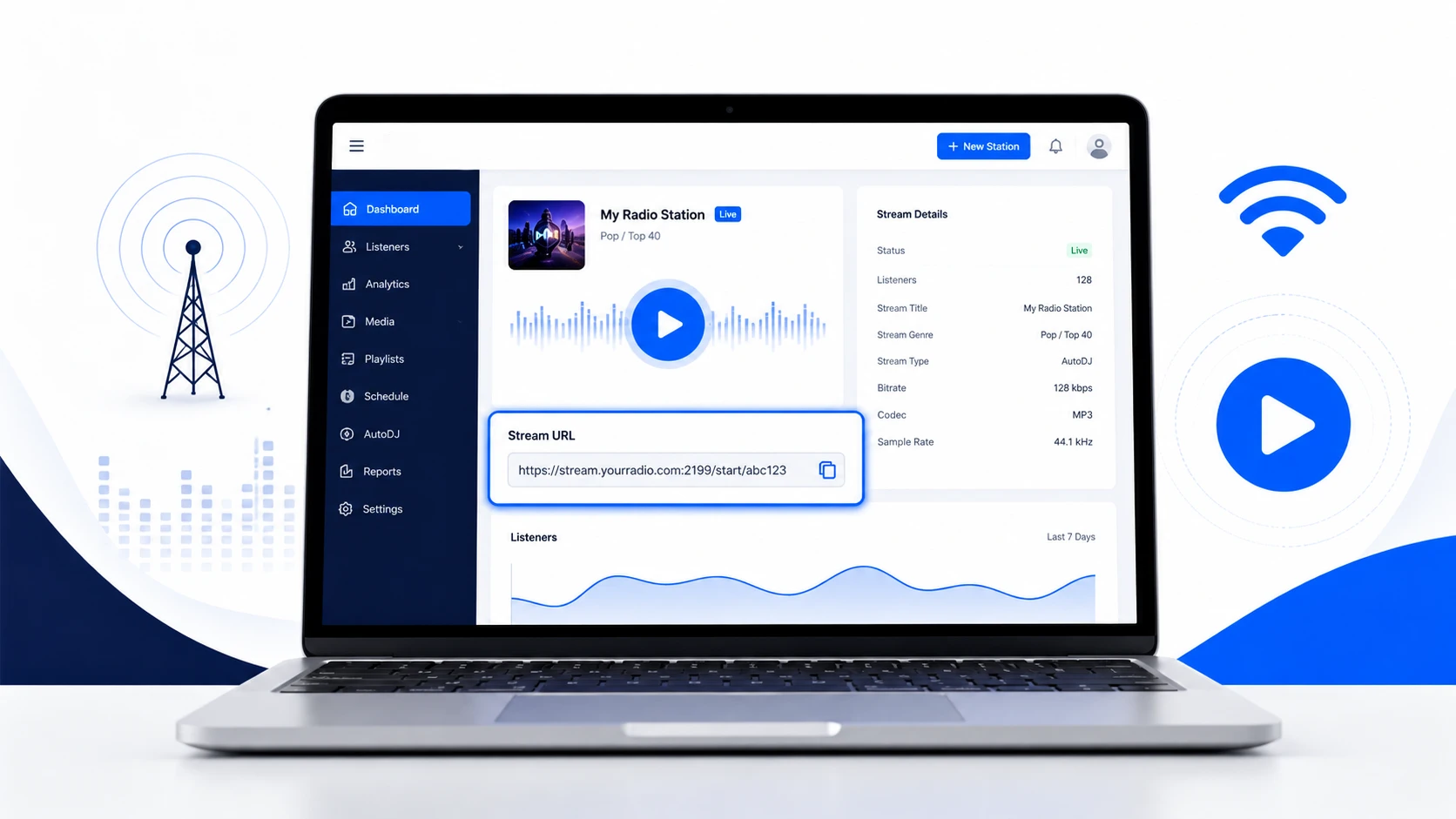
You can find your online radio stream URL in Centova Cast by logging in, opening Tune In or Stream Details, and copying the stream URL provided there.
Getting your internet radio station up and running with AutoDJ or a live show is a real accomplishment. But a station nobody can tune into is not actually broadcasting to anyone. Your listeners need a simple, reliable way to connect to your stream, and that means knowing exactly where to find your stream URL and how to share it in a format that works for different types of listeners.
Centova Cast gives you several different listening options: a direct stream URL, Tune-In links, a Web Player, and a simple Play button for quick testing. Each one serves a different purpose and a different type of listener. This guide covers what each option does, exactly where to find it inside your Centova Cast panel, and how to verify it actually works before you share it with anyone.
What Is a Radio Stream URL?
A stream URL is the internet address that connects a listener’s media player directly to your live broadcast. It is the raw address your streaming server responds to, and depending on your specific server configuration, it typically follows a pattern like:
http://your-server:port/Your actual URL will look different based on your specific hosting configuration, so do not copy that example directly. The important thing to understand is that you should not try to construct this URL manually by guessing at your server hostname and port. Centova Cast surfaces the correct, working listening links for you directly inside the panel, and using those is far more reliable than trying to reconstruct the address yourself.
Step 1: Log In to Centova Cast
Open your Centova Cast control panel and log in with your station credentials. Once inside, you land on your station dashboard, which gives you access to your station’s current status, listener counts, currently playing tracks, configuration options, and the listening tools this guide covers.
Step 2: Confirm Your Station Is Actually Working With the Play Button
Before you share any link with listeners, confirm your station is actually broadcasting. The fastest way to check this is the Play button built directly into the Centova Cast interface.
To do this:
Log in to Centova Cast and open your station dashboard. Locate the Play button, typically shown as a triangular play icon. Click it. If your browser prompts you to allow the player to open, allow it. Listen for a few seconds to confirm you can hear your station.
If you hear your broadcast, your stream is live and functioning correctly. If you hear nothing, the problem is upstream of your listening links entirely. Check whether your AutoDJ is actually running, or whether a live source connection is currently active. There is no point troubleshooting stream URLs and web players if the underlying broadcast itself is not running.
Learn how to create an AutoDJ playlist in Centova Cast to organize tracks, configure playlist rotation, and keep your radio stream playing automatically.
Step 3: Find Your Tune-In Links
Centova Cast provides pre-built listening links specifically designed to be shared with listeners, without requiring them to manually enter a server address or port number themselves.
To find them:
Open your Centova Cast dashboard. Navigate to General. Select Quick Links. Locate the Tune-In Links section. Copy whichever link format is appropriate for your use case.
These links are built for sharing. Instead of asking a listener to manually type a server hostname and port into their media player, which is both technically intimidating and error-prone for a non-technical audience, you hand them a single link that opens directly in a compatible player. This is almost always the easier path for reaching a general audience compared to distributing a raw stream URL.
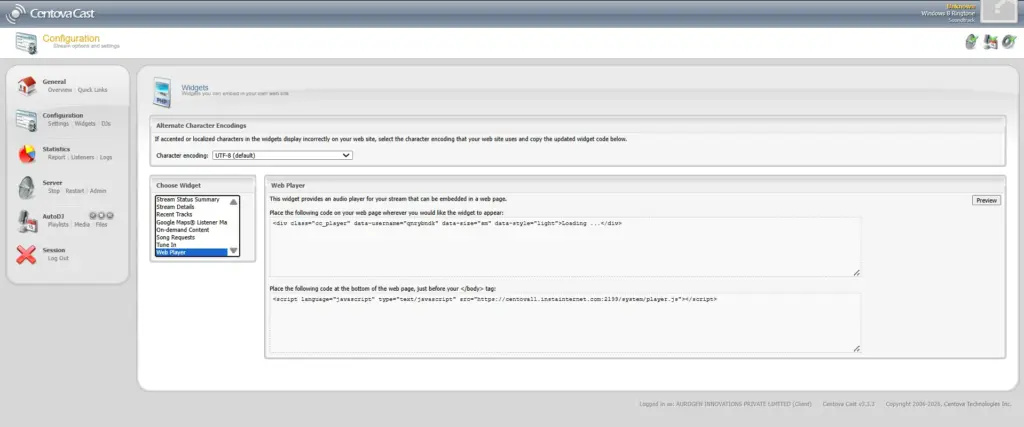
Step 4: Set Up Your Web Player
If you want visitors to listen directly from your website without needing to download or open a separate media player application, the Web Player is the right tool. It embeds a browser-based player directly onto your site.
To configure it:
Open Centova Cast. Navigate to Configuration. Open Widgets. Select the Web Player option. Configure the player’s appearance and behavior to match your station. Copy the generated embed code or link that Centova Cast produces. Add that code to your website.
Once embedded, visitors to your site can start listening immediately by clicking play within the widget itself, with no need to locate or understand your raw stream URL at all. This is generally the best listening option for casual website visitors who are not going to seek out a dedicated media player just to hear your station.
Full configuration details are available in the Centova Cast Web Player documentation.
Step 5: Find Your Direct Stream URL
Your direct stream URL becomes relevant when you need to connect your station to compatible apps, third-party media players, or other broadcasting platforms that require a raw stream address rather than a pre-built widget or tune-in link.
Rather than guessing at your server address and constructing a URL manually, retrieve the correct one directly from Centova Cast:
General → Quick Links → Tune-In LinksCopy the relevant URL from this section and test it in a media player before relying on it. Your actual URL may include several components depending on your specific streaming configuration:
Server hostname
Port number
Mount point or stream path
The exact format varies based on how your station is configured, which is exactly why pulling the URL directly from Centova Cast is more reliable than attempting to build it yourself from partial information.
Step 6: Test the Stream Outside of Centova Cast
This step is easy to skip but genuinely important. A stream that plays correctly when tested from inside your own Centova Cast account does not automatically guarantee that outside listeners can connect to it successfully. Your logged-in session, your network, and your browser environment are not necessarily representative of what a random listener on a different network experiences.
To properly test:
Copy your stream URL. Open a media player that is completely separate from Centova Cast, such as VLC or another compatible player. Select Open Network Stream, or whatever the equivalent option is called in your chosen player. Paste your stream URL. Start playback.
If the station plays correctly in this external, independent test, your listener-facing stream is genuinely working, not just working within the context of your own logged-in Centova Cast session.
Step 7: Add Listening Options to Your Website
You do not need to hand visitors a raw, technical-looking stream URL and expect them to know what to do with it. A better approach is to present multiple, clearly labeled listening options so different types of visitors can choose whichever method suits them best.
A reasonable set of options to display might look like:
🎧 Listen Live
▶ Play Now

🔗 Tune-In Links

🌐 Web Player

📻 Stream URL
Present the Play Now option and Web Player prominently for casual visitors who just want to click and listen. Keep Tune-In Links available for people who prefer opening the stream in their own preferred media player. Provide the raw Stream URL further down for advanced users, developers, or anyone integrating your station into another platform or application.
Centova Cast also offers additional widgets beyond the player itself, including displays for current listener counts, recently played tracks, and general stream details, which can add useful context around your listening options.
Stream URL vs Web Player vs Tune-In Link: Which One to Use When
| Option | Best For |
|---|---|
| Play Button | Quickly testing your own station |
| Stream URL | Media players and third-party integrations |
| Tune-In Links | Giving listeners multiple simple connection options |
| Web Player | Website visitors who want a click-to-listen experience |
| Stream Details | Displaying station information to your audience |
| Current Listeners | Showing live audience numbers |
| Recent Tracks | Displaying a history of recently played songs |
There is no single correct option here. Most stations benefit from offering several of these simultaneously, since different listeners have different preferences and different levels of technical comfort.
Quick Troubleshooting Reference
The Play button doesn’t work. Check whether your AutoDJ is currently running or whether a live source connection is active. The Play button reflects your station’s actual broadcasting status, so if nothing is being broadcast, there is nothing for the button to play.
The stream URL doesn’t play. Re-copy the URL directly from General → Quick Links rather than reusing an old or manually typed version, and test it again in a different compatible media player to rule out a player-specific issue.
The Web Player doesn’t work. Review your widget configuration inside Centova Cast and confirm the embed code was correctly and completely added to your website, since a partial or malformed embed is a common cause of a non-functioning player.
Listeners report they cannot connect. Test the stream yourself from a different network and a different device than the one you normally use. This helps isolate whether the actual problem lies with your stream configuration itself, or with something specific to that listener’s individual network or player setup.
Final Checklist Before Sharing Your Station
Before sending your radio station’s URL or listening links out to your audience, confirm each of the following:
☑ Station is actively broadcasting
☑ Play button works when tested
☑ Tune-In link works when tested
☑ Stream URL plays correctly in an external player
☑ Web Player functions correctly on your website
☑ Current track information updates as expected
☑ Listeners can successfully connect from outside Centova Cast
Once every item here is confirmed, your listeners have several dependable ways to tune in, and you have already caught the kinds of issues that would otherwise surface as confused listener complaints after launch.
FAQ
What is the difference between a stream URL and a tune-in link?
A stream URL is the raw server address, typically including a hostname, port, and sometimes a mount point, that a media player connects to directly. A tune-in link is a more polished, pre-built link generated by Centova Cast that is designed specifically for sharing with listeners, often opening directly in a compatible player without requiring the listener to understand or manually enter any technical connection details.
Do I need to create my own stream URL manually?
No. You should never need to construct your stream URL by guessing at your server hostname and port. Centova Cast surfaces the correct, currently valid URL directly within General → Quick Links → Tune-In Links. Always retrieve it from there rather than attempting to build it yourself.
Why does my stream work when I test it inside Centova Cast but listeners say they can’t connect?
This is exactly why Step 6 in this guide, testing outside of Centova Cast, matters. A stream that plays successfully within your own logged-in session is not automatically proof that it works for an outside listener on a different network. Always test using a completely separate media player and, ideally, a different network connection before considering your stream fully verified.
What’s the easiest listening option for non-technical visitors to my website?
The Web Player is generally the best option for casual website visitors. It requires no downloads, no manual URL entry, and no understanding of streaming protocols. Visitors simply click play within the embedded widget on your page.
Can I offer more than one listening option at the same time?
Yes, and this is actually the recommended approach. Most successful stations offer the Web Player for website visitors, Tune-In Links for people who prefer their own media player, and the raw Stream URL for advanced users or third-party app integrations, all simultaneously. Different audiences have different preferences, and offering multiple options removes friction for all of them.
My Play button works but the Web Player doesn’t. What’s wrong?
Since the Play button confirms your station is actually broadcasting, a non-functioning Web Player while the Play button works points specifically to a widget configuration or embed issue, not a broadcasting problem. Recheck your Web Player widget settings inside Configuration → Widgets, and confirm the generated embed code was copied completely and correctly onto your website without any missing characters or truncation.
How often should I re-test my stream URL and listening links?
Testing after any change to your streaming configuration, server settings, or hosting environment is essential, since those changes can silently alter your stream URL or port. Beyond that, periodic spot checks, especially before any significant promotional push or event where you expect a surge in new listeners, are a reasonable precaution to avoid discovering a broken link only after listeners start reporting problems.
What information do I actually need to give a listener who wants to use their own media player?
Give them the direct Stream URL retrieved from General → Quick Links → Tune-In Links, along with brief instructions to use their player’s “Open Network Stream” or equivalent function and paste the URL there. For most general listeners, however, offering the Tune-In Link or Web Player instead avoids this technical step entirely and results in fewer support questions.
Conclusion
Finding your stream URL in Centova Cast is straightforward once you know exactly where to look: General → Quick Links → Tune-In Links surfaces everything you need, whether that is a shareable tune-in link, the raw stream URL for advanced integrations, or the foundation for setting up a Web Player on your website.
The step that most stations skip, and the one that causes the most listener complaints later, is testing outside of Centova Cast itself. A stream that plays inside your own dashboard session is not proof that an outside listener on a different network can connect successfully. Test with a separate media player, ideally from a different device and network, before you consider any listening option ready to share.
The core idea to take away from this entire process is simple. Do not just locate your stream URL and assume it works. Test it directly, make it genuinely easy for different types of listeners to access through multiple formats, and confirm every option, from the Play button through to the Web Player, actually functions correctly before you send anything out to your audience. Get reliable radio hosting with the tools you need to stream smoothly and reach your listeners. Start your radio journey with Ucartz Radio Hosting today.