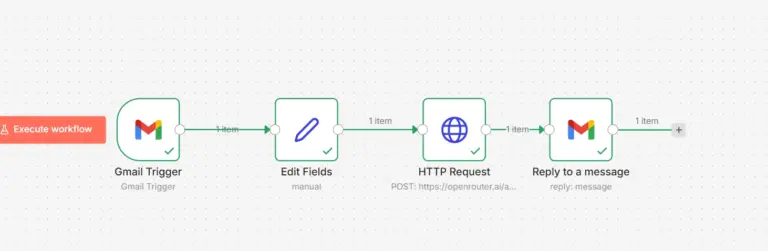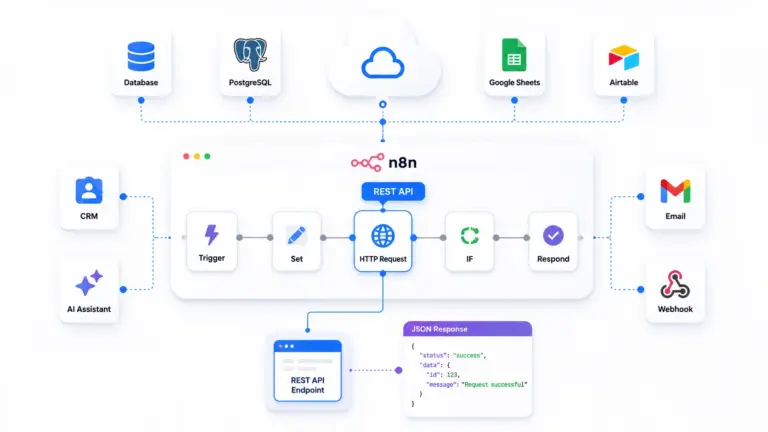

Email automation in n8n looks simple connect Gmail or SMTP, trigger a workflow, and messages should send instantly. In reality, many beginners hit silent failures, authentication errors, or workflows that run successfully but never deliver emails.
If your n8n workflow executes but no email is received, the issue is usually not the workflow logic it’s configuration.
n8n workflow automation relies on external email providers like Gmail or SMTP servers. Any misconfiguration in credentials, security settings, or server environment can break email delivery without obvious errors.
This guide walks you through real, common failures and shows how to fix them step by step from Gmail authentication issues to SMTP misconfiguration and VPS-related problems.
By the end, you’ll know exactly how to diagnose and fix email issues in n8n, not just guess.
What Is SMTP in n8n and Why It Breaks
n8n uses SMTP technical standard protocol to send emails through nodes like Send Email and the Gmail/Outlook integrations. You configure a mail server Gmail, Outlook, SendGrid, or your own and n8n connects to it on a specific port to deliver messages.
SMTP breaks for predictable reasons: wrong credentials, blocked ports, missing app passwords, or incorrect encryption settings. Every error has a direct cause and a direct fix. This guide covers all of them.
Most Common Reasons n8n Is Not Sending Emails
Wrong SMTP credentials – The username or password you entered does not match what your mail provider expects. Gmail in particular does not accept your regular account password when 2-factor authentication is on.
Blocked SMTP port – Your VPS or hosting provider blocks outbound traffic on ports 25, 465, and 587 by default. This is one of the most common causes on cloud servers.
App password not set – Gmail and Outlook require you to generate a dedicated app password when 2FA is enabled. Using your normal login password fails every time.
Wrong encryption setting – Mixing up SSL and TLS, or using the wrong port for the encryption type, causes connection failures that look like timeouts.
Firewall blocking outbound mail – Your server’s firewall allows inbound traffic but blocks outbound SMTP connections.
Self-signed SSL certificate – Some SMTP setups use self-signed certificates. n8n rejects these unless you explicitly disable certificate verification.
n8n not restarted after config change – If you set SMTP credentials as environment variables and then changed them, n8n keeps using the old values until you restart the container.
How to Fix n8n SMTP – Step by Step
Step 1 – Test the SMTP port from your server
Before touching n8n settings, check whether your server can reach the mail server at all. Run this from your VPS:
telnet smtp.gmail.com 587If the connection hangs or refuses, your server or cloud provider is blocking that port. Try port 465:
telnet smtp.gmail.com 465If both fail, your VPS provider is blocking outbound SMTP. You need to either request unblocking from your provider or switch to an API-based mail service like SendGrid or Mailgun that uses port 443.
Step 2 – Use the correct SMTP settings for your provider
These are the verified settings for the most common providers.
Gmail:
Host: smtp.gmail.com
Port: 587
Encryption: STARTTLS
Username: your.email@gmail.com
Password: your app password (not your Gmail password)
Outlook / Hotmail:
Host: smtp-mail.outlook.com
Port: 587
Encryption: STARTTLS
Username: your.email@outlook.com
Password: your account password or app password
SendGrid:
Host: smtp.sendgrid.net
Port: 587
Encryption: STARTTLS
Username: apikey
Password: your SendGrid API key
Mailgun:
Host: smtp.mailgun.org
Port: 587
Encryption: STARTTLS
Username: your Mailgun SMTP username
Password: your Mailgun SMTP password
Step 3 – Generate a Gmail app password
If you use Gmail with 2-factor authentication, this step is mandatory. Go to myaccount.google.com → Security → 2-Step Verification → App passwords. Select Mail as the app and your device type, then click Generate.
Copy the 16-character password that appears. Use this not your Gmail password as the SMTP password in n8n. The app password works even if you change your Gmail password later, but you can revoke it from the same screen anytime.
If you do not see App passwords in your Google account settings, 2-Step Verification is either not enabled or your account is a Google Workspace account where the admin has disabled app passwords.
Step 4 – Configure SMTP in the n8n Send Email node
Open your workflow in n8n and add or edit the Send Email node. Fill in the credentials:
Credential name: anything you want
Host: smtp.gmail.com
Port: 587
SSL/TLS: STARTTLS
User: your Gmail address
Password: the 16-character app password
Click Save, then run a test by executing just that node. n8n shows the error message directly in the node output if something is wrong read it carefully before changing settings.
Step 5 – Set global SMTP in environment variables (optional)
If you want n8n to use SMTP for its own system emails like workflow error alerts and user invites set these environment variables in your docker-compose.yml:
environment:
  - N8N_EMAIL_MODE=smtp
  - N8N_SMTP_HOST=smtp.gmail.com
  - N8N_SMTP_PORT=587
  - N8N_SMTP_USER=your.email@gmail.com
  - N8N_SMTP_PASS=your-app-password
  - N8N_SMTP_SENDER=your.email@gmail.com
  - N8N_SMTP_SSL=false
Restart n8n after adding these:
docker-compose down
docker-compose up -d
Note: N8N_SMTP_SSL=false does not mean no encryption it means n8n uses STARTTLS (upgrades the connection) instead of wrapping everything in SSL from the start. For port 465, set N8N_SMTP_SSL=true.
Step 6 – Open the firewall for outbound SMTP
Check your UFW rules:
ufw status verboseIf outbound connections are restricted, allow them:
ufw allow out 587/tcp
ufw allow out 465/tcp
ufw reload
Also check your VPS provider’s firewall panel. On most cloud platforms DigitalOcean, AWS, Hetzner, Vultr outbound port 25 is permanently blocked at the network level. Port 587 is usually open, but verify it in the security group settings.
Step 7 – Handle SSL certificate errors
If your SMTP server uses a self-signed certificate, n8n throws an error like:
Error: self signed certificate in certificate chainYou can disable certificate verification by adding this environment variable:
- NODE_TLS_REJECT_UNAUTHORIZED=0Only use this in a controlled environment where you trust the mail server. Do not use it on public-facing production setups. A better long-term fix is to get a valid certificate from Let’s Encrypt for your mail server.
Error Messages and What They Mean
Connection refused on port 587 – The mail server is not accepting connections on that port, or your server’s firewall is blocking outbound traffic to it.
Authentication failed – The username or password is wrong. For Gmail, this almost always means you used your account password instead of an app password.
Connection timeout – Your VPS provider is blocking the SMTP port at the network level. Switch to port 587 or use a mail API service.
ECONNRESET – The connection dropped mid-session. This usually means an encryption mismatch you are connecting on port 587 with SSL instead of STARTTLS.
535 5.7.8 Error: authentication failed – Gmail-specific error meaning the app password is incorrect or was revoked. Generate a new one.
454 4.7.0 Too many login attempts – Gmail temporarily locked the account after too many failed logins. Wait 30 minutes and try again with the correct credentials.
Gmail Sending Limits You Need to Know
Gmail SMTP has hard sending limits regardless of how well you configure n8n:
Free Gmail accounts: 500 emails per day. Google Workspace accounts: 2,000 emails per day. These limits reset every 24 hours.
If you hit the limit, Gmail returns a 550 error and stops delivering until the next reset. For workflows that send more than 500 emails per day, switch to SendGrid, Mailgun, or Amazon SES. These services have much higher limits and better deliverability.
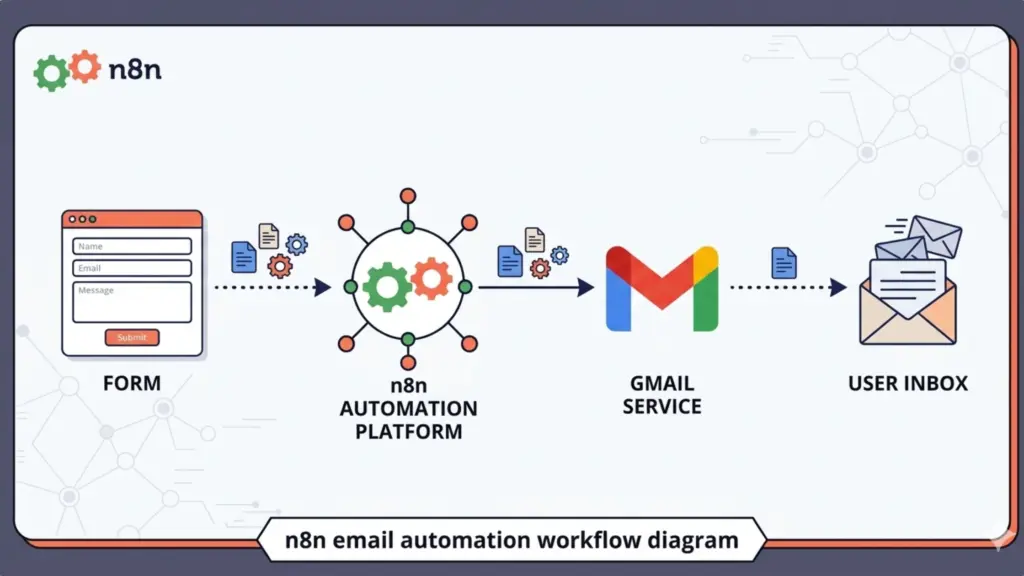
Gmail vs SMTP vs SendGrid (Comparison Table)
| Feature | Gmail | SMTP (Custom Server) | SendGrid |
|---|---|---|---|
| Setup Difficulty | Easy | Medium | Medium |
| Authentication | OAuth / App Password | Username + Password | API Key |
| Best For | Testing, low volume | Business email (custom domain) | Production, high volume |
| Daily Limits | Strict (≈500/day) | Depends on provider | Very high (scalable) |
| Deliverability | Medium | Medium–High | High (optimized infrastructure) |
| Reliability | Can break due to Google restrictions | Depends on server config | Very reliable |
| Spam Protection | Moderate | Depends on DNS setup | Advanced (built-in) |
| VPS Compatibility | Works | Often blocked (ports) | Works (API-based) |
| Threading Support | Yes | Limited | Yes |
| Scaling | Poor | Moderate | Excellent |
| Cost | Free | Hosting cost | Paid (free tier available) |
SMTP Fails on VPS (The Hidden Issue Beginners Miss)
Many developers assume that if email works locally, it will work on a VPS. That’s not true.
Most VPS providers restrict outbound SMTP ports (25, 465, 587) to prevent spam abuse. When this happens:
- Your n8n workflow executes successfully
- The email node runs without errors
- But no email is actually delivered
Local (Docker) → Email works
VPS (Hosted) → Email silently fails
What’s Actually Happening
- n8n sends the request
- VPS blocks outbound SMTP traffic
- Email provider never receives the request
Providers like Ucartz allow proper configuration and support SMTP when set up correctly. The issue is not n8n;it’s server-level restrictions or misconfigured ports.
How to Fix It
- Use port 587 (TLS) instead of 25
- Check firewall rules:
ufw status
- Test port access:
telnet smtp.gmail.com 587
- Use external SMTP providers (SendGrid, Mailgun)
- Avoid relying on default VPS email settings
Gmail OAuth Errors & Restrictions (2026 Reality)
Gmail is no longer plug-and-play for automation tools. Google has tightened security, which directly impacts n8n email workflows.
What Changed
- 2FA is now required
- App passwords or OAuth2 setup is mandatory
- Direct username/password login often fails
Common Error
403: access_denied
Root Cause
- Missing OAuth consent configuration
- Not adding your email as a test user in Google Cloud
- Using IP-based redirect URLs instead of a domain
Impact on Beginners
- Workflow runs
- Gmail node fails
- Error messages are unclear
“n8n is not working”
How to Fix It
- Enable 2-Step Verification in Gmail
- Use App Password or OAuth2
- Add test users in Google Cloud Console
- Use a domain (not IP) for redirect URI
Shift to API-Based Email (Why SendGrid Wins)
Modern automation is moving away from SMTP. Because SMTP is fragile in cloud environments.
The Shift in 2026
- AI workflows send more emails
- Automation volume increased
- Reliability matters more than simplicity
Problems with Gmail / SMTP
- Rate limits
- Authentication failures
- VPS port blocking
- No delivery tracking
- Poor scalability
Why API-Based Email (SendGrid) Is Better
- Uses API instead of SMTP ports
- Works on any VPS (no port issues)
- Built for automation and scale
- Provides delivery tracking and logs
Simple Architecture
n8n → SendGrid API → Email Delivered

When to Use What
- Gmail → Testing
- SMTP → Small business setups
- SendGrid → Production workflows
When to Use a Transactional Email Service Instead
Gmail SMTP works fine for testing and low-volume personal automation. For anything production-facing customer notifications, form confirmations, order emails use a dedicated service.
SendGrid free tier gives you 100 emails per day with no daily login. Mailgun gives you 5,000 emails per month free. Amazon SES costs $0.10 per 1,000 emails with almost no limit.
To use SendGrid in n8n, create an API key in your SendGrid dashboard, set the username to apikey (the literal word, not your email), and use the API key as the password. Connect on port 587 with STARTTLS.
Quick Diagnostic Checklist
Run through this before spending time changing settings:
[ ] Can your server reach the SMTP host on port 587?
[ ] Are you using an app password, not your account password?
[ ] Is the encryption setting correct for the port you chose?
[ ] Did you restart n8n after changing environment variables?
[ ] Is port 587 open in both UFW and your VPS provider firewall?
[ ] Does the Send Email node show a specific error message?
[ ] Are you within your provider's daily sending limit?
Fix Summary Table
| Error | Cause | Fix |
|---|---|---|
| Connection refused | Port blocked | Open port 587 in firewall |
| Authentication failed | Wrong password | Use app password for Gmail |
| Connection timeout | Provider blocks SMTP | Use port 587 or switch to API service |
| ECONNRESET | Encryption mismatch | Use STARTTLS on port 587 |
| Self-signed cert error | Invalid SSL cert | Set NODE_TLS_REJECT_UNAUTHORIZED=0 or fix cert |
| 550 limit exceeded | Gmail daily cap reached | Switch to SendGrid or Mailgun |
Two Commands to Remember
Every time you update SMTP environment variables, run these two commands to apply them:
cd /opt/n8n
docker-compose down && docker-compose up -d
n8n does not pick up environment variable changes until it restarts. If your settings look correct but email still fails, restart first before investigating further.
Email automation in n8n looks simple connect Gmail or SMTP, trigger a workflow, and messages should send instantly. In reality, many beginners hit silent failures, authentication errors, or workflows that run successfully but never deliver emails.
If your n8n workflow executes but no email is received, the issue is usually not the workflow logic it’s configuration.
n8n relies on external email providers like Gmail or SMTP servers. Any misconfiguration in credentials, security settings, or server environment can break email delivery without obvious errors.
This guide walks you through real, common failures and shows how to fix them step by step from Gmail authentication issues to SMTP misconfiguration and VPS-related problems.
By the end, you’ll know exactly how to diagnose and fix email issues in n8n, not just guess.
Conclusion
Most n8n email issues are not caused by workflows they are caused by provider restrictions, especially Gmail security policies and SMTP limitations on VPS environments. If n8n is not sending emails, the problem is almost always outside your workflow authentication, provider restrictions, or server configuration.
Once you fix credentials, verify SMTP settings, and ensure your VPS allows outbound email traffic, n8n becomes extremely reliable for email automation.
Start simple:
- Test with Gmail or a trusted SMTP provider
- Verify credentials before building complex workflows
- Monitor logs instead of assuming success
As your workflows grow, move toward production-ready setups using dedicated SMTP services, proper domain authentication, and error handling inside n8n. Fix the foundation once, and your email automation will run consistently without surprises.If you are looking for installing n8n on KVM VPS hosting , check out our website.
FAQ
1. Why is n8n not sending emails even when the workflow succeeds?
Because execution success only means the node ran not that the email provider accepted the request. Most issues come from invalid credentials, blocked ports, or authentication failures.
2. How do I fix Gmail not working in n8n?
- Use OAuth2 instead of basic login
- Enable required APIs in Google Cloud
- Use a domain (not IP) for redirect URI
- Avoid using personal Gmail with restricted security
3. Which SMTP port should I use in n8n?
- Port 587 → recommended (TLS)
- Port 465 → SSL
- Avoid port 25 (often blocked by VPS providers)
4. Why is my email going to spam?
- Missing SPF, DKIM, DMARC records
- Sending from a new domain
- No proper sender reputation
5. Can VPS block email sending in n8n?
Yes. Many VPS providers block outbound SMTP (especially port 25) to prevent spam. Use external SMTP providers like SendGrid, Mailgun, or Gmail.