
If you regularly connect to the same server using SSH for remote login, managing servers, automating tasks, or running backups, SSH multiplexing can save you time. It speeds up SSH connections by reusing existing connections instead of opening a new one every time.
However, sometimes SSH sessions hang or don’t respond. This can happen due to IP changes, VPN issues, or firewall restrictions. Knowing how to control SSH multiplexing can help you fix such problems quickly.
How to Set Up Multiplexing
- Create a folder to store control sockets:
mkdir -p ~/.ssh/controlmasters/ - Start a master connection:
ssh -M -S ~/.ssh/controlmasters/server-socket username@hostname
- -M → Enables master mode.
- -S → Path for the control socket (it will be created automatically).
- username@hostname → Replace with your SSH username and server address.
If your server uses a non-default SSH port (not 22):
ssh -p PORT_NUMBER -M -S ~/.ssh/controlmasters/server-socket username@hostname
After this, you can connect normally without specifying -M or -S:
ssh username@hostname
Simplifying Connections Using SSH Config
Instead of typing the socket path every time, you can configure SSH in ~/.ssh/config:
Host myserver
HostName SERVER_ADDRESS
User USERNAME
Port 22
ControlPath ~/.ssh/controlmasters/%r@%h:%p
ControlMaster auto
ControlPersist yes
Now, connecting is simple:
ssh myserver
You can also set general rules for all servers:
Host *
ControlPath ~/.ssh/controlmasters/%r@%h:%p
ControlMaster auto
ControlPersist yes
Managing Multiplexed Connections
Once a master connection exists, you can manage it using ssh -O commands:
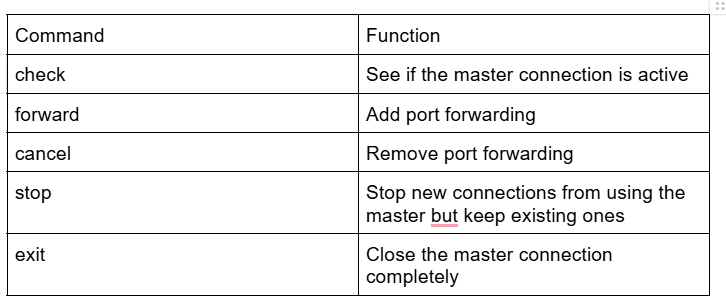
Check if master is running:
ssh -O check username@hostname
Close master safely:
ssh -O stop username@hostname
Close master forcefully:
ssh -O exit username@hostname
Use stop to avoid abruptly closing ongoing sessions. exit closes everything
Forwarding Ports Over Multiplexed Connections
You can forward a local port to a remote service through the multiplexed connection:
ssh -O forward -L LOCAL_PORT:REMOTE_HOST:REMOTE_PORT username@hostname
Cancel the forwarding with:
ssh -O cancel username@hostname
Example: Forward a web service:
ssh -O forward -L 8443:10.0.0.1:8443 username@hostname
Testing How Fast Multiplexing Is
Use the time command to compare connection speed:
With multiplexing:
time ssh username@hostname true
Without multiplexing:
time ssh -o 'ControlMaster=no' -o 'ControlPath=no' username@hostname true
You’ll see connections are much faster when multiplexing is enabled.
Key Takeaways
SSH multiplexing lets you reuse connections, making repeated SSH logins faster and easier. Using the ssh -O control commands, you can manage, stop, or forward ports over these connections. Configuring it in your SSH config file makes it automatic and convenient.
If you need help setting up or troubleshooting SSH multiplexing, you can hire our experienced server administrators. We’ll be happy to assist you with configuration, optimization, or any SSH-related issues.


