
Short answer: a storage area network (SAN) is a separate network that gives servers block-level access to shared storage. Each server sees its piece of the SAN, called a LUN, as if it were a local disk, and puts its own file system on it. SANs run over iSCSI, Fibre Channel or NVMe over Fabrics. A NAS is different: it shares files over NFS or SMB. And DAS is plain storage inside or directly attached to one server.
How a SAN works
Red Hat sums up the idea well: a SAN provides “block-level access for hosts that need control over their own storage details (filesystems, etc.), rather than a simple file share like NFS provides” (SAN vs NAS). A SAN is usually built from several parts rather than one box:
- Storage arrays hold the disks and carve them into logical units (LUNs). In iSCSI terms the array is the target.
- Servers connect to the LUNs they are allowed to use. In iSCSI terms each server is an initiator.
- The storage network links them: Fibre Channel switches, or ordinary Ethernet for iSCSI and NVMe over TCP.
- Multipathing gives each server more than one route to the storage. Red Hat describes Device Mapper Multipath as combining “multiple I/O paths between server nodes and storage arrays into a single device”, so one failed cable or switch does not take the disk away.
To the server’s operating system, a SAN LUN looks like any other disk: it shows up in lsblk, you partition it, format it with XFS or ext4 and mount it. The difference is that the data lives on the array, not in the server.
SAN protocols
| Protocol | Runs over | Notes |
|---|---|---|
| iSCSI | TCP/IP on normal Ethernet | SCSI commands carried over TCP (RFC 7143). Default port TCP 3260. Works with standard Ethernet switches and network cards. |
| Fibre Channel (FC) | A dedicated Fibre Channel network | Separate host bus adapters and switches. Fibre Channel over Ethernet (FCoE) carries it on Ethernet instead. |
| NVMe over Fabrics | RDMA, Fibre Channel or TCP | Red Hat describes it as an interface that lets hosts talk to solid-state drives over a network. NVMe/TCP runs on standard Ethernet. |
Red Hat Enterprise Linux 9 lists all three as remote storage options, together with NFS and SMB for network file systems, in its storage overview.
SAN vs NAS vs DAS
| DAS (direct-attached) | NAS (network-attached) | SAN (storage area network) | |
|---|---|---|---|
| What the server gets | Local disks | A shared folder | A disk (LUN) over the network |
| Access level | Block | File | Block |
| Protocols | SATA, SAS, NVMe inside the server | NFS, SMB | iSCSI, Fibre Channel, NVMe over Fabrics |
| Who formats it | The server | The NAS | The server |
| Shared by several servers | No | Yes, that is the point | Only with a cluster file system |
| Typical use | A single web, game or database server | Team file shares, shared uploads, backups | Virtualisation clusters, large databases, storage that must outlive one server |
| Complexity | Low | Medium | High |
Red Hat’s rule of thumb: if a group of users needs a place to store and share files, a NAS is probably the right answer; if a workload needs lower-level block access, a SAN is the better fit, and a SAN is usually easier to grow than a NAS.
The shared-disk trap
“Shared storage” sounds as if several servers can simply mount the same LUN. They cannot, not safely with an ordinary file system. Red Hat describes XFS and ext4 as local file systems that run on a single server. Two servers writing to one XFS volume at the same time do not know about each other’s changes.
If several servers really need the same block device, you need a cluster file system such as GFS2, which Red Hat describes as a file system that “manages coherency between multiple nodes sharing a common block device”. It depends on cluster software, and Red Hat warns that shared storage file systems are complex to set up and maintain. For most “several servers need the same files” cases, an NFS share is the simpler answer. See how to set up an NFS server and client.
What iSCSI looks like from a Linux server
With the open-iscsi tools, a server finds the targets on a storage address and logs in to one. These are the two commands you will meet first:
# List the targets that a storage address offers
sudo iscsiadm -m discovery -t sendtargets -p 192.0.2.10

# Log in to one target; its LUNs then appear as new disks
sudo iscsiadm -m node -T iqn.2001-04.com.example:storage.lun1 -p 192.0.2.10 --login
lsblk
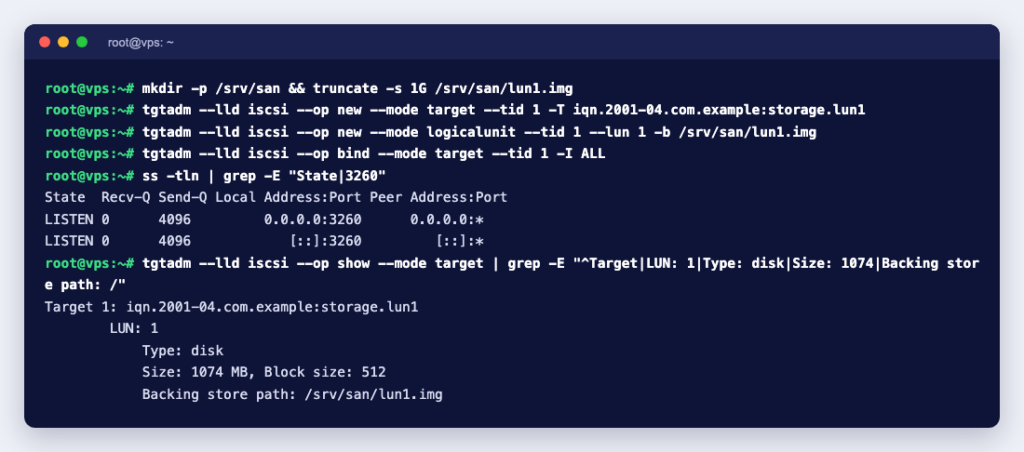
We checked this with iscsiadm 2.1.11 in a Debian 13 container against a test target served by tgt, which listened on TCP 3260 as the standard says. The container could not finish the login because it cannot load the iscsi_tcp kernel module, so for the full procedure, including making logins survive a reboot, follow understanding the iscsiadm utility and DM-Multipath with iSCSI. When a LUN is no longer needed, remove it cleanly: how to remove a SAN disk or LUN safely.
Security basics for iSCSI
- Keep storage traffic on its own network. Never expose port 3260 to the internet.
- Use CHAP authentication with long random secrets. RFC 7143 makes CHAP mandatory to implement and strongly recommends in-band authentication. It also warns that CHAP over an unencrypted link is open to offline dictionary attacks, and requires support for random secrets of up to 128 bits.
- Encrypt links you do not control. iSCSI relies on IPsec for packet protection, which the standard makes optional; RFC 7143 gives the example of VPN gateways between data centres.
- Limit which initiators see which LUNs on the array, so a server can only reach its own disks.
Do you need a SAN?
Probably, if you run a cluster of virtualisation hosts that should be able to move virtual machines between them, or a large database that needs more storage than one chassis holds, or if storage must stay available when a server is replaced.
Probably not, if you run one or a few servers. Local NVMe or SSD disks in a RAID array are faster to set up, have fewer parts to fail and cost less. See RAID levels explained and NVMe vs SSD. For shared files between a few servers, NFS is usually enough.
Whichever you choose, a SAN, NAS or RAID array protects you against a failed disk, not against deleted files or ransomware. Keep separate backups.
Planning storage for a new setup? Our dedicated servers come with local disks you can arrange in RAID, and our server management team can set up NFS shares, iSCSI initiators and multipathing on servers you already run.