
Businesses receive hundreds of emails daily. Pricing questions, support requests, general inquiries. Manually reading and replying to each one consumes hours of staff time every week, and response delays cost you leads and customer satisfaction.
An AI email assistant built in n8n automates the first draft of that response. It watches your inbox, reads incoming emails, generates a professional reply using an AI model through OpenRouter unified interface, and creates a draft or sends a reply automatically. A human can still review before sending, or you can let it run fully automated for routine inquiries.
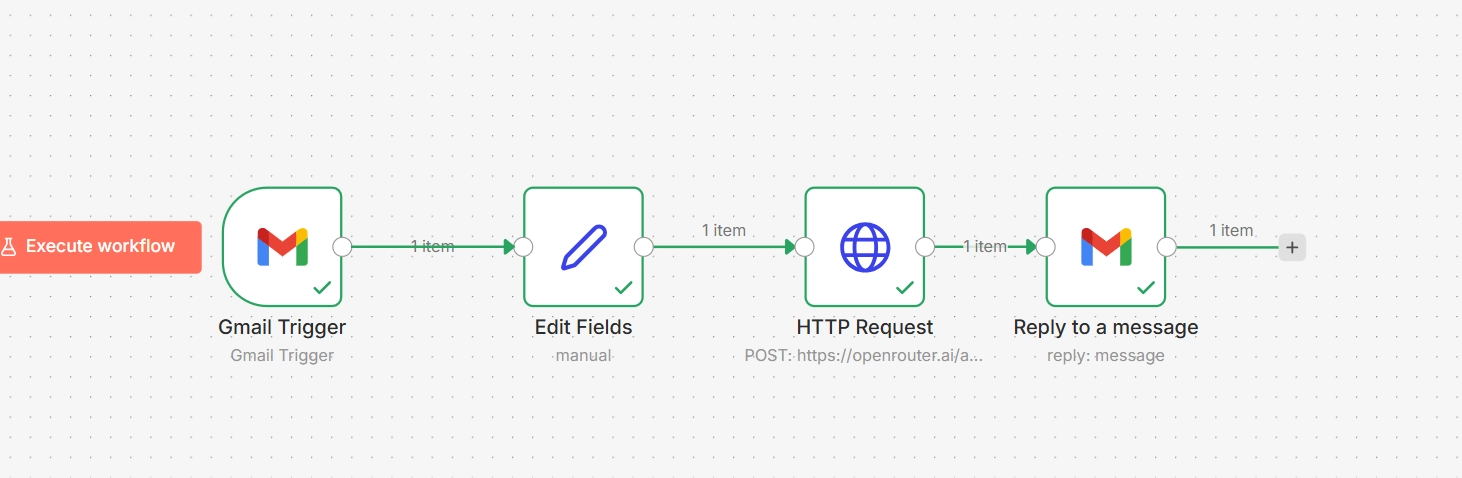
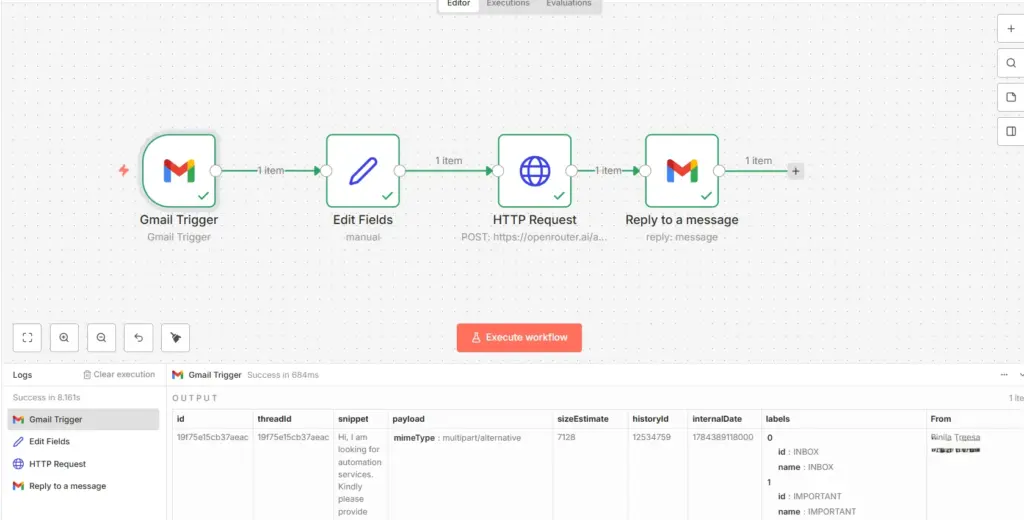
The complete flow:
Gmail Trigger
      ↓
Set / Edit Fields (extract email data)
      ↓
HTTP Request (OpenRouter generates reply)
      ↓
Gmail Reply (sends the AI-drafted response)
This guide builds the entire workflow, covers every configuration step, and documents the specific errors you are likely to hit along the way with exact fixes.
Tools Required
| Tool | Purpose |
|---|---|
| n8n | Workflow automation platform that orchestrates the entire pipeline |
| OpenRouter | Unified API access to AI models for generating replies |
| Gmail API | Connects n8n to your inbox for reading and replying to emails |
| VPS | Runs n8n continuously so the assistant works around the clock |
Why Run n8n on a VPS
Running n8n on your local machine works for testing but breaks down for anything you want running continuously. An AI email assistant only works if it is watching your inbox at all times, which means your laptop would need to stay on and connected around the clock. That is not practical.
A VPS solves this by giving you:
24/7 workflow execution. The Gmail Trigger needs to be listening continuously to catch new emails the moment they arrive. A VPS runs your n8n instance without interruption, regardless of whether your computer is on.
More control than local machines. You configure exactly the environment, resources, and uptime your workflow needs without depending on your personal device’s power state, network connection, or software updates interrupting the process.
Dedicated resources. A Ucartz VPS gives your n8n instance dedicated CPU and RAM that is not competing with your browser tabs, other applications, or background processes on a personal machine.
Better for multiple automations. Once you have one workflow running reliably, adding more (a lead qualification bot, a support ticket triage system, a scheduled report generator) is straightforward on the same server. A VPS scales with your automation needs in a way a local machine does not.
A Ucartz VPS Lite at $10 per month with 1 vCPU and 4GB RAM comfortably runs an n8n instance with several active workflows including this email assistant.
Workflow Architecture
Here is the complete data flow from inbox to sent reply:
┌──────────────┐
│ Gmail Inbox  │
└──────┬───────┘
       │
       │ New email event
       ↓
┌──────────────────┐
│ Gmail Trigger     │
└──────┬────────────┘
       │
       │ Email data
       ↓
┌──────────────────┐
│ Edit Fields Node │
│                   │
│ Extract:          │
│ - Email body      │
│ - Sender          │
│ - Subject         │
│ - Thread ID       │
│
└──────┬────────────┘
       │
       ↓
┌──────────────────┐
│ HTTP Request      │
│ OpenRouter API    │
│                   │
│ LLM generates     │
│ reply             │
└──────┬────────────┘
       │
       ↓
┌──────────────────┐
│ Gmail Reply       │
│                   │
│ Sends AI draft    │
└──────────────────┘
Data Flow Example
Here is what actually happens to a real email as it moves through this workflow.
Incoming email:
From: john@company.com
Subject: Need VPS pricing
Body: Hi, can you share pricing details?
n8n’s Gmail Trigger receives this and the Edit Fields node extracts it into structured data:
{
  "sender": "john@company.com",
  "subject": "Need VPS pricing",
  "emailBody": "Hi, can you share pricing details?",
  "threadId": "12345",
}
The HTTP Request node sends this to OpenRouter:
{
  "model": "openai/gpt-oss-20b:free",
  "messages": [
    {
      "role": "system",
      "content": "You are an AI email assistant. Write only the reply body. Keep it professional and concise."
    },
    {
      "role": "user",
      "content": "Reply to this email:\nHi, can you share pricing details?"
    }
  ]
}
OpenRouter returns a generated reply:
Hi John,

Thanks for reaching out.

I would be happy to share our VPS pricing details. Could you let me
know your expected workload so we can recommend the right configuration?

Regards
The Gmail Reply node sends this back into the same thread, addressed to the original sender.
Step 1: Create the n8n Workflow
Open n8n and create a new workflow. Name it something clear like “AI Email Assistant”. The first node you add is the trigger that starts everything.
Step 2: Configure the Gmail Trigger
Add a Gmail Trigger node. Connect your Gmail account through OAuth2. n8n opens a Google authorization screen where you grant access to read and send email on your behalf.
Configure the trigger event:
Event: Message ReceivedThis trigger polls your Gmail inbox and fires the workflow whenever a new email arrives.
The Gmail Trigger outputs several fields on each email, though the exact field names can vary slightly depending on your n8n workflow automation version and the Gmail node version. Common fields include:
From
Subject
snippet (a short preview of the email body)
threadId
Note that snippet is a truncated preview of the email, not always the full body text. For short emails this is usually sufficient. For longer emails where you need the complete message content, you may need to add a Gmail node set to “Get” a message by ID to retrieve the full body text separately, since the Trigger’s snippet field can cut off longer messages. Verify what your specific Gmail Trigger returns by running a test execution and inspecting the output before building the rest of the workflow around assumed field names.
Step 3: Extract Email Data with Edit Fields
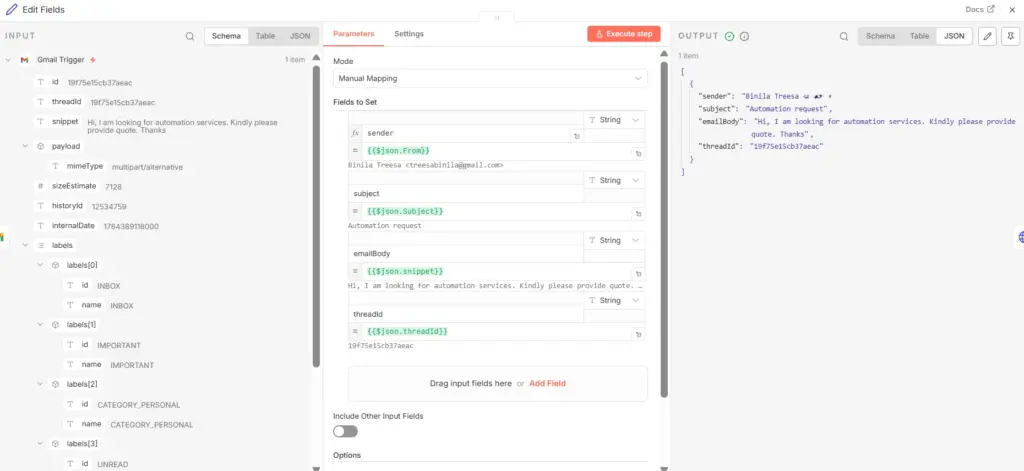
Add an Edit Fields node (also called Set node in some n8n versions) after the Gmail Trigger. This node pulls the specific fields you need out of the raw trigger output and gives them clean, consistent names for use in later nodes.
Create these fields:
sender    → {{ $json.From }}
subject   → {{ $json.Subject }}
emailBody → {{ $json.snippet }}
threadId  → {{ $json.threadId }}
Expected output after this node runs:
{
  "sender": "customer@example.com",
  "subject": "Pricing request",
  "emailBody": "Can you share your pricing details?",
  "threadId": "12345",
}
Note the addition of messageId here compared to a simpler version of this workflow. You need this field later when replying, and pulling it at this stage rather than reaching back to the Gmail Trigger repeatedly in later nodes keeps your expressions cleaner.
Step 4: Configure the OpenRouter API Call
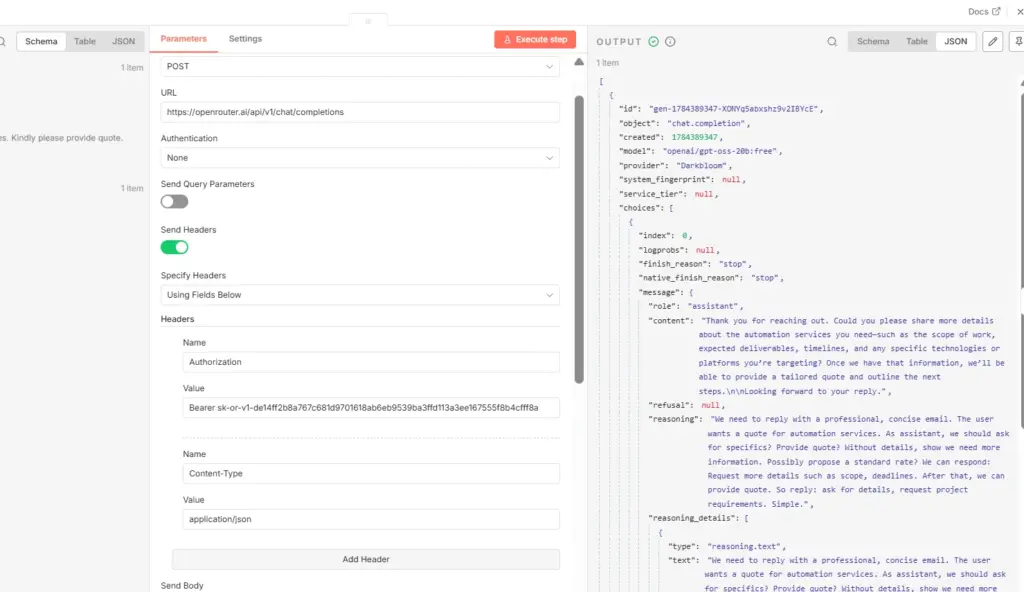
Add an HTTP Request node after Edit Fields.
Configuration:
Method: POST
URL:    https://openrouter.ai/api/v1/chat/completions
Headers:
Authorization: Bearer YOUR_OPENROUTER_API_KEY
Content-Type:  application/json
Store your OpenRouter API key as an n8n credential rather than pasting it directly into the header field. Use Header Auth credential type with the header name Authorization and value Bearer YOUR_OPENROUTER_API_KEY. You can refer how to connect openrouter with n8n in this tutorial.
Request body, selected as JSON:
{
  "model": "openai/gpt-oss-20b:free",
  "messages": [
    {
      "role": "system",
      "content": "You are an AI email assistant. Write only the reply body. Keep it professional and concise."
    },
    {
      "role": "user",
      "content": "Reply to this email:\n{{ $json.emailBody }}"
    }
  ]
}
The system prompt instructs the model to write only the reply content without extra commentary, greetings templates, or explanations about what it is doing. This keeps the output ready to send without additional cleanup.
Step 5: Configure the Gmail Reply Node
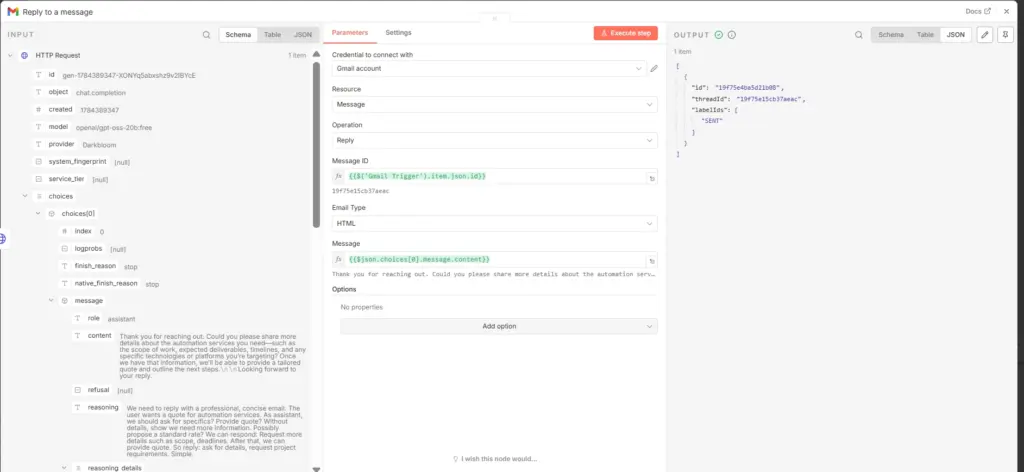
Add a Gmail node after the HTTP Request node.
Configuration:
Resource:  Message
Operation: Reply
Message ID field, referencing the original email’s ID from the Gmail Trigger (not from the OpenRouter response, and not from the Edit Fields node’s output if you renamed it there, unless you reference the renamed field):
{{ $('Gmail Trigger').item.json.id }}Or, if you carried the message ID through the Edit Fields node as shown in Step 3:
{{ $json.messageId }}Email body, referencing the AI-generated reply from the OpenRouter response:
{{ $json.choices[0].message.content }}This path reflects the structure of a standard chat completion response, where the generated text sits inside choices[0].message.content. If OpenRouter changes its response format for a specific model, verify this path against the actual response by inspecting the HTTP Request node’s output in a test execution.
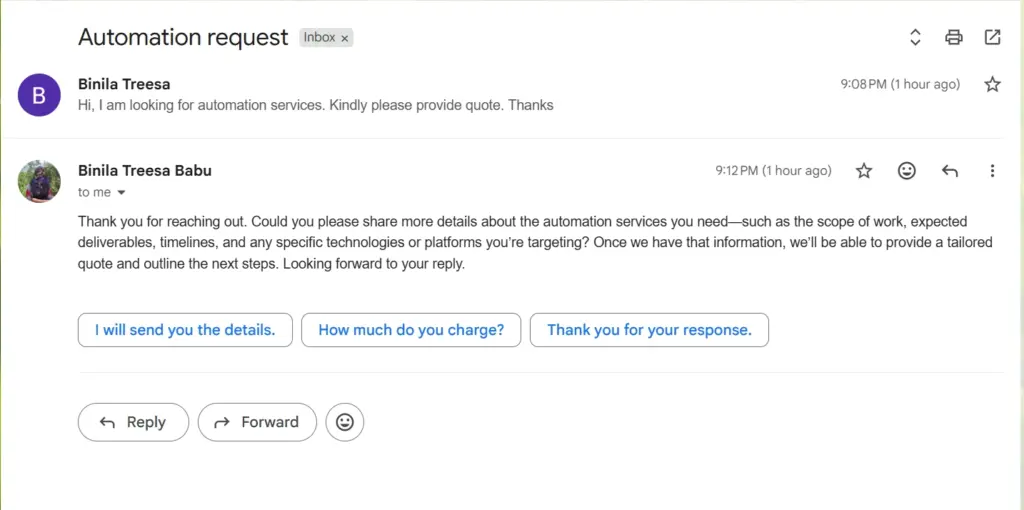
Step 6: Test the Complete Workflow
Activate the workflow. This is required for the Gmail Trigger to run continuously in the background rather than only responding while the editor is open.
Send a test email from a different email account to the Gmail address connected in your trigger:
Subject: Automation Inquiry
Body: Hi, I want to know about your automation services. Please share details.
Expected execution path:
Gmail Trigger fires
      ↓
Edit Fields extracts sender, subject, body, IDs
      ↓
HTTP Request sends body to OpenRouter, receives generated reply
      ↓
Gmail Reply sends the AI-drafted response in the same thread
Check the connected inbox. Within a minute or two, depending on Gmail Trigger polling interval, you should see a reply sent in the same email thread.
Errors You Will Likely Hit and How to Fix Them
Error 1: OpenRouter Model Unavailable
Error message:
No endpoints found for modelor
This model is unavailable for freeWhy this happens: OpenRouter’s available models change frequently. Free-tier models get removed, moved to paid-only access, or deprecated without much notice. Also, some model names on OpenRouter refer to embedding models rather than chat models. Embedding models generate numerical vector representations of text for search and similarity tasks. They cannot generate conversational replies and will fail or return unusable output when called through the /chat/completions endpoint.
A model name like nvidia/nemotron-3-embed-1b:free is an embedding model despite superficially looking like any other model string. Using it for reply generation is the wrong tool for the task, similar to asking a calculator to write a paragraph.
Fix: Use a chat completion model. Verify the model you select is listed under chat models on openrouter.ai/models, not embeddings. As of this writing, a working free-tier option is:
{
  "model": "openai/gpt-oss-20b:free",
  "messages": [
    {
      "role": "user",
      "content": "Write a reply to this email"
    }
  ]
}
Model availability on OpenRouter’s free tier shifts over time, so check openrouter.ai/models directly for current free chat models before deploying this workflow, and have a fallback paid model configured in case your chosen free model becomes unavailable.
Error 2: OpenRouter Returns Empty Email Context
Error behavior: the AI replies with something like:
"Please provide the email content you want me to reply to."Cause: The variable referenced in the HTTP Request body is empty. This usually happens when the expression references a field that does not exist in the incoming JSON, most commonly:
{{ $json.text }}when the actual Gmail Trigger output has no field called text. The Gmail Trigger’s actual body-related field is typically snippet, not text.
Fix: Check the actual output of your Gmail Trigger node by running a test execution and inspecting the JSON output panel. Confirm the exact field names present, since they can vary between n8n and Gmail node versions. Once confirmed, make sure your Edit Fields node maps them correctly:
emailBody = {{ $json.snippet }}
sender    = {{ $json.From }}
subject   = {{ $json.Subject }}
threadId  = {{ $json.threadId }}
Then reference {{ $json.emailBody }} in the OpenRouter request body, not a field name you assumed existed without checking.
Error 3: n8n Expressions Showing Red (Node Reference Error)
Error: an expression appears in red with an error indicator, such as:
{{ $node["Edit Fields"].json.subject }}Cause: The node name referenced in the expression does not exactly match the actual node name in your workflow. If you have multiple Edit Fields nodes, n8n automatically renames duplicates to Edit Fields1, Edit Fields2, and so on. If your expression references Edit Fields but the actual node is named Edit Fields1, the reference fails.
Fix: Never type node names manually into expressions. Use the n8n expression picker instead:
- Click into the field where you want to insert the expression.
- Select the Expression tab or click the expression icon.
- Browse and choose the exact node from the list, then select the field you want.
This guarantees the reference matches the actual node name exactly, including any auto-incremented suffix, and avoids typo-based failures entirely.
Error 4: Gmail OAuth Authorization Failed
Error message:
The provided authorization grant is invalid, expired, revokedCause: The stored Gmail OAuth token is no longer valid. Common reasons include the credential being manually revoked, Google account permissions being changed or removed, or a mismatch in the OAuth redirect URI configuration.
Fix: Reconnect the Gmail credential:
n8n Credentials
      ↓
Gmail OAuth2
      ↓
Reconnect Google Account
If reconnecting through the existing credential does not resolve it, delete the credential entirely and create a new one from scratch, then re-select it in every node that used the old credential (Gmail Trigger and Gmail Reply both need updating).
Error 5: Gmail Trigger Shows Success But No Output
Problem: n8n reports the workflow executed successfully, but no new email data appears and no reply gets sent.
Cause: The Gmail Trigger only fires on emails that arrive after the workflow is activated. It does not retroactively process emails already sitting in your inbox before activation. If you are testing by looking at old emails, the trigger has nothing new to report.
Fix:
- Make sure the workflow is activated (not just saved).
- Send a genuinely new test email to the connected Gmail account after activation.
- Wait for the trigger’s next polling cycle to pick it up.
Test email example:
Subject: AI Assistant Test
Body: Need information about your service.
Error 6: Gmail Reply Node Asks for Message ID and Gets It Wrong
Error: the Gmail Reply node either fails or attaches to the wrong thread because it received an incorrect Message ID.
Cause: A common mistake is passing the OpenRouter response’s generation ID into the Message ID field instead of the actual Gmail message ID. OpenRouter’s response includes its own internal ID for the completion request, something like:
gen-1784385844xxxxxThis is not a Gmail message ID and has no relationship to your email thread. Using it causes the reply to fail or misattach.
Fix: Use the actual Gmail message ID from the Gmail Trigger node, not from the OpenRouter response:
{{ $('Gmail Trigger').item.json.id }}If you carried the message ID forward through your Edit Fields node under a field like messageId, reference that instead, but make sure it traces back to the Gmail Trigger’s id field, not anything from the OpenRouter HTTP Request node.
Deploying This on a VPS
Once the workflow is tested and working reliably, running it on a KVM VPS hosting makes it a genuine 24/7 assistant rather than something that only works while your laptop is open.
Basic setup for n8n on a fresh VPS:
ssh root@YOUR_VPS_IP
apt update && apt upgrade -y

docker run -d \
  --name n8n \
  --restart always \
  -p 5678:5678 \
  -e N8N_HOST=yourdomain.com \
  -e N8N_PROTOCOL=https \
  -e WEBHOOK_URL=https://yourdomain.com/ \
  -e N8N_SECURE_COOKIE=true \
  -v n8n_data:/home/node/.n8n \
  n8nio/n8n
Set up Nginx and a Let’s Encrypt certificate for HTTPS, then access your n8n instance at your domain and rebuild or import this workflow. Reconnect the Gmail OAuth credential and OpenRouter API key credential on the new instance, since credentials do not transfer automatically between environments.
A Ucartz VPS Lite at $10 per month handles this single workflow comfortably. If you plan to add more automations over time (lead qualification, support triage, scheduled reports) the VPS Standard at $20 per month gives more headroom for multiple concurrent workflows on the same server.
Conclusion
This workflow gives you a working AI email assistant that reads incoming emails, generates a professional draft reply using an AI model through OpenRouter, and sends it back into the correct thread automatically. The most common failure points are model availability on OpenRouter’s free tier, field name mismatches between what the Gmail Trigger actually outputs and what your expressions assume, and confusing the OpenRouter generation ID with the Gmail message ID needed for threading replies correctly.
Test each node individually before connecting the whole chain, verify actual field names by inspecting real trigger output rather than assuming them, and run the workflow on a VPS once it is stable so it keeps working without depending on your personal machine staying on. From here, extend the pattern by adding a classification step before the reply generation to route different email types (support, sales, billing) to different response templates, or add a human approval step where the AI drafts the reply but a team member reviews it before it sends.
FAQ
Why does OpenRouter say no endpoints found?
The selected model is unavailable or not compatible with chat completion. Choose a text generation model.
Why is my n8n AI email assistant not reading emails?
The Gmail body field is mapped incorrectly. Check Gmail Trigger output and pass the correct field.
Can n8n automatically reply to Gmail emails?
Yes. Using Gmail Trigger, OpenRouter, and Gmail Reply nodes, n8n can automatically generate and send responses.
Why does Gmail Reply need Message ID?
The Message ID connects the response to the original email thread.