
tl dr;
Run n8n webhooks reliably at scale by enabling queue mode with Redis, responding instantly to requests, and processing tasks asynchronously using workers on a stable VPS.
n8n works perfectly in testing. You build a workflow, fire a few test requests, everything responds correctly. Then you push it to production, real traffic hits, and requests start timing out, executions crash, and data disappears. This is not a bug. It is an architecture problem.
By default, n8n workflow automation runs in single-threaded mode. Every incoming webhook request waits for the entire workflow to finish before n8n accepts the next one. If your workflow takes 5 seconds and 50 requests arrive at the same time, most of them time out. The system was never designed to handle that load in default mode.
Failure Patterns in Production
Three specific failure patterns show up in almost every production n8n deployment that skips the proper setup.
Blocking execution – the webhook holds the HTTP connection open until the entire workflow finishes. If a node in your workflow calls an external API that takes 8 seconds, every request waits 8 seconds. Clients time out. Data is lost.
No parallel processing – default n8n processes one execution at a time. 100 simultaneous webhook requests build a queue that never drains fast enough. The backlog grows until n8n runs out of memory or the requests expire.
No queue buffer – without a queue system, all requests hit n8n directly and synchronously. There is no buffer to absorb traffic spikes. A sudden burst of 200 requests in 10 seconds crashes the process.
The Architecture That Actually Works
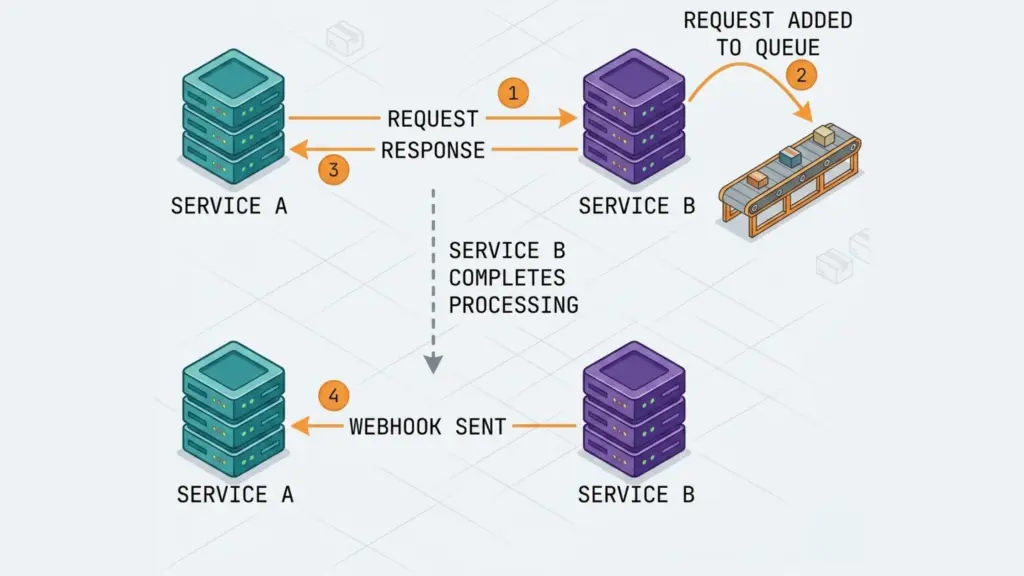
The fix separates incoming request handling from workflow execution. You need three components running together: a webhook layer that responds instantly, a queue that holds pending jobs, and one or more workers that process those jobs independently.
Incoming Request
      ↓
  n8n Webhook Node
      ↓
  Instant Response → "status: ok"
      ↓
  Redis Queue (job stored)
      ↓
  n8n Worker (picks up job)
      ↓
  Workflow Executes
The client gets a response in milliseconds. The actual workflow processing happens asynchronously in a worker. Redis realtime database holds the jobs between the two. This pattern handles thousands of concurrent requests without any single request blocking another.
What You Need Before Starting
You need a KVM VPS hosting with at least 2 vCPUs and 4 GB RAM. A single-core server with 1 GB RAM cannot run n8n, Redis, and multiple workers simultaneously under real load. A Ucartz VPS on the standard plan or higher covers the minimum requirements.
You also need Node.js 18 or later, npm, and a domain pointed at your server with HTTPS configured. Queue mode requires a public HTTPS URL – HTTP does not work in production.
Step 1 – Install Redis
Redis acts as the queue engine. n8n pushes jobs into Redis when webhooks arrive, and workers pull jobs out of Redis to process them.
sudo apt update
sudo apt install redis-server -y
sudo systemctl start redis
sudo systemctl enable redis
Verify Redis is running:
redis-cli pingYou must see:
PONGIf you see anything else, Redis failed to start. Check the logs:
sudo journalctl -u redis --no-pager -n 50The most common issue is a port conflict on 6379. Check with sudo lsof -i :6379 and kill whatever is holding the port.
Step 2 – Install n8n
npm install -g n8nVerify the installation:
n8n --versionIf npm is not installed, install Node.js first:
curl -fsSL https://deb.nodesource.com/setup_18.x | sudo -E bash -
sudo apt install -y nodejs
Step 3 – Enable Queue Mode
This is the single most important configuration step. Without queue mode, nothing else in this guide works. Set these environment variables before starting n8n:
export EXECUTIONS_MODE=queue
export QUEUE_BULL_REDIS_HOST=127.0.0.1
export QUEUE_BULL_REDIS_PORT=6379
export N8N_HOST=yourdomain.com
export N8N_PROTOCOL=https
export WEBHOOK_URL=https://yourdomain.com/
export N8N_SECURE_COOKIE=true
For a permanent setup, add these to your .env file or your docker-compose.yml environment section instead of exporting them manually. Manual exports disappear after a server reboot. If you use Docker, add them to your compose file:
environment:
  - EXECUTIONS_MODE=queue
  - QUEUE_BULL_REDIS_HOST=127.0.0.1
  - QUEUE_BULL_REDIS_PORT=6379
  - N8N_HOST=yourdomain.com
  - N8N_PROTOCOL=https
  - WEBHOOK_URL=https://yourdomain.com/
Queue mode does three things. It enables asynchronous processing so webhook responses do not wait for workflow completion. It connects n8n to Redis so incoming jobs get buffered. It enables horizontal scaling so you can add workers without changing the main n8n process.
Step 4 – Start the Main n8n Process
n8n startThe main process handles the UI, webhook intake, and job dispatch into Redis. It does not execute workflow logic in queue mode that is the worker’s job.
Open your browser at https://yourdomain.com and confirm the n8n interface loads.
Step 5 – Start a Worker Process
Open a new terminal session on the same server. Set the same queue environment variables, then start the worker:
export EXECUTIONS_MODE=queue
export QUEUE_BULL_REDIS_HOST=127.0.0.1
export QUEUE_BULL_REDIS_PORT=6379
n8n worker
The worker connects to Redis, pulls jobs from the queue, and executes workflows. Without at least one running worker, jobs pile up in Redis but nothing processes them. The webhook returns instantly, but no workflow ever runs.
You can run the worker with higher concurrency to process multiple jobs in parallel:
n8n worker --concurrency=5This single worker instance now handles 5 workflow executions simultaneously.
Step 6 – Build the Webhook Workflow
Log into your n8n instance. Create a new workflow with these nodes in order.
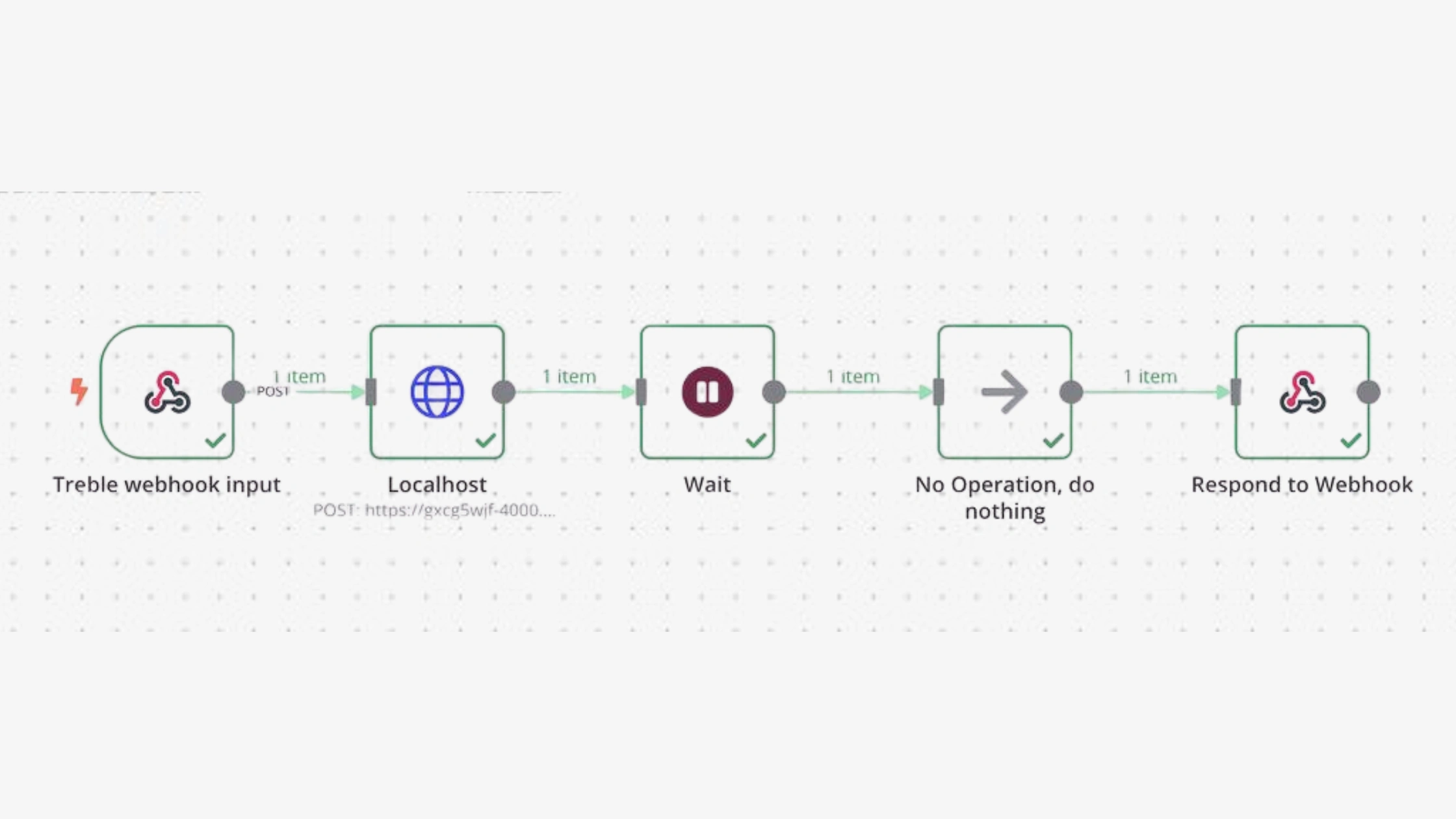
Webhook Node
Set method to POST and path to load-test. This creates the endpoint at https://yourdomain.com/webhook/load-test.
Respond to Webhook Node
Connect it directly after the Webhook node, before any processing nodes. Set the response body:
{
  "status": "ok",
  "message": "Request received and queued"
}
This is the critical structural decision. The Respond to Webhook node fires immediately when the request arrives. The client gets its response in under 100 milliseconds. All downstream processing nodes API calls, database writes, email sends run after this response fires, in the worker, without blocking the client.
Processing Nodes
Add whatever your workflow needs after the Respond to Webhook node. For testing, add a Wait node set to 10 seconds to simulate a slow external API call. In production, this is where your HTTP requests, database queries, and integrations go.
The final workflow structure:
Webhook → Respond to Webhook → [your processing nodes]Activate the workflow using the Active toggle in the top right.
Step 7 – Test the Webhook
Send a test request:
curl -X POST https://yourdomain.com/webhook/load-test \
  -H "Content-Type: application/json" \
  -d '{"test": "data"}'
The response must come back immediately:
{
  "status": "ok",
  "message": "Request received and queued"
}
If the response takes more than 1 second, the Respond to Webhook node is not positioned before your processing nodes. Move it to immediately after the Webhook node.
Check the n8n execution history to confirm the workflow ran in the worker after the response fired.
Step 8 – Stress Test the Setup
Install Apache Bench:
sudo apt install apache2-utils -yRun a load test with 200 total requests at 20 concurrent:
ab -n 200 -c 20 -p /dev/null -T application/json \
  https://yourdomain.com/webhook/load-test
Read these numbers in the output:
Requests per second:    [should be 50+]
Failed requests:        [must be 0]
Time per request:       [should be under 100ms for webhook response]
If failed requests is greater than zero, you have one of three issues: Redis is not running, the worker is not running, or your VPS does not have enough CPU and RAM to handle the concurrency level.
Drop the concurrency to 5 and retry. If that passes, increase gradually until you find the ceiling for your current server spec.
Step 9 – Scale Workers for Higher Volume
One worker with default concurrency handles moderate production traffic. For high volume thousands of webhook requests per hour run multiple worker instances with higher concurrency.
Open two additional terminal sessions and start a worker in each:
# Terminal 2
export EXECUTIONS_MODE=queue
export QUEUE_BULL_REDIS_HOST=127.0.0.1
export QUEUE_BULL_REDIS_PORT=6379
n8n worker --concurrency=5

# Terminal 3
export EXECUTIONS_MODE=queue
export QUEUE_BULL_REDIS_HOST=127.0.0.1
export QUEUE_BULL_REDIS_PORT=6379
n8n worker --concurrency=5
Three workers at 5 concurrency each gives you 15 simultaneous workflow executions. Redis distributes jobs across all workers automatically you do not need to configure any load balancing.
For permanent multi-worker deployments, use systemd service files or Docker Compose to manage worker processes instead of manual terminal sessions:
services:
  n8n-main:
    image: n8nio/n8n
    restart: always
    environment:
      - EXECUTIONS_MODE=queue
      - QUEUE_BULL_REDIS_HOST=redis
      - QUEUE_BULL_REDIS_PORT=6379

  n8n-worker:
    image: n8nio/n8n
    restart: always
    command: worker --concurrency=5
    deploy:
      replicas: 3
    environment:
      - EXECUTIONS_MODE=queue
      - QUEUE_BULL_REDIS_HOST=redis
      - QUEUE_BULL_REDIS_PORT=6379

  redis:
    image: redis:7-alpine
    restart: always
This runs three worker containers, each processing 5 concurrent jobs, for 15 parallel executions total. The restart: always directive brings everything back up automatically after a reboot.

Monitoring Executions in Production
n8n logs every execution in its database. Check recent failures from the executions panel in the UI. Filter by status “Error” to see what failed and why.
Monitor the Redis queue depth to detect backlog buildup:
redis-cli llen bull:jobs:waitIf this number grows continuously and never drops, your workers are not keeping up. Either add more workers, increase concurrency, or optimize the slow nodes in your workflows.
Check active workers:
redis-cli client list | grep -c "n8n-worker"Monitor system resources while a load test runs:
htopWatch CPU and RAM. If CPU hits 100% during the load test, the bottleneck is compute you need a larger VPS or more worker processes on separate servers. If RAM hits the limit, increase the server’s memory or reduce worker concurrency.
Production Best Practices
1.Always respond immediately. Never put processing logic between the Webhook node and the Respond to Webhook node. The response must fire before any external API calls, database queries, or heavy computation.
2.Never run production workflows in default mode. Single-threaded n8n breaks under any meaningful concurrent load. Queue mode is not optional for production it is the minimum viable setup.
3.Store environment variables permanently. Export commands disappear after reboot. Use a .env file with n8n’s --env-file flag or Docker Compose environment blocks.
4.Run at least two workers. A single worker is a single point of failure. If it crashes, jobs build up in Redis until you restart it. Two workers with moderate concurrency outperforms one worker with high concurrency because process-level failures do not affect both.
5.Set execution data pruning. Long-running production instances accumulate execution records that slow down the database. Set EXECUTIONS_DATA_PRUNE=true and EXECUTIONS_DATA_MAX_AGE=168 (7 days) in your environment variables.
export EXECUTIONS_DATA_PRUNE=true
export EXECUTIONS_DATA_MAX_AGE=1686.Avoid heavy logic in the webhook trigger path. Synchronous processing before the Respond to Webhook node blocks the request. Move all heavy logic loops, external API chains, file processing to nodes after the response fires.
Setup Comparison
| Setup | Behavior |
|---|---|
| Local n8n, default mode | Works for testing only |
| Single VPS, default mode | Fails under any concurrent load |
| Single VPS, queue mode, one worker | Handles moderate production traffic |
| Single VPS, queue mode, multiple workers | Handles high-volume production traffic |
| Multi-server, queue mode, scaled workers | Handles enterprise-level webhook volume |
The Two Commands You Run Every Time
After any server restart, these two commands bring your production setup back up:
# Terminal 1: Main process
n8n start

# Terminal 2: Worker
n8n worker --concurrency=5
With the Docker Compose setup and restart: always, you do not need to run these manually Docker handles it. Without Docker, use systemd unit files for both processes so they start automatically on boot.
The production webhook setup is not complex once the architecture is clear. Queue mode, Redis, and at least one worker. Everything else multiple workers, higher concurrency, execution pruning layers on top of that foundation based on your actual traffic volume.
Conclusion
Running n8n webhooks in production is not about adding more nodes or tweaking small settings. It comes down to architecture.
If your webhook is blocking, running in a single process, or trying to handle everything inline, it will fail the moment real traffic hits. The fix is straightforward but non-negotiable: move to queue mode, use Redis, run workers, and respond instantly.
Queue mode, parallel workers, and high-volume webhook handling demand consistent CPU, memory, and uptime. Running this on weak or shared environments leads to the same failures you were trying to avoid.
If you’re serious about running automation in production, use a KVM VPS that can handle concurrency reliably. This is where solutions like Ucartz VPS fit naturally giving you the control, performance, and stability required to run n8n the way it’s meant to be used.
FAQ
1. Do I need Redis for n8n production?
Yes. Without Redis, queue mode does not work, and your system cannot scale under load.
2. Why are my webhooks timing out?
Because your workflow is processing before responding. Always respond first, then process in background.
3. How many workers should I run?
Start with 1–2 workers. Increase based on CPU, memory & workload.
4. Can n8n handle high traffic?
Yes ,but only with proper server resources, queue mode & workers