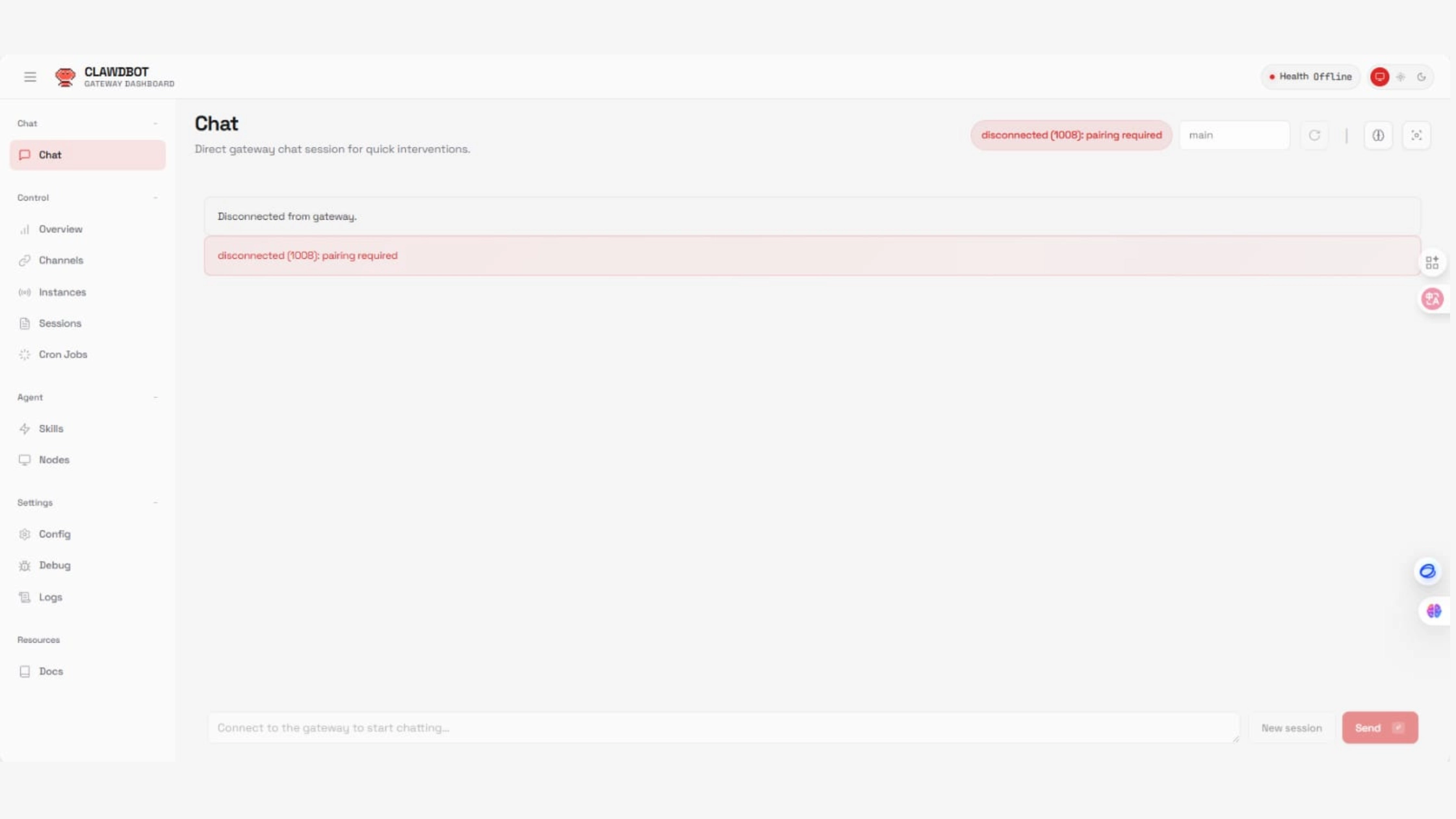

Problem: OpenClaw web UI shows “disconnected (1008): pairing required” error when attempting to chat in the browser dashboard after fresh installation.
Root Cause: OpenClaw is an AI orchestration framework that requires external AI model configuration. The error occurs when no conversational model provider is attached to the agent, or when sessions are invalid/stale.
Solution: Configure an AI model provider (Kimi/GPT-4/Claude) in the environment file, restart the gateway service, clear old sessions, create a new session, and access the UI through proper localhost method (SSH tunnel for VPS).
This is the common error beginners encounter with OpenClaw and it’s almost never what it appears to be. This guide will show you exactly why this happens and how to fix it permanently in under 10 minutes.
What Error 1008 Actually Means
Error code 1008 is a WebSocket closure code. In OpenClaw’s context, it means:
- Your browser successfully connected to the gateway
- The gateway tried to attach your connection to a chat session
- The session was invalid, broken, or missing
- The connection was immediately closed
The error message says “pairing required. This makes beginners think pair with whatsapp or telegram or run some pairing command. You don’t need any of that for direct UI chat.The error message is misleading. If you want to know how to install OpenClaw on a VPS, you can refer here.
Why This Happens After Fresh Installation
When you install OpenClaw and start the services, here’s what actually boots up: Gateway service starts (the web server), Agent daemon starts (the orchestrator), and Dashboard loads in the browser.
But here’s what’s missing:
No AI model configured
No valid conversation session
No processing brain
Your OpenClaw installation is a phone system with working infrastructure, but no one on the other end to answer calls. When you type a message:
- The UI sends it to the gateway
- The gateway looks for someone to process it
- No model exists to respond
- Connection closes with error 1008
The complete message flow looks like:
Browser → Gateway → Session → AI Model → Response → UIWith error 1008, your flow looks like:
Browser → Gateway → X (Nothing to connect to)That’s why you get disconnected immediately.
The Complete Fix: Step-by-Step
Follow these steps in exact order. Don’t skip any step.
Step 1: Verify Services Are Actually Running
SSH into your VPS hosting and run:
openclaw status --deepIf services fail to start, check logs:
journalctl --user -u openclaw-daemon -n 50
journalctl --user -u openclaw-gateway -n 50
Common issues: Port 18789 already in use, missing Python dependencies or permission errors. Once services are confirmed running, proceed to Step 2.
Step 2: Check If a Model Provider Is Configured
Run this command:
cat ~/.openclaw/openclaw.envOr if you installed as root:
cat /root/.openclaw/openclaw.env

OPENAI_BASE_URL=https://api.moonshot.ai/v1
OPENAI_API_KEY=sk-xxxxxxxxxxxxxxxx
OPENAI_MODEL=kimi-k2-0905-preview
If this file is empty or these lines don’t exist: This is your problem. OpenClaw has no AI model to process messages.If these lines exist but chat still doesn’t work: The gateway probably hasn’t reloaded the configuration yet (we’ll fix that in Step 4).
What you just did:
- Told OpenClaw where to send chat requests (
OPENAI_BASE_URL) - Gave it permission to access the API (
OPENAI_API_KEY) - Specified which AI model to use (
OPENAI_MODEL)
Step 3: Restart Gateway to Load the Model
This step is critical. Configuration changes don’t apply until the gateway restarts.Run:
openclaw gateway restartWait 5 seconds, then verify the model loaded:
openclaw status --deepLook for confirmation that the model is now active. You should see kimi-k2-0905-preview listed under agent details.If you skip this step, the system continues running with no model, and error 1008 persists.
Step 4: Clear Old Sessions and Create a Fresh One
Sessions created before you configured the model are unusable.They were initialized without a processing brain, so they’re permanently broken.Clear all old sessions:
openclaw sessions clearCreate a new session attached to your configured model:
openclaw session new mainCreates a fresh conversation context that properly connects to Kimi open source model.This is often the missing step that causes error 1008 even after configuring a model correctly.
Step 5: Access the UI Correctly (VPS Users)
Critical distinction:
127.0.0.1on your laptop = your laptop’s localhost127.0.0.1on your VPS = your VPS’s localhost
They are not the same.If you try opening http://127.0.0.1:18789 in your browser, it tries to connect to your laptop.
Solution: Create an SSH Tunnel
From your local computer (NOT inside the VPS terminal):
ssh -N -L 19999:127.0.0.1:18789 root@YOUR_VPS_IPReplace YOUR_VPS_IP with your actual server IP.Keep this terminal window open while using the UI.
Now open your browser and go to:http://127.0.0.1:19999. If you’re running OpenClaw locally (not on a VPS), skip the tunnel and just use:http://127.0.0.1:18789
Step 6: Test the Chat Interface
In your browser at http://127.0.0.1:19999:
1. Navigate to the Overview page
2. You should see the chat input box at the bottom
3. Type: `Hello`
4. Press Enter
Expected result: Within 1-3 seconds, Kimi responds with a conversational message.
Advanced Troubleshooting
Problem: Chat Still Shows Error 1008
Verify your API key works independently:
curl https://api.moonshot.ai/v1/chat/completions \
  -H "Content-Type: application/json" \
  -H "Authorization: Bearer YOUR_API_KEY" \
  -d '{
    "model": "kimi-k2-0905-preview",
    "messages": [{"role": "user", "content": "Hello"}]
  }'
Problem: Services Won’t Start
Check detailed logs:
journalctl --user -u openclaw-gateway -n 100Look for:
Error: Address already in use→ Another service is using port 18789Error: Module not found→ Missing Python dependenciesError: Permission denied→ Run with correct user permissions
Common fix for port conflicts:
# Find what's using port 18789
sudo lsof -i :18789

# Kill the process
sudo kill -9 PROCESS_ID

# Restart OpenClaw
systemctl --user restart openclaw-gateway- Verify SSH is running on the VPS:
systemctl status sshd- Check firewall allows SSH:
   sudo ufw status
sudo ufw allow 22/tcp- Confirm correct server IP:
curl ifconfig.meWhen Pairing IS Actually Required
To avoid confusion, here’s when you DO need pairing:Pairing is required for:
- Telegram bot integration
- WhatsApp channel
- Discord bot
- Slack integration
Pairing is NOT required for:
- Direct browser UI chat
- Web dashboard usage
- API interactions
- Command-line interactions
If you only want to chat in the browser, ignore all pairing commands completely.
Complete Diagnostic Checklist
Before asking for help, verify all of these:
- Services running:
openclaw status --deepshows active - Model configured:
cat ~/.openclaw/openclaw.envshows API credentials - API key valid: Manual curl test succeeds
- Gateway restarted: After adding model configuration
- Fresh session: Created with
openclaw session new main - Correct URL: Using tunnel (
127.0.0.1:19999) or local (127.0.0.1:18789) - Browser cache cleared: Hard refresh with Ctrl+Shift+R
- SSH tunnel active: Terminal window still open (VPS only)
If all 8 items are checked and error persists: Watch real-time logs while sending a message:
journalctl --user -u openclaw-gateway -fSend “Hello” in the UI and observe the log output. This reveals the exact failure point.
Conclusion
The disconnected (1008): pairing required error in OpenClaw can look serious, but in most cases it is not a system failure. It is a configuration gap.
When the dashboard loads successfully, many users assume OpenClaw is fully operational. However, the UI is only a frontend layer. Without a properly configured AI model and a valid session attached to that model, the system has nothing to process incoming messages. The result is a WebSocket disconnection that appears as error 1008.
FAQ
1: Why does error 1008 say “pairing required” if I don’t need to pair anything?
A: The error message is misleading legacy text. “Pairing required” in this context doesn’t mean external channel pairing—it means the gateway couldn’t pair your UI connection with a valid conversation session attached to a working AI model. The error should say “model not configured” but doesn’t.
2: I configured the model correctly but still get error 1008. What’s wrong?
A: The most common cause is forgetting to restart the gateway after configuration. Run openclaw gateway restart and then openclaw sessions clear followed by openclaw session new main. Configuration changes don’t apply until services reload.
3: Can I use Claude Opus instead of Kimi?
A: Yes, but be aware Claude Opus is extremely expensive ($15-75 per 1M tokens vs Kimi’s $0.12). For beginners learning OpenClaw, this means you’ll exhaust API credits in 10-20 messages. Use affordable models like Kimi or GPT-3.5 for testing, then upgrade to Claude Opus for production if needed.
4: The error appears after my OpenClaw was working fine. What happened?
A: Two common causes: (1) Your API credits ran out check your provider’s usage dashboard. (2) Your session expired clear sessions and create a new one with openclaw sessions clear and openclaw session new main.