
When working with Linux systems, one of the most common tasks administrators and users face is switching between accounts. This is often done using the su or su - command. At first glance, they might look almost the same - but in reality, they behave differently and can impact your session in important ways.
In this article, we’ll break down the difference between su and su -, when to use them, and why it matters for Linux system administration.
What is the su Command in Linux?
The su command stands for substitute user or switch user. By default, running su without arguments switches to the root account, but you can also use it to switch to any other user.
Example 1:
su ucartz
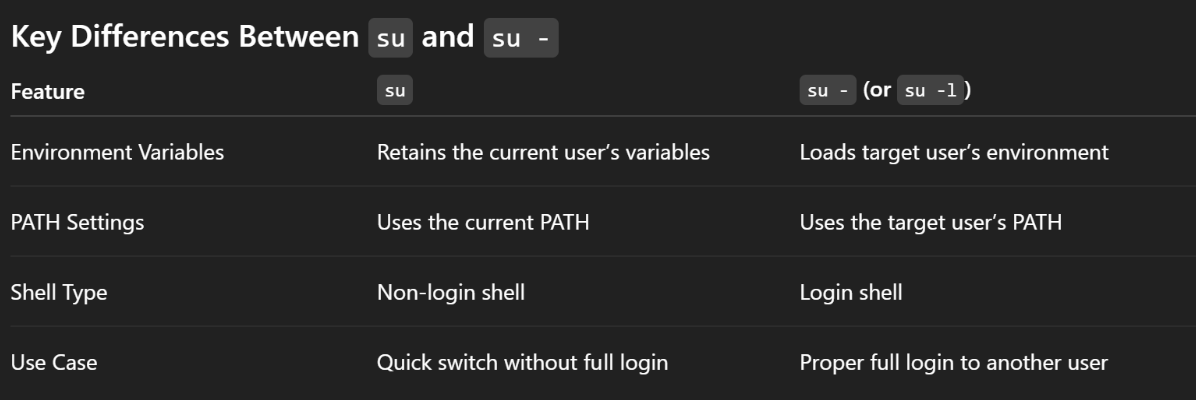
In this case, you switch from your current user to ucartz, but the environment variables, working directory, and PATH settings remain the same as the original user.
This can sometimes cause problems. For instance, if you stay in the old user’s working directory without proper permissions, you may get errors like:
ls: cannot open directory: Permission denied
Example 2:
su
This prompts for the root password and switches you to the root account.
However, when you just use su, it does not start a login shell. Instead, it keeps the current environment variables (like PATH) of the existing user.
This means some commands that rely on root’s full environment may not work correctly.
What is the su - Command in Linux?
The su - (or su -l) command also switches to another user account, but it simulates a full login as if you logged in directly from the terminal or SSH.
Example:
su -
su -l
su --login
This loads the target user’s environment variables, PATH settings, and login scripts (like .bash_profile, .bashrc, or .profile).
In most cases, when switching to root, su - is preferred because it ensures you get root’s complete environment, avoiding issues when running administrative commands.
Conclusion
The distinction between su and su - is more than just a dash - it determines how user environments are handled in Linux.
- Use su when you only need to switch identities without changing the working environment.
- Use su - when you need the full login environment of the target user, especially for administrative work as root.
Need Expert Help with Your Server, OR want to set up a secure Linux environment without the hassle - hire a Ucartz expert! Our administrators can handle everything from basic user management to full-scale server optimization - so you don’t have to worry.
Our team of Linux admins can help you with:
- Server setup and hardening
- Security configuration and monitoring
- User and permission management
- Performance tuning and troubleshooting
Whether you need one-time assistance or ongoing management, we’ve got you covered.
Hire a Ucartz Expert Today and experience peace of mind knowing your server is in the hands of professionals.


