

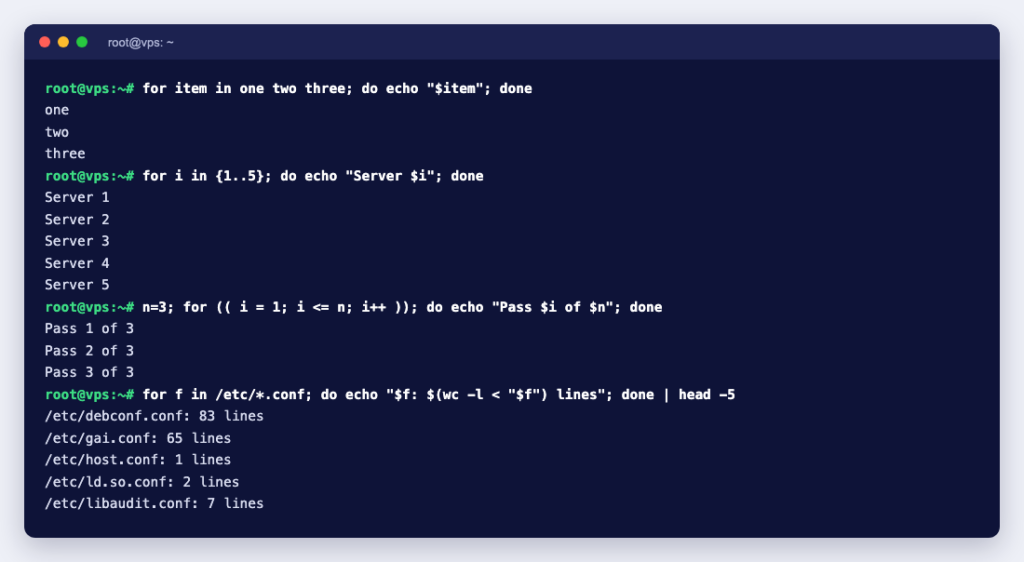
Short answer: a Bash for loop runs the same commands once for each item in a list: for item in one two three; do echo "$item"; done. Use {1..10} for a fixed range of numbers, for (( i = 1; i <= n; i++ )) when you need a counter, and for f in *.log to work through files. Every example below was run in Bash 5.2 on Debian 13, and the output shown is what we got.
The basic syntax
The list form is the one you will use most. Bash expands the words after in, sets the variable to each word in turn, and runs everything between do and done:
for name in alpha beta gamma; do
  echo "Hello, $name"
done
Hello, alpha
Hello, beta
Hello, gammaYou can write the same loop on one line. The semicolons stand in for the line breaks:
for i in 1 2 3; do echo "Line $i"; doneTwo details from the Bash manual are worth knowing. If you leave out in ... completely, the loop runs over the script’s arguments ("$@"). And if the list expands to nothing, the body never runs and the loop returns status 0.
Loop over a range of numbers
Brace expansion builds the list for you. You can add a step, pad with zeros or count through letters:
for i in {1..5}; do echo "Number $i"; done      # 1 to 5
for i in {0..20..5}; do echo -n "$i "; done     # 0 5 10 15 20
for i in {01..10}; do echo -n "$i "; done       # 01 02 ... 10
for c in {a..e}; do echo -n "$c "; done         # a b c d e
There is one trap here. Brace expansion happens before variable expansion, so a variable inside the braces does not work:
n=5
for i in {1..$n}; do echo "$i"; done{1..5}The loop ran once with the literal text {1..5}. When the end of the range comes from a variable, use seq or the C-style loop below:
for i in $(seq 1 "$n"); do echo -n "$i "; done # 1 2 3 4 5The C-style for loop
Bash also has an arithmetic form with a start, a test and a step, like C or JavaScript. It reads variables directly, so it is the cleanest choice for counters:
n=5
for (( i = 1; i <= n; i++ )); do
  echo -n "$i "
done
# 1 2 3 4 5

for (( i = 10; i > 0; i -= 3 )); do echo -n "$i "; done
# 10 7 4 1
Loop over files
Put a wildcard pattern in the list and Bash replaces it with the matching file names, sorted. Always quote the variable, because file names can contain spaces:
for f in *.log; do
  echo "Found: $f"
done
Found: access.log
Found: error.log
Found: my site.logDo not loop over the output of ls. In the same folder, for f in $(ls *.log) printed my and site.log as two separate files, because the output is split on spaces.
Also watch what happens when nothing matches. Without extra options, the pattern stays as plain text, so this loop runs once with a file name that does not exist:
for f in *.gz; do echo "Found: $f"; done
# Found: *.gz
Turn on nullglob and a pattern with no matches expands to nothing, so the loop simply does not run:
shopt -s nullglob
for f in *.gz; do echo "Found: $f"; done
# (no output)
Loop over an array
Use "${array[@]}" with the quotes, so an item with a space stays one item. To get the index as well, loop over "${!array[@]}":
servers=("web1" "web2" "db 1")

for s in "${servers[@]}"; do
  echo "Server: $s"
done

for i in "${!servers[@]}"; do
  echo "$i: ${servers[$i]}"
done
Server: web1
Server: web2
Server: db 1
0: web1
1: web2
2: db 1Reading a file line by line: use while, not for
A common mistake is for line in $(cat file). It splits on every space, not on line breaks. With a file containing example.com, example.org and my site.test, it gave four items instead of three. A while read loop keeps each line whole:
while IFS= read -r domain; do
  echo "[$domain]"
done < domains.txt
[example.com]
[example.org]
[my site.test]Skip or stop: continue and break
continue jumps to the next item and break leaves the loop. This prints odd numbers and stops after 7:
for i in {1..10}; do
  if (( i % 2 == 0 )); then continue; fi
  if (( i > 7 )); then break; fi
  echo -n "$i "
done
# 1 3 5 7
For more on the if tests used here, see Understanding Bash if…else statements.
Practical examples for servers
Check the HTTP status of several URLs
for url in https://example.com/ https://example.com/missing-page; do
  code=$(curl -s -o /dev/null -w "%{http_code}" "$url")
  echo "$code  $url"
done
200 https://example.com/
404 https://example.com/missing-pageLook up the IP address of several domains
for d in example.com example.org; do
  echo "$d: $(dig +short A "$d" | head -n1)"
done
This prints each domain with its first IPv4 address. See DNS lookup commands for more dig options.
Compress log files and rename extensions
for f in *.log; do gzip -- "$f"; done

for f in *.jpeg; do mv -- "$f" "${f%.jpeg}.jpg"; done
The -- stops a file name that starts with a dash from being read as an option. ${f%.jpeg} removes .jpeg from the end of the name. In our test, c d.jpeg became c d.jpg without trouble because the variables are quoted.
Run jobs in parallel and wait for all of them
for i in {1..3}; do
  sleep 1 &
done
wait
echo "all done"
The & starts each command in the background and wait pauses until they have all finished. Keep the number of parallel jobs small on a busy server.
Quick reference
| You want to loop over | Use | Watch out for |
|---|---|---|
| A few fixed words | for x in a b c | Quote "$x" when you use it |
| A fixed range | for i in {1..10} | No variables inside the braces |
| A range from a variable | for (( i = 1; i <= n; i++ )) | Or $(seq 1 "$n") |
| Files | for f in *.log | Never $(ls); consider shopt -s nullglob |
| An array | for s in "${arr[@]}" | Keep the quotes and the [@] |
| Lines of a file | while IFS= read -r line | for splits on spaces |
| Script arguments | for arg (no in) | Same as for arg in "$@" |
Before you run a loop on a live server
- Do a dry run first: put
echoin front of the real command (echo rm -- "$f") and read what it would do. - Quote every variable:
"$f", not$f. - Use full paths in scripts that run from cron, because the working directory may not be what you expect. See how to list cron jobs and read crontab syntax.
- Test on a copy of the data, not the only copy.
New to shell scripts? Start with creating a Hello World script, then keep the Linux commands cheat sheet nearby. If you want a place to practise with full root access, a KVM VPS gives you your own Linux server to script against.