
Short answer: for most Linux VPS projects, pick Ubuntu LTS if you want newer software packages, Debian if you want a small and steady system, and AlmaLinux or Rocky Linux if your software is built for Red Hat Enterprise Linux or you want about ten years of updates. Then spend your first half hour on the same few jobs whatever you chose: update the system, create a user with sudo, log in with an SSH key, switch off password and root logins, turn on the firewall and enable automatic security updates.
What a Linux VPS gives you
A Linux VPS is a virtual machine with its own share of CPU, memory and disk, and full root access. On a KVM VPS it also has its own kernel, so you can run Docker, a VPN or anything else that needs kernel features. Our article What Is KVM VPS Hosting? explains how that differs from container-based hosting.
The distribution you choose decides the package manager, how long you get security updates and which guides and control panels fit. Changing later means rebuilding the server, so it is worth two minutes now.
Ubuntu, Debian, AlmaLinux or Rocky Linux?
Here is how the four compare. Versions are the current releases at the time of writing, and support lengths come from each project’s own release pages.
| Distribution | Current release | Security updates | Packages | Good fit for |
|---|---|---|---|---|
| Ubuntu Server LTS | 26.04 LTS | 5 years standard, up to 10 with Ubuntu Pro | apt | General-purpose servers, Docker and developer tools |
| Debian | 13 (trixie) | 5 years: 3 years full support, then 2 years LTS | apt | Lean, stable servers that change little |
| AlmaLinux | 10.2 | About 10 years per major version | dnf | Software built for Red Hat Enterprise Linux; cPanel |
| Rocky Linux | 10.2 | About 10 years per major version | dnf | The same Red Hat compatible use cases |
AlmaLinux publishes security support for version 10 until 2035, and the Rocky Linux project gives the same end-of-life year for Rocky Linux 10. Both started version 10 in 2025, which is where “about 10 years” comes from.
How to decide
- Start from the software you will run. Read its installation guide and use a distribution it lists. For example, cPanel’s system requirements list AlmaLinux 8, 9 and 10, Rocky Linux 8 and 9, CloudLinux and Ubuntu 24.04 LTS. Debian and Ubuntu 26.04 are not on the list, so a cPanel server needs one of the others.
- Use what you already know. Commands, file locations and package names differ between the apt family (Ubuntu, Debian) and the dnf family (AlmaLinux, Rocky). Your own experience is worth more than small technical differences.
- Think about how long the server will live. A server you plan to keep for many years suits AlmaLinux or Rocky Linux. A server you rebuild every couple of years can follow Ubuntu LTS releases.
- Avoid end-of-life systems. CentOS Linux 7 and 8 no longer receive updates. If an old guide tells you to use them, use AlmaLinux or Rocky Linux instead.
First steps after your Linux VPS is deployed
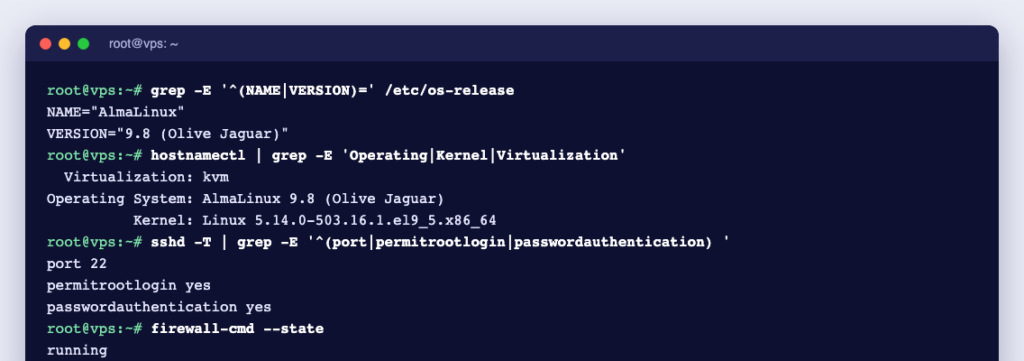
We ran every command below on Ubuntu 26.04.1 LTS and AlmaLinux 10.2 test systems. Debian works like Ubuntu and Rocky Linux like AlmaLinux. Replace deploy with your own user name and 203.0.113.10 with your server’s IP address.
1. Update everything
# Ubuntu and Debian
apt update && apt upgrade -y

# AlmaLinux and Rocky Linux
dnf upgrade -y
Reboot afterwards if a new kernel was installed.
2. Create your own user with sudo
# Ubuntu and Debian
adduser deploy
usermod -aG sudo deploy

# AlmaLinux and Rocky Linux
useradd -m -G wheel deploy
passwd deploy
id deploy should now list the sudo group on Ubuntu or wheel on AlmaLinux. On our test systems both groups were already allowed to use sudo.
3. Log in with an SSH key
On your own computer, create a key if you do not have one, then copy it to the server:
ssh-keygen -t ed25519
ssh-copy-id deploy@203.0.113.10
Check that ssh deploy@203.0.113.10 logs you in without asking for the server password. Our guide to setting up SSH keys covers Windows and other clients.
4. Switch off password and root logins
Put your settings in a small file of their own instead of editing the main configuration. Both systems read /etc/ssh/sshd_config.d/*.conf, and the file name matters: the sshd_config manual says the first value found for each setting wins, and the files are read in name order. In our test, a file named 10-hardening.conf overrode a 50-cloud-init.conf that allowed passwords, but the same settings in a file named 60-hardening.conf did not. So use a low number:
printf 'PermitRootLogin no\nPasswordAuthentication no\n' | sudo tee /etc/ssh/sshd_config.d/10-hardening.conf
sudo sshd -t
sudo sshd -T | grep -E '^(permitrootlogin|passwordauthentication) '
sshd -t prints nothing when the configuration is valid. The last command shows the values the server will really use:
permitrootlogin no
passwordauthentication no
Restart the service with sudo systemctl restart ssh on Ubuntu and Debian or sudo systemctl restart sshd on AlmaLinux and Rocky Linux. Keep your current session open and test a new login from a second terminal before you log out. More options are in our article on PermitRootLogin.
5. Turn on the firewall
Always allow SSH before you enable the firewall, or you lock yourself out. On Ubuntu and Debian, ufw has a ready-made OpenSSH profile:
sudo ufw allow OpenSSH
sudo ufw enable
sudo ufw status verbose
On our Ubuntu test system the status showed Default: deny (incoming), allow (outgoing) and 22/tcp (OpenSSH) ALLOW IN Anywhere. On AlmaLinux and Rocky Linux, the firewalld documentation gives these commands (firewalld would not start in our container, so we could not run them there):
sudo systemctl enable --now firewalld
sudo firewall-cmd --permanent --add-service=ssh
sudo firewall-cmd --reload
Open further ports only for the services you actually run, such as 80 and 443 for a website. Our firewall-cmd examples show the common cases.
6. Enable automatic security updates
According to Ubuntu’s documentation, Ubuntu installs security updates automatically through the unattended-upgrades package, which is installed by default. On Debian 13 we installed it with sudo apt install unattended-upgrades, and it switched itself on. On either system, check the switch file:
cat /etc/apt/apt.conf.d/20auto-upgrades
APT::Periodic::Update-Package-Lists "1";
APT::Periodic::Unattended-Upgrade "1";
On AlmaLinux and Rocky Linux, use DNF Automatic. The install timer downloads and applies updates whatever the configuration file says:
sudo dnf install dnf-automatic
sudo systemctl enable --now dnf-automatic-install.timer
7. Set the time zone
Logs and scheduled jobs are easier to read in your own time zone. sudo timedatectl set-timezone Asia/Kolkata changed our test system to IST; use timedatectl list-timezones to find yours. See our guide to changing the time zone.
8. Plan backups and know your way back in
Decide now where your backups go, and keep at least one copy off the server. Also find the browser console in your control panel before you need it: if a firewall rule or SSH change locks you out, the console still works. Our first-steps checklist for dedicated servers covers the same ground in more detail, and most of it applies to a VPS too.
The same steps side by side
| Task | Ubuntu and Debian | AlmaLinux and Rocky Linux |
|---|---|---|
| Update | apt update && apt upgrade | dnf upgrade |
| Admin group | sudo | wheel |
| SSH service name | ssh | sshd |
| Firewall | ufw | firewalld |
| Automatic updates | unattended-upgrades | dnf-automatic |
Linux VPS hosting at Ucartz
Our KVM VPS plans come with NVMe SSD storage, full root access and unmetered bandwidth. You can choose Ubuntu, Debian, AlmaLinux, Rocky Linux and other systems, or mount your own ISO, and a VNC console in the client area gets you in if SSH does not. Deployment is automated and takes about a minute once the order is approved. Free Basic Managed Support covers quick tasks such as access checks and OS reinstalls, and our engineers can do the hardening above for you from $8 per 15 minutes. Self-managed VPS are not backed up by us, so keep your own off-site copies.