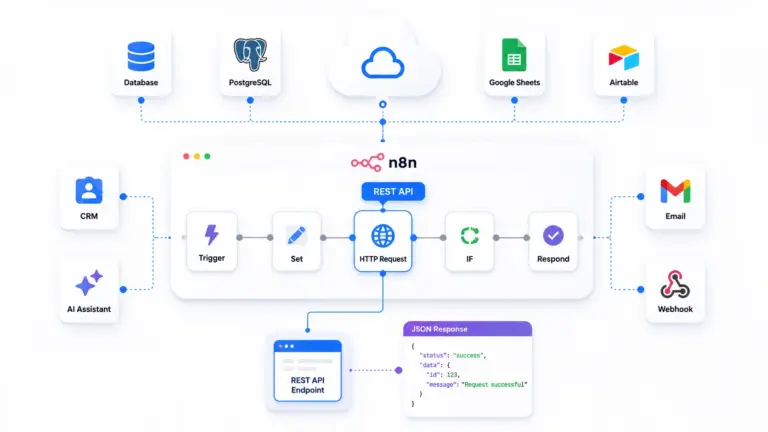

Connect Ollama to n8n by configuring an HTTP Request node to send prompts to the Ollama API endpoint and process the AI-generated responses within your workflow.
Most AI automation setups today depend on expensive cloud APIs. Every prompt you send to OpenAI or Anthropic costs money, sends your data to an external server, and stops working the moment you hit a rate limit or your billing runs out.
There is a better way. Ollama lets you run powerful large language models directly on your own machine or VPS. n8n connects to it through a local HTTP request and turns your self-hosted AI model into a fully automated workflow engine that costs nothing per query and keeps every piece of data on your own infrastructure.
This guide covers the complete setup from installing Ollama to building production-ready AI workflows inside n8n. By the end you will have a working local AI automation system that is private, free to run, and completely under your control.
What is Ollama?
Ollama is an open source framework tool that lets you download and run large language models locally on your own hardware. It handles model management, memory allocation, and API serving automatically. Once installed, it runs a local REST API server at http://localhost:11434 that accepts prompts and returns AI-generated responses exactly like a cloud API but without sending anything outside your machine. You can run models like Llama 3, Mistral, Phi, Gemma, and DeepSeek with a single command.
Benefits of Local AI Automation
Running AI locally through Ollama and n8n workflow automation gives you zero per-query cost because you pay only for server hardware and not for each API call. Your data stays completely private because nothing is sent to OpenAI, Anthropic, or any third party service. You get full model control because you choose which model runs, what parameters it uses, and how it responds. You also get offline capability since the entire stack runs without an internet connection once the models are downloaded to your server.
Prerequisites
Before starting this guide you need the following in place.
A VPS or local machine with at least 8GB of RAM for running small models like Mistral 7B and at least 16GB of RAM for larger models like Llama 3 70B. A GPU is not required but will significantly improve response speed on larger models.
Your server should be running Ubuntu 22.04 or later if you are on a Linux VPS. The same setup works on macOS and Windows for local machines.
Docker is optional but recommended for running n8n since it simplifies installation and keeps n8n isolated from your system packages.
You need SSH access to your server if you are working on a remote VPS hosting and basic familiarity with running terminal commands.
n8n should already be installed and accessible either through Docker or a direct npm installation before you start connecting it to Ollama.
Install Ollama
Download Ollama
On Linux or macOS run the official installation script directly from your terminal:
curl -fsSL https://ollama.com/install.sh | shThis script detects your operating system, downloads the correct binary, installs it to your system path, and sets up Ollama as a background service automatically.
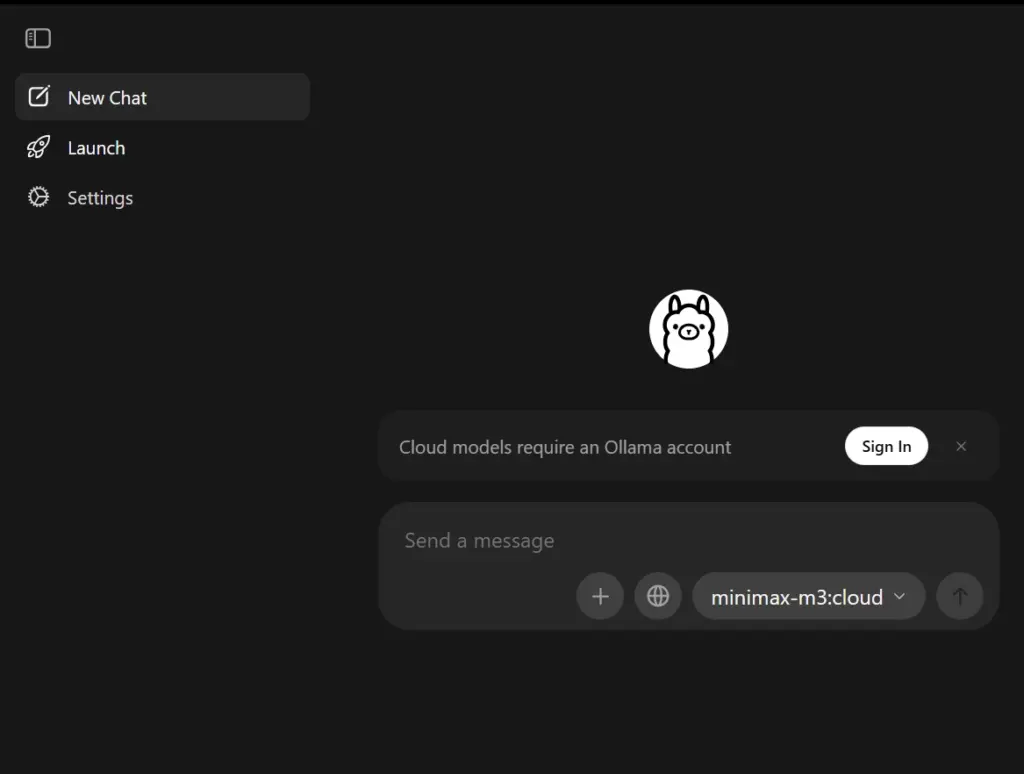
On Windows download the installer from ollama.com and run it. The installer handles service registration and path setup without any manual configuration.
Start the Ollama Service
On Linux Ollama installs itself as a systemd service and starts automatically after installation. Check that it is running with:
sudo systemctl status ollamaYou should see active (running) in the output. If it is not running start it manually:
sudo systemctl start ollamaTo make sure Ollama starts automatically every time the server reboots run:
sudo systemctl enable ollamaOn macOS Ollama runs as a background menu bar application. You can also start it from the terminal:
ollama serveVerify Installation
Confirm the Ollama API server is responding correctly by sending a simple request:
curl http://localhost:11434You should see this response:
Ollama is runningThis confirms the API server is active on port 11434 and ready to accept model requests.
Download an AI Model
Pull Llama 3
Llama 3 is Meta’s open source model and one of the strongest general purpose models you can run locally. Pull the 8B parameter version with:
ollama pull llama3This downloads approximately 4.7GB and runs comfortably on a server with 8GB of RAM. The download happens once and the model is stored locally for all future requests.
Pull Mistral
Mistral 7B is faster than Llama 3 for most tasks and works extremely well for summarization, classification, and content generation workflows where response speed matters more than maximum reasoning depth:
ollama pull mistralPull DeepSeek
DeepSeek Coder is purpose-built for code generation, code review, and technical documentation tasks:
ollama pull deepseek-coderTest Model Responses
Before connecting to n8n test that the model works correctly from the terminal
ollama run llama3 "Explain what n8n is in two sentences"You should see a response generated directly in your terminal within a few seconds. If the model responds correctly it is ready to connect to n8n.
Also test the API endpoint directly using curl since this is exactly how n8n will call it:
curl http://localhost:11434/api/generate \
  -H "Content-Type: application/json" \
  -d '{
    "model": "llama3",
    "prompt": "What is workflow automation?",
    "stream": false
  }'
The response will be a JSON object. Look for the response field which contains the generated text. If you see it the API is working correctly and you are ready to move to the n8n connection step.
Configure the Ollama API
Default API Endpoint
Ollama exposes two main API endpoints you will use inside n8n.
For single prompt generation use:
http://localhost:11434/api/generateFor chat-style conversations with message history use:
http://localhost:11434/api/chatBoth endpoints accept POST requests with a JSON body and return JSON responses. The generate endpoint is simpler and better for one-shot tasks like summarization, classification, and content generation. The chat endpoint maintains conversational context through a messages array and is better for building chatbots.
API Accessibility
By default Ollama listens only on localhost which means only processes running on the same machine can reach it. If n8n and Ollama are both on the same server this works without any changes.
If n8n is running on a different server than Ollama you need to tell Ollama to listen on all network interfaces. Set the environment variable before starting Ollama:
OLLAMA_HOST=0.0.0.0 ollama serveFor a permanent configuration on Linux edit the systemd service override:
sudo systemctl edit ollamaAdd these lines in the editor that opens:
[Service]
Environment="OLLAMA_HOST=0.0.0.0"
Save the file then reload and restart the service:
sudo systemctl daemon-reload
sudo systemctl restart ollama
If n8n is running inside Docker on the same host machine, use host.docker.internal instead of localhost in the API URL on Mac and Windows. On Linux use the actual IP address of the host machine, which you can find by running:
ip route | grep docker | awk '{print $9}'Security Considerations
Never expose port 11434 directly to the internet without authentication. Anyone who can reach that port can use your AI model and consume all your server resources. The security best practices section at the end of this guide covers how to restrict access using a firewall and reverse proxy before making Ollama reachable from outside localhost.
Connect Ollama to n8n
HTTP Request Node Setup
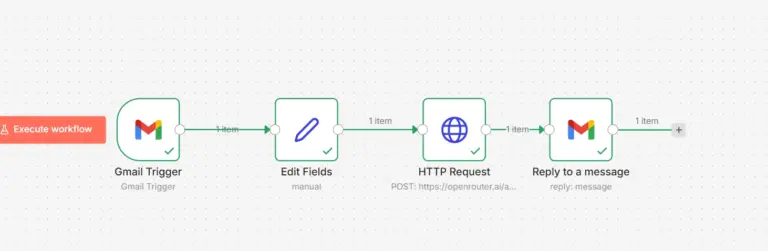
Log in to your n8n instance and create a new workflow. Add a Manual Trigger node so you can test the workflow by clicking a button inside n8n without needing an external trigger.
Click the plus button after the Manual Trigger and search for HTTP Request in the node picker. Add it to the workflow.
API Configuration
Configure the HTTP Request node with these exact settings:
Method: POST
URL:
http://localhost:11434/api/generateIf n8n is running in Docker on the same Linux host replace localhost with the host machine IP. On Mac or Windows with Docker Desktop use:
http://host.docker.internal:11434/api/generateSet Body Content Type to JSON and add this request body:
{
  "model": "llama3",
  "prompt": "What is automation and why does it matter for businesses?",
  "stream": false
}
Always set stream to false when calling Ollama from n8n. Streaming sends the response token by token which is harder to parse inside n8n nodes. With stream set to false you get the complete response in a single JSON object that is easy to work with.
Authentication Setup
If you have not set up a reverse proxy with authentication yet leave the Authentication field set to None. The HTTP Request node will connect directly to the local Ollama API without credentials.
Once you add nginx basic auth in front of Ollama come back to this node and set Authentication to Basic Auth. Enter the username and password you configured in your nginx password file. n8n will include these credentials in every request to the Ollama API automatically.
Connection Testing
Click Execute Node in the HTTP Request node to run just this single node. Look at the output panel on the right side of the screen. You should see a JSON response from Ollama that looks like this:
{
  "model": "llama3",
  "created_at": "2026-01-15T10:23:45Z",
  "response": "Automation matters for businesses because it eliminates repetitive manual tasks...",
  "done": true
}
The response field contains the AI-generated text. If you see this output your n8n instance is successfully communicating with your local Ollama model. If you get a connection error check the troubleshooting section below
Conclusion and Next Steps
You now have a fully working local AI automation system with Ollama and n8n running on your own infrastructure. Every prompt stays on your server. Every response is free. The entire stack runs without depending on any external AI provider.
The immediate next step is to add multiple models for different tasks. Route requests through a Switch node in n8n that sends summarization tasks to Mistral for speed, reasoning tasks to Llama 3 for quality, and code tasks to DeepSeek Coder for accuracy. Each workflow picks the right model automatically based on the task type.
From here you can integrate this local AI layer into every part of your business automation stack. Connect it to your CRM to summarize customer interactions before they reach your sales team. Then connect it to your email inbox to triage and categorize messages before they hit your support queue. Connect it to your internal document library to answer team questions without ever sending sensitive company data to an external service.
The combination of Ollama and n8n gives you a production-grade local AI automation stack that is private, cost-effective, and completely under your control from the model weights to the workflow logic.
FAQ
What is Ollama?
Ollama is an open-source platform that allows you to run large language models locally on your own system.
Why connect Ollama to n8n?
Connecting Ollama to n8n enables private, self-hosted AI automation without relying on external AI providers.
Which AI models can I run with Ollama?
Ollama supports popular models such as Llama 3, Mistral, DeepSeek, Gemma, and other open-source LLMs.
Does Ollama require a GPU?
No, Ollama can run on CPUs, although a GPU significantly improves AI model performance.
Can I use Ollama and n8n on the same VPS?
Yes, Ollama and n8n can run together on the same VPS if sufficient resources are available.
Can I automate content generation with Ollama and n8n?
Yes, you can automate content creation, summaries, emails, reports, and other AI-powered tasks using Ollama and n8n.