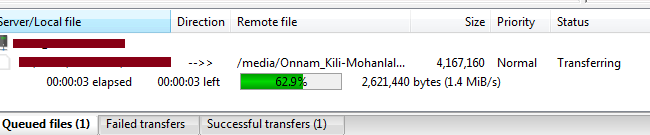
FTP is more suitable for uploading large numbers of files. If Centova Cast's FTP server has been installed and enabled, then the process of uploading media via FTP is very similar to that of uploading files to a web site:
Step 1: Login to the FTP server using your Centova Cast stream's username and password with port 21. Note that this is not your "admin" account; you need to use the actual username and password you specified when creating the stream in Centova Cast. (If you don't already have an FTP client, we recommend SmartFTP or WinSCP).

Step 2: Upon logging in, you should see a "media" directory. Open the "media" directory and upload your media files (i.e., MP3s) into this directory.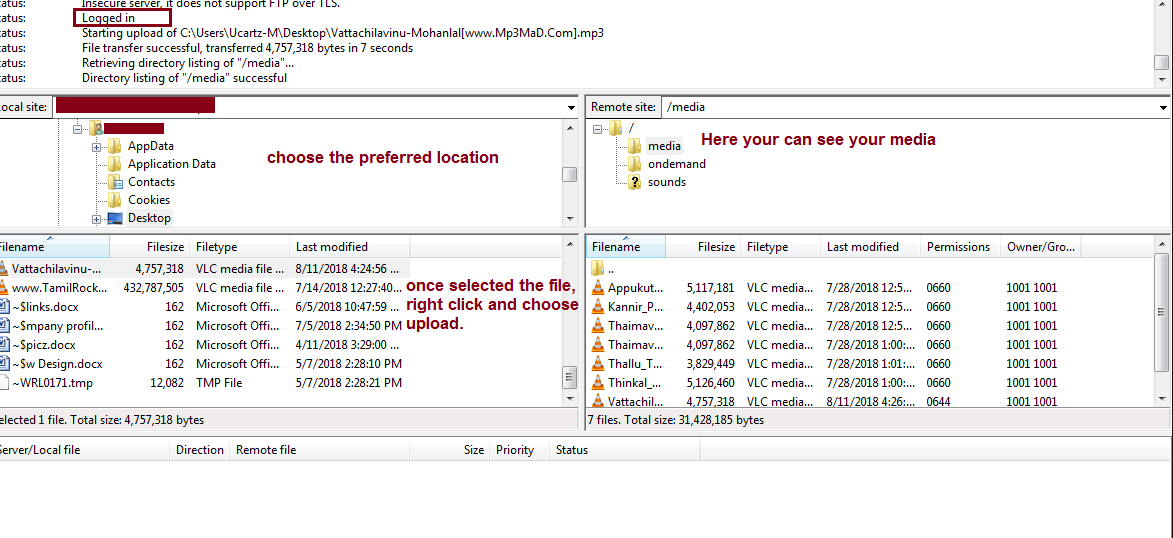
Step 3: Once your media files have been uploaded, they will automatically appear within a minute or two in the media library in Centova Cast's web interface.