
To create a playlist in AzuraCast, open your station’s Playlists section, add a playlist, configure its settings and schedule, then add the audio files you want AutoDJ to play.
You’ve uploaded your music to AzuraCast. Now you need to organize that music into playlists and tell your station when to play it. This is where playlists come in.
A playlist in AzuraCast radio hosting is a fundamental building block of your station’s programming. Playlists let you organize content by time of day, by type, by mood, or by any structure that makes sense for your station.
Without playlists, your AutoDJ has no instructions. It doesn’t know what to play or when to play it. With playlists, you control exactly what your listeners hear and when they hear it. Let me walk you through creating playlists and configuring them for your station.
What Is a Playlist in AzuraCast?
A playlist is a collection of audio files organized for a specific purpose. Instead of letting AutoDJ randomly select from every file on your station, you organize files into groups called playlists.
Think of it this way. Your station has 500 songs. Without playlists, AutoDJ might play heavy metal at 6 AM and children’s music at 9 PM. That doesn’t make sense. With playlists, you control the flow:
6:00 AM – Morning Music playlist plays upbeat, energetic songs. 9:00 AM – General Rotation playlist plays your mixed music. 12:00 PM – Afternoon Music playlist plays lighter fare. 6:00 PM – Evening Music playlist plays relaxing content. This structure gives your station professional programming.
Types of Playlists You Can Create
Different playlists serve different purposes. Common playlist types include:
Morning Music: Upbeat songs for morning listeners.
General Rotation: Your main music selection that plays throughout the day.
Evening Music: Relaxing tracks for evening audiences.
Weekend Playlist: Programming specifically for weekends.
Station Jingles: Short audio clips for station branding.
Station IDs: Legal identifiers required by broadcast regulations.
Advertisements: Commercial content or promotions.
Talk Shows: Recorded programs and interviews.
Special Events: Content for specific occasions or holidays.
News Headlines: Hourly news updates or summaries.
You don’t need to create all of these immediately. Start with two or three playlists and expand as your station grows.
Before You Create a Playlist
An active AzuraCast installation with at least one radio station created. Some audio files uploaded to your station’s Media section. A clear understanding of your programming goals. Awareness of your station’s configured time zone.
You can create a playlist before uploading all your music, but eventually you’ll need audio files assigned to it.
Creating Your First Playlist
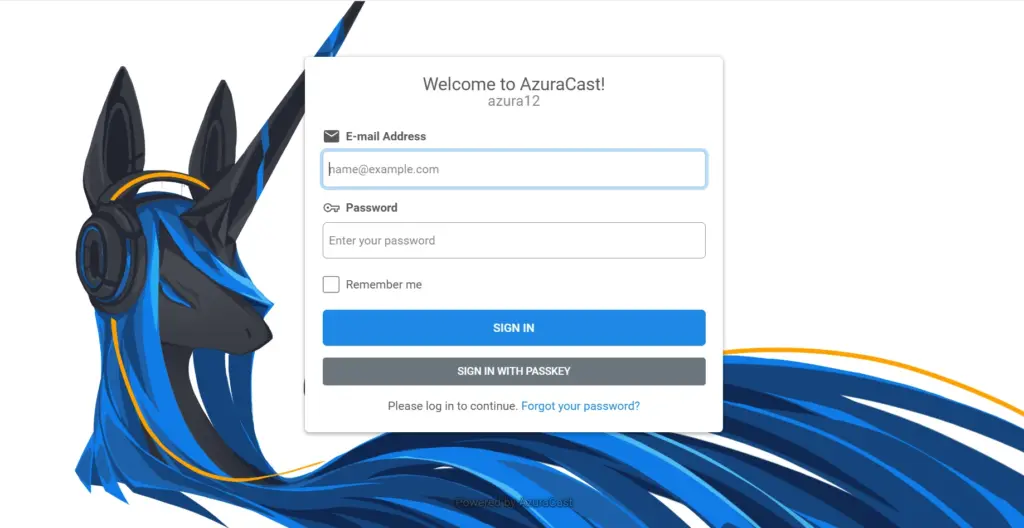
Step 1: Log Into Your AzuraCast Dashboard
Open your AzuraCast control panel and sign in with your administrator credentials. Select the radio station you want to manage. You should see your station dashboard with various management options.
Step 2: Navigate to the Playlists Section
In your station menu, look for “Playlists.” Click it.
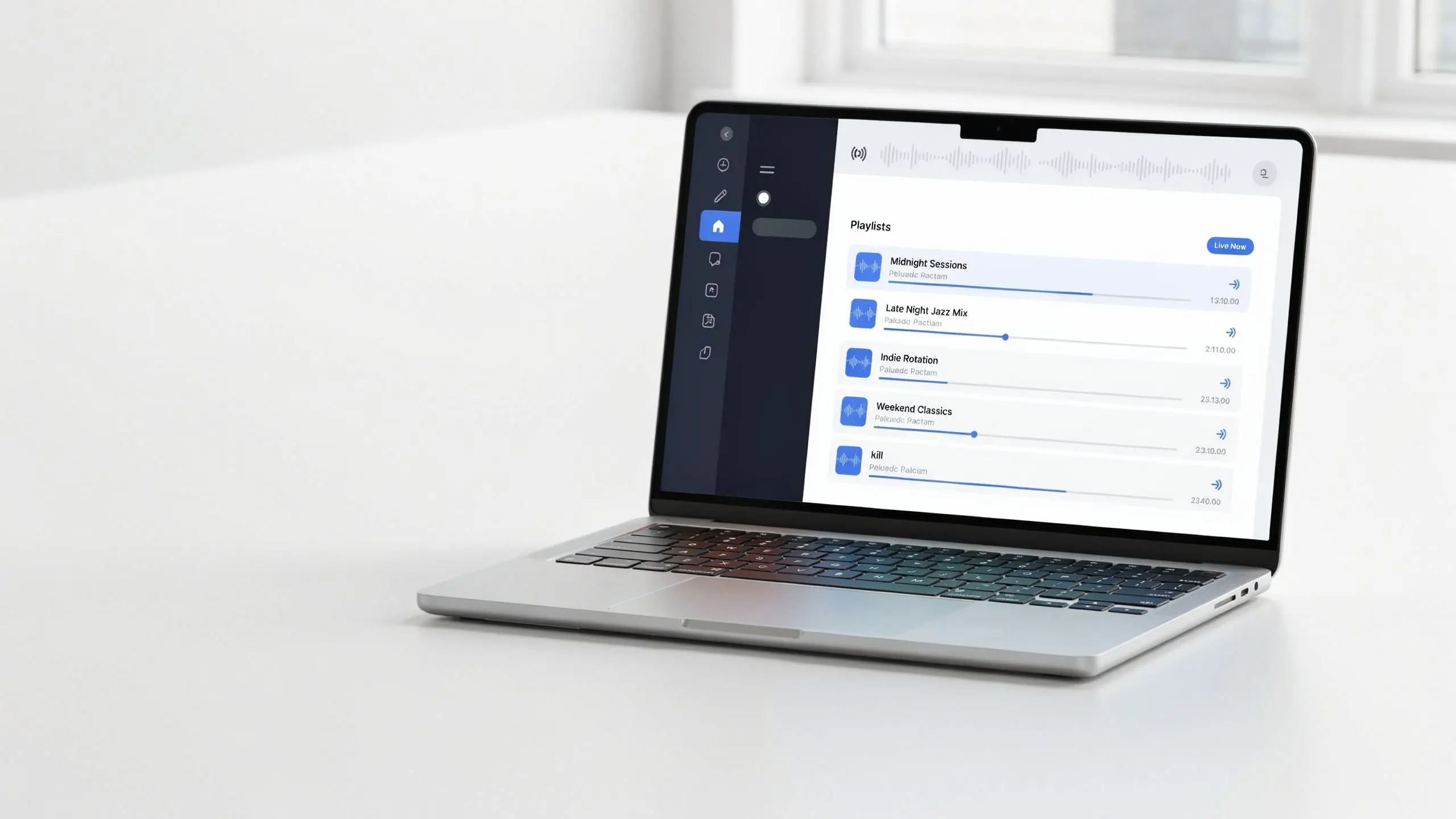
You’ll see the Playlists section which displays:
All Playlists: A list of existing playlists on your station. Schedule View: A visual representation of when playlists are scheduled. Add Playlist: A button to create new playlists.
AzuraCast may include a default playlist called “General Rotation.” This is created automatically when your station is set up. You can use this default playlist or create additional ones.
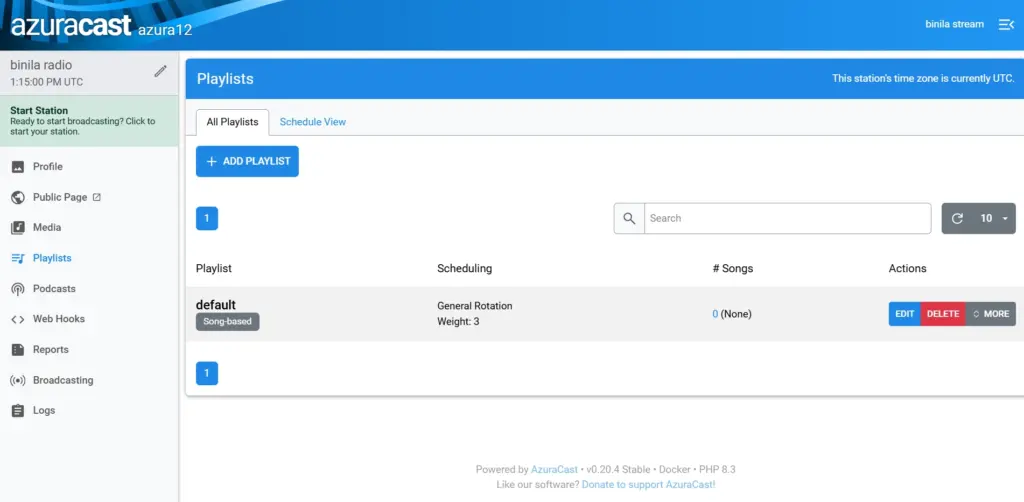
Step 3: Click Add Playlist
Select the “Add Playlist” button. AzuraCast opens a form where you’ll enter details about your new playlist.
The exact appearance varies depending on your AzuraCast version, but the core fields remain the same across versions.
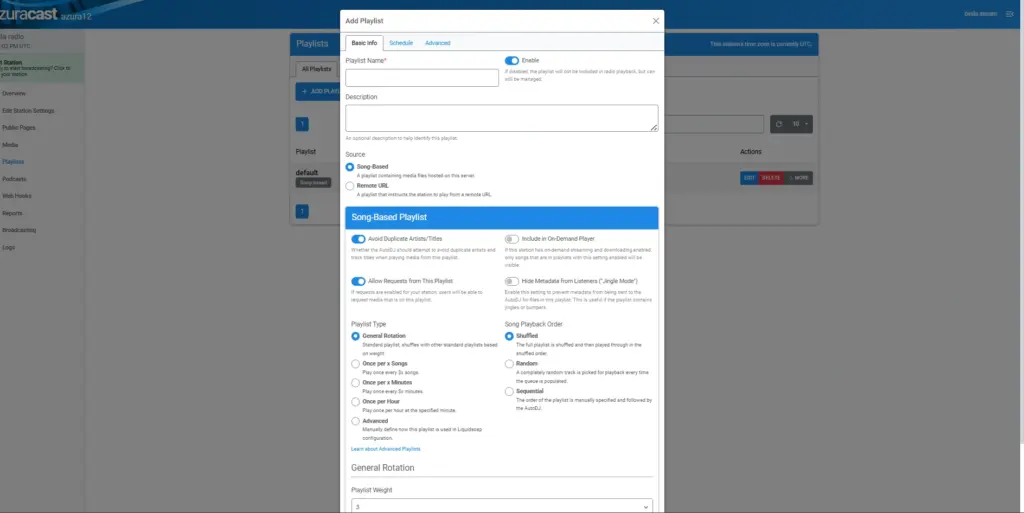
Step 4: Name Your Playlist
Give your playlist a clear, descriptive name that tells you immediately what content it contains.
Good playlist names: Morning Music Evening Rotation Weekend Hits Station Jingles Afternoon Programming Classic Hits New Releases Talk Shows
Bad playlist names: Playlist 1 New Playlist Music 2 Test Temp
A confusing name today becomes a frustrating mystery when you’re managing multiple playlists months later. Names should be immediately understandable to anyone managing the station. For this example, create a playlist called “Morning Music.”
Step 5: Choose Your Playlist Type
AzuraCast supports different playlist types. For most situations, you’ll work with a “Song-based” playlist.
A song-based playlist means AutoDJ selects individual songs from your playlist according to the rules you set. This is the most flexible option for music programming.
Some AzuraCast installations may offer other playlist types depending on your version and configuration. Use the playlist type options available in your specific installation.
Step 6: Understand Playlist Scheduling
This is critical. You can configure playlists in two ways:
General Rotation: The playlist participates in normal AutoDJ rotation throughout the day without time restrictions.
Scheduled Playlist: The playlist plays during specific time periods you define.
For structured radio programming, scheduling gives you the most control. You can specify:
Days of the week (Monday through Friday, weekends only, specific days) Time ranges (6 AM to 9 AM, 12 PM to 2 PM, etc.) Frequency (always use this playlist during this time) . A structured programming example looks like:
6:00 AM to 9:00 AM, Monday through Friday: Morning Music playlist 9:00 AM to 12:00 PM, Monday through Friday: General Rotation playlist 12:00 PM to 2:00 PM, Monday through Friday: Afternoon Music playlist 6:00 PM to 9:00 PM, daily: Evening Music playlist 9:00 PM to 6:00 AM, daily: Night Rotation playlist This gives listeners predictable programming.
Step 7: Understanding Playlist Weight
Your AzuraCast station may show existing playlists with a weight value, such as “General Rotation – Weight: 3.”
Playlist weight is relevant when playlists participate in rotation rather than scheduled time slots. Weight is a relative priority setting. Think of it this way. You have three playlists:
General Music with weight 3 Classic Hits with weight 2 New Releases with weight 1
When AutoDJ selects from these playlists in rotation, it’s more likely to choose from General Music than from New Releases because General Music has higher weight.
This doesn’t mean play General Music three times per hour. It means General Music is more likely to be selected when the station picks a song randomly.
If you need exact timing, use scheduling instead of weight. Weight is for relative frequency within rotation.
Step 8: Configure Your Playlist Settings
Depending on whether you’re using scheduling or general rotation, configure the appropriate settings:
For General Rotation playlists: Set the weight value. This influences how frequently the playlist is selected relative to others.
For Scheduled playlists: Set the days (Monday-Friday, weekends, specific days). Set the time range (start time and end time). Specify the weight (how it behaves relative to other scheduled playlists at the same time).
Step 9: Save the Playlist
Once you’ve configured the settings, save the playlist. Your new playlist now appears in the “All Playlists” section. At this point, the playlist exists but contains no music. The number of songs will show as zero.
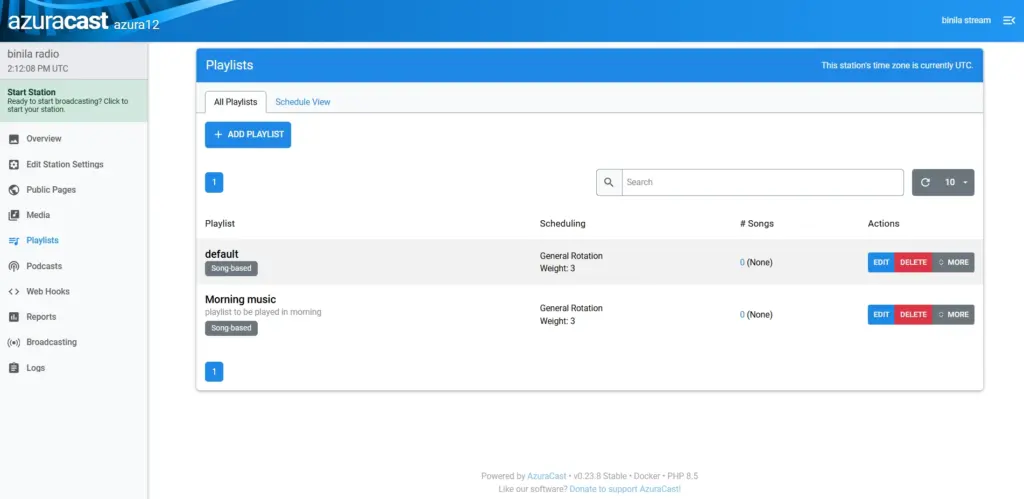
Step 10: Add Music to Your Playlist
Creating the playlist doesn’t automatically add songs. You need to make sure: Your audio files are uploaded to your station’s Media section. The files are assigned to this specific playlist.
Go to Media and upload the audio files you want in your Morning Music playlist. For example, upload 20 upbeat morning songs.
Once files are uploaded, you assign them to the playlist. This is usually done through the Media section or directly from the playlist’s edit screen.
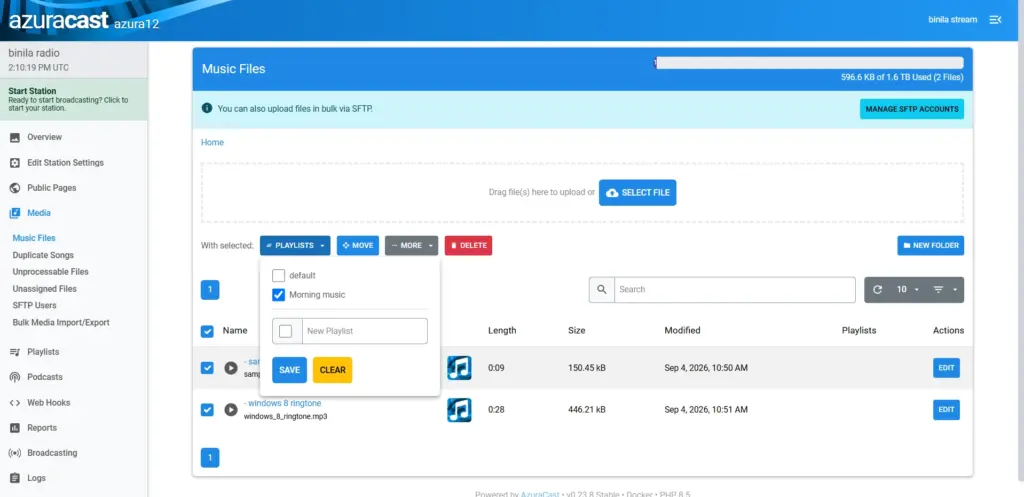
Step 11: Organize Your Files Before Adding to Playlists
Before assigning hundreds of files to playlists, organize them logically.
Create folder structures in your Media section:
Music folder containing: Morning, Afternoon, Evening, Weekend subfolders.
Station Content folder containing: Jingles, Station IDs, Promos subfolders.
Programs folder containing: Talk Shows, Interviews, Recorded Programs subfolders.
This organization makes managing your station much easier as your library grows.
Step 12: Check Your Station Time Zone
Before creating scheduled playlists, verify your station’s time zone configuration.
Look at your AzuraCast dashboard. It should display your station’s configured time zone (for example, UTC, EST, IST, AEST).This matters enormously for:
Morning show playlists (6 AM in which time zone?) Evening show playlists (7 PM in which time zone?) Scheduled live DJ shows News program scheduling Any time-specific content
If your audience is in India but your station is configured for UTC, a playlist you intend to play at 8 AM will play at 8 UTC (which is 1:30 PM India Standard Time). Always verify the time zone before creating multiple time-based playlists.
Step 13: Test Your Playlist Configuration
Don’t assume everything works because the playlist appears in your dashboard. Start your station. Visit the public listener page or player. Listen for a few minutes. Verify that audio is playing. Check that the expected playlist content is playing. Test from another network (mobile connection if possible). Confirm the player works on both desktop and mobile.
Many radio listeners access stations from phones. A desktop test that passes but a mobile test that fails means your listeners have problems you didn’t anticipate.
Step 14: Address Zero Songs Issue
If your newly created playlist shows “0 Songs,” don’t panic. This usually means: You haven’t uploaded audio files yet. Audio files exist but aren’t assigned to this playlist. The station isn’t running (AutoDJ needs to be active). Solutions:
Go to Media and upload audio files. Assign those files to your playlist by editing them or through the playlist configuration. Start your station if it’s not already running. Check that scheduling is correct (if scheduled, verify the current time matches the scheduled time).
Playlist vs AutoDJ: Key Difference
Many people confuse playlists and AutoDJ. They’re different concepts.
Playlist: A collection of audio content organized for a specific purpose. Example: Morning Music playlist containing 20 morning songs.
AutoDJ: The system that automatically plays your station’s content when you’re not broadcasting live.
Audio Files uploaded to Media section > Organized into Playlists > AutoDJ selects from Playlists > Radio Stream plays > Listeners hear it.
Later, when you add live DJs to your station, they override AutoDJ during their show times. But playlists power your station when no DJ is broadcasting.
Building a Complete Playlist Structure
For a small station starting out, create these core playlists:
General Rotation: 100 to 200 songs that play throughout the day. Morning Music: 30 to 50 upbeat songs for 6 AM to 9 AM. Evening Music: 30 to 50 relaxing songs for 6 PM to 10 PM. Station IDs: 5 to 10 short jingles for branding. Special Programs: 20 to 30 songs for weekend or special event programming.
Set General Rotation as continuous throughout the day. Schedule Morning Music for weekday mornings. Schedule Evening Music for evenings. Use Station IDs as occasional interruptions (every 30 minutes or hourly). Use Special Programs for weekend programming. This structure is simple, manageable, and professional.
Common Playlist Mistakes to Avoid
Mistake 1: Creating playlists without uploading music first. You need actual audio files before playlists become useful. Upload music to Media first.
Mistake 2: Creating too many playlists at once. Five well-organized playlists work better than 30 confusing ones. Start small and expand gradually.
Mistake 3: Ignoring your station’s time zone. A playlist scheduled for 6 AM UTC plays at 6 AM UTC, not 6 AM in your location. Always verify time zone configuration.
Mistake 4: Using weight instead of scheduling for exact timing. If something must play at a specific time, create a scheduled playlist. Weight is for relative frequency, not absolute timing.
Mistake 5: Not testing on mobile devices. Your station might work perfectly on your laptop but have issues on phones. Always test the public player on mobile.
Mistake 6: Setting playlist weight too high and wondering why other content never plays. Balance your weights. If one playlist has weight 100 and others have weight 1, the high-weight playlist dominates.
Mistake 7: Forgetting that scheduled playlists need music assigned to them. Create the schedule, but also ensure audio is actually available in that playlist.
Conclusion
Creating a playlist in AzuraCast is one of the first practical steps toward running a reliable online radio station. By organizing your music into clear playlists, assigning the right audio files, and configuring schedules, you can give AutoDJ a structured programming system instead of relying on random track playback.
Start simple with a General Rotation, then add playlists for morning, evening, special programs, jingles, or other content as your station grows. Before going live, always check your station time zone, test the schedule, and listen to the stream from both a computer and mobile device.
With Ucartz Radio Hosting, you get AzuraCast with the tools to create unlimited playlists and organize your programming however you want. Build your playlists, schedule your content, and let AutoDJ handle playback automatically.
Start creating playlists today and take another step toward a fully functional online radio station.
FAQ
Can I create multiple playlists?
Yes. Create as many as you need for your programming.
Does creating a playlist automatically add music?
No. Create the playlist first, then upload and assign audio files to it.
What is the General Rotation playlist?
This is a default playlist AzuraCast creates. You can use it or create your own playlists.
Why does my playlist show zero songs?
Check that audio files are uploaded and assigned to this specific playlist.
Why is my scheduled playlist playing at the wrong time?
Verify your station’s time zone setting. A 6 AM schedule plays at 6 AM in whatever time zone your station is configured for.
Can I edit a playlist after creating it?
Yes. You can add songs, remove songs, change scheduling, adjust weight, and rename the playlist at any time.