

Hermes Agent is an open-source self-improving AI agent built by Nous Research. It runs continuously on a server, maintains memory across sessions, creates reusable skills from completed tasks, and connects to Telegram, Discord, Slack, and WhatsApp through a single gateway process. Unlike running an AI assistant locally on your laptop, hosting Hermes on a VPS means your scheduled automations run overnight, your Telegram bot stays connected 24 hours a day, and the agent keeps learning and improving without depending on your local machine being on.
This guide installs Hermes Agent on a Ucartz VPS from a fresh Ubuntu server to a working, persistent AI agent that survives SSH disconnections and server reboots.
What You Need Before Starting
Before connecting to your server, have these ready:
A Ucartz VPS running Ubuntu 22.04 or newer. The VPS Lite plan at $10 per month with 1 vCPU and 4GB RAM covers the minimum requirements. The VPS Standard at $20 per month with 2 vCPU and 8GB RAM gives comfortable headroom for the gateway plus concurrent subagent tasks.
An API key from at least one supported model provider. OpenRouter is the recommended starting point because it gives you access to 200+ models including free-tier options for testing. Create an account at openrouter.ai and generate a key from the Keys page before starting. Anthropic and OpenAI keys work too if you already have them.
SSH access to your server. Ucartz sends your server IP and root password by email after provisioning. On Windows use PowerShell or PuTTY. On macOS and Linux use the terminal directly.
Step 1 – Connect to Your Ucartz VPS
Open your terminal and connect via SSH. Replace YOUR_SERVER_IP with the IP address from your Ucartz dashboard:
ssh root@YOUR_SERVER_IPIf this is your first connection to the server, you see a fingerprint prompt. Type yes and press Enter. Enter your password when prompted.
Once connected, your terminal prompt changes to show the server hostname. You are now inside your Ucartz VPS.
Step 2 – Update the Server
Always update packages before installing anything on a fresh server. This ensures you have current security patches and compatible package versions:
sudo apt update && sudo apt upgrade -yThis takes 1-3 minutes depending on how many packages need updating. Wait for it to complete before moving to the next step.
Step 3 – Install Hermes Agent
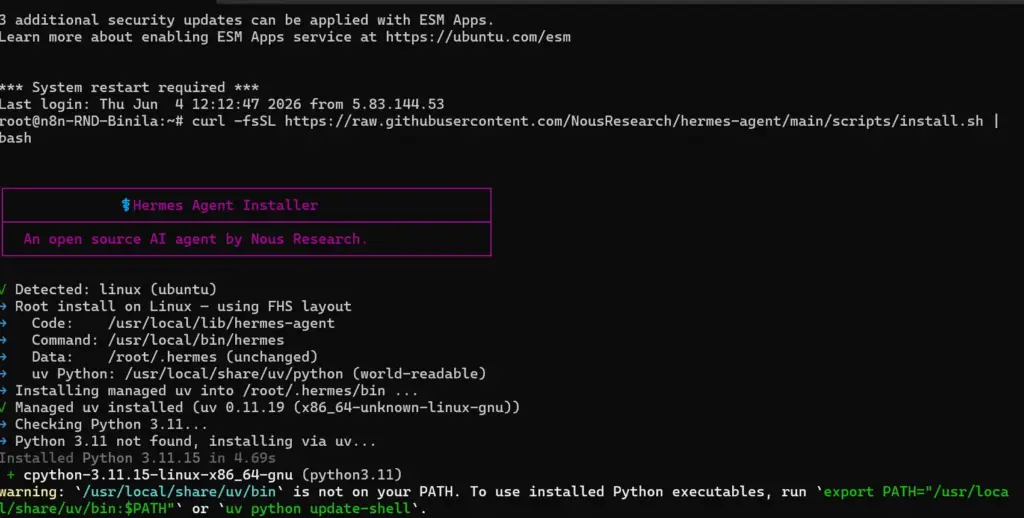
The official Hermes installer handles all dependencies automatically. It installs Python 3.11, Node.js, uv, ripgrep, ffmpeg, registers the hermes command, and starts the setup wizard:
curl -fsSL https://raw.githubusercontent.com/NousResearch/hermes-agent/main/scripts/install.sh | bashThe installer output shows each dependency being installed. This takes 3-8 minutes on a standard Ucartz VPS depending on download speed. Let it run without interrupting it.
When the installer finishes, it may automatically launch the setup wizard. If it does, proceed directly to Step 4. If it completes without launching the wizard, move to Step 5 to reload your shell first.
Step 4 – Run the Setup Wizard
If the setup wizard launches automatically during installation, you see a menu with setup options. If it does not launch automatically, run it manually after reloading your shell verifying:
hermes --version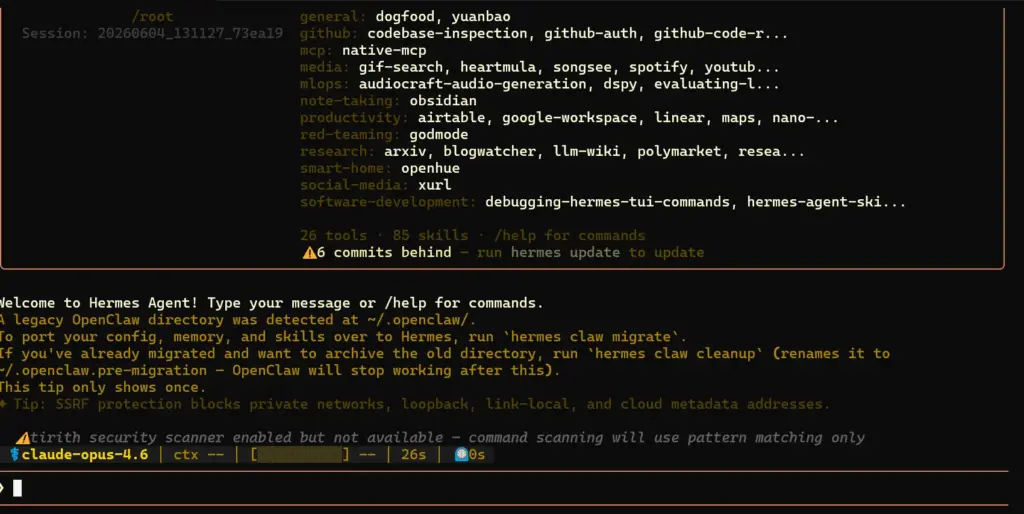
When the menu appears, select Quick Setup. You are then prompted to choose your model provider. Select OpenRouter unified interface if you want access to the widest range of models including free-tier options for testing:
Provider: OpenRouterEnter your OpenRouter API key when prompted:
OPENROUTER_API_KEY: sk-or-v1-xxxxxxxxxxxxxxxxHermes saves the configuration automatically. If you prefer to add or edit the key manually at any point, it lives in:
nano ~/.hermes/.envAdd this line to the file:
OPENROUTER_API_KEY=sk-or-v1-xxxxxxxxxxxxxxxxSave with Ctrl+O, confirm with Enter, and exit with Ctrl+X.
If you are using OpenAI or Anthropic instead of OpenRouter, the setup wizard presents the same flow. Select the relevant provider and enter the corresponding key. Hermes stores whichever keys you configure and you can add more providers later with:
hermes config setStep 5 – Reload Your Shell
After installation and configuration, reload your shell so the hermes command is available in your current session:
source ~/.bashrcVerify the installation completed correctly:
hermes --versionYou should see output like:
hermes-agent v0.x.xIf the command is not found after reloading, check that the installer added the path correctly:
export PATH="$HOME/.local/bin:$PATH"
source ~/.bashrc
Step 6 – Choose a Free Model for Testing
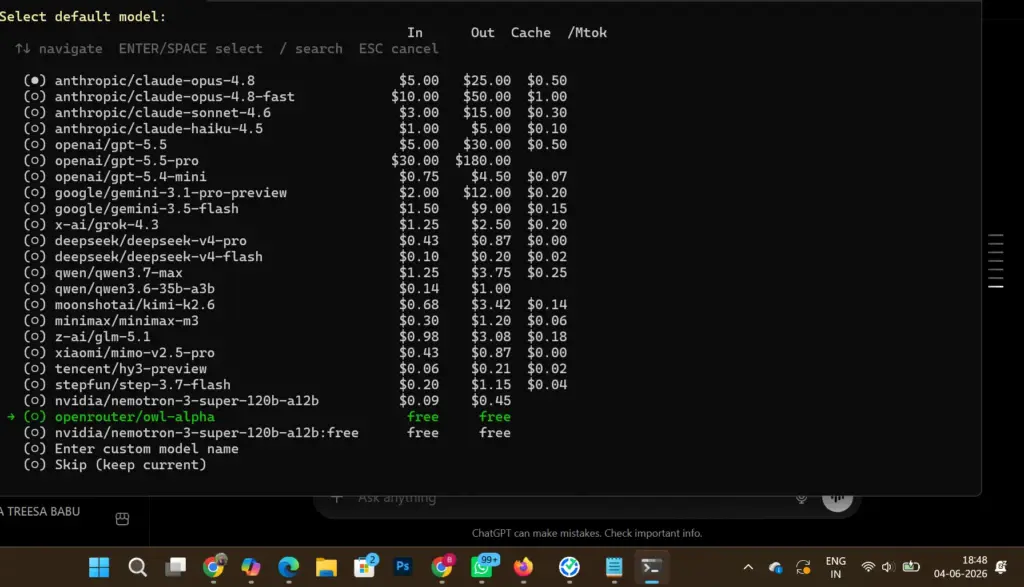
If you are using OpenRouter and want to test Hermes without spending any credits, select a free model. At the model selection prompt or by using the slash command:
/model openrouter/owl-alphaOr:
/model nvidia/nemotron-3-super-120b-a12b:freeThese free-tier models on OpenRouter let you run the full Hermes agent loop, test memory persistence, trigger skill creation, and evaluate the gateway setup without any API cost. Once you confirm everything works, switch to a paid model for production use:
/model openai/gpt-4o-miniOr any other model from the OpenRouter catalogue. Check current free and paid options at openrouter.ai/models.
Step 7 – Start Hermes and Test It
Start the agent:
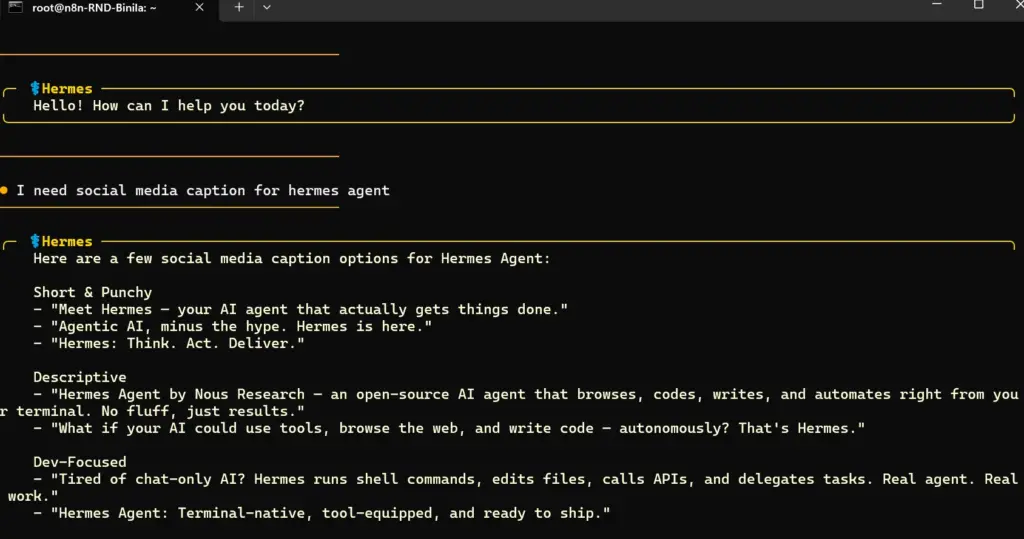
hermesThe terminal interface loads. You see a full TUI with multiline editing, slash-command autocomplete, and streaming output. Send a test message:
What can you do?If Hermes replies with a description of its capabilities, the installation is working correctly. The agent is running, the model provider is connected, and the memory and skills systems are initialized.
Step 8 – Keep Hermes Running After You Disconnect
When you close your SSH session, any process running in the terminal stops. If you started Hermes with hermes directly, closing the terminal kills the agent. You need a persistent session manager.
The simplest option is tmux:
apt install tmux -yCreate a named tmux session for Hermes:
tmux new -s hermesInside the tmux session, start Hermes:
hermesDetach from the session without stopping it. Press Ctrl+B, release both keys, then press D. Your terminal returns to the regular shell but Hermes keeps running inside the tmux session on the server.
Close your SSH connection. The agent continues running.
Reconnect later by SSHing back into the server and reattaching:
tmux attach -t hermesYou see Hermes exactly as you left it, with the conversation history and any work it completed while you were away.
Step 9 – Set Up the Messaging Gateway
The tmux approach works for keeping the CLI alive, but the real production setup runs the Hermes gateway so you talk to your agent from Telegram or Discord without maintaining an open terminal session at all.
Configure the gateway:
hermes gateway setupThe setup wizard walks you through connecting each platform. For Telegram, you need a bot token from BotFather. For Discord, you need a bot application token from the Discord developer portal. The process for each is:
Open Telegram and search for BotFather. Send /newbot. Follow the prompts to name your bot and get the token. Copy the token.
Run the gateway setup and enter the token when prompted for Telegram configuration. Hermes stores it and configures the connection.
Once configured, start the gateway:
hermes gateway startNow open Telegram, find your bot by its username, press Start, and send a message. Hermes responds through Telegram. Your VPS is running the gateway. You talk to your agent from your phone while the server handles all processing.
Step 10 – Run the Gateway as a Permanent Service
For a production setup that survives reboots without manual intervention, create a systemd service for the gateway:
nano /etc/systemd/system/hermes-gateway.servicePaste this configuration:
[Unit]
Description=Hermes Agent Gateway
After=network.target

[Service]
User=root
WorkingDirectory=/root
ExecStart=/root/.local/bin/hermes gateway start
Restart=always
RestartSec=10
Environment=PATH=/root/.local/bin:/usr/local/bin:/usr/bin:/bin

[Install]
WantedBy=multi-user.target
Save with Ctrl+O, Enter, Ctrl+X.
Enable and start the service:
systemctl daemon-reload
systemctl enable hermes-gateway
systemctl start hermes-gateway
Check that it started correctly:
systemctl status hermes-gatewayYou should see active (running) in green. The gateway now starts automatically every time your Ucartz VPS reboots. Telegram messages reach your agent at any time without you managing any sessions manually.
Check live logs if you need to debug:
journalctl -u hermes-gateway -fStep 11 – Run the Diagnostic Check
Hermes includes a built-in diagnostic tool that verifies your installation, provider connectivity, tool availability, and configuration:
hermes doctorRun this after setup to confirm everything is working. The output shows a status report for each component. Any item marked with a warning or error gives you a specific message explaining what to fix.
Keep this command available for troubleshooting. Whenever Hermes behaves unexpectedly, running hermes doctor is the fastest way to identify whether the issue is a configuration problem, a connectivity issue, or a provider outage.
Common Issues and Fixes
hermes command not found after install — The installer added the binary to ~/.local/bin but the path was not reloaded. Run export PATH="$HOME/.local/bin:$PATH" then source ~/.bashrc. If the issue persists, check that the binary exists at ~/.local/bin/hermes with ls ~/.local/bin/.
API key rejected at startup — Open ~/.hermes/.env with nano and verify the key is on its own line with no extra spaces. OpenRouter keys start with sk-or-v1-. OpenAI keys start with sk-. Anthropic keys start with sk-ant-. Copy the key directly from the provider dashboard to avoid whitespace errors.
Gateway crashes on startup — Run hermes doctor to identify the issue. The most common cause is a missing or invalid platform token. Check that your Telegram bot token is correct in the gateway configuration. Run hermes gateway setup again to reconfigure a specific platform.
Out of memory on VPS Lite — The VPS Lite plan has 4GB RAM, which handles Hermes gateway plus light workloads. If you also run llama.cpp or another memory-heavy process on the same server, Hermes may get killed by the OOM handler. Either upgrade to the VPS Standard plan (8GB RAM) or stop other memory-intensive processes before starting the gateway.
Tmux session lost after reboot — Tmux sessions do not survive server reboots. If you used tmux instead of the systemd service and your server rebooted, the session is gone. Switch to the systemd service setup in Step 10 to make the gateway reboot-persistent.
What to Do Next
With Hermes running on your Ucartz VPS and the Telegram gateway active, the practical next steps build on the foundation you have:
Connect additional messaging platforms through hermes gateway setup. Each platform you add is served by the same gateway process with shared memory and context. A conversation you start on Telegram continues on Discord without losing context.
Explore the skills system by giving Hermes complex multi-step tasks. After completing them, check what skills it created automatically with /skills. The skills accumulate over time and make repeated task types faster and more reliable.
If you are coming from OpenClaw, migrate your existing configuration, memories, and skills:
hermes claw migrate --dry-run
hermes claw migrate
This imports your SOUL.md persona, MEMORY.md entries, user-created skills, platform configurations, and API keys from your OpenClaw installation.
Set up context files for your projects. Create a file at ~/.hermes/context/project-name.md describing your project. Hermes loads relevant context files at the start of conversations, giving the agent background knowledge about your work without you re-explaining it every session.
The full documentation at hermes-agent.nousresearch.com covers every feature in detail. The Discord community handles questions that the documentation does not answer.
Hermes compounds in value the longer it runs. Every skill it creates, every memory it persists, and every automation it executes makes the next session more capable than the last. A Ucartz VPS gives it the stable, always-on infrastructure that compounding requires.
FAQ
Q: Can I install Hermes AI Agent on Ubuntu VPS?
A: Yes, Hermes AI Agent supports Ubuntu VPS and can be installed using the official setup script.
Q: Does Hermes AI Agent require a GPU?
A: No, Hermes AI Agent can run on a standard VPS without a GPU when connected to cloud AI models.
Q: What VPS specifications are recommended for Hermes AI Agent?
A: A VPS with at least 2 GB RAM, 1 CPU core, and Ubuntu 22.04 or newer is recommended for Hermes AI Agent.
Q: How do I connect OpenRouter to Hermes AI Agent?
A: Connect OpenRouter to Hermes AI Agent by adding your OpenRouter API key and selecting an OpenRouter model.
Q: Can Hermes AI Agent access VPS files and commands?
A: Hermes AI Agent can access files and execute commands on a VPS according to its configured permissions.
