

Your business email setup determines client trust. Gmail addresses look unprofessional. Free email services damage credibility.
Professional email at your domain name costs less than $5 monthly. The setup takes 30 minutes when done correctly.
Set up business email by creating branded inboxes, configuring SMTP authentication, adding correct DNS records like MX, SPF, DKIM, and DMARC, and fixing spam issues through server reputation and secure hosting.
This guide covers complete business email setup from DNS records to spam prevention. You’ll learn exactly what works and what fails.
Why Business Email Setup Matters in 2026
Email remains the cornerstone of business communication. The numbers tell the story.
Global email usage reached 4.6 billion users in 2025, with that figure climbing to 4.8 billion by 2027. Companies send over 375 billion emails daily, yet nearly 47% lands in spam folders or disappears entirely.
For your business, this means one critical reality: improper email setup costs you customers.
Consider the consequences:
- Missed opportunities: Marketing emails never reach prospects
- Client mistrust: Messages stuck in spam damage your credibility
- Lost revenue: Authentication failures prevent email delivery
- Reputation damage: Poor sender reputation affects future campaigns
Businesses with professional domain email enjoy higher trust and deliverability than those using generic providers. This is where proper setup becomes your competitive advantage.
What are the 3 Essential Components for Professional Business Email
Before jumping to setup steps, understand what powers your email.
Business email depends on three core elements that Ucartz provides through complete hosting solutions:
1. Domain Registration
Your domain (yourbusiness.com) becomes your email foundation. Using a professional domain creates trust with recipients and ensures email consistency.
2. Web Hosting with Email Infrastructure
Reliable hosting provides stable email servers, proper DNS access, and email storage. Shared or poorly maintained servers cause email delays and failures.
Hosting with Email Support
Email hosting stores messages and manages sending/receiving.
Three hosting options exist:
Shared hosting with email includes email accounts with web hosting. Basic plans offer 5-50 email accounts.
Dedicated email hosting provides specialized email infrastructure. These services focus exclusively on email delivery and security.
Self-hosted email servers give complete control but require technical expertise and ongoing maintenance.
3. DNS Control and Email Records
Full DNS control lets you configure the authentication records that determine whether your emails reach inboxes or spam folders. Without this, even perfectly written messages fail delivery.
Ucartz combines all three. You control your domain, access reliable email infrastructure, and manage complete DNS records without limitation.
Webmail vs. Email Clients: What’s the Difference?
Understanding these options shapes your setup decision.
Webmail is email accessed through a browser. You log into a website (like Gmail) to read and send messages. No software installation needed.
Email clients are applications installed on your computer or phone. Examples include Outlook, Thunderbird, and Apple Mail. They download or sync emails to your device.
Both use the same backend protocols but offer different experiences:
| Feature | Webmail | Email Client |
| Access method | Browser login | Installed application |
| Device sync | Real-time across all devices | Depends on IMAP or POP3 |
| Storage | Server-based | Local or server-based |
| Speed | Slower with large attachments | Faster local access |
| Internet required | Yes, always | Depends on protocol |
| Complexity | Simple setup | More configuration needed |
How Does Business Email Actually Work?
Understanding email infrastructure prevents configuration errors.
Email Protocol Overview
Three protocols manage email operations.
SMTP (Simple Mail Transfer Protocol) sends outgoing messages. Your email client connects to SMTP servers to deliver emails.
IMAP (Internet Message Access Protocol) syncs email across devices. Messages stay on the server, accessible from multiple clients.
POP3 (Post Office Protocol 3) downloads email to single devices. Messages get removed from servers after download.
Protocol comparison:
| Protocol | Purpose | Server Storage | Multi-Device | Best For |
| SMTP | Sending | N/A | N/A | Outgoing mail |
| IMAP | Receiving | Yes | Yes | Modern usage |
| POP3 | Receiving | No | No | Single device |
IMAP dominates modern email usage. 91% of business email accounts use IMAP according to Radicati Group’s 2024 Email Statistics Report.
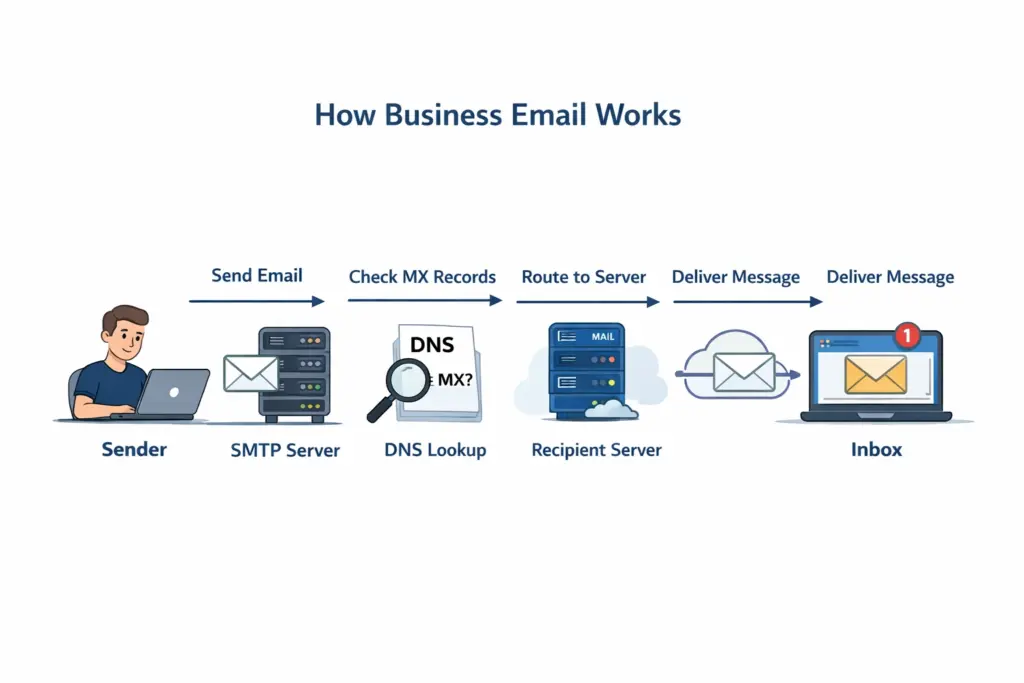
How Email Routing Works
Email delivery involves multiple DNS lookups and server connections.
When you send email:
- Your client connects to your SMTP server
- SMTP server queries recipient domain’s MX records
- Server connects to recipient’s mail server
- Recipient server accepts or rejects the message
- Delivery confirmation returns to sender
This process completes in 1-5 seconds for successful delivery.
What DNS Records Does Business Email Require?
DNS records tell the internet where to send your email.
MX Records (Mail Exchange)
MX records identify your email servers.
Format: MX 10 mail.yourdomain.com
The number (10) indicates priority. Lower numbers have higher priority.
Multiple MX records provide redundancy:
MX 10 mail1.yourdomain.com
MX 20 mail2.yourdomain.com
If the primary server fails, email routes to the backup automatically.
SPF Records (Sender Policy Framework)
SPF records authorize servers to send email from your domain.
Format: v=spf1 include:_spf.yourdomain.com ~all
This TXT record lists approved sending servers. Recipients verify sender authenticity by checking SPF records.
SPF record components:
| Component | Purpose | Example |
| v=spf1 | Version identifier | Required first element |
| ip4 | Authorize IPv4 address | ip4:192.168.1.1 |
| include | Reference another domain’s SPF | include:_spf.google.com |
| all | Default action | ~all (soft fail), -all (hard fail) |
Implementing SPF reduces spam folder placement by 43%, according to Return Path’s 2024 Deliverability Benchmark Report.
DKIM Records (DomainKeys Identified Mail)
DKIM adds cryptographic signatures to outgoing email.
Your email server signs messages with a private key. Recipients verify signatures using public keys published in DNS.
Format: default._domainkey.yourdomain.com TXT "v=DKIM1; k=rsa; p=MIGfMA0GCSq..."DKIM prevents email spoofing and proves message authenticity.
DMARC Records (Domain-based Message Authentication)
DMARC policies instruct recipients how to handle authentication failures.
Format: _dmarc.yourdomain.com TXT "v=DMARC1; p=quarantine; rua=mailto:dmarc@yourdomain.com"DMARC policy options:
| Policy | Action | Use Case |
| none | Monitor only | Initial testing |
| quarantine | Send to spam | Moderate protection |
| reject | Block delivery | Maximum protection |
Organizations implementing DMARC email authentication standard see 25% fewer phishing attempts, based on DMARC.org 2024 adoption statistics.
DNS Record Setup Example
Complete DNS configuration for business email:
MX 10 mail.yourdomain.com

TXT "v=spf1 ip4:203.0.113.0 include:_spf.ucartz.com ~all"

default._domainkey TXT "v=DKIM1; k=rsa; p=MIGfMA0GCSqGSIb3..."

_dmarc TXT "v=DMARC1; p=quarantine; rua=mailto:dmarc@yourdomain.com"
DNS changes propagate within 1-48 hours. Most updates complete within 4 hours globally.
Setting Up Webmail (Browser-Based Email)
Webmail setup is straightforward. Follow these steps:
Step 1: Access Your Control Panel
Log into your hosting account’s control panel (typically cPanel, Plesk, or similar). This is where you manage all server features.
Step 2: Create Email Account
Find the “Email Accounts” or “Mail” section. Enter:
- Full email address (info@yourbusiness.com)
- Password (use strong, random passwords)
- Storage quota (start with 2GB for small teams)
Step 3: Access Webmail
Your hosting provider supplies a webmail URL. Typically it looks like: mail.yourbusiness.com or yourbusiness.com/webmail
Log in with your new email address and password. You now have a working webmail account.
Webmail Advantages for Business:
- No software to install or update
- Access from any device with internet
- Automatic cloud backup through your server
- Professional appearance with custom domain
When to Choose Webmail:
- You access email from multiple locations
- You need automatic backup of all messages
- Team members work on different devices
- You want the simplest possible setup
SMTP: How Email Actually Sends
SMTP (Simple Mail Transfer Protocol) handles email sending. When you hit “Send,” SMTP carries your message to the recipient’s mail server.
SMTP Authentication Requirements
For security, modern email requires authentication. Your SMTP server needs:
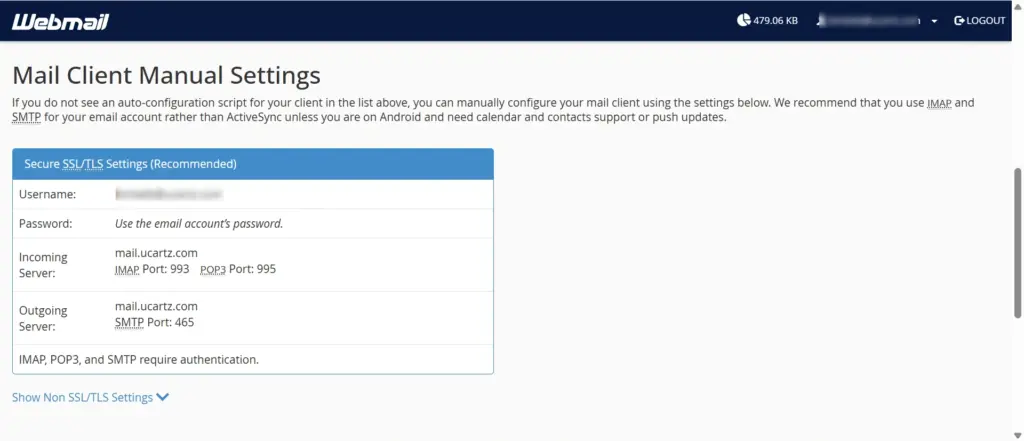
Server Address: smtp.yourbusiness.com (or your provider’s SMTP server)
Port Selection:
- Port 587 with STARTTLS (recommended for most users)
- Port 465 with SSL/TLS implicit encryption (also secure)
- Port 25 (never use from client applications—reserved for server-to-server email)
Username: Your full email address
Password: Your email account password
Encryption: Always enable TLS or SSL. Never send authentication credentials unencrypted.
Configuring SMTP for Popular Email Clients
Gmail SMTP Settings (if using Google Workspace):
- Server: smtp.gmail.com
- Port: 587 (TLS) or 465 (SSL)
- Username:
- your.email@gmail.com
- Password: Your Gmail app-specific password (if 2FA is enabled)
Apple Mail Setup:
- Open Mail → Preferences → Accounts
- Click “Account Information”
- Enter Outgoing Mail Server (SMTP)
- Enable “Use authentication”
- Save and test
Thunderbird Setup:
- Open Edit → Account Settings
- Select “Outgoing Server (SMTP)”
- Add your SMTP details
- Verify encryption method
- Click OK
Microsoft Outlook:
- File → Options → Advanced → Outlook Options
- Click “Email Accounts”
- Select your account → Change
- Enter SMTP server and port
- Enable encryption
- Save
Pro Tip: After entering SMTP settings, send a test email to yourself. This immediately reveals configuration errors.
Common Business Email Setup Problems and Solutions
Despite careful setup, issues arise. Here’s what happens and how to fix it.
Problem 1: Emails Sent But Not Received
Your email disappears. The recipient doesn’t see it.
Common causes:
- Invalid recipient email address
- Authentication records missing or misconfigured
- Your domain reputation is poor
- Recipient’s mailbox is full
- Recipient’s server is down
Solutions:
- Verify recipient email spelling (ask them to confirm)
- Check SPF, DKIM, DMARC records using free tools
- Check your domain reputation at mxtoolbox.com
- Have sender check their email storage
- Wait 15 minutes and retry (temporary server issues)
Prevention: Configure SPF, DKIM, DMARC before sending bulk emails. This prevents the problem entirely.
Problem 2: Emails Landing in Spam Folder
Recipients find your emails in their spam or promotions folder.
Why this happens:
- Missing authentication records (48% of emails without proper authentication are filtered)
- Poor domain reputation from previous bulk emails
- Email content triggers spam filters
- Recipient never marked your email “Not Spam”
Solutions:
- Ensure SPF, DKIM, DMARC are properly configured
- Remove suspicious links or images from content
- Test email deliverability at mail-tester.com
- Ask recipients to add you to contacts
- Avoid spam trigger phrases (“limited time,” excessive exclamation marks)
- Gradually increase sending volume (don’t suddenly mail 10,000 people)
Statistics: Gmail blocks 100 million spam emails daily, filtering 99.9% correctly. However, legitimate emails with poor configuration still get caught.
Problem 3: Cannot Send or Receive Emails
Email functionality stops entirely.
Causes:
- SMTP authentication failure (wrong port or encryption)
- Account not created properly
- Email storage quota exceeded
- DNS records pointing to wrong server
- Email server is down
Quick fixes:
- Verify SMTP settings match your hosting provider’s documentation
- Check that your email account exists in the control panel
- Log into webmail to check storage usage
- Verify MX record points to correct mail server
- Check your hosting provider’s status page
If webmail works but email clients don’t: The issue is client configuration. Test SMTP settings one more time. If still failing, contact support with your client type and error messages.
Problem 4: Email Client Won’t Connect
Your Outlook, Apple Mail, or Thunderbird shows connection errors.
Common errors:
- “Cannot authenticate”
- “Connection timed out”
- “SSL certificate error”
- “Port connection refused”
Fix strategy:
- Verify IMAP/POP3 server address (should be mail.yourbusiness.com)
- Confirm port numbers (993 for IMAP SSL, 587 for SMTP STARTTLS)
- Test encryption is enabled (SSL/TLS, not “None”)
- Verify username (usually full email address)
- Check password is correct (case-sensitive)
- Clear email client cache and reconnect
- If still failing, test webmail to confirm email account exists
Prevention: Write down correct IMAP/SMTP settings before configuring clients. This prevents most connection errors.
Problem 5: Syncing Issues Across Devices
You read an email on your phone, but it shows unread on your laptop.
Causes:
- Using POP3 instead of IMAP (POP3 doesn’t sync)
- IMAP misconfiguration on one device
- Email client cache corruption
- Slow sync timing
Solutions:
- Switch to IMAP if using POP3
- Verify IMAP settings match across all devices
- Force manual sync in email client settings
- Restart email applications
- Clear cache (Settings → Storage → Clear Cache in most email clients)
Why it matters: 42% of professionals check email 3-5 times daily. Without proper sync, you miss urgent messages.
Problem 6: Incorrect DNS Settings
Email fails because DNS points to wrong servers.
Signs:
- MX record shows wrong mail server
- SPF record syntax is invalid
- DKIM key is incorrectly formatted
- DMARC policy rejects all mail
Fix process:
- Use mxtoolbox.com to see current DNS records
- Compare results with documentation from Ucartz
- If different, log into DNS management
- Delete incorrect records
- Add correct records exactly as documented
- Wait 24-48 hours for propagation
- Re-check DNS propagation
Common mistake: Forgetting to include your hosting provider’s SPF record. If you send from Ucartz mail servers, your SPF must include Ucartz’s SPF record.
Correct SPF structure:
text
v=spf1 include:ucartz.com ip4:YOUR_SENDING_IP -all
Problem 7: Email Storage Full
Your email account reaches capacity and stops receiving messages.
Signs:
- New emails bounce with “mailbox full” error
- Cannot send emails
- Upload size limited or blocked
Solutions:
- Log into webmail
- Delete old emails (especially those with large attachments)
- Empty trash folder
- Delete spam folder
- Increase storage quota in control panel
- Archive old emails offline if needed
Prevention: Set up email archiving. Automatically move emails older than 1 year to archive folder. This keeps mailbox lean while preserving history.
Problem 8: Blacklist Issues
Your domain reputation is damaged, and emails are rejected outright.
How this happens:
- Someone on your network sent spam
- Your IP address was used in spam campaign
- Your domain has high bounce rates
- Shared IP reputation was damaged by other users
Check if blacklisted:
- Use mxtoolbox.com/blacklist
- Enter your domain or IP
- Check against major blacklist databases
If blacklisted:
- Identify the root cause (spam sent, poor list quality, etc.)
- Fix the problem (clean your email list, stop spam-like behavior)
- Request removal from blacklist (usually automatic after 48-72 hours once issue is fixed)
- Consider dedicated IP if sharing IPs causes problems
- Contact your hosting provider if problem persists
Email deliverability is critical for business communication. If your IP or domain gets blocked, messages won’t reach inboxes. Learn how to avoid email blacklisting and maintain sender reputation.
How Do You Prevent Emails From Going to Spam?
Email deliverability determines whether messages reach inboxes or spam folders.
Spam Filter Factors
Multiple elements influence spam scoring.
SPF/DKIM/DMARC authentication proves legitimacy. Missing authentication increases spam probability by 68%.
Sender reputation tracks your sending history. New domains start with neutral reputation requiring warming.
Content analysis examines message text and HTML. Spam trigger words and suspicious formatting raise scores.
Engagement metrics measure recipient actions. High open rates and low complaints improve reputation.
Email authentication implementation rates:
| Authentication Method | Adoption Rate | Spam Reduction |
| SPF | 89% | 43% |
| DKIM | 67% | 37% |
| DMARC | 42% | 25% |
| All three | 28% | 78% |
Building Sender Reputation
New domains require reputation warming.
Email warming schedule:
| Week | Daily Volume | Recipient Type |
| 1 | 20-50 | Engaged contacts |
| 2 | 50-100 | Regular contacts |
| 3 | 100-200 | Mixed contacts |
| 4 | 200-500 | All contacts |
| 5+ | Normal volume | All contacts |
Send consistently during warming. Sudden volume spikes trigger spam filters.
Content Best Practices
Message content significantly impacts deliverability.
Avoid spam trigger words:
- Free, guarantee, limited time
- Act now, urgent, expires
- Cash, bonus, winner
- Click here, click below
HTML email guidelines:
- Maintain text-to-image ratio above 60:40
- Use standard fonts (Arial, Helvetica, Times)
- Avoid excessive colors and formatting
- Include plain text versions
- Test before sending
Link practices:
- Use HTTPS links only
- Avoid URL shorteners
- Limit total links to 3-5
- Match link text to destination
Litmus 2024 Email Client Testing shows that well-formatted HTML emails achieve 31% higher engagement than poorly structured messages.
Monitoring Deliverability
Track key metrics indicating email health.
Delivery rate measures successfully delivered messages. Target: 95%+
Open rate shows inbox placement and subject line effectiveness. Benchmark: 15-25%
Bounce rate indicates list quality. Hard bounces should stay under 2%.
Spam complaint rate reveals recipient satisfaction. Keep below 0.1%.
Conclusion
Business email setup requires proper DNS configuration, secure SMTP settings, and deliverability optimization.
Professional email at your domain costs less than daily coffee but delivers massive credibility improvements.
Start with domain registration and hosting that includes full DNS control. Ucartz.com provides complete email infrastructure with optimized deliverability.
Ucartz.com simplifies business email with automatic DNS configuration, optimized delivery infrastructure, and expert support. Our hosting plans include everything needed for professional email at prices starting under $10 monthly.
Take control of your business communication today.
FAQ
How long does it take to set up a business email?
A business email setup usually takes 15 to 60 minutes once DNS records propagate correctly.
Why are my business emails going to spam?
Emails go to spam when SPF, DKIM, or DMARC records are missing or the sending IP lacks a clean reputation.
What DNS records are required for business email?
Business email requires MX records for delivery and SPF, DKIM, and DMARC records for authentication and spam prevention.
Is webmail enough or do I need SMTP configuration?
Webmail works for basic use, but SMTP configuration ensures reliable sending from apps, websites, and email clients.
Can I use business email without a domain?
Business email requires a custom domain to enable branded addresses and proper email authentication.


